KE2010.Instruction Manual.Ver.2.01,Rev.08.pdf - 第201页
4 – 94 ③ Pick Z up Using t his combo box, set the acceler ation (f or preventing the component s fr om dropping ) of Z-axis up movement at t he pick position. Y ou can select any of the sam e choices as those displayed i…
4 – 93
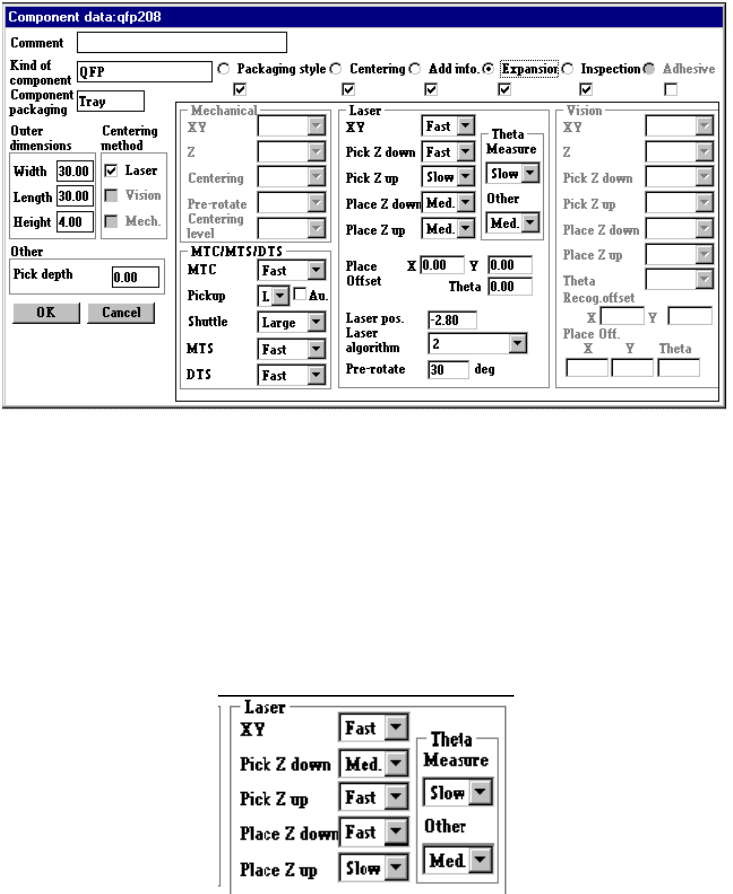
4.7.6 Tack control section (Expansion page)
Since the default values are always set at the items on the Expansion page, normally
you do not have to change them. Only if you want to change the default setting,
open this Expansion window. Note that some items may be reset to their default
values if you change items on the Basic, Centering or Component packaging window
after you change the setting of items on the Expansion page.
(1) Laser centering
①
XY
Set in the combo box the accelerations of the X and Y axes to move the
component to the placement position after it is picked.
②
Pick Z down
You can select any of the same choices as those displayed in the "XY"
combo box.
This selection is useful to adjust the vertical stress imposed on a component
or adjust shock given to a board.
4 – 94
③
Pick Z up
Using this combo box, set the acceleration (for preventing the components
from dropping) of Z-axis up movement at the pick position.
You can select any of the same choices as those displayed in the "XY"
combo box.
Specify "Med." or "Slow" if the surface area of a component is large, so its air
resistance is high, or if a component is heavy.
④
Place Z down
Using this combo box, set the acceleration (for adjusting the stress placed on
a component) of Z-axis down movement at the placement position.
You can select any of the same choices as those displayed in the "XY"
combo box.
Specify "Med." or "Slow" if a very small component is fed with a tape feeder
and it can be placed unstably.
This selection is useful to adjust the vertical stress imposed on a component
also.
⑤
Place Z up
Using this combo box, set the acceleration (for placing components stably) of
Z-axis up movement at the placement position.
You can select any of the same choices as those displayed in the "XY"
combo box.
⑥
Theta
Using the combo box, set the θ rotation speed.
− test 1 (When measuring)
Set the acceleration of the theta axis to be applied when a component is
recognized with laser.
− test 2 (When not measure)
Set the acceleration of the theta axis to be applied not when a component
is recognized with laser.
You can select any of the same choices as those displayed in the "XY"
combo box.
⑦
Place Offset
Enter the placement offset for unsymmetric components.
⑧
Laser
Enter the offset from the surface of the component to the laser.
This item is enabled only when an LA/LAHD head or MNLA/FMLA head is
used.
4 – 95
⑨
Laser algorithm
Select the algorithm for laser recognition with the combo box
Laser algorithm 0: Rotates a component from the pick-up position by the
placement angle, then places it.
(for a component which cannot be recognized with laser, but
you want to place on a board.)
Laser algorithm 1: Finds a side whose shade width is the narrowest (first
smallest shade A), then rotates a component from this side to
the + 90 degrees position. Next, detect the narrowest side
(second smallest shade B) to correct a positioning error
and/or angle error, then places the component.
(for a chip component)
Laser algorithm 2: Finds a side whose shade width is the narrowest (first
smallest shade A), then rotates a component from this side in
the positive direction while aligning it with laser. Next, detect
the narrowest side (second smallest shade B) to correct a
positioning error and/or angle error, then places the
component.
(for a component which has a lead(s) such as an SOP)
Laser algorithm 3: Detects the shade of a component which is ready for
pick-up (first smallest shade A), then rotates the component
from the detected side to the + 90 degrees position. Next,
detect the narrowest width (second smallest shade B) to
correct a positioning error, then places the component.
(for a cylindrical-shaped component)
⑩
Pre-rotate
Set how much a laser recognition component which is picked up shall be rotated
(pre-rotate angle) before it is centered. Enter the pre-rotate angle in the edit
field When you enter the dimensions for the first time, the default value is set
here. When you change them, the default value is not set.
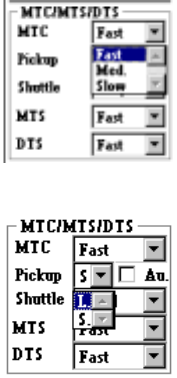
(2) MTC/MTS
①
MTC
Specify the speed of the MTC in the combo box.
• This setting prevents a light-weight
component from popping on a tray.
②
Pickup
Specify the MTC pick-up pad type in the combo box.
• This setting allows you to select the pick-up
pad of the pick-up unit depending on a
component to be picked. (See Table 4.7.6
“Default values for a pick-up pad”.)
• When you select the “Au.” (Automatic) the
system selects both pads for the same
component type and picks a component
during production.
Note that the system may not pick up a
component depending on its size.