KE2010.Instruction Manual.Ver.2.01,Rev.08.pdf - 第207页
4 – 100 ⑤ SOT Angle Check the r adio button t o decide whether to check t he SOT dir ection. Y ou can check this r adio button only if “SOT” is selected as the com ponent type. W hen y ou check t he radio butt on “Y es”,…
4 – 99
③
Verify
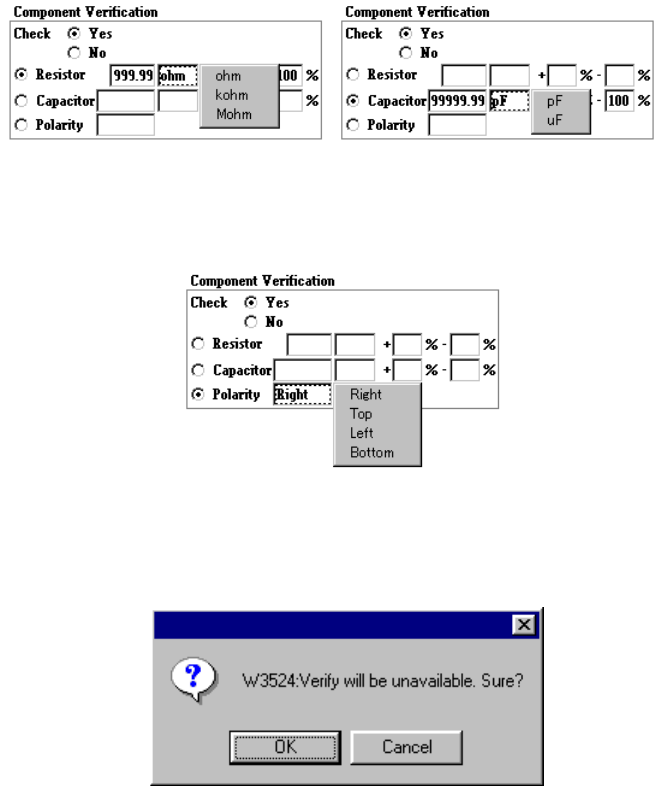
Using the radio button, select whether to verify a component: resistor, capacitor
and polarity.
When you select “Capacitor” or “Resistor”, enter the upper and lower limits of the
reference value, unit, tolerable error items.
To specify the unit, click the input area with the right button of a mouse. The
following pop-up menu appears on the screen.
When you check the radio button “Polarity”, you can select the direction by
clicking its input area with the mouse right button.
If the Verify check cannot be performed because another data was changed even
though the item “Check” is set to “Yes”, the following dialog box appears on the
screen.
④
Dimension check
Using the radio button, select whether to check the dimensions of a component.
When you select “If possible”, the machine checks the dimensions of a
component.
When you select “Yes”, the machine checks the dimensions of a component.

4 – 100
⑤
SOT Angle
Check the radio button to decide whether to check the SOT direction.
You can check this radio button only if “SOT” is selected as the component type.
When you check the radio button “Yes”, the system checks the direction of an
SOT component if the divide destination station can check a component.
Note: For a component having leads, be careful to enter the standard size
(“Std.size”). As the component size, specify the length and width (including
the tip of a lead) normally. The standard size to be specified in the “Std. Size”
field of the “Dimension check” section is the horizontal and vertical dimensions
of a surface on which a laser beam impinges.
4 – 101
4.7.8 List window
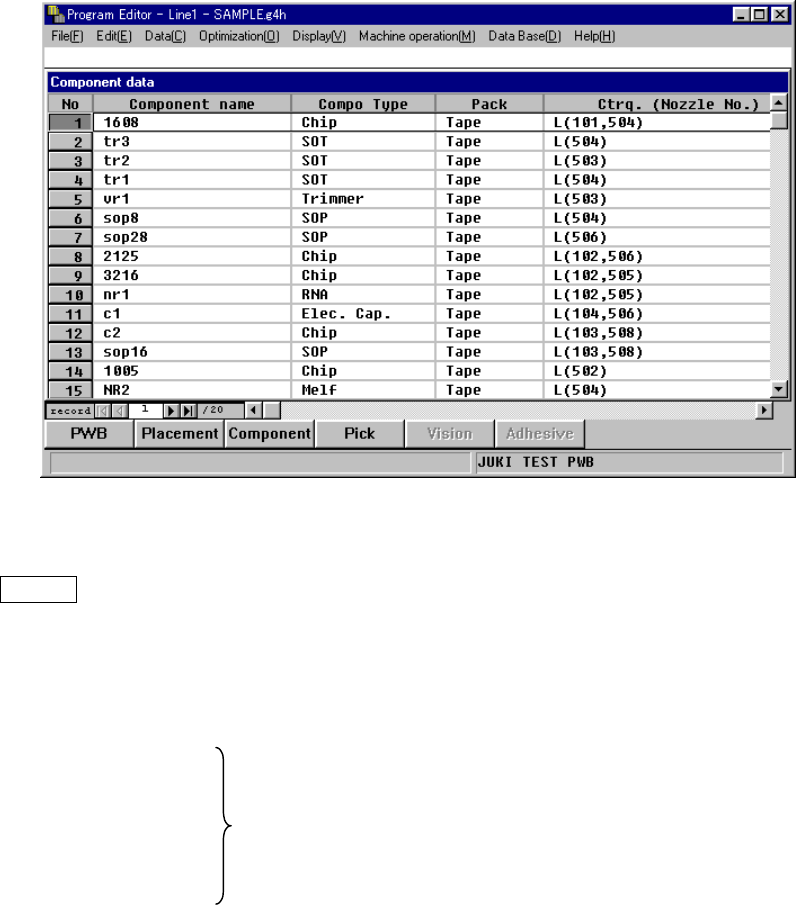
On the List window, the summary of two or more Component data pieces is displayed
in the form of a list on the screen. To display this List window, select the menu item
[Component list] on the Display (V) menu while the Component form window is being
displayed on the screen.
On the List window, you cannot enter any data, but can check how much data has
been created. When you move the Highlight cursor to the desired data and press
ENTER key or double-click it, you can move to the Form window of the selected
Component data.
When you select the [Component form] menu item on the “Display (V)” menu, you
can return to the Form window also.
Component Name
Compo Type
Pack The same values as those set on the Form window are displayed.
Feeder Type
Centering (Centering)
Place (Adhe) This field shows the number of components to be mounted. The
value in parentheses represents the number of components to
be coated among them.
Feeder This field indicates the number of feeders (stick and tray
feeders) which feed the components.
Layer This field shows the component layer.
Skip This field indicates if a component is to be skipped or not.