KE2010.Instruction Manual.Ver.2.01,Rev.08.pdf - 第214页
4 – 107 Figure 4.7.10.4 Screen for entering data to be replaced (2) Figure 4.7.10.5 Screen for entering data to be replaced (3) Enter data t o the desired item (s), and click the <Next> button. T he screen shown in…
4 – 106
− You can specify the following conditions:
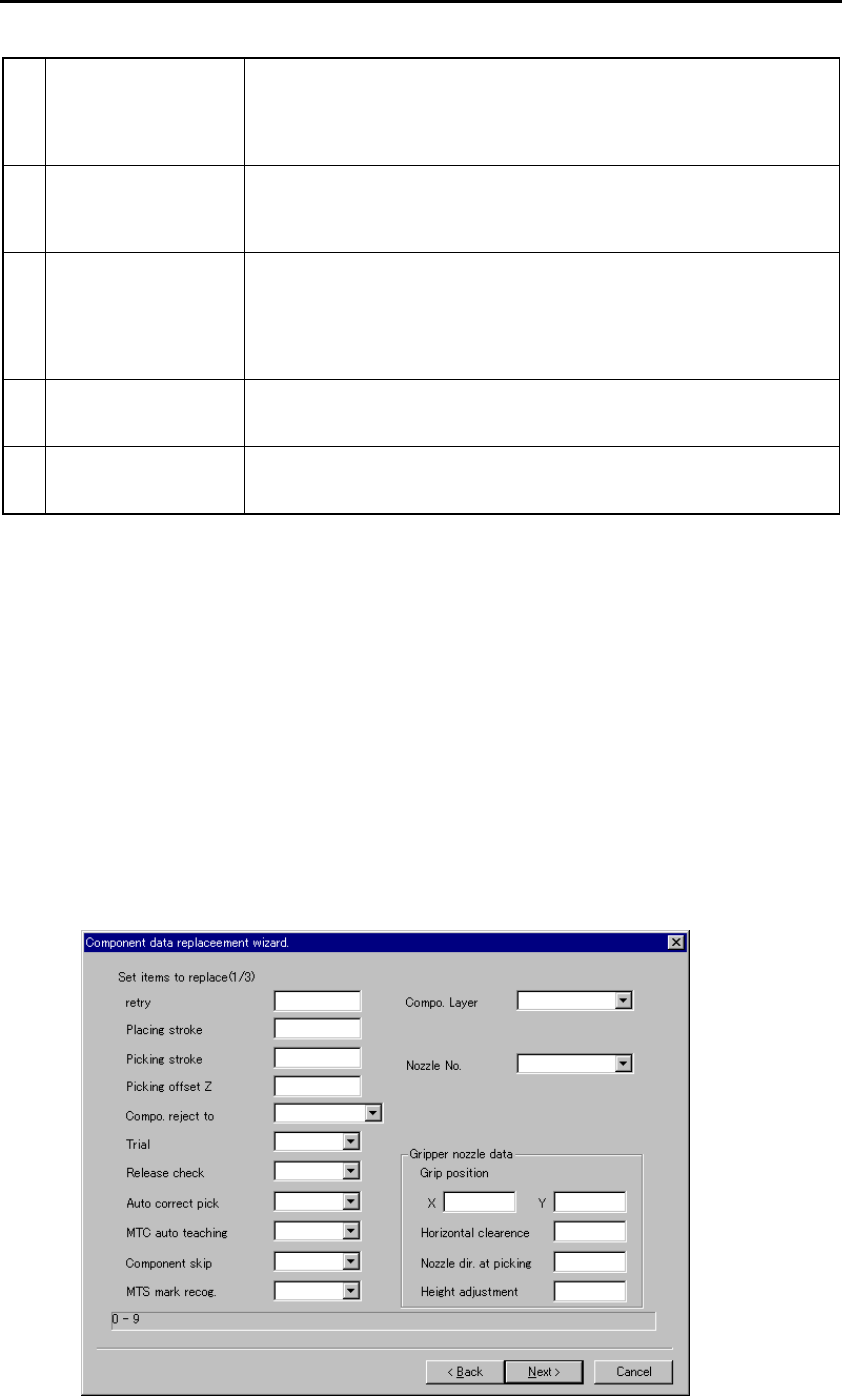
1 Component type Up to four component types can be specified. If you specify two or
more component types here, the machine searches all of the
component types you specified, and replaces their data. If you specify
no component type here, the machine searches all types of
components, and replaces their data.
2 Component Size Specify the maximum and minimum length, width and height of a
component respectively. If you do not enter any value here, the
machine uses the allowable maximum and minimum values
automatically.
3 Nozzle No. Up to three numbers of nozzles that are to be used for picking up a
component can be specified here. If you specify two or more nozzle
numbers, the machine searches all components to be picked up with
the specified nozzles and replaces their data. If you do not specify any
nozzle number here, the machine searches components independently
from the nozzle to be used.
4 Package Specify the packaging style of a component. If you do not specify any
packaging style here, the machine searches all packaging styles of
components.
5 Centering Specify the component centering method here. If you do not specify
any centering method, the machine searches components
independently from the centering method, and replaces their data.
Enter the desired item(s), and click the <Next> button. The screen shown in Figure
4.7.10.3 appears.
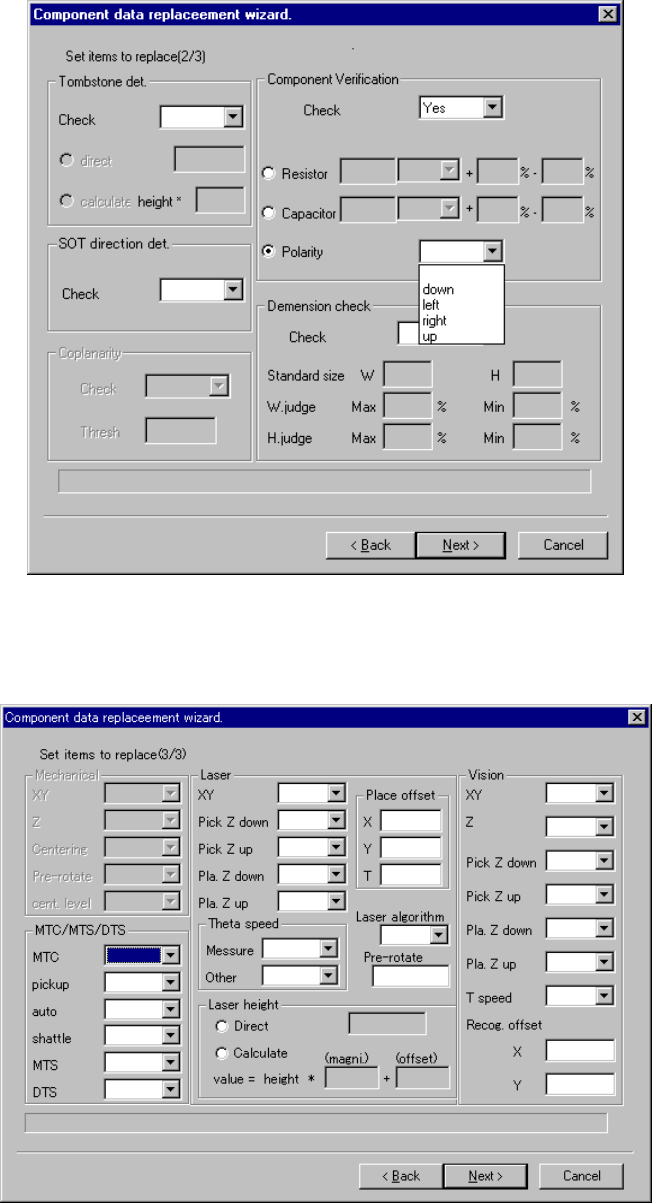
(2) Setting the items to be changed
Enter a new value for each item on the screen that is provided to enter data to be
replaced.
You can enter some component data items (Add info., Expansion, and Inspection
(see Figure4.7.10.1) and a nozzle number.
If you do not enter any data for a data item, the machine will leave its original
data unchanged. “Coplanarity” changes the “Copla (2000)” setting on the
Component data screen invoked with the Program Editing utility.
− Enter data, then click the <Next> button. The machine displays the screen
shown in Figures from 4.7.10.3 to 4.7.10.5.
Figure 4.7.10.3 Screen for entering data to be replaced (1)
4 – 107
Figure 4.7.10.4 Screen for entering data to be replaced (2)
Figure 4.7.10.5 Screen for entering data to be replaced (3)
Enter data to the desired item(s), and click the <Next> button. The screen shown in
Figure 4.7.10.6 appears.
4 – 108
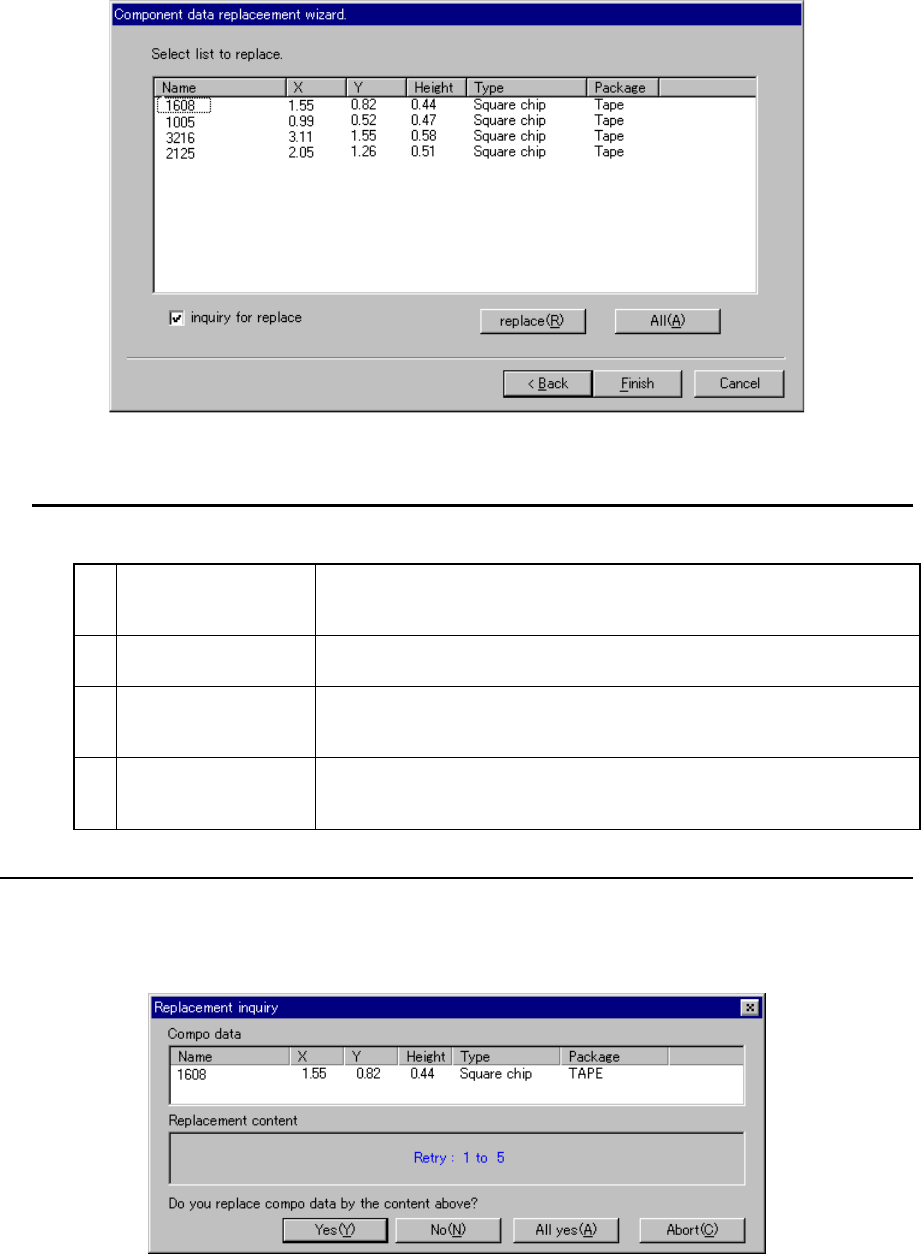
(3) Selecting a component (on the list of searched components)
The components searched based on the conditions you enter on the screen
shown in Figure 4.7.10.2 are displayed on this screen.
Figure 4.7.10.6 Component selection screen
You can perform the following operations on this screen:
1 Selection of a
component
Click the desired component displayed on the screen with a pointing
device or move the cursor to the desired component and press the
Space key. You can select the component or deselect it.
2
Replacement of
component data
When you click the <replace> button, only the data settings of the
selected components are replaced with those you entered.
3 Replacement of data
of all the selected
components
When you click the <All> button, the data settings of all components
displayed on the list are replaced with those you entered.
4
Display of the inquiry
message for
replacement
Specify whether to display the message asking you to replace the
displayed setting item data of a component with checking the check box
“inquiry for replace”.
− When you check this check box, the following dialog box appears on the screen
every time the machine replaces one data item of a component.
Figure 4.7.10.7 “Replacement inquiry” dialog box