KE2010.Instruction Manual.Ver.2.01,Rev.08.pdf - 第216页
4 – 109 W hen y ou click t he <Y es> button, the m achine replaces the data of the select ed component data it em as specif ied, and then displays this dialog box for the next item. No: The m achine does not replac…
4 – 108
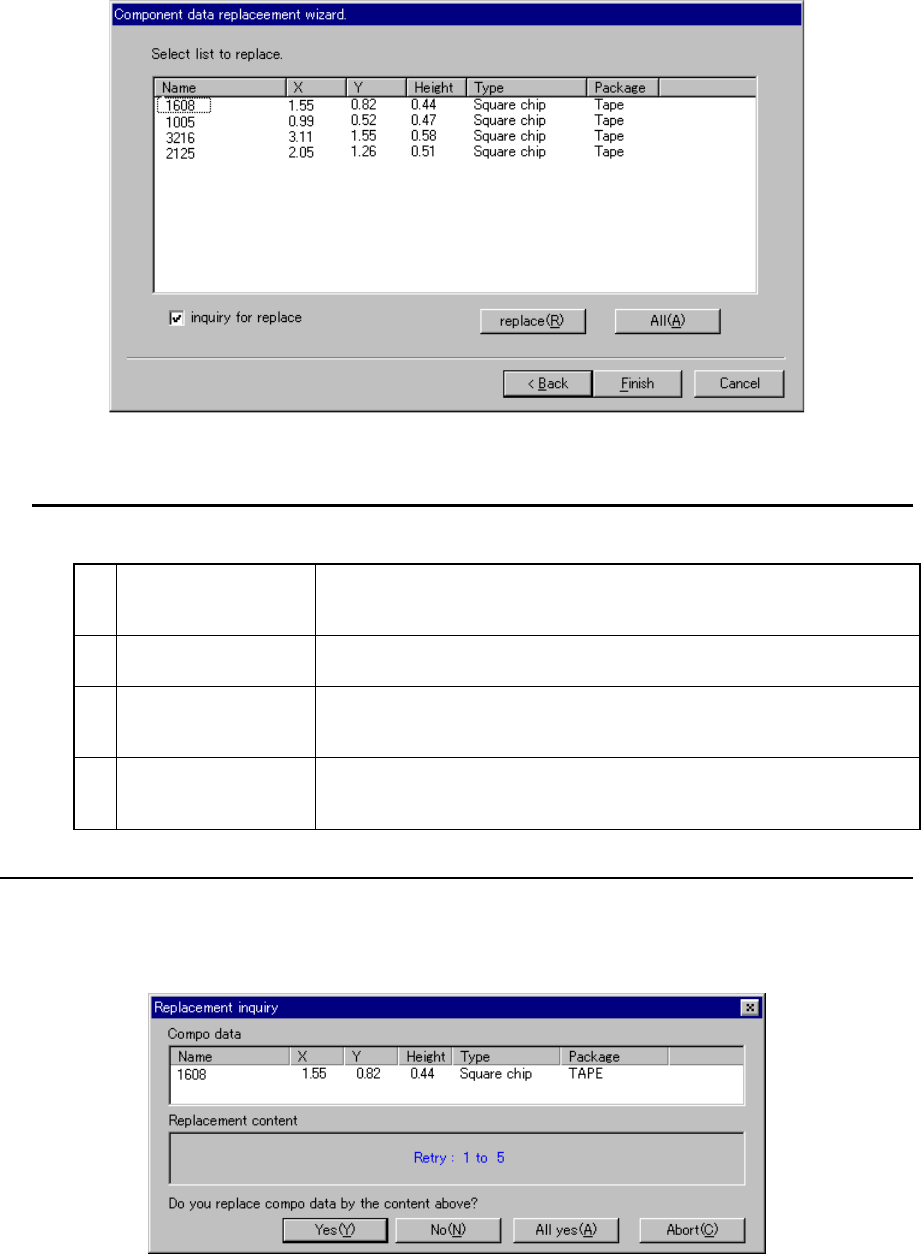
(3) Selecting a component (on the list of searched components)
The components searched based on the conditions you enter on the screen
shown in Figure 4.7.10.2 are displayed on this screen.
Figure 4.7.10.6 Component selection screen
You can perform the following operations on this screen:
1 Selection of a
component
Click the desired component displayed on the screen with a pointing
device or move the cursor to the desired component and press the
Space key. You can select the component or deselect it.
2
Replacement of
component data
When you click the <replace> button, only the data settings of the
selected components are replaced with those you entered.
3 Replacement of data
of all the selected
components
When you click the <All> button, the data settings of all components
displayed on the list are replaced with those you entered.
4
Display of the inquiry
message for
replacement
Specify whether to display the message asking you to replace the
displayed setting item data of a component with checking the check box
“inquiry for replace”.
− When you check this check box, the following dialog box appears on the screen
every time the machine replaces one data item of a component.
Figure 4.7.10.7 “Replacement inquiry” dialog box
4 – 109
When you click the <Yes> button, the machine replaces the data of the selected
component data item as specified, and then displays this dialog box for the next item.
No: The machine does not replace the data of the selected component
data item, and then displays the dialog box for the next item.
All yes: The machine replaces the data of all data items of the selected
component with those you entered, and displays the list of the
searched components again.
Abort: The machine displays the list of the searched components again
without replacing any data of the current item and the remaining
items.
Yes or All yes: The machine quits the wizard after replacing the data of all data
items you specified.
4 – 110
4.8 Pick Data
Pick data specifies which feeder is used to set a component whose packing style is a
tape, stick, tray and so on into the machine : tape feeders, stick feeders, tray holders,
DTS, tray changers (MTC/MTS) or bulk feeders. It also defines the position of the
component feeders.
It also establishes the layout of these feeders, and the position at which components
are picked up.
You can assign a feeder and its position to each component one by one, but note that
you can use the Optimization utility to automatically assign components feeding
positions in program data.
Pick data allows you to specify two or more types of feeders to feed the same type of
components also.
4.8.1 Basic operations
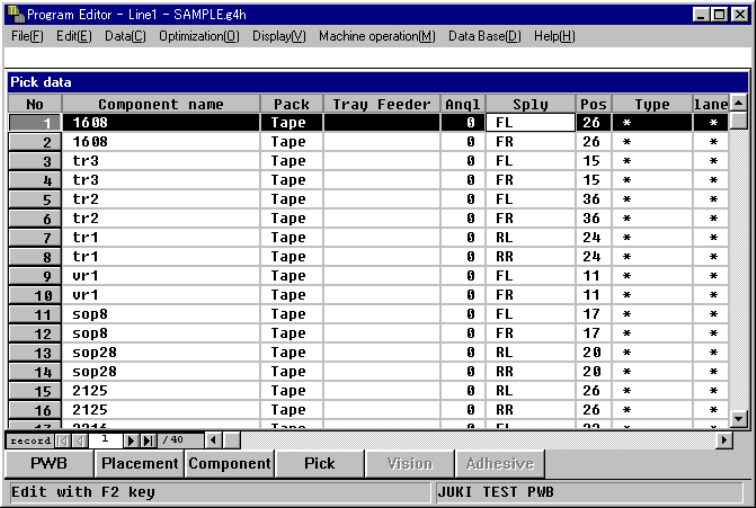
Pick data is displayed in the form of a list as shown below. Scroll this list to the left,
right, up or down to enter data.
Scrolling to the right or left
Enter data by scrolling the screen to the right or left. When you move to the right
field at the rightmost field displayed on the screen, the screen is scrolled to the left by
one field and the input focus moves from the current cell to the right cell.
The items “Component name”, “Pack.”, “Tray Feeder”, and “Angl” are always
displayed on the screen regardless of the scrolled position. When you continue
scrolling the screen to the right to reach the field of the last item, the input focus does
not move even though you try to move to the right further.
To move to the next line, move to a field located below.