KE2010.Instruction Manual.Ver.2.01,Rev.08.pdf - 第235页
4 – 128 4.9 Checking Data Completion Status 4.9.1 Data completion status Invoke this com mand f rom the Dat a menu. W hen y ou click t he [Data com pletion status] command, t he following dialog box appears on the screen…
4 – 127
b. MTS (tray server)
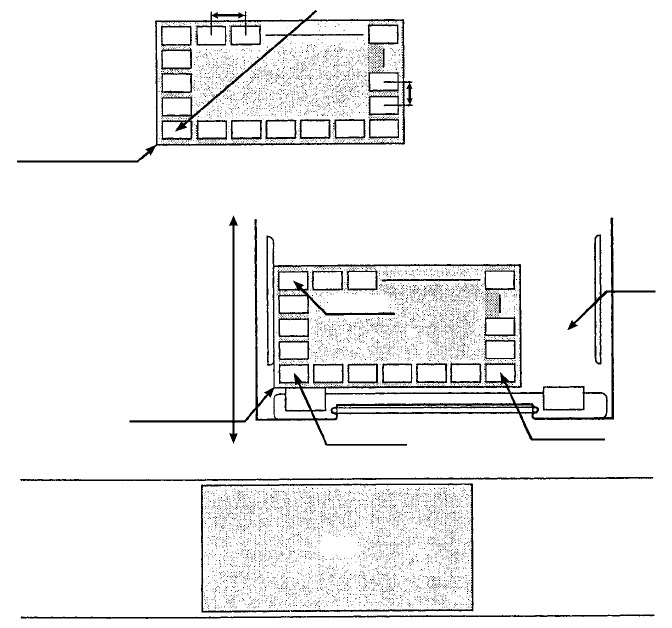
Figure 4.8.2.3.3.3 How to calculate the pick-up position on an MTS
− When you open the Pick data input screen, an asterisk mark "*" appears in
parameters you do not have to enter. The component pick-up position on an
MTC, X1, Y1, Z, X2, Y2, X3 and Y3 are calculated, then displayed based on
the specifications of a tray stored in Component data and according to the
main unit coordinate system.
Tray contact position
Pitch X First component position
Pitch Y
Tray contact position
(X2, Y2)
(X3, Y3)
(X1, Y1)
Loading/unloading
MTS (TR5) drawer
PWB PWB transport path
Front of the machine
4 – 128
4.9 Checking Data Completion Status
4.9.1 Data completion status
Invoke this command from the Data menu.
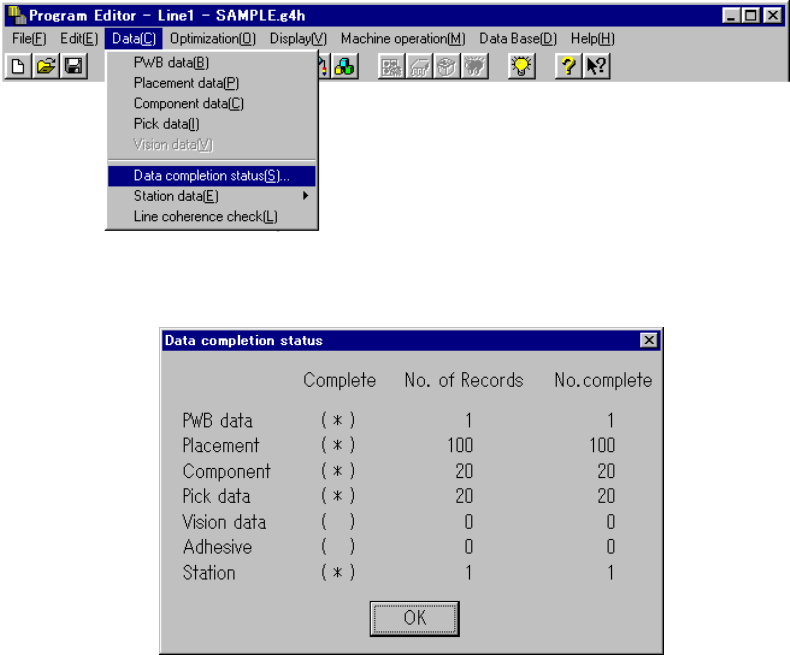
When you click the [Data completion status] command, the following dialog box
appears on the screen.
The dialog box shown above displays the number of input records as the menu item
“No. of Records”, the number of completed records as the menu item “No. complete”,
and whether each type data is completed or not as the menu item “Complete”.
Each display item is described below:
① Complete
Displays whether each type of data is completed or not.
(*) data is completed.
( ) data is not completed.
If the value of the menu item “No.of Records” is equal to that of “No. complete”,
the data is handled as “completed”.
② No. of Records
Displays the number of input records regardless of whether each record is
completed or not, that is, displays the total number of records including
incomplete records.
③ No. of complete
Displays the number of records entered completely, that is, displays the number
of records whose necessary items are all entered.
When you click the <OK> button, the machine returns to the data screen from
which you invoked this command.
4 – 129
4.9.2 Line coherence check
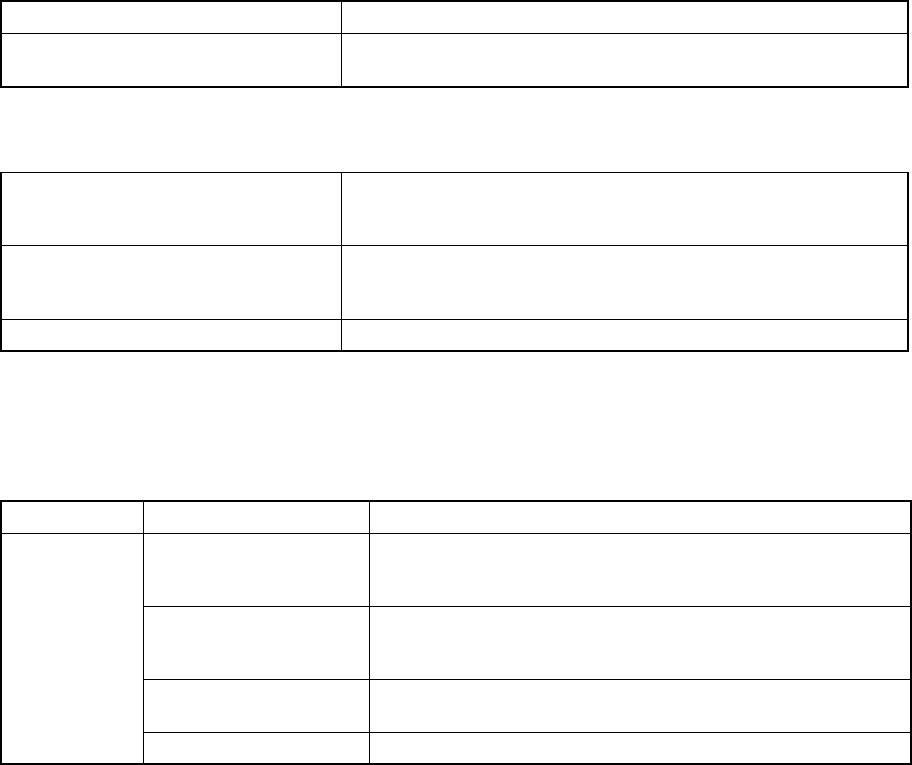
(1) When to invoke the check command
When invoking the Optimization utility Interrupts the next process when an error occurs.
Arbitrary invoking
You can invoke the data coherence check by selecting the menu
command when you want to.
(2) Report of the check result
Notification
Notification of the successful check
Notification of a warning
Notification of an error
Error list
Number of errors
Error information: Error position (data type, data number, item
name), and cause of errors
Display and print of the error list To be performed with the standard tool provided with Windows
(3) Coherence check items: error conditions
The chip shooter name becomes effective as the model name in the error
conditions.
Data type Item Error conditions
Positioning method
Although “Shape reference” is selected as “Positioning method”
on the PWB data screen, the positioning method of the machine
is not set to the “Shape reference” method physically.
BOC Type
Although the item “BOC Reference” is set to be used, the OCC-L
of the KE-2010 or “OCC-L” or “OCC-R” of the
KE-2020/2030/2040 is not set to be used.
Mark pattern matching
Although the mark data is set to use the mark pattern matching
function, the VCS is not set to “JVS2” or “JVS3”.
PWB data
Bad mark type The item “Bad mark type” is not set to be used.