KE2010.Instruction Manual.Ver.2.01,Rev.08.pdf - 第258页
4 – 151 (4) Check when inputting dat a to a product ion program At data input, perf orm t he check operat ion which does not make you tak e consideration into t he line config urat ion: note that you have to know the mod…
4 – 150
General-purpose vision component
(mark component) for which an optional
27-mm VCS is selected in Control data
Component whose element size X is from 0.7 mm to 1.0 mm or
from 5.0 mm to 10.0 mm if an optional 27-mm VCS is set in
Control data
General-purpose vision component
(mark component) for which an optional
18-mm VCS is selected in Control data
Component whose element size X is from 3.0 mm to 10.0 mm if an
optional 18-mm VCS is set in Control data
General-purpose vision component
(mark component) for which the
standard VCS is selected in Control
data
Component whose element size Y is from 0.7 mm to 2.0 mm if the
standard VCS is set in Control data
General-purpose vision component
(mark component) for which an optional
37.5-mm VCS is selected in Control
data
Component whose element size Y is from 0.7mm to 1.4 mm or
from 7.0 mm to 10.0 mm if an optional 37.5-mm VCS is set in
Control data
General-purpose vision component
(mark component) for which an optional
27-mm VCS is selected in Control data
Component whose element size Y is from 0.7 mm to 1.0 mm or
from 5.0 mm to 10.0 mm if an optional 27-mm VCS is set in
Control data
General-purpose vision component
(mark component) for which an optional
18-mm VCS is selected in Control data
Component whose element size Y is from 3.0 mm to 10.0 if an
optional 18-mm VCS is set in Control data
Standard VCS is selected, the number
of divisions X is 1, and the light type is
“Bottom Lights” or “Side Lights”.
If a value not in the range from - 50 mm to 50 mm is entered as the
offset coordinate X
Standard VCS is selected and the
number of divisions X is 1, and the light
type is “Back Light”.
If a value not in the range from - 35 mm to 35 mm is entered as the
offset coordinate X
Optional 37.5-mm VCS is selected and
the number of divisions X is 1.
If a value not in the range from - 34 mm to 34 mm is entered as the
offset coordinate X
Optional 27-mm VCS is selected and
the number of divisions X is 1.
If a value not in the range from - 24 mm to 24 mm is entered as the
offset coordinate X
Optional 18-mm VCS is selected and
the number of divisions X is 1.
If a value not in the range from - 15 mm to 15 mm is entered as the
offset coordinate X
Standard VCS is selected, the number
of divisions Y is 2, and the light type is
“Bottom Lights” or “Side Lights”.
If a value not in the range from - 100 mm to 100 mm is entered as
the offset coordinate Y
Standard VCS is selected, the number
of divisions Y is 1, and the light type is
“Bottom Lights” or “Side Lights”.
If a value not in the range from - 50 mm to 50 mm is entered as the
offset coordinate Y
Standard VCS is selected, the number
of divisions Y is 2, and the light type is
“Back Lights”.
If a value not in the range from - 100 mm to 100 mm is entered as
the offset coordinate Y
Standard VCS is selected, the number
of divisions Y is 1, and the light type is
“Back Lights”.
If a value not in the range from - 50 mm to 50 mm is entered as the
offset coordinate Y
Optional 37.5-mm VCS is selected, and
the number of divisions Y is 2.
If a value not in the range from - 68 mm to 68 mm is entered as the
offset coordinate Y
Optional 37.5-mm VCS is selected, and
the number of divisions Y is 1.
If a value not in the range from - 34 mm to 34 mm is entered as the
offset coordinate Y
Optional 27-mm VCS is selected, and
the number of divisions Y is 2.
If a value not in the range from - 48 mm to 48 mm is entered as the
offset coordinate Y
Optional 27-mm VCS is selected, and
the number of divisions Y is 1.
If a value not in the range from - 24 mm to 24 mm is entered as the
offset coordinate Y
Optional 18-mm VCS is selected, and
the number of divisions Y is 2.
If a value not in the range from - 31 mm to 31 mm is entered as the
offset coordinate Y
Optional 18-mm VCS is selected, and
the number of divisions Y is 1.
If a value not in the range from - 15 mm to 15 mm is entered as the
offset coordinate Y
4 – 151
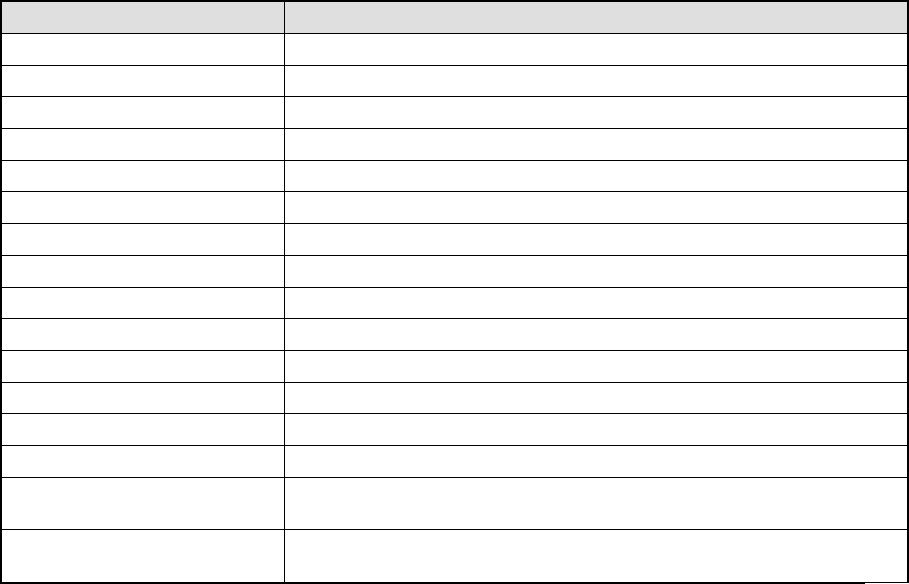
(4) Check when inputting data to a production program
At data input, perform the check operation which does not make you take
consideration into the line configuration: note that you have to know the model
name to specify the station.
Classification Error
PWB data A circuit lies off the edge of a board.
PWB data BOC mark out of range error
PWB data Bad mark out of range error
Placement data Component ID duplication
Placement data/PWB data Check to see if a placement point lies off a board or circuit.
Placement data IC mark out of range error
Placement data Number of mark data records check
Component data Component type and centering method coherence check
Component data Placement/coating coherence check
Component data/Pick data Component height range check by the station type
Pick data Package duplication check
Pick data Check of the number of registered tray holders *1
Pick data Lane number and stick type coherence check
Pick data Tray holder type consistency check *1
Vision data
Coherence check between the component type and the number of
leads/lead position
*1
Vision data
Component dimensions check and element data/control data
coherence check
*1: Items applicable to machines other than a KE-2010
4 – 152
4.9.2.1 Start up
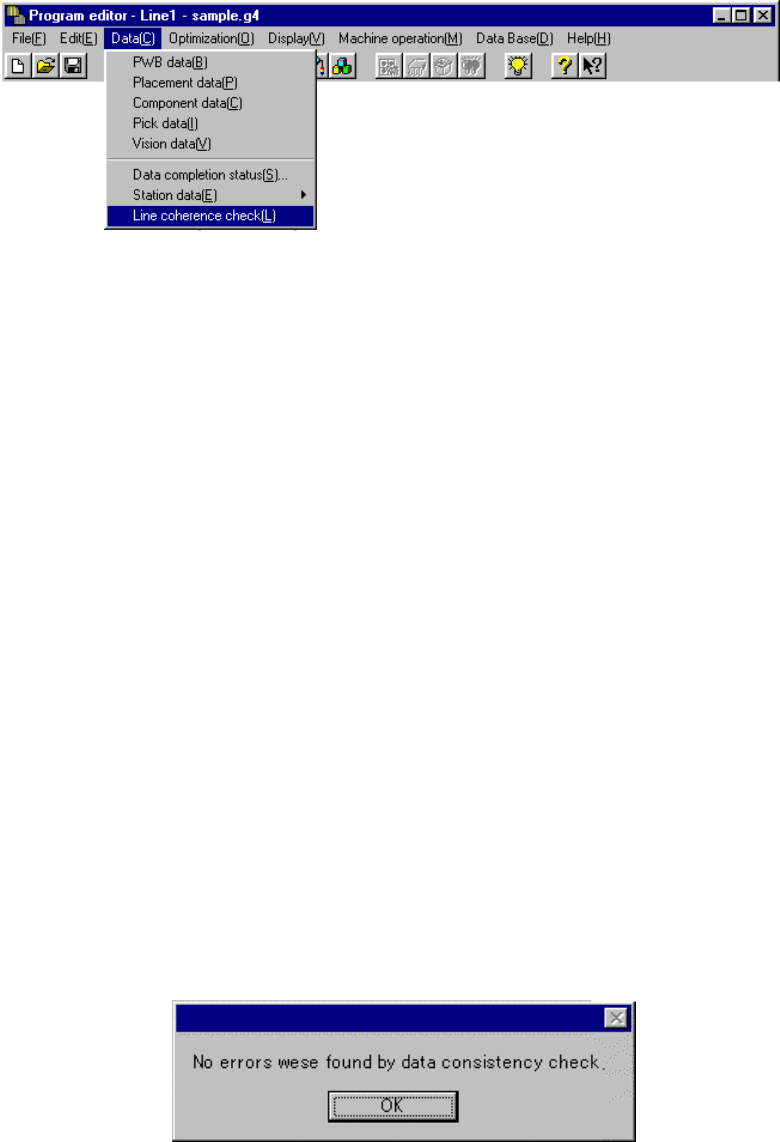
To invoke the [Data coherence] command, select it on the Data menu.
You cannot execute the [Line coherence check] command if you do not specify any
file name.
If you execute this command although you do not specify any file name, the “Give
file name and save” dialog box appears on the screen (see Section 4.2.4 “Save As”
for details).
Specify a file name, and click the <OK> button. The system starts the line
coherence check.
When you click the <Cancel> button, the system stops the process for saving a file
with the specified file name. Therefore, any file is not specified, and the system
cannot execute the line coherence check.
Note that the “Give file name and save” dialog box that appears when the line
coherence check starts up does not allow you to save the file in the format
applicable to other model unlike the dialog box that appears when you save a file
normally.
4.9.2.2 Reporting the check result
The message box appears on the screen which indicates whether an error occurs or
not and displays the number of errors if any.
• If any error is not detected