KE2010.Instruction Manual.Ver.2.01,Rev.08.pdf - 第272页
4 – 165 (6) 2000 O ption Specify KE-2000 series specif ic optim ization option. Click the “2000 O ption” t ab to display the following dialog box: Figure 4.10.1.13 2000 Option Note: The "2000 Option" is an opti…
4 – 164
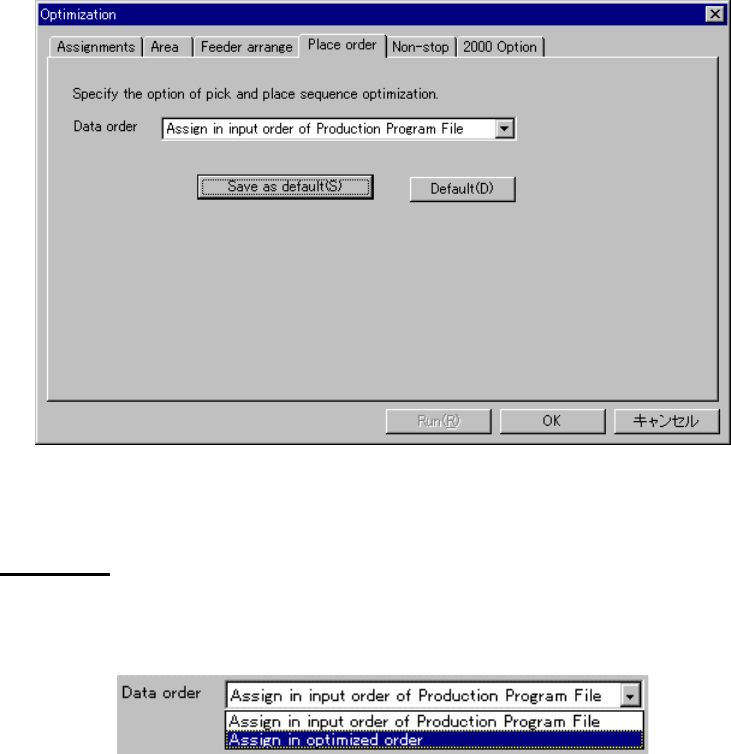
(5) Place Order Option
When you use the “Place order” option, you can specify the optimization option for
deciding the pick-up/placement order of components.
Figure 4.10.1.11 Place order option
Data order
Specify the placement data order in the station format that is divided and created by
the Optimization utility.
Figure 4.10.1.12 Data
• Assign in input order of Production Program File
This is the order that the Optimization utility assigned the placement data at
division.
• Assign in optimized order
The optimization order becomes the input order of Placement data.
4 – 165
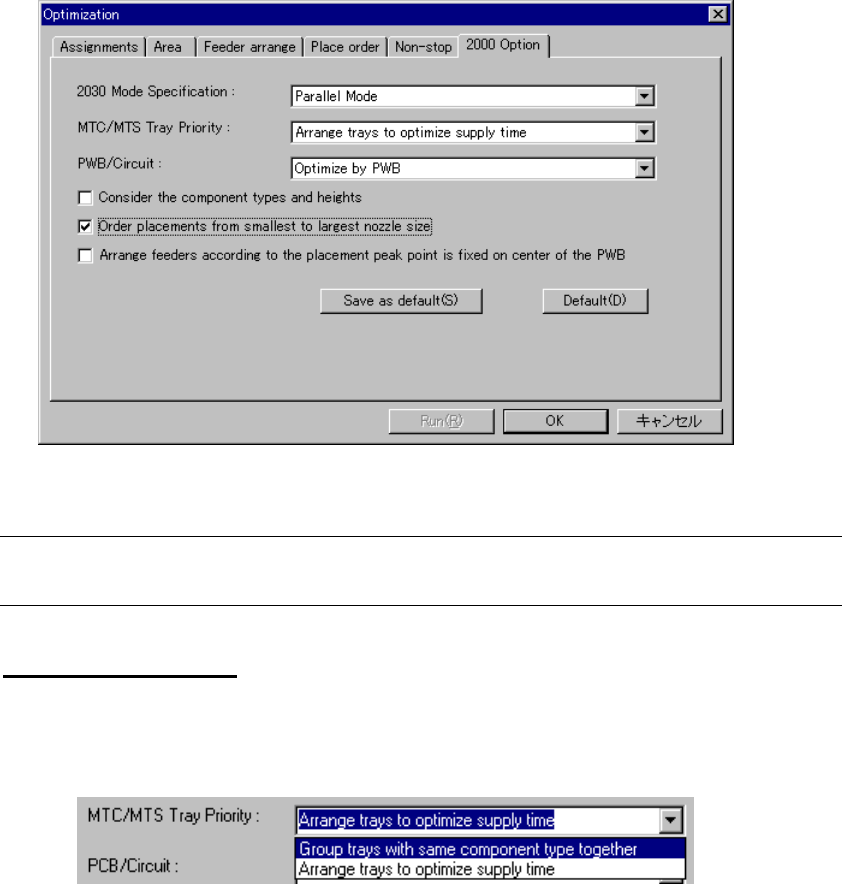
(6) 2000 Option
Specify KE-2000 series specific optimization option. Click the “2000 Option” tab to
display the following dialog box:
Figure 4.10.1.13 2000 Option
Note: The "2000 Option" is an option common to the KE-2000 series of products.
Therefore, this option is invalid for this model, but it provides selectable options
MTC/MTS Tray Priority
Specify whether the same type of components are to be assigned to an MTC or
MTS or assigned with giving the components feeding speed the highest priority.
Figure 4.10.1.14 MTC/MTS Tray Priority
• Group trays with same component type together:
Assigns the same type of components to an MTC or MTS.
• Arrange trays to optimize supply time:
Assigns components to an MTC or MTS with giving the component feeding
speed the highest priority.
4 – 166
Comp Type A
A
A
Comp Type B
B
B
Comp Type C
C
C
Comp Type A
Comp Type B
Comp Type C
A
B
C
A
B
C
When “Group trays with same
component type together” is selected
When “Arrange trays to optimize
supply time” is selected
Figure 4.10.1.15 Example of MTC/MTS Tray Priority
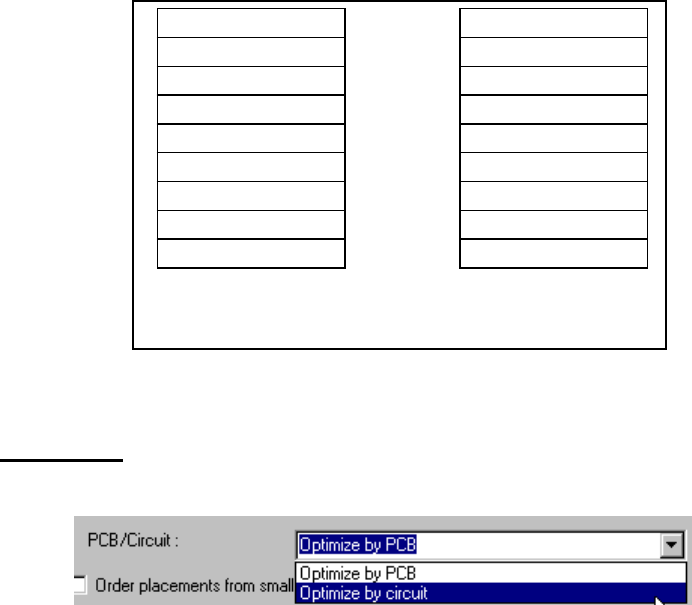
PCB/Circuit
Specify whether to optimize the entire board or a circuit.
Figure 4.10.1.16 PCB/Circuit
When you select “Optimize by circuit”, the system optimizes a circuit one by one.
When you select “Optimize by PCB”, the system optimizes each circuit as if
components are assigned on a single plane board.
• Consider the component types and heights
Specify whether to place a component in advance according to the component
type and/or component height. When you check this option, the system
performs optimization so that it can place components according to the
component type and/or component height.
• Order placements from smallest to largest nozzle size
Specify whether to start placing components from a component that requires
the smallest diameter of nozzle. When you check this option, the system
performs optimization so that it can place components from a component that
uses the nozzle whose diameter is the smallest.
• Arrange feeders according to the placement peak point is fixed on center of the
PWB
Specify the calculation method of the component placement peak point to
assign feeders.
When this option is checked, the system assigns feeders so that the center of a
board can be the component placement peak point.
When this option is not checked, the option selected in the “Placement peak”
pull-down box displayed in the “Feeder arrange” dialog box is activated.