KE2010.Instruction Manual.Ver.2.01,Rev.08.pdf - 第280页
4 – 173 (1) Chang ing the “ Component supply count” sett ing T o change t he “Component supply count” setting, select the line of a component whose quantity is to be changed, then click the <Change> but ton or doub…
4 – 172
4.10.4
Component supply count
Specify the number of components to be supplied which can be assigned by the
Optimization utility. By using two or more components (reel or tray), the productivity
can be improved.
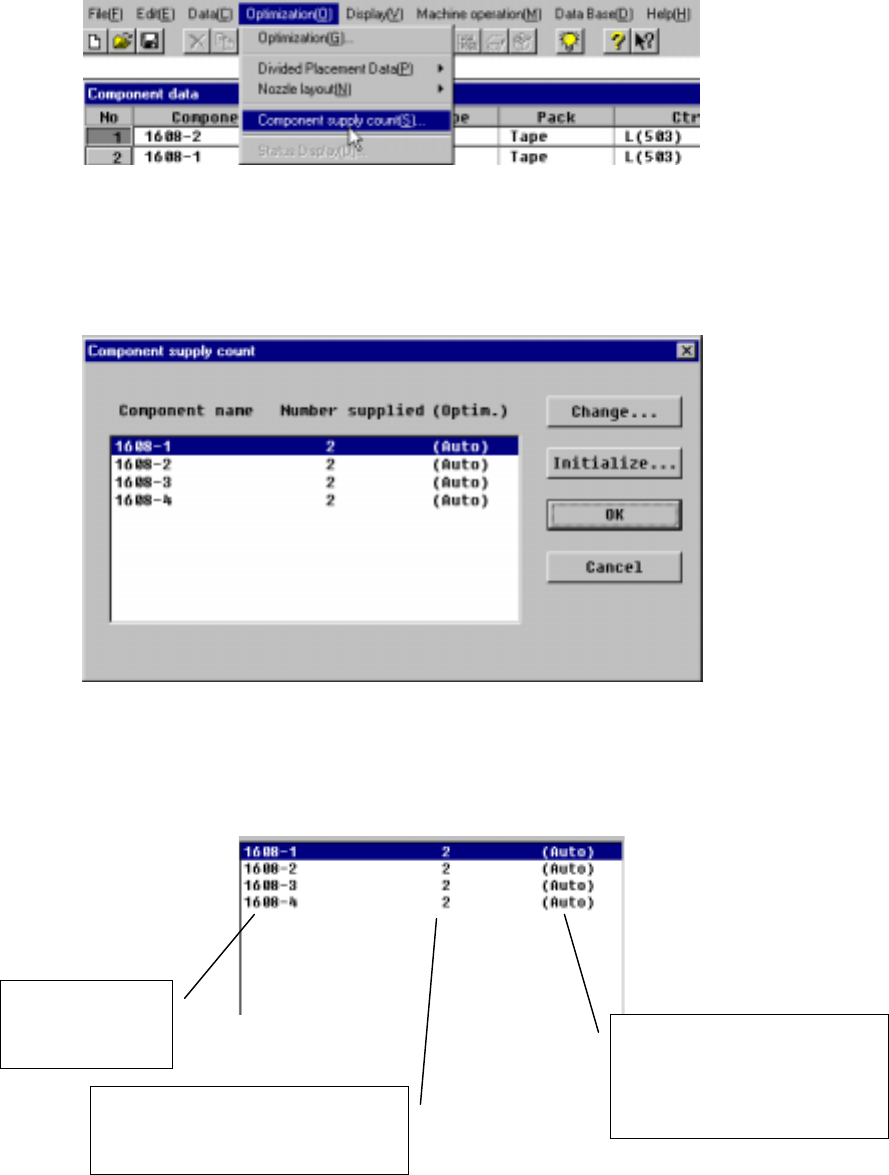
Figure 4.10.4.1 Component supply count command
When the [Component supply count] menu command is selected, the following dialog
box displays:
Figure 4.10.4.2 Component supply count dialog box example
The detailed descriptions of each item displayed on the Component supply count
dialog box are shown below:
Figure 4.10.4.3 Component supply count dialog box details
Component name
included in the
program
Displays the number of feeders output
by the Optimization utility or the
number of feeders manually assigned
Indicates that the Optimaization
utility is to set the number of
feeders automatically.
When specified manually, it
displays “—“
4 – 173
(1) Changing the “Component supply count” setting
To change the “Component supply count” setting, select the line of a component
whose quantity is to be changed, then click the <Change> button or double click
the line of a component.
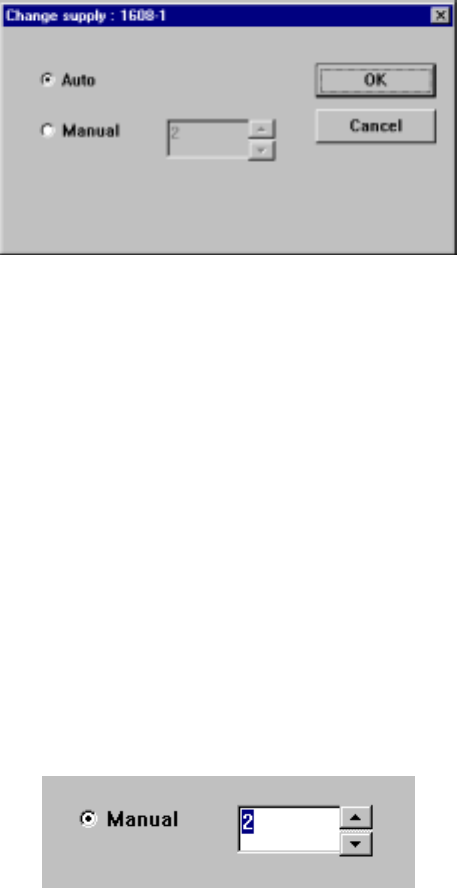
The dialog box appears on the screen as shown below. Enter the number of
components to be supplied.
Figure 4.10.4.4 “Change supply” dialog box example
• Auto The number of the components selected to be supplied is
automatically set. The Optimization utility optimizes the number of
feeders so that it can be within the upper limit of available resources
(number of nozzles and feeders). The number of reels or trays for
available components is assumed not to be restricted.
• Manual Manually change the number of components to be supplied. The
Optimization utility assigns feeders or trays according to the specified
number of components. Note that a feeder of which placement point
has not been assigned is deleted, so the number of components may
be less than the specified number.
Select the edit box, then enter a number directly from a keyboard, or click either of the
arrow buttons next to the edit box to set it.
Figure 4.10.4.5 Example for manually setting the number of components to be supplied
4 – 174
(2) Initializing the “Component supply count” setting
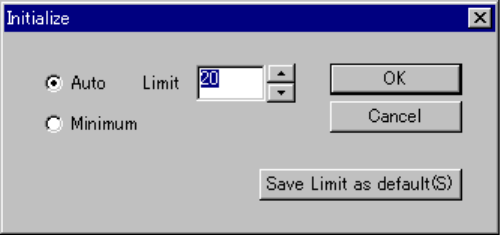
The <Initialize> button sets the “Component supply count” automatically or sets it
to the minimum number. When you click the <Initialize> button, the following
dialog box appears on the screen.
When you select the “Auto” radio button, you can set the upper limit of
“Component supply count” in the "Limit firld".
The default value is 20.
Figure 4.10.4.6 Example for manually setting the number of components to be supplied
• Auto Initializes each “Component supply count” automatically
in the same manner as the “Auto” radio button selection
does on the Change supply dialog box.
• Minimum Initializes each “Component supply count” to the total
number of the corresponding components in Pick data.
• OK Your change will take effect on the Component Supply
Count dialog box.
• Cancel Cancels your change.
• Save Limit as default: The system registers the upper limit value as the default
value. This value is used to create a new program by
default.
(3) OK
Saves the settings and closes the Component supply count dialog box.
(4) Cancel
Cancels the settings and closes the Component supply count dialog.