KE2010.Instruction Manual.Ver.2.01,Rev.08.pdf - 第286页
4 – 179 (1) Selecting a f eeder Select a f eeder bef ore moving, copying or deleting it. T he selected f eeder is displayed in the different manner f rom that not -selected f eeders are. Select a feeder in one of t he fo…
4 – 178
If any feeder is designated at the IC collection belt position, the displayed figure
indicates that the IC collection belt is overlaid by the feeder. If the Optimization
utility cannot prevent such an overlaying, an error occurs. Specify the feeder
position so that the IC collection belt cannot be overlaid by the feeder.
Even though you move or copy a feeder over the IC collection belt, any error or
warning does not appear on the screen.
2. Editing data on the Feeder layout window
With a trackball, you can edit the feeder layout on the Feeder layout window.
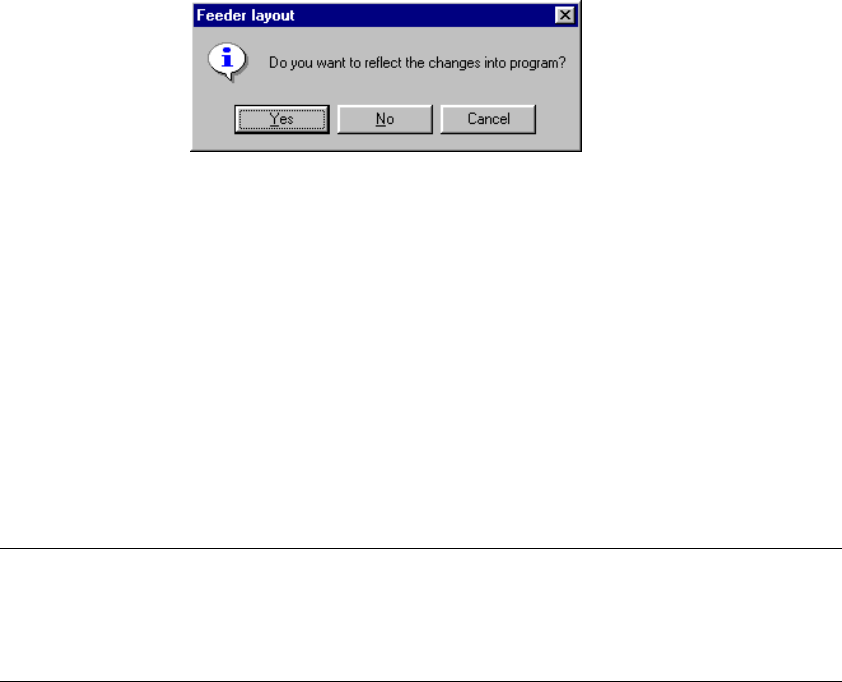
When you edit the data, and click the <Close> button on the Feeder layout
window or Station chooser dialog box, the message appears on the screen
which asks you whether to save your edition in the program data.
(When you click the Feeder layout window with the left button of a trackball
even once, it is regarded as editing operation. The following message appears
on the screen.)
Figure 4.11.1.9 Update confirmation message
• Yes: saves changes in the program data, then Pick data is changed.
The coordinates of a pick point moved or copied are reset to the
designed values.
• No: Discards changes.
• Cancel: Returns to the state of the machine before you click the <Close>
button.
Each edit function is described below.
Note: An IC collection belt cannot be edited.
Editing data on the Feeder layout window is performed by modifying a
displayed figure with a trackball in the manner you edit Pick data with a
keyboard, for example to edit the feeder mountable area.
4 – 179
(1) Selecting a feeder
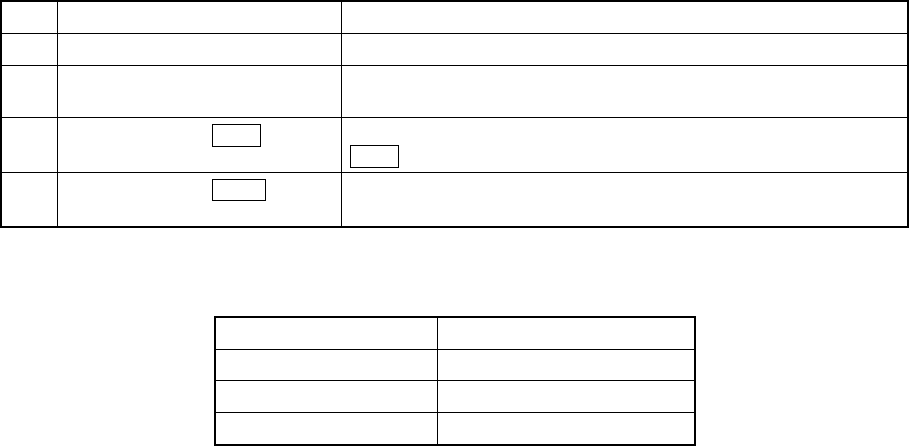
Select a feeder before moving, copying or deleting it. The selected feeder is
displayed in the different manner from that not-selected feeders are. Select a
feeder in one of the following ways:
Table 4.11.1.1 Selecting a feeder
No. Operation Result
1 Point a feeder with a trackball. The pointed feeder is selected.
2
Drag the trackball cursor to
enclose a feeder.
Feeders enclosed in a rectangle created by dragging the trackball
cursor are selected.
3
While holding the CTRL key,
point a feeder.
If any other feeder(s) is (are) selected, the feeder pointed with the
CRTL key is selected in addition to the already selected feeder(s).
4
While holding the SHIFT key,
point a feeder.
Feeders displayed between the feeder you selected first and the
feeder you pointed are selected.
Table 4.11.1.2 Selecting unit
Package type Unit to be selected
Tape and bulk One feeder cassette
Stick One lane
Stick changer One stick
4 – 180
(2) Moving a feeder (within the same station)
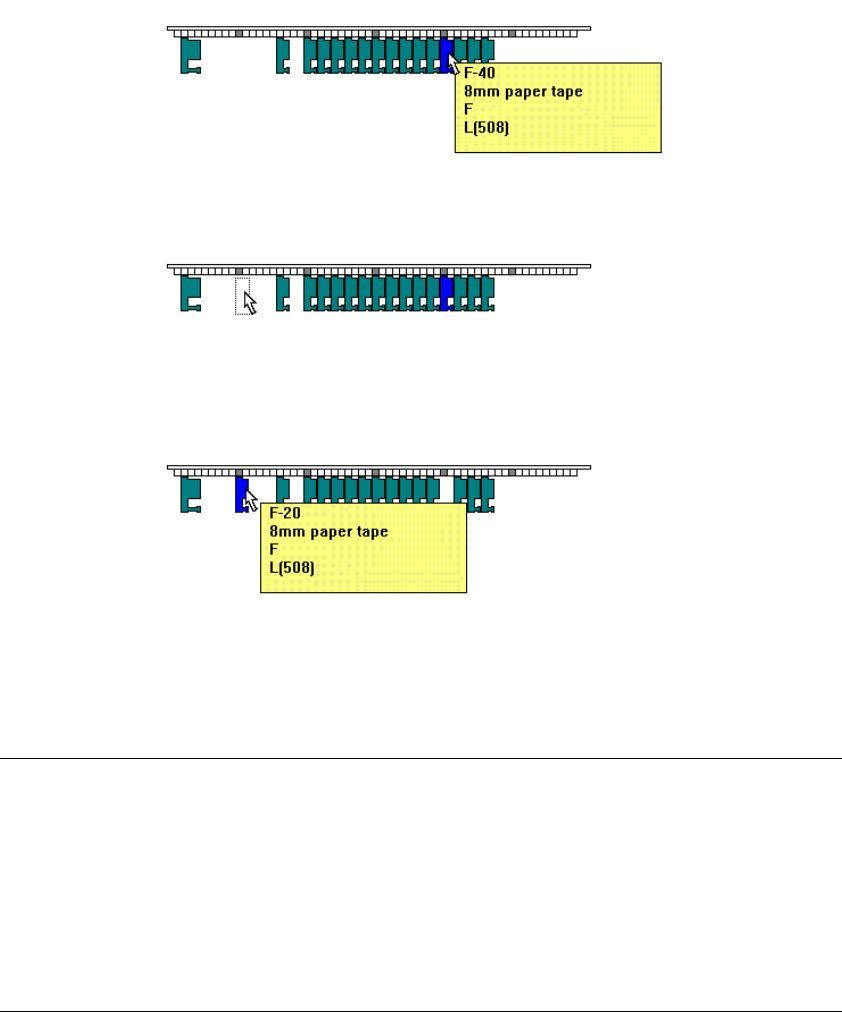
Select a feeder to be moved, drag it to the desired position, then release the
trackball button. The selected feeder moves the the feeder mountable position
nearest to the position at which you released the button.
Figure 4.11.1.10 Figure example for moving a feeder
Note:
•
If the feeder mountable area cannot be prepared on the mountable side
(front or rear) to which you want to move the feeder, the beep sounds, then
your moving feeder operation is canceled. Even if there is any space on
the opposite side, the feeder will not be moved there.
•
After moving a feeder, the moved feeder is selected.
•
When you select two or more feeders to be moved, the beep sounds and
your operation is canceled if those feeders cannot be mounted with
maintaining the same space between the consecutive two feeders.
Point a feeder.
Drag it.
Release the
trackball button.