KE2010.Instruction Manual.Ver.2.01,Rev.08.pdf - 第314页
4 – 207 (2) “Executing continuous measur ement” dialog box W hile t he system is executing cont inuous measurement operation, the f ollowing dialog box appears on the screen. The descript ion of a component being measure…
4 – 206
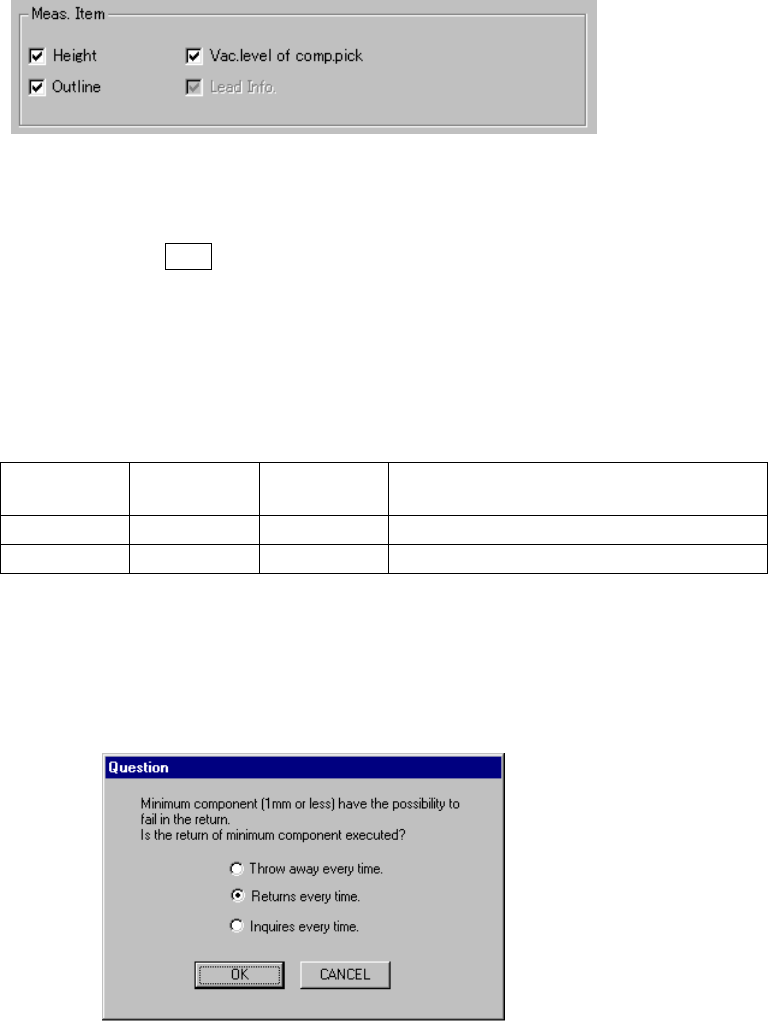
3) Meas. Item (Measurement Items)
Select the item(s) to be measured. As the default setting, all available items
are selected.
4) <MEAS.> button (<START> button)
Starts measuring all components.
5) <BACK> button (ESC key)
Returns to the previous screen.
6) Short-cut keys
On the “Result of continuation measurement” dialog box, the following
short-cut keys are provided.
Keyboard
key
Operation
panel key
HOD key Operation
START Starts measuring all components
ESC Returns to the previous screen.
7) Question dialog box
Immediately after the system starts measuring all components continuously,
the dialog box, which asks you how to handle a component whose size is 1
mm or less after measurement, appears on the screen.
Figure 4.12.2.4.3.2 “Question - to return the minimum component” dialog box
① Throw away every time
Discards a component in a way you specified.
② Returns every time
Returns a component to its original position.
③ Inquires every time
Every time the system finishes measuring one component, it displays the
dialog box which asks you how to handle it if its size is 1 mm or less.
4 – 207
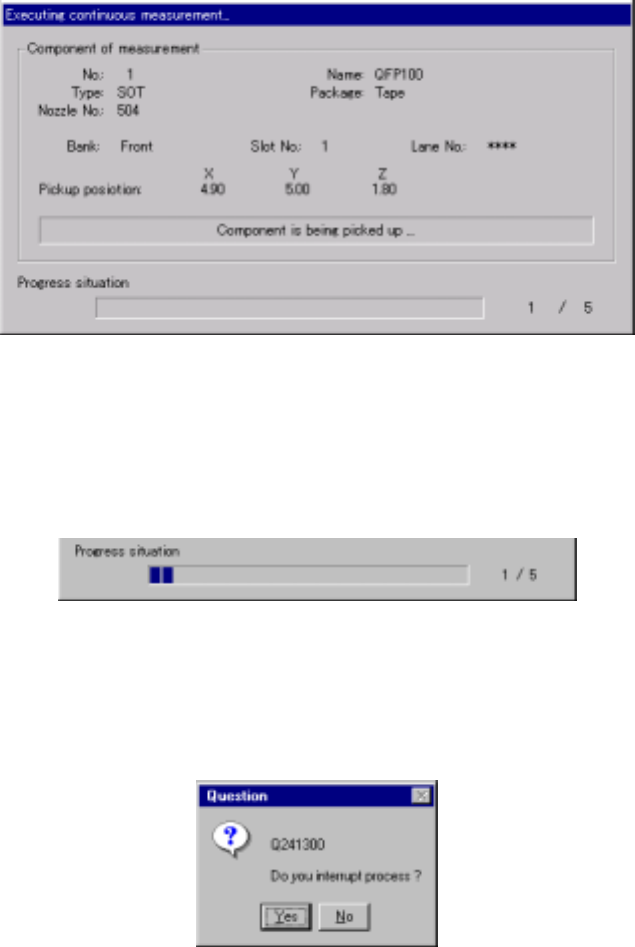
(2) “Executing continuous measurement” dialog box
While the system is executing continuous measurement operation, the following
dialog box appears on the screen. The description of a component being
measured and its pick-up position are displayed on this dialog box. The process
being executed is displayed also.
Figure 4.12.2.4.3.3 “Executing continuous measurement” dialog box
1) Progress situation
The progress bar indicates the current progress situation.
To forcibly abort the current continuous measurement operation, press the
<STOP> button. The following dialog box appears on the screen. Select
whether to abort the measurement operation or not.
Figure 4.12.2.4.3.4 “Question - to interrupt process” dialog box
4 – 208
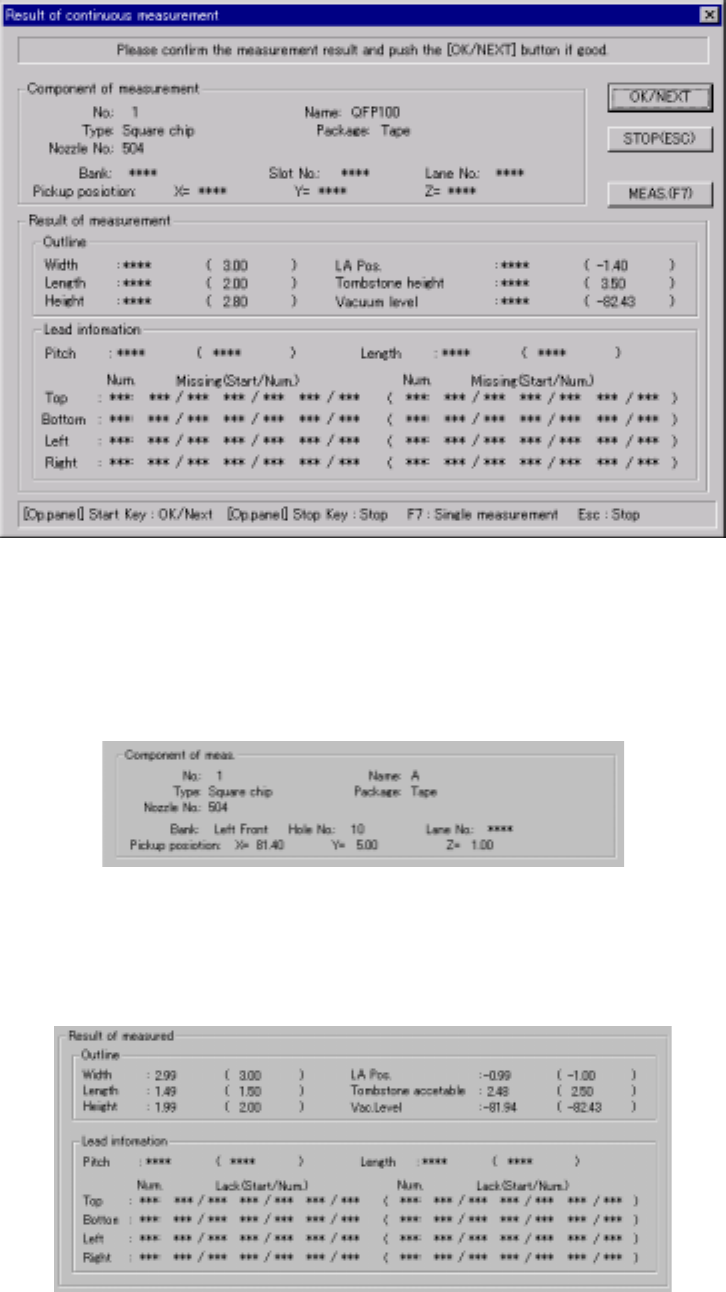
(3) “Result of continuation measurement” dialog box
When the system finishes continuous measurement completely, the following
“Result of continuation measurement” dialog box appears on the screen.
Figure 4.12.2.4.3.5 “Result of continuous measurement” dialog box
1) Component of meas. (Component of measurement)
The description of a measured component and its pick-up position are
displayed here.
2) Result of measured
The measured values are displayed here. Values specified in Component
data appear in parentheses. “***” appears in the item(s) which were not
measured.