KE2010.Instruction Manual.Ver.2.01,Rev.08.pdf - 第325页
4 – 218 (4) Operation dur ing tr acking W hile t he system is track ing a com ponent placement posit ion, you can use the following k eys/switches to control t he track ing operat ion. Operation Keyboard Operation panel …
4 – 217
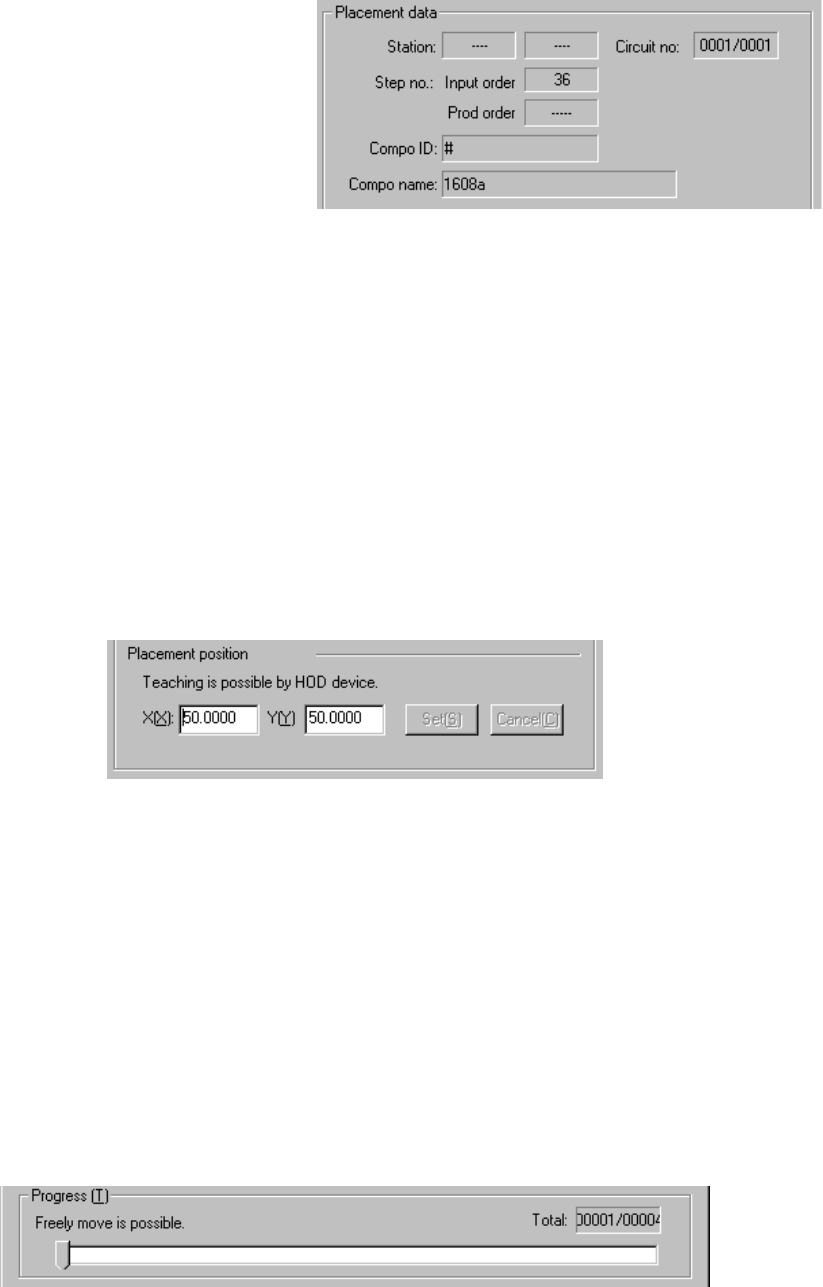
2) Placement data
① Station (available to a KE-2030 only)
The station whose component placement point is being tracked is
displayed here.
② Step no.
The step number of
Placement data
being tracked is
displayed here.
③ Compo ID
(Component ID)
The ID of a component being tracked is displayed here.
④ Compo name (Component name)
The name of a component being tracked is displayed here.
⑤ Circuit no
The circuit number being tracked/total number of circuits are displayed
here.
3) Placement position
The coordinates of a component placement position being tracked is
displayed here. You can manually change the coordinates or use the
teaching function to change the coordinates displayed.
4) <Set> and <Cancel> buttons
These buttons are activated when you manually change the coordinates or
use the teaching function to change them. When you click the <Set> button,
the changed coordinates are saved into Placement data. If you do not want
to save the changed coordinates, click the <Cancel> button.
5) Progress
This slide bar moves one by one as the tracking position moves. While the
tracking operation pauses, you can move this slider bar to move the tracking
position to the previous point, the next point and so on.
4 – 218
(4) Operation during tracking
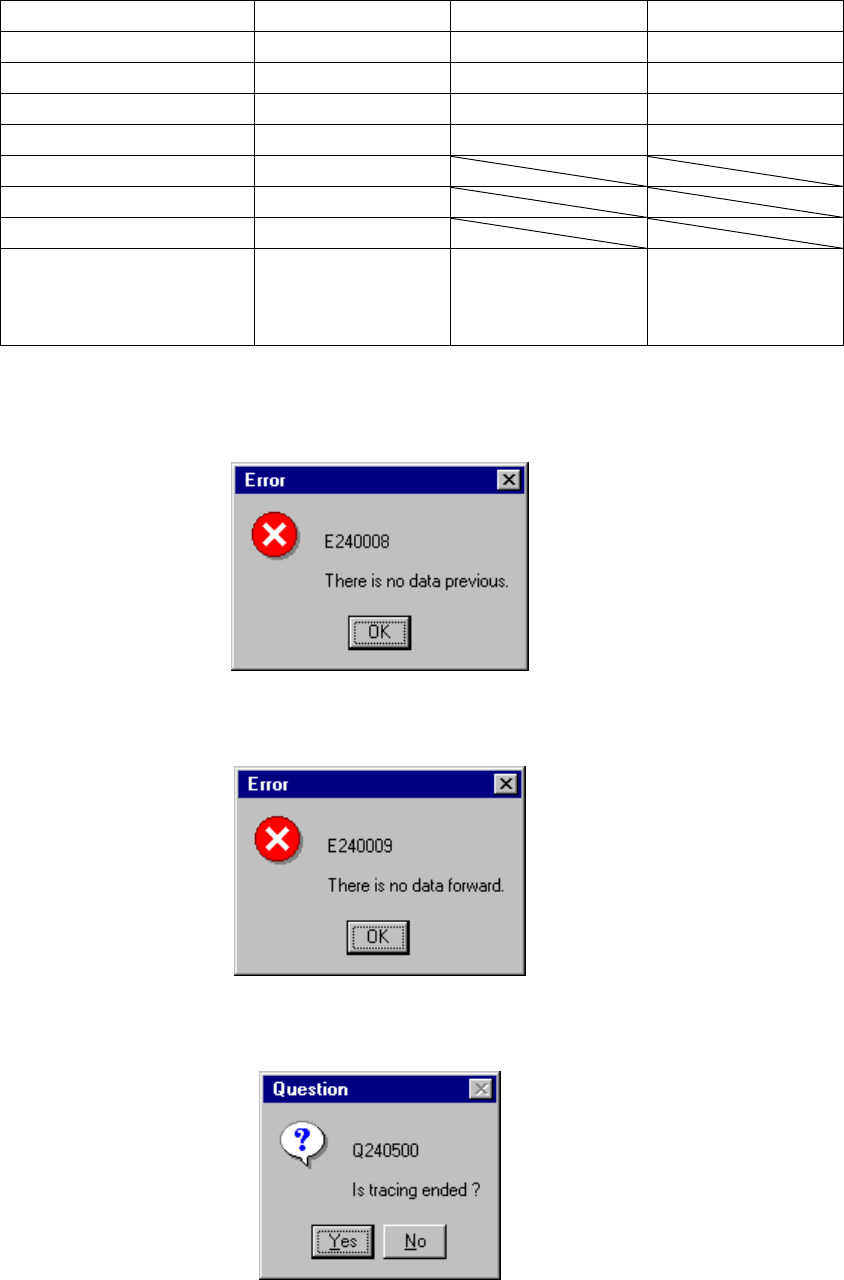
While the system is tracking a component placement position, you can use the
following keys/switches to control the tracking operation.
Operation Keyboard Operation panel HOD
Start of tracking F1 Start button ENTER
Stop of tracking F2 Stop button PAUSE
Moving to the previous point F5 PREVIOUS
Moving to the next point F6 NEXT
Component Verify check F7
SOT Angle check F8
Changing data F9
End of tracking Pressing the ESC
key while the
machine is stopping
Pressing the Stop
button while the
machine is stopping.
Pressing the
CANCEL button
while the machine is
stopping.
If there is no data when you try to move the camera to the previous point, the
following dialog box appears on the screen.
If there is no data when you try to move the camera to the next point, the following
dialog box appears on the screen.
If you abort the tracking operation due to either of the reasons above, the following
dialog box appears on the screen.
4 – 219
(5) Monitor display
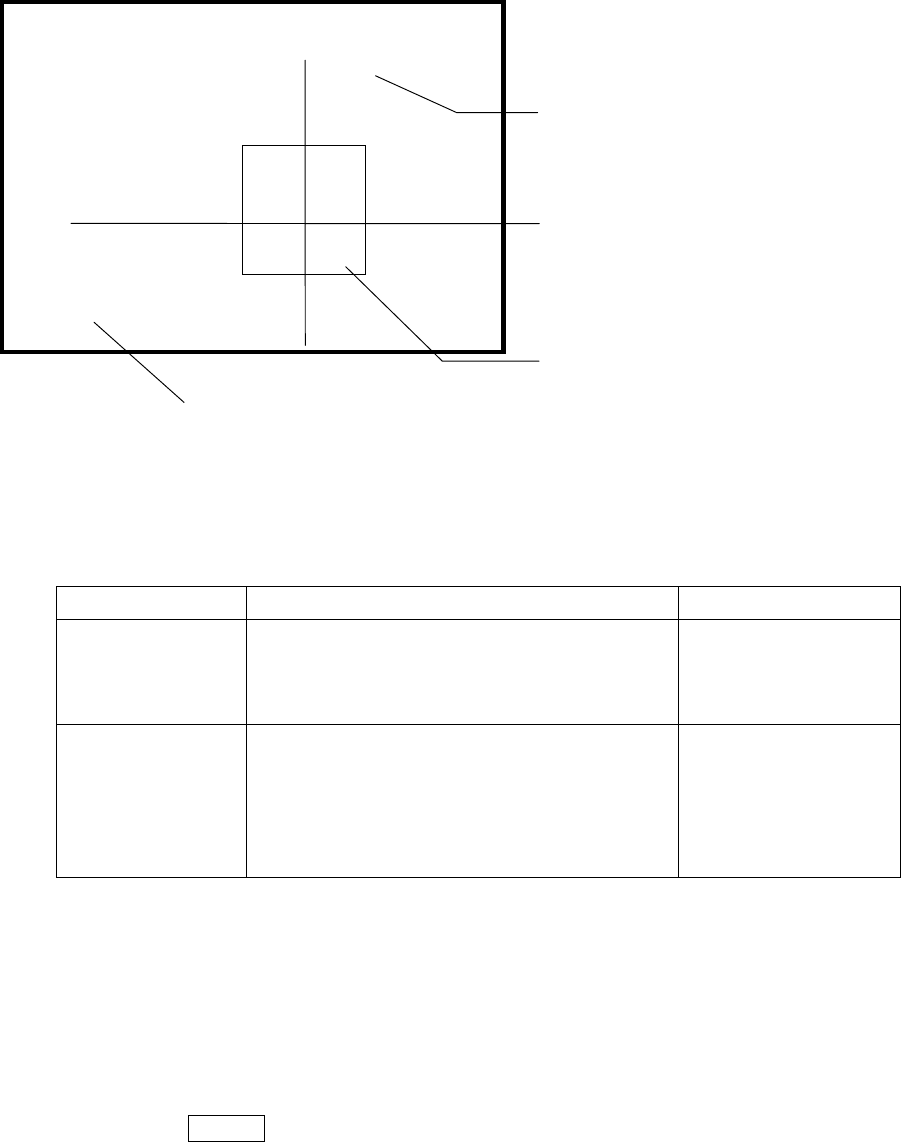
During tracking, the following information on each component placement position
is displayed on the monitor.
Display of the center and four corners of a component varies depending on the
component size.
Component size Four corners of a component Center of a component
Component whose
shorter side is 4.5
mm or less
The window frame displayed on the monitor
indicates four corners of a component. A
placement point whose angle was set is displayed
by rotating the window frame itself.
Center of the point at
which lines are crossed.
Other components
(large components)
The camera moves to each set of coordinates of
four corners: [TOP-L], [TOP-R], [BTM-R] and
[BTM-L] in this order. For a component
placement point whose angle was set, the camera
moves to the coordinates obtained by rotating four
corners.
After the camera moves
to all of four corners,
[CENTER] is displayed
on the monitor. The
camera moves to the
center of a component.
(6) Teaching coordinates during tracking
If the tracked coordinates are different from the actual ones, you can use the
HOD to teach the component placement point.
Step 1) Move the cursor to the X or Y coordinate.
Step 2) Press the HOD device button to teach the coordinates, then press the
ENTER key to validate them.
Indicates the coordinates viewed from the home position.
------- PLACE XY TRACE -------
Station:L R [ CENTER ]
Cur.No:
Pla.No :
Compo:
Angle :
Pos X : Y:
[CENTER]
indicates the center of a component.
[TOP-L] [TOP-R] [BTM-L] [BTM-R]
indicate four corners of a component
respectively: left on the top side, right on the
top side, left on the bottom side and right on
the bottom side.
Indicates the center or four corners of a component.