KE2010.Instruction Manual.Ver.2.01,Rev.08.pdf - 第334页
4 – 227 (4) Operation dur ing tr acking W hile t he system is track ing a com ponent pick- up position, you can use the following k eys/switches to control t he track ing operat ion. Operation Keyboard Operation panel HO…
4 – 226
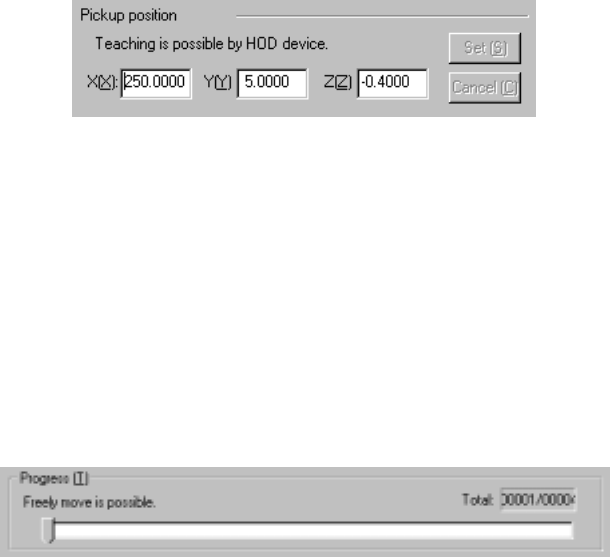
3) Pickup position
The coordinates of a component pick-up position being tracked is displayed
here. You can manually change the coordinates or use the teaching
function to change the coordinates displayed.
4) <Set> and <Cancel> buttons
These buttons are activated when you manually change the coordinates or
use the teaching function to change them. When you click the <Set> button,
the changed coordinates are saved into Pick data. If you do not want to
save the changed coordinates, click the <Cancel> button.
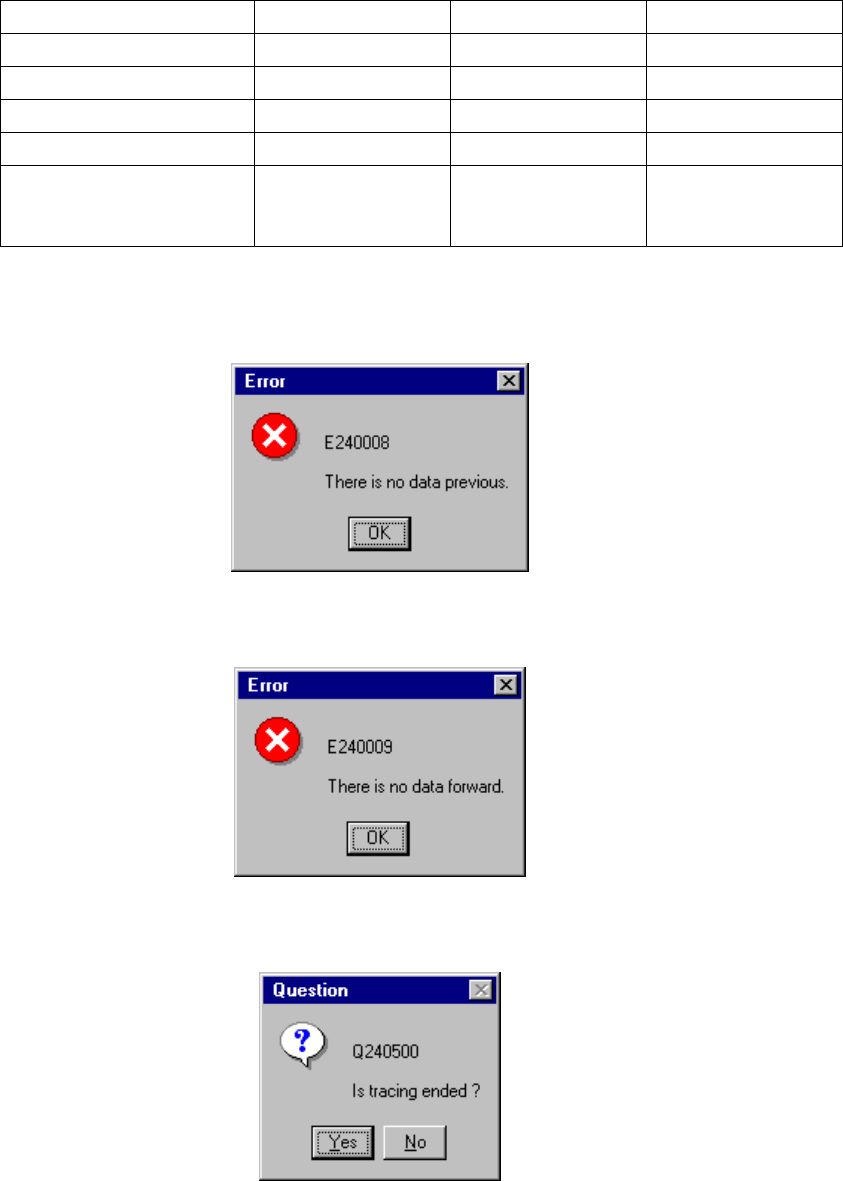
5) Progress
This slider bar moves one by one as the tracking position moves. While the
tracking operation pauses, you can move this slider bar to move the tracking
position to the previous point, the next point and so on.
4 – 227
(4) Operation during tracking
While the system is tracking a component pick-up position, you can use the
following keys/switches to control the tracking operation.
Operation Keyboard Operation panel HOD
Start of tracking F1 Start button ENTER
Stop of tracking F2 Stop button PAUSE
Moving to the previous point F5 PREVIOUS
Moving to the next point F6 NEXT
End of tracking Pressing the ESC
key while the
machine is stopping
Pressing the Stop
button while the
machine is stopping.
Pressing the PAUSE
button while the
machine is stopping.
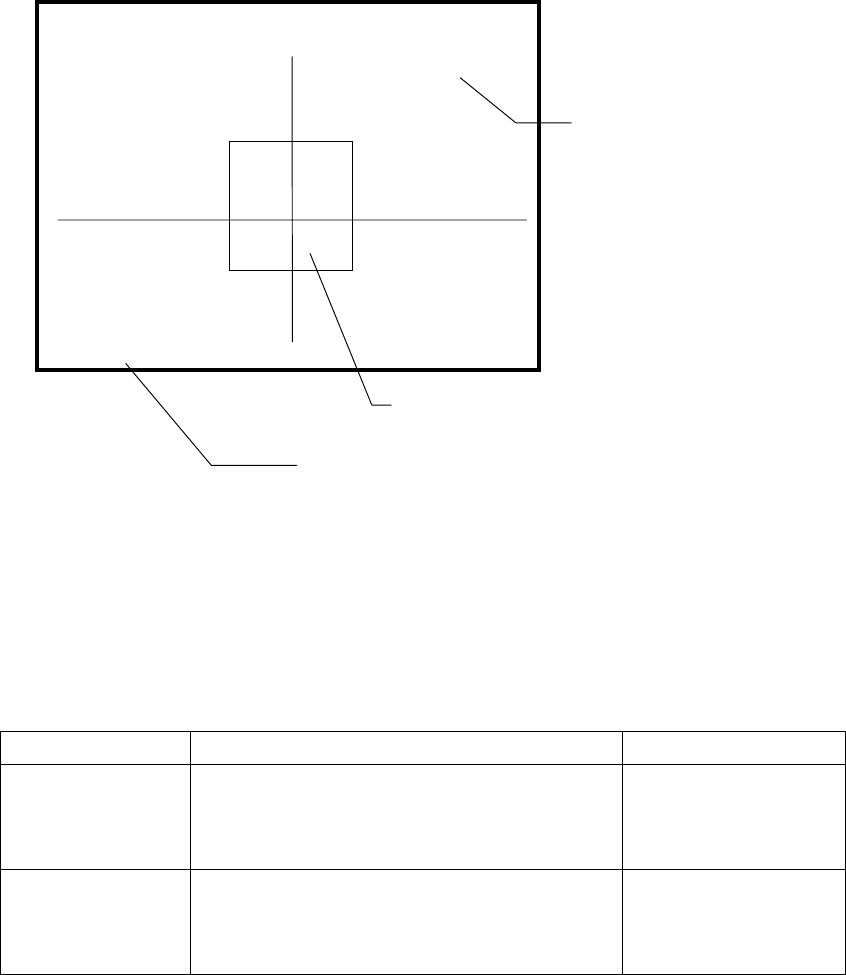
If there is no data when you try to move the camera or HMS to the previous point,
the following dialog box appears on the screen.
If there is no data when you try to move the camera or HMS to the next point, the
following dialog box appears on the screen.
If you finish the tracking operation due to either of the reasons above, the
following dialog box appears on the screen.
4 – 228
(5) Monitor display
①
During tracking, the following information on each component pick-up
position is displayed on the monitor.
Display of the center and four corners of a component varies depending on
the component size.
Four corners of a large component located on the front feeder may not be
displayed because the camera or HMS cannot always move to four corners.
(Front feeder)
Component size Four corners of a component Center of a component
Component whose
shorter side is 4.5
mm or less
The window frame displayed on the monitor
indicates four corners of a component. A pick-up
point whose angle was set is displayed by rotating
the window frame itself.
Center of the point at
which lines are crossed.
Other components
(large components)
[CENTER] is displayed
on the monitor, then the
camera moves to the
center of a component.
------- PICK XY TRACE -------
Station:L [CENTER]
Device:
Fdr No :
Compo:
Angle :
Pos X:
[CENTER]
indicates the center of a component.
[TOP-L] [TOP-R] [BTM-L] [BTM-R]
indicate four corners of a component
respectively: left on the top side,
right on the top side, left on the
bottom side and right on the bottom
side.
Indicates the coordinates viewed from the home position.
Indicates the center or four corners of a component.