KE2010.Instruction Manual.Ver.2.01,Rev.08.pdf - 第347页
4 – 240 (2) Oper ation ① <Rename> button This but ton allows you to change the reg istered nam e. Move the cursor to the data line you want to change, t hen click t he <Rename> button. The right dialog box ap…
4 – 239
4.12.5 Mark database
This command manages the mark database which was registered during teaching of
mark data described in Chapter 5 "TEACHING".
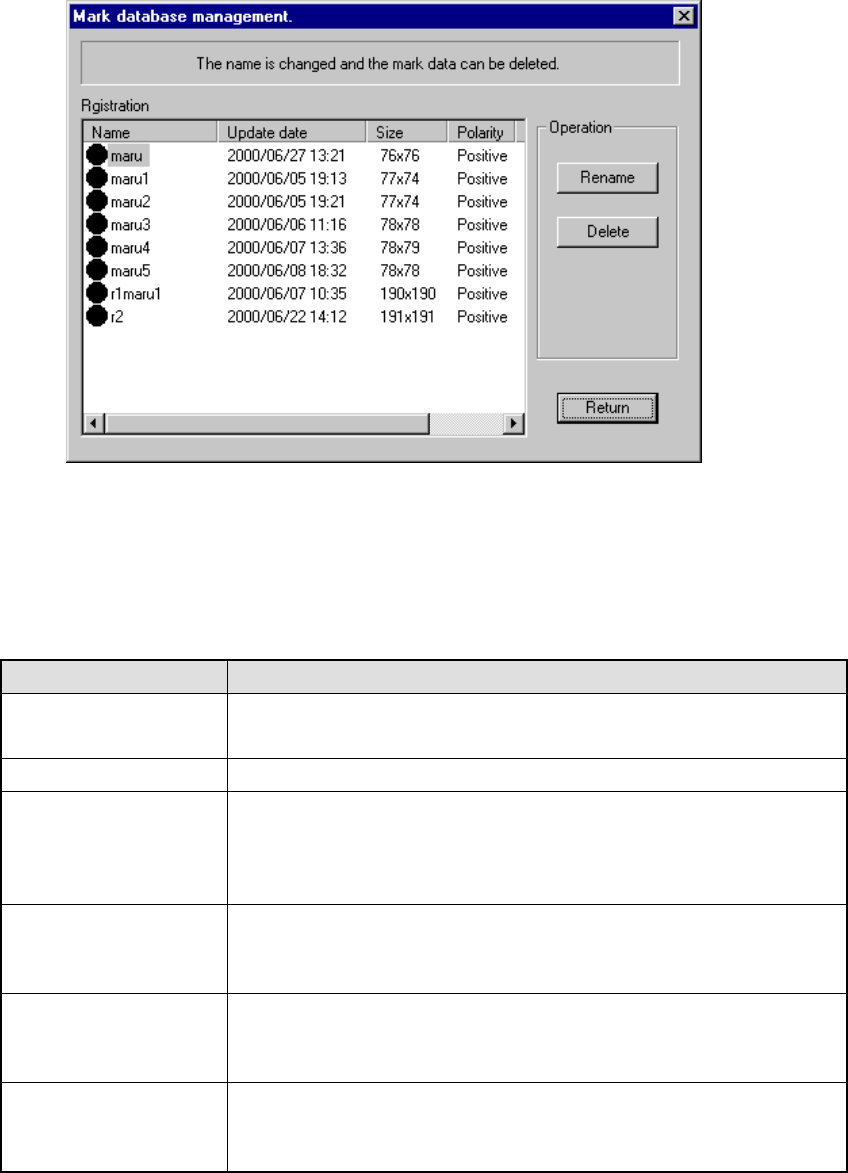
Figure 4.12.5.1 "Mark database management" dialog box
(1) Registration
This list displays the mark data registered in the database. The meaning of
each item is described in Table below.
Item Meaning
Name Name of a mark
(The mark shape is displayed before the name itself.)
Update date Date when a mark was registered in the database.
Size Number of horizontal and vertical pixels consisting of a mark
aaa x bbb
aaa = number of horizontal pixels
bbb = number of vertical pixels
Polarity Negative/positive shot of a mark
Positive: white mark on black background
Negative: black mark on white background
Scale Image data scale of a mark
Grayscale: mark data is read as a multi-scale image.
Binaryscale: mark data is read as a binary-scale image.
Station (available to a
KE-2030 only)
Station which obtained a mark
Left = A mark was read with the OCC located on the left station.
Right = A mark was read with the OCC located on the right station.
4 – 240
(2) Operation
① <Rename> button
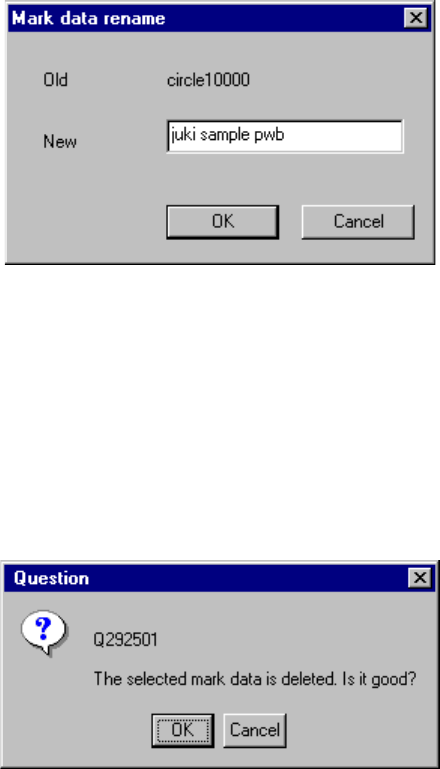
This button allows you to change the registered name. Move the cursor to
the data line you want to change, then click the <Rename> button. The
right dialog box appears on the screen. Enter a new name.
Figure 4.12.5.2 "Mark data rename" dialog box
② <Delete> button
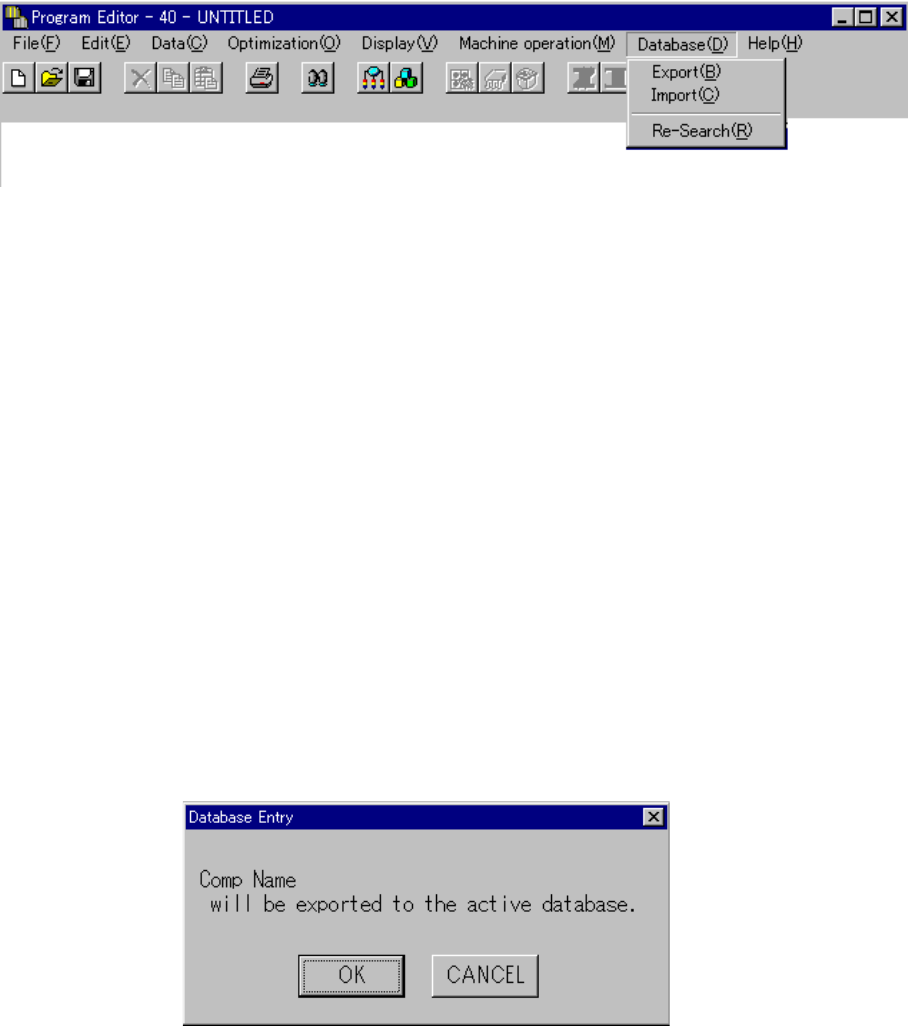
This button allows you to delete the registered data. Move the cursor to the
data line you want to delete in the list, then click the <Delete> button.
The right dialog box appears on the screen. Click the <OK> button.
Figure 4.12.5.3 "Question - to delete mark data" dialog box
4 – 241
4.13 Database
When you register Component data or Vision data on the Component database, you
can browse or copy data with the Program Editing utility.
See the FLEXLINE database for details.
4.13.1 Register
This command registers Component data in the Component database while you are
editing a program. Since this command updates the Component database in real
time, you can call the registered data immediately with the [Call list] command.
① Screens which allow you to register data into the Component database
− Component data form screen
− Component data list screen
− Vision data form screen
− Vision data list screen
② When you select the [Register] command in the Component data screen
Component data you have edited is registered onto the Component database.
When you select the [Register] command, the following confirmation dialog box
appears on the screen.
When you click the <OK> button, data is registered into the Component
database.
When you click the <Cancel> button, the machine returns to the state before
you selected the [Register] command without registering any data.