KE2010.Instruction Manual.Ver.2.01,Rev.08.pdf - 第349页
4 – 242 ③ W hen you select “Y es” f or “Notif ication of database ent ry completion” on the “Environment sett ing” dialog box, the f ollowing message appears on t he screen to inf orm you that dat a is register ed onto t…
4 – 241
4.13 Database
When you register Component data or Vision data on the Component database, you
can browse or copy data with the Program Editing utility.
See the FLEXLINE database for details.
4.13.1 Register
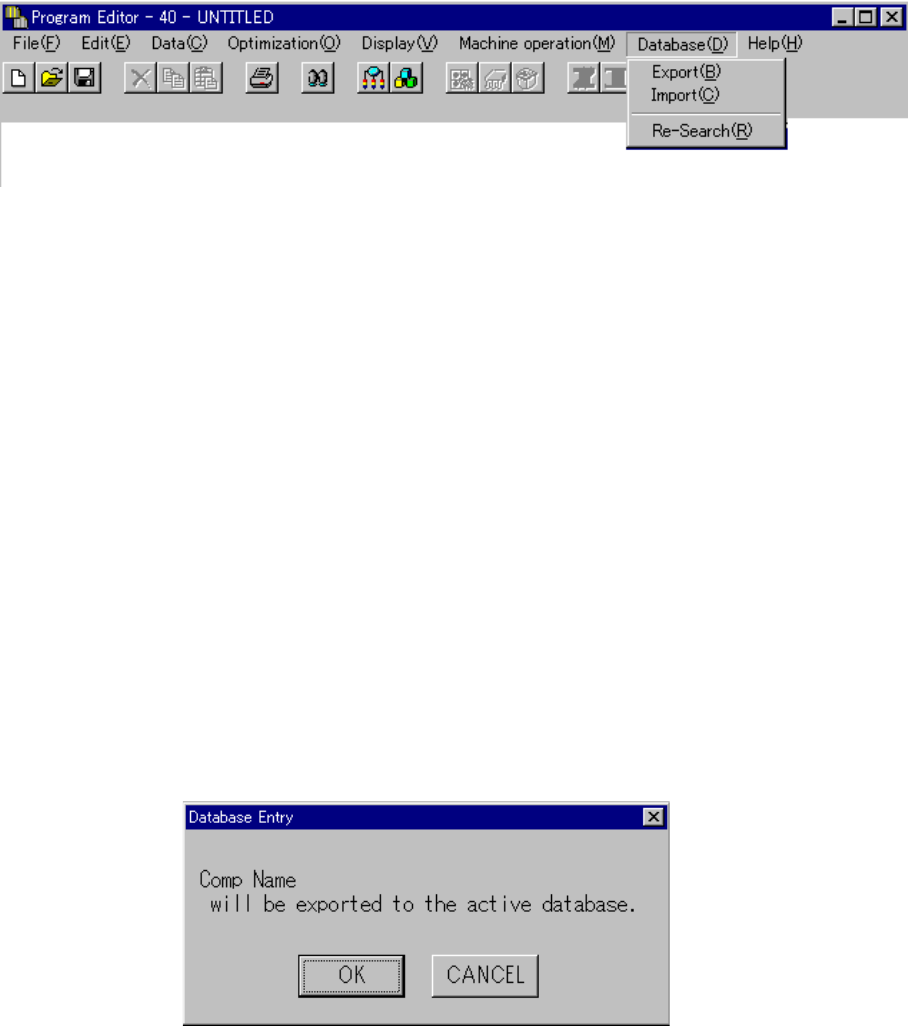
This command registers Component data in the Component database while you are
editing a program. Since this command updates the Component database in real
time, you can call the registered data immediately with the [Call list] command.
① Screens which allow you to register data into the Component database
− Component data form screen
− Component data list screen
− Vision data form screen
− Vision data list screen
② When you select the [Register] command in the Component data screen
Component data you have edited is registered onto the Component database.
When you select the [Register] command, the following confirmation dialog box
appears on the screen.
When you click the <OK> button, data is registered into the Component
database.
When you click the <Cancel> button, the machine returns to the state before
you selected the [Register] command without registering any data.
4 – 242
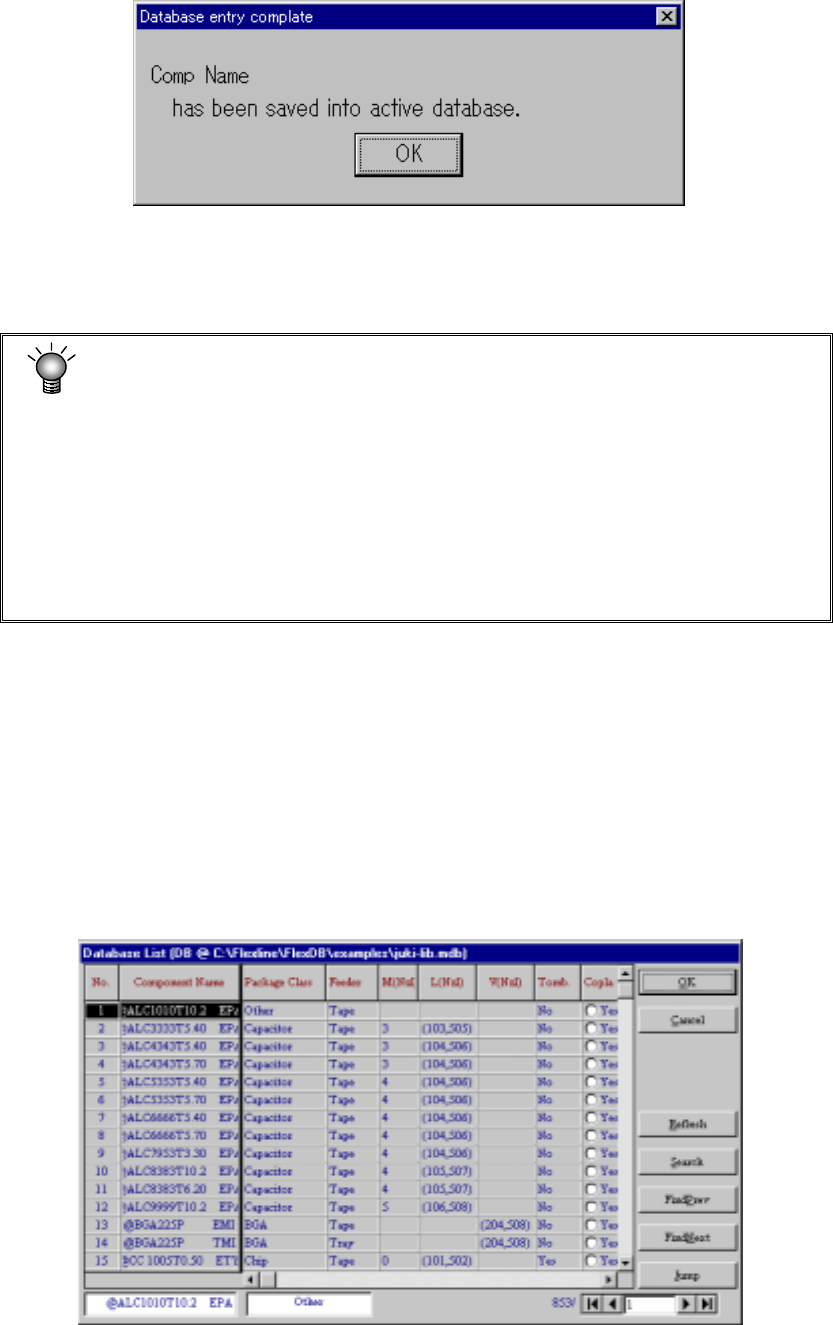
③ When you select “Yes” for “Notification of database entry completion” on the
“Environment setting” dialog box, the following message appears on the screen
to inform you that data is registered onto the database completely.
When you select “No” for “Notification of database entry completion”, the
message above will not appear on the screen.
If there is data of the same component name on the database file, the system
overwrites only the information set with the data you register.
For example, if there is only component data whose centering method is set to “laser” on
the database file, and you register the data whose centering method is changed to
“vision” with the Program Editor, data whose centering method is set to “laser” remains
without being changed, and data whose centering method is set to “vision” is registered to
the database. As the result, both component data on which the laser centering method
is selected and component data on which the vision centering method is selected exist on
the database.
When you select the [Import] or [Re-Search] command for such data, the system calls all
component data registered on the database.
4.13.2 Call list
When you invoke this command from the Placement data or Component data
screen
If any component name is not entered to Placement data, you can select this
command from the Placement data screen. If any component name is entered,
you cannot execute this command: this command is dimmed on the screen.
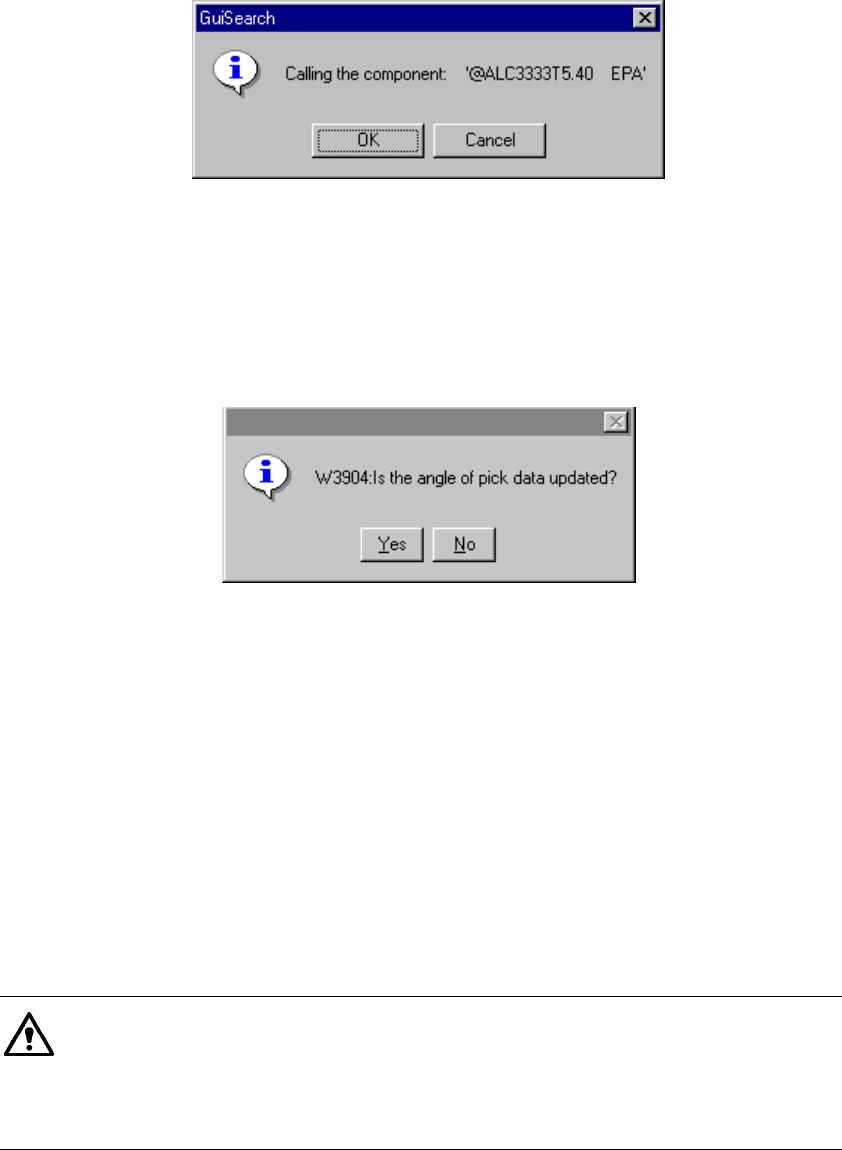
If you select the [Call list] command when no component name is entered, the data
selection screen like one shown below appears on the screen.
4 – 243
① When you click the <OK> button or double-click the desired data
When you select the data to be called and click the <OK> button, or when
double-click the desired data, the following confirmation message appears on
the screen.
− When you click the <OK> button on the screen above, the Component data
which you selected is copied from the Component database. If any Vision
data is linked to the Component data, those data are copied also at the
same time.
However, if there is Pick data already created, the following message appears
on the screen.
• When you select "Yes" on this dialog box, the pick-up angle is updated.
• When you select "No", the angle set as Pick data is not updated.
− When you click the <Cancel> button, the machine returns to the
Component database call screen.
If the same component name is displayed on the screen, any copy
operation will not be performed.
If any component name is entered on the Placement data screen, execute the
[Call list] command from the Component data screen. When you call this
command from the Component data screen, only the selected component data
is copied, and the component name is not changed.
If a comment on the component data you called is longer than 30 characters,
HLC handles the first 30 characters as a valid comment, and copies them. If
a line feed code is include in a comment on the component data you called,
HLC handles characters located after the line feed code as invalid data, and
copies characters located before the line feed code only.
② Cancel button
When you click this button, the machine returns to the screen from which you
selected the [Call list] command.