KE2010.Instruction Manual.Ver.2.01,Rev.08.pdf - 第351页
4 – 244 ③ Refer button W hen y ou click the Ref er button, the f ollowing “Component sear ch” dialog box appears on the screen. This dialog box allows y ou to f ind data f rom t he Component database. Set the conditions …
4 – 243
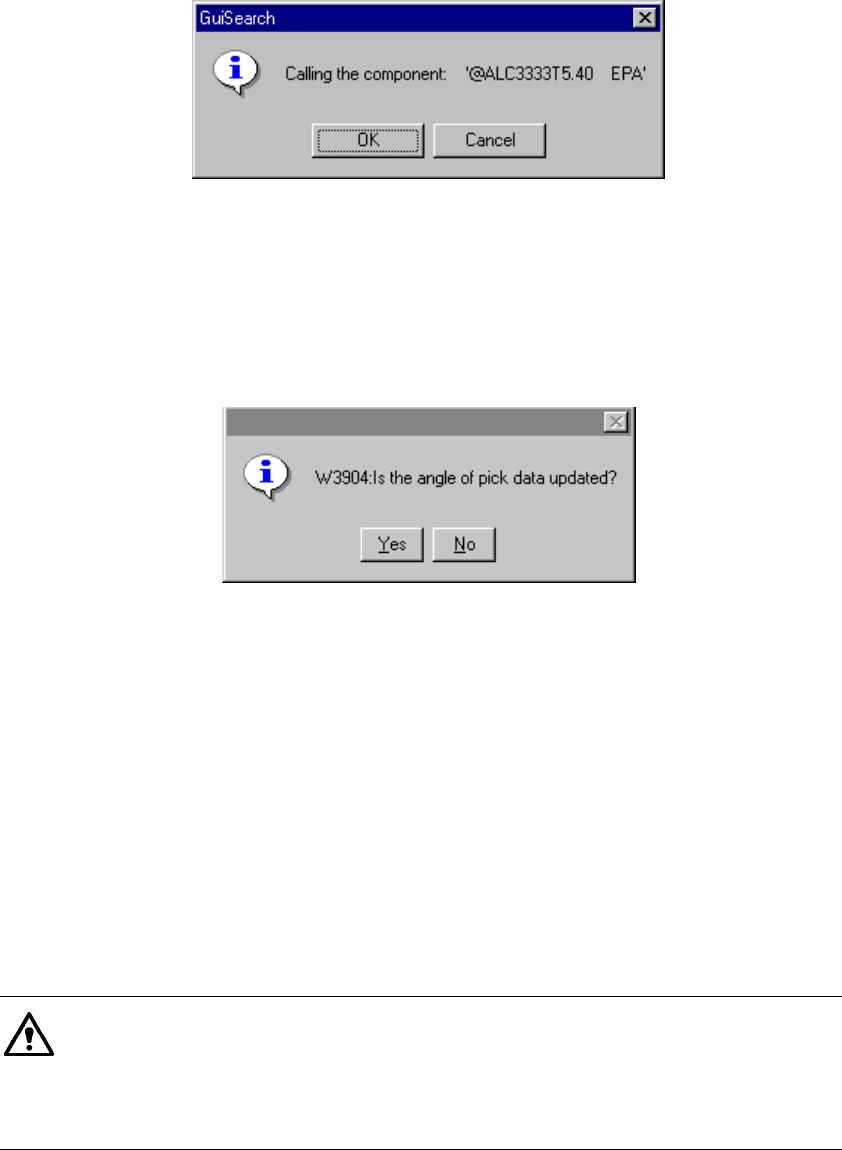
① When you click the <OK> button or double-click the desired data
When you select the data to be called and click the <OK> button, or when
double-click the desired data, the following confirmation message appears on
the screen.
− When you click the <OK> button on the screen above, the Component data
which you selected is copied from the Component database. If any Vision
data is linked to the Component data, those data are copied also at the
same time.
However, if there is Pick data already created, the following message appears
on the screen.
• When you select "Yes" on this dialog box, the pick-up angle is updated.
• When you select "No", the angle set as Pick data is not updated.
− When you click the <Cancel> button, the machine returns to the
Component database call screen.
If the same component name is displayed on the screen, any copy
operation will not be performed.
If any component name is entered on the Placement data screen, execute the
[Call list] command from the Component data screen. When you call this
command from the Component data screen, only the selected component data
is copied, and the component name is not changed.
If a comment on the component data you called is longer than 30 characters,
HLC handles the first 30 characters as a valid comment, and copies them. If
a line feed code is include in a comment on the component data you called,
HLC handles characters located after the line feed code as invalid data, and
copies characters located before the line feed code only.
② Cancel button
When you click this button, the machine returns to the screen from which you
selected the [Call list] command.
4 – 244
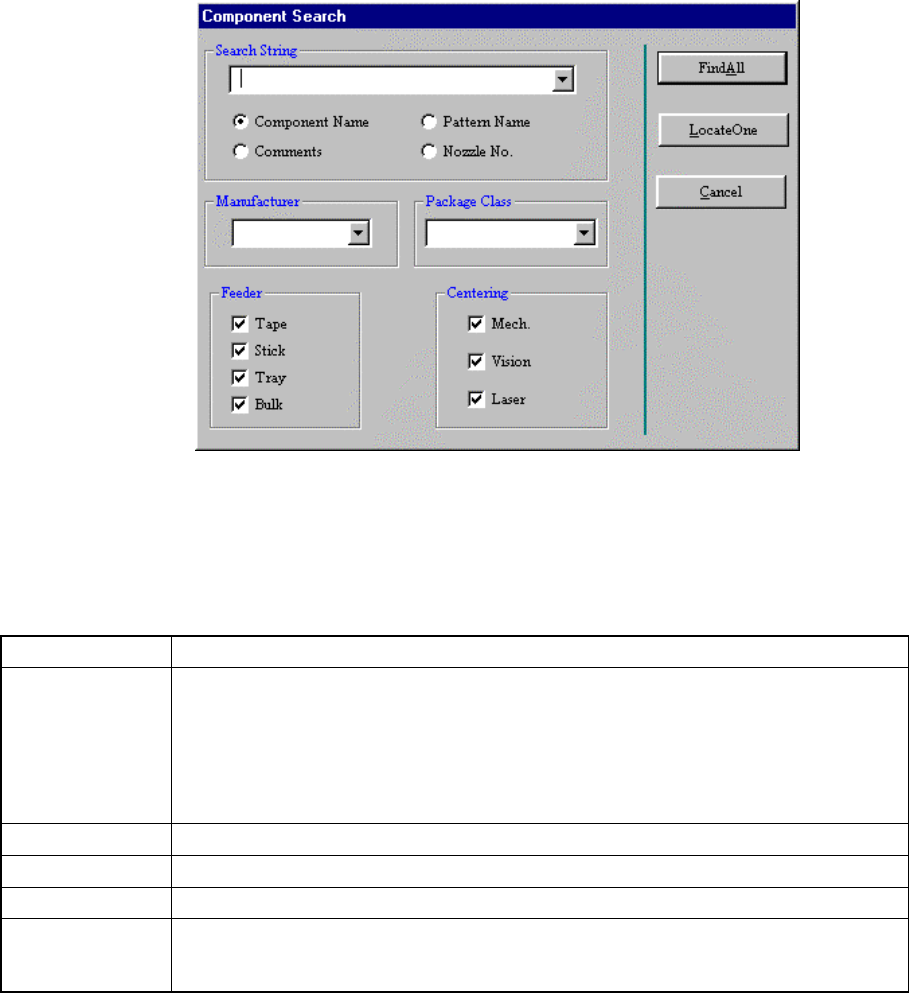
③ Refer button
When you click the Refer button, the following “Component search” dialog box
appears on the screen. This dialog box allows you to find data from the
Component database.
Set the conditions for finding data, then click the “Search for all” button or
“Search for one item” button.
④ Data search conditions: data which satisfies the conditions you set is to be
found.
Item Description
String of letters to
be searched
Specify a component name, adhesive pattern name, comment and nozzle number with
the corresponding buttons.
For a component name, adhesive pattern name, and comment, the machine is to search
data which includes the specified character string.
For nozzle numbers, specify two or more nozzle numbers with separating them with a
comma (,), or specify the range of nozzles with using a hyphen (-); for example “101 -
105”.
Producer Select one of the registered manufactures.
Component type Select one of the registered component type.
Feeder Select one or two more feeder(s)
Centering
Specify the centering method. You can specify two or more centering methods. When
you specify two or more centering methods, it is supposed that they satisfy the search
conditions if one of the selected centering methods is already set.
⑤ Search for all button
This button displays all data pieces which satisfy the conditions you set.
⑥ Search for one item button
Moves the cursor to the first data line which satisfies the conditions you set.
When you click the <Cancel> button, the machine returns to the Database list
screen.
4 – 245
4.13.3 Re-search
The "Re-search" function searches component data, pick data or vision data from the
database or the permanently supplied information again, and updates program data
with it.
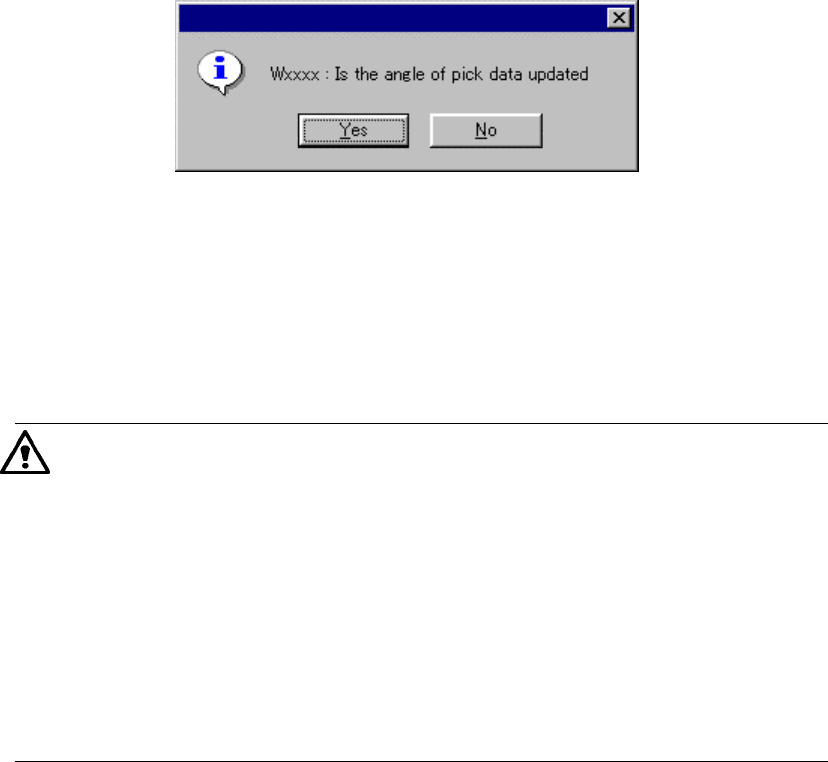
When you click the “Re-search” command, the following dialog box appears on the
screen.
− When you click the <Yes> button, all pick-up angles are updated.
− When you click the <No> button, any pick-up angle set in Pick data is not
updated.
•
When this command is executed, component data, pick data, and vision
data are updated (by overwriting). Once executed while data (component
form) is edited, this command cannot be cancelled.
•
The conditions of calling this command from the permanently supplied
information or database can be changed by the MSL set up program.
•
If a comment on the component data you called is longer than 30
characters, HLC handles the first 30 characters as a valid comment, and
copies them. If a line feed code is include in a comment on the
component data you called, HLC handles characters located after the line
feed code as invalid data, and copies characters located before the line
feed code only.