KE2010.Instruction Manual.Ver.2.01,Rev.08.pdf - 第398页
6 − 22 Supply Choice: This combo box is used f or switching the Part s no. setup scr een: screen f or components set on the f ront side or t hat f or rear side. No. Item Description 1 Front Displays the components set on…
6 − 21
(3) Operation
① Invocation
Select the [Tool] command in the menu bar of the PWB production screen,
then the [Parts no. setup] command. Figure 6.2.1.2.1 shows the "Parts no.
setup" screen.
Figure 6.2.1.2.1 Component number setup screen
② Operation
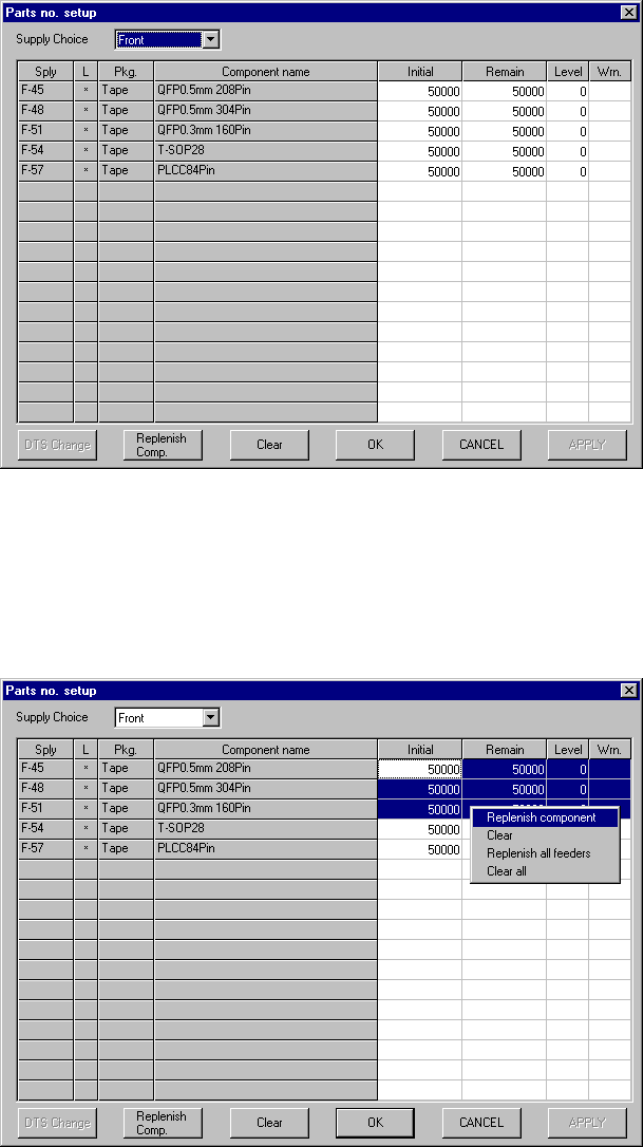
Figure 6.2.1.2.2 shows the "Parts no. setup" screen when "Front" is selected
as the "Supply Choice".
Figure 6.2.1.2.2 Parts no. setup screen for components set on the front side
6 − 22
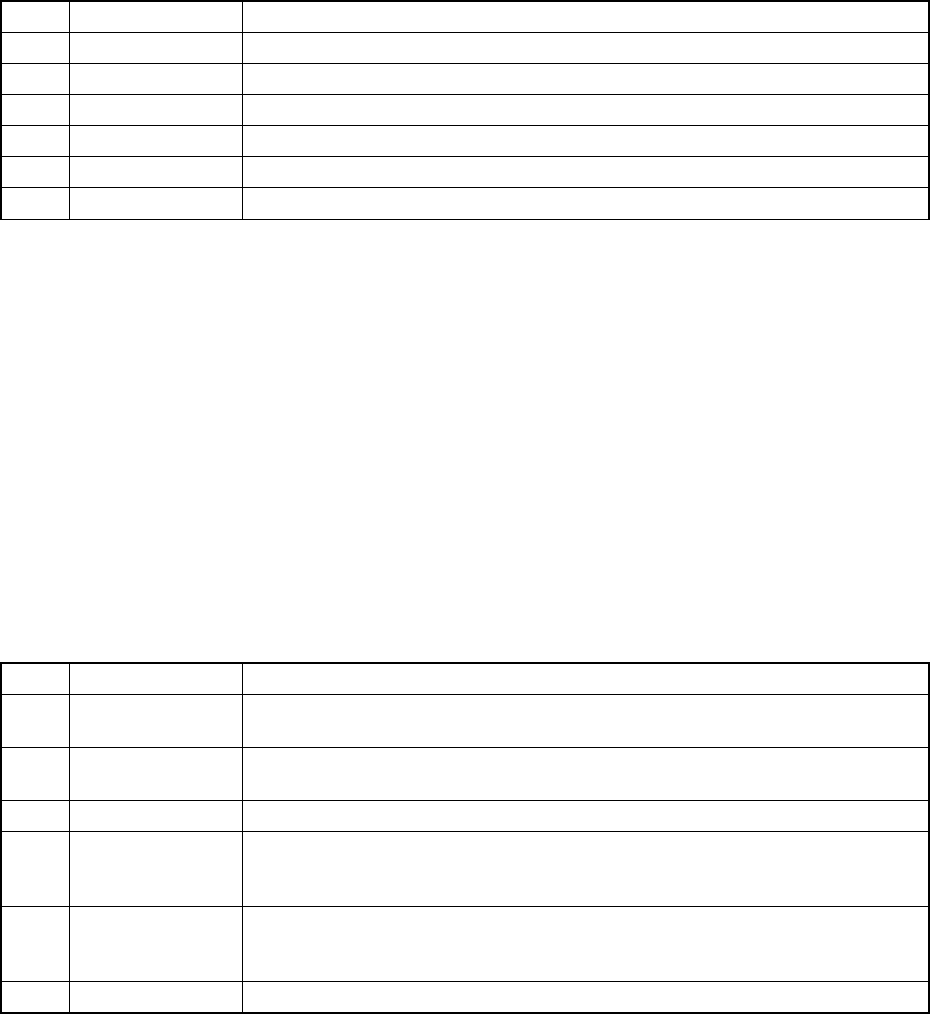
Supply Choice:
This combo box is used for switching the Parts no. setup screen:
screen for components set on the front side or that for rear side.
No. Item Description
1 Front Displays the components set on the front side only.
2 Rear Displays the components set on the rear side only.
3 Holder Displays the components set on the holder.
4 DTS Displays the components set on the DTS.
5 MTC Displays the components set on the MTC.
6 MTS Displays the components set on the MTS.
Initial: Enter an initial number of components at the field at which the
input focus is located.
Remain: Enter the number of remaining components at the field at which
the input focus is located.
Level: At the field at which the input focus is located, enter the level of
the number of remaining components at which a warning is
output.
Warning: The input focus does not move to this item. The indication
disappears when the number of remaining components is
validated or when the component replenishing command is
executed.
③ Descriptions of the buttons displayed on the screen
No. Button Description
1 DTS change Replaces a tray of the DTS with another one. You cannot select this button if any
DTS component is not specified with the production program.
2 Replenish Comp Enters the value set in the "Initial" field into the "Remain" field of the line at which
the input focus is located, and clears all warnings.
3 Clear Set a value in the “Initial” field to the “Remain” field, and clears all warnings.
4 OK Validates the settings in the displayed "Parts no. setup" screen, quits this screen,
then returns to the screen form which you called this command, the "Production
conditions" or "Production status" screen.
5 Cancel Quits the "Parts no. setup" screen without validating the settings on this screen,
then returns to the screen from which you called this command, the "Production
conditions" or "Production status" screen.
6 APPLY Validates the settings on the "Parts no. setup" screen.
6 − 23
④ Setting the [Remain] field
When you click any "Remain" field with the right button of a track ball, the list
showing the following commands appears on the screen.
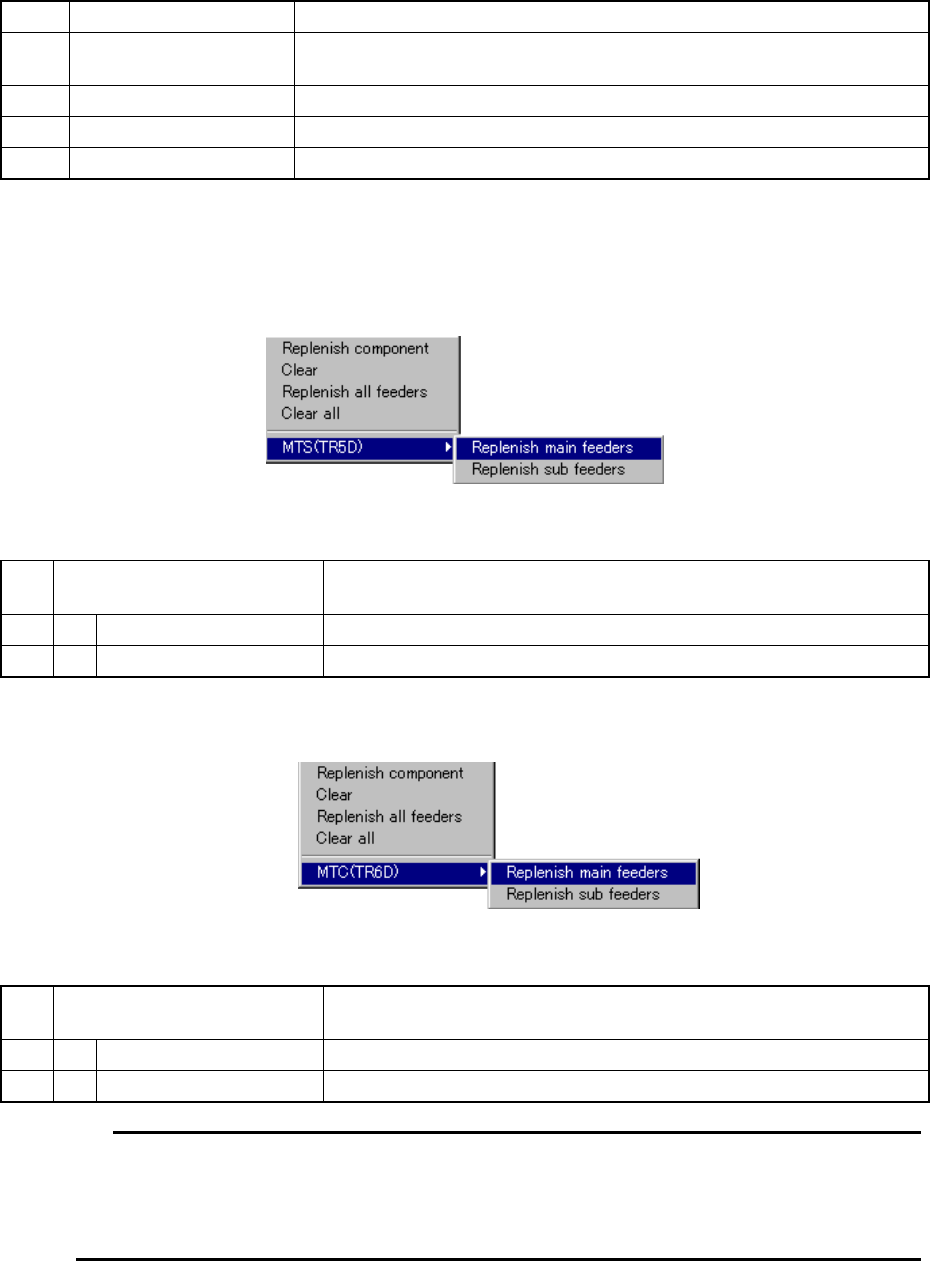
No. Command Description
1 Replenish Comp Enters the number set in the "Initial" field to the "Remain" field of the line at
which the input focus is located, then clears all warnings.
2 Clear Set a value in the “Initial” field to the “Remain” field, and clears all warnings.
3 Replenish all feeders Executes the [Replenish Comp] command for all components.
4 Clear all Executes the [Clear] command for all components.
− When the machine is in Non-Stop Operation mode, the following menu appears
on the screen also (if your model is a KE-2020 only).
④-1 When a TR5D is used
Figure6.2.1.2.3 TR5D pop-up menu
5 MTS(TR5D) When the machine is in Non-Stop Operation mode that uses a TR5D,
this menu appears on the screen.
1 Replenish main feeders Replenishes the main side (21 to 40) with components fully.
2 Replenish sub feeders Replenishes the sub side (1 to 20) with components fully.
④-2 When a TR6D is used
Figure6.2.1.2.4 TR6D pop-up menu
5 MTS(TR5D) When the machine is in Non-Stop Operation mode that uses a TR6D,
this menu appears on the screen.
1 Replenish main feeders Replenishes the main side (16 to 30) with components fully.
2 Replenish sub feeders Replenishes the sub side (1 to 15) with components fully.
The MTS/MTC menu appears on the screen only if an MTS (TR5D) or MTC
(TR6D) is set to be used on the Setup menu and the setting item “Non-stop operation
(MTS)” or “Non-stop operation (MTC)” is checked on the “Use Unit” tab of the
Operation option menu. Otherwise, these menus will not appear on the screen.