KE2010.Instruction Manual.Ver.2.01,Rev.08.pdf - 第401页
6 − 25 (1) Display of production st atus W hen PW B production starts with the <START > switch pressed, the stat us of production is displayed on the screen. Figure 6. 2.2.1 shows the "Production st atus"…
6 − 24
6.2.2 Start of production
After setting the number of PWBs to be produced, press the <START> switch on the
operator panel to start production.
CAUTION
The head starts to move immediately after the <START> switch is
pressed, and then the machine starts PWB production.
To avoid a risk of injury, do not place your hand in the machine, nor
move your face or head close to the machine during operation.
Before pressing the <START> switch, check that there is no one who is
working in the machine.
Before pressing the <START> switch, check that there is no one who
can be injured when the head starts to move.
Before pressing the <START> switch, check that there are no
obstacles (tools and jigs) attached or left in the machine.
CAUTION
If the feeder bank is never recognized (since the machine zeroes, or the
bank moves down then up), it may be recognized automatically before
the machine moves to the pick position. Since the head moves across
the feeder while the feeder bank is being recognized, do not place your
hand in the machine, nor move your face or head close to the machine.
Especially, take care when the feeder bank is recognized not from the
menu but during teaching or tracking a pick position.
The PWB production starts and the green signal lamp lights to indicate that PWB
production is in progress.
If home positioning has not been completed when the <START> switch is pressed,
press the <HOME> key to execute home positioning, then press the <START> switch
again.
6 − 25
(1) Display of production status
When PWB production starts with the <START> switch pressed, the status of
production is displayed on the screen.
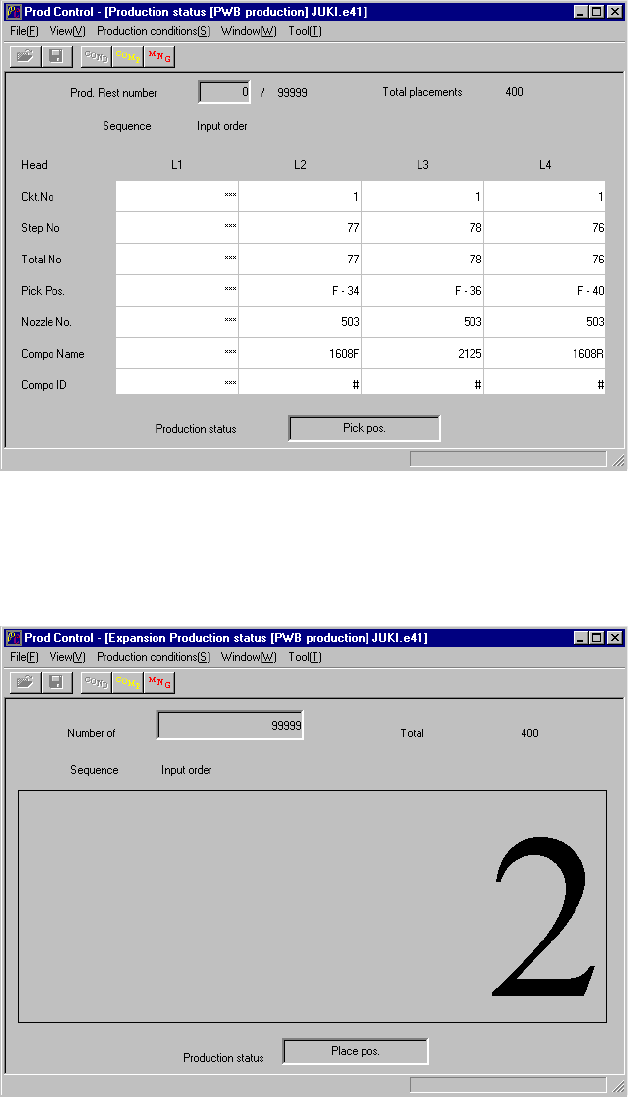
Figure 6.2.2.1 shows the "Production status" screen to b displayed while the
machine is producing PWBs normally. Figure 6.2.2.2 shows the screen to be
displayed when the item "Shows the number of boards produced in large
characters" is selected on the "Production (Display)" tag of the Operation Options
menu.
• Display of normal production status
Figure 6.2.2.1 Production status screen (1)
• In case in which "Shows the number of boards produced in large characters" is
selected on the "Production (Display)" tag of the Operation Options menu
Figure 6.2.2.2 Production status screen (2)

6 − 26
① Prod. Rest number
Prod. Number : The total number of PWBs to be processed, which
has been set in the "Production condition"s
screen.
Result number : The number of PWB that have been already
processed.
* When the item "Accumulate planned number of boards produced" is
selected on the Production (Display) tag of the Operation option menu
(Figure 11.4.2), counting starts from the "Prod" value (See Chapter 11).
When the item "Count down the number of boards produced" is selected on
the Production (Display) tag of the Operation option menu, this field
displays the number of PWBs that have not been produced yet.
② Production mode
Shows the current production mode (Parallel, Sequential or Mixed). (This is
available only when your model is a KE-2030.)
③ Ckt. No.
Shows the number of a circuit on which a component is to be picked, then
placed by the heads.
④ Step No.
Shows the number when created with the placement data of the component
to be picked, then placed by the heads.
⑤ Total No.
Shows the number of components to be placed on a board (Maximum :
"number of placed components" multiplied by the "number of circuits".)
⑥ Pick Pos. (Position)
Shows the feeder number from which the heads pick up components.
Note: Since an MTC itself searches a level to supply components when the
stocked components run out, the level displayed may be different from the
actual one in case of components supplied from an MTC.
⑦ Nozzle No.
Shows the number of the nozzle which is attached on the heads.
⑧ Compo (Component) Name
Shows the name of components which are picked up with the heads.
⑨ Compo. (Component) ID
Shows the component ID of a component to be picked, then placed by the
heads.
⑩ Sequence
Shows the component placement sequence being currently performed.
⑪ Production status
Displays the current production status of the machine as follows: