KE2010.Instruction Manual.Ver.2.01,Rev.08.pdf - 第402页
6 − 26 ① Prod. Rest num ber Prod. Number : The t otal number of PW Bs to be processed, which has been set in the "Product ion condition"s screen. Result number : The num ber of PW B that have been already proce…
6 − 25
(1) Display of production status
When PWB production starts with the <START> switch pressed, the status of
production is displayed on the screen.
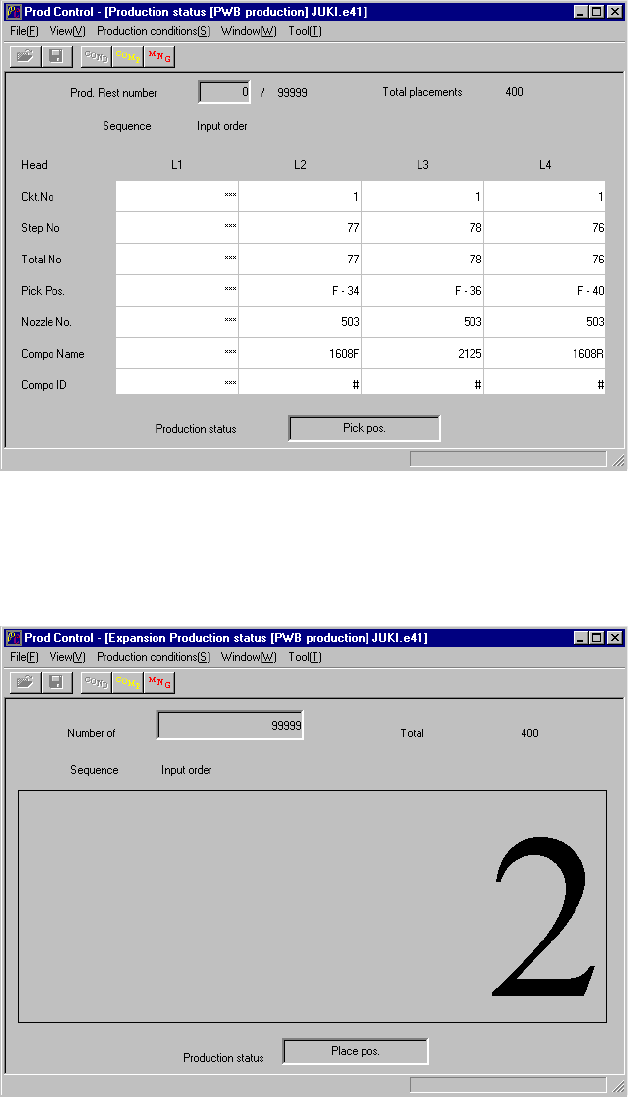
Figure 6.2.2.1 shows the "Production status" screen to b displayed while the
machine is producing PWBs normally. Figure 6.2.2.2 shows the screen to be
displayed when the item "Shows the number of boards produced in large
characters" is selected on the "Production (Display)" tag of the Operation Options
menu.
• Display of normal production status
Figure 6.2.2.1 Production status screen (1)
• In case in which "Shows the number of boards produced in large characters" is
selected on the "Production (Display)" tag of the Operation Options menu
Figure 6.2.2.2 Production status screen (2)

6 − 26
① Prod. Rest number
Prod. Number : The total number of PWBs to be processed, which
has been set in the "Production condition"s
screen.
Result number : The number of PWB that have been already
processed.
* When the item "Accumulate planned number of boards produced" is
selected on the Production (Display) tag of the Operation option menu
(Figure 11.4.2), counting starts from the "Prod" value (See Chapter 11).
When the item "Count down the number of boards produced" is selected on
the Production (Display) tag of the Operation option menu, this field
displays the number of PWBs that have not been produced yet.
② Production mode
Shows the current production mode (Parallel, Sequential or Mixed). (This is
available only when your model is a KE-2030.)
③ Ckt. No.
Shows the number of a circuit on which a component is to be picked, then
placed by the heads.
④ Step No.
Shows the number when created with the placement data of the component
to be picked, then placed by the heads.
⑤ Total No.
Shows the number of components to be placed on a board (Maximum :
"number of placed components" multiplied by the "number of circuits".)
⑥ Pick Pos. (Position)
Shows the feeder number from which the heads pick up components.
Note: Since an MTC itself searches a level to supply components when the
stocked components run out, the level displayed may be different from the
actual one in case of components supplied from an MTC.
⑦ Nozzle No.
Shows the number of the nozzle which is attached on the heads.
⑧ Compo (Component) Name
Shows the name of components which are picked up with the heads.
⑨ Compo. (Component) ID
Shows the component ID of a component to be picked, then placed by the
heads.
⑩ Sequence
Shows the component placement sequence being currently performed.
⑪ Production status
Displays the current production status of the machine as follows:
6 − 27
Displayed message Description
PWB transferring A board is being transported.
IC mark recognizing The machine is processing the recognized IC mark data.
BOC mark recognizing The machine is recognizing a BOC mark.
Bad mark detecting The machine is detecting a bad mark.
Placement position The machine is placing a component or moving to the component placement
position.
Pick-up position The machine is picking up a component or moving to the component pick-up
position.
COPLA recognizing The machine is recognizing a COPLA
Attaching a nozzle The machine is mounting a nozzle or moving to the nozzle mounting position.
Returning a nozzle The machine is returning a nozzle or moving to the nozzle return position.
Discarding a component The machine is discarding a component or moving to the component discarding
position.
Bank mark reading The machine is reading a bank mark.
Other positions The machine is performing an operation not described above.
⑫ All Placed
Shows the total number of components placed on a board.
(2) Pause
To temporarily stop board production, press the <STOP> switch on the operator
panel.
When the <STOP> switch is pressed in the Continuous execution mode, or when
the production in the Step execution mode stops at a step position, the machine
enters the pause status.
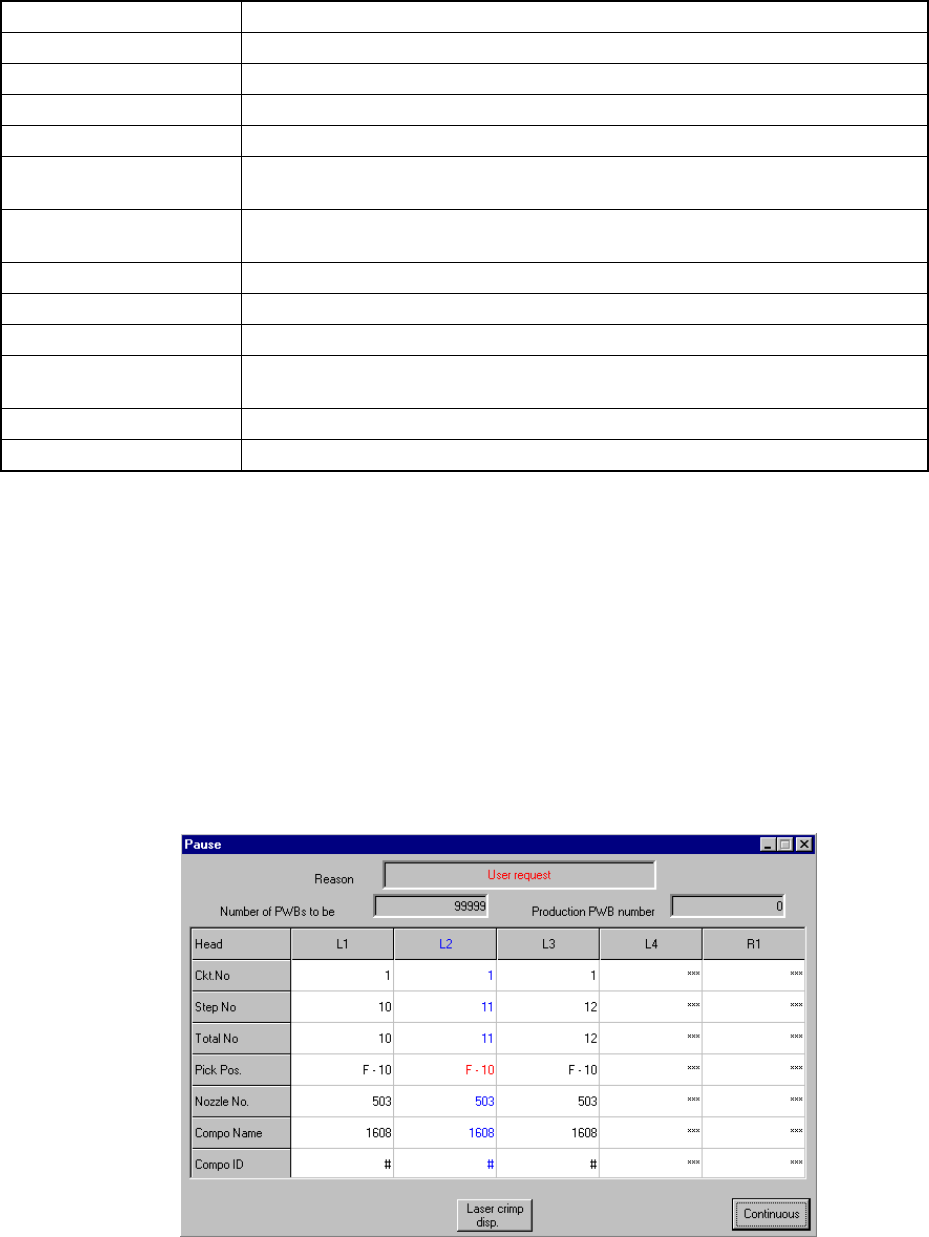
Figure 6.2.2.3 shows the Pause dialog box.
Figure 6.2.2.3 Pause status screen
When the <START> switch is pressed, the Pause dialog box disappears and the
machine exits from the pause status. When the <STOP> switch is pressed, the
machine goes to production interrupt processing.