KE2010.Instruction Manual.Ver.2.01,Rev.08.pdf - 第404页
6 − 28 CA UTION The head starts to mov e immediately after the <START> sw itch is pressed, and then the machine starts PWB production. To avoid a risk of injury, do not place y our hand in the machine, nor move you…
6 − 27
Displayed message Description
PWB transferring A board is being transported.
IC mark recognizing The machine is processing the recognized IC mark data.
BOC mark recognizing The machine is recognizing a BOC mark.
Bad mark detecting The machine is detecting a bad mark.
Placement position The machine is placing a component or moving to the component placement
position.
Pick-up position The machine is picking up a component or moving to the component pick-up
position.
COPLA recognizing The machine is recognizing a COPLA
Attaching a nozzle The machine is mounting a nozzle or moving to the nozzle mounting position.
Returning a nozzle The machine is returning a nozzle or moving to the nozzle return position.
Discarding a component The machine is discarding a component or moving to the component discarding
position.
Bank mark reading The machine is reading a bank mark.
Other positions The machine is performing an operation not described above.
⑫ All Placed
Shows the total number of components placed on a board.
(2) Pause
To temporarily stop board production, press the <STOP> switch on the operator
panel.
When the <STOP> switch is pressed in the Continuous execution mode, or when
the production in the Step execution mode stops at a step position, the machine
enters the pause status.
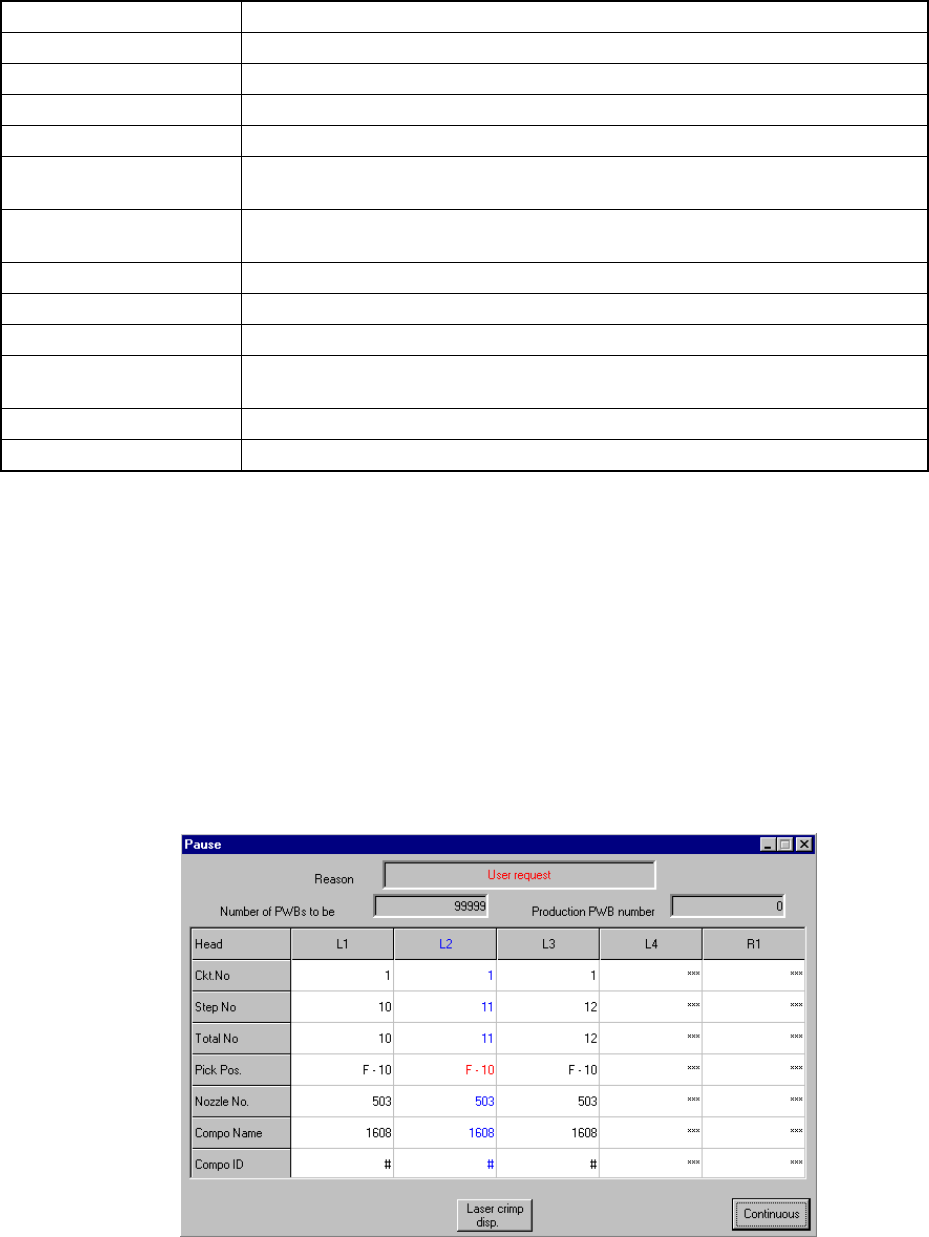
Figure 6.2.2.3 shows the Pause dialog box.
Figure 6.2.2.3 Pause status screen
When the <START> switch is pressed, the Pause dialog box disappears and the
machine exits from the pause status. When the <STOP> switch is pressed, the
machine goes to production interrupt processing.
6 − 28
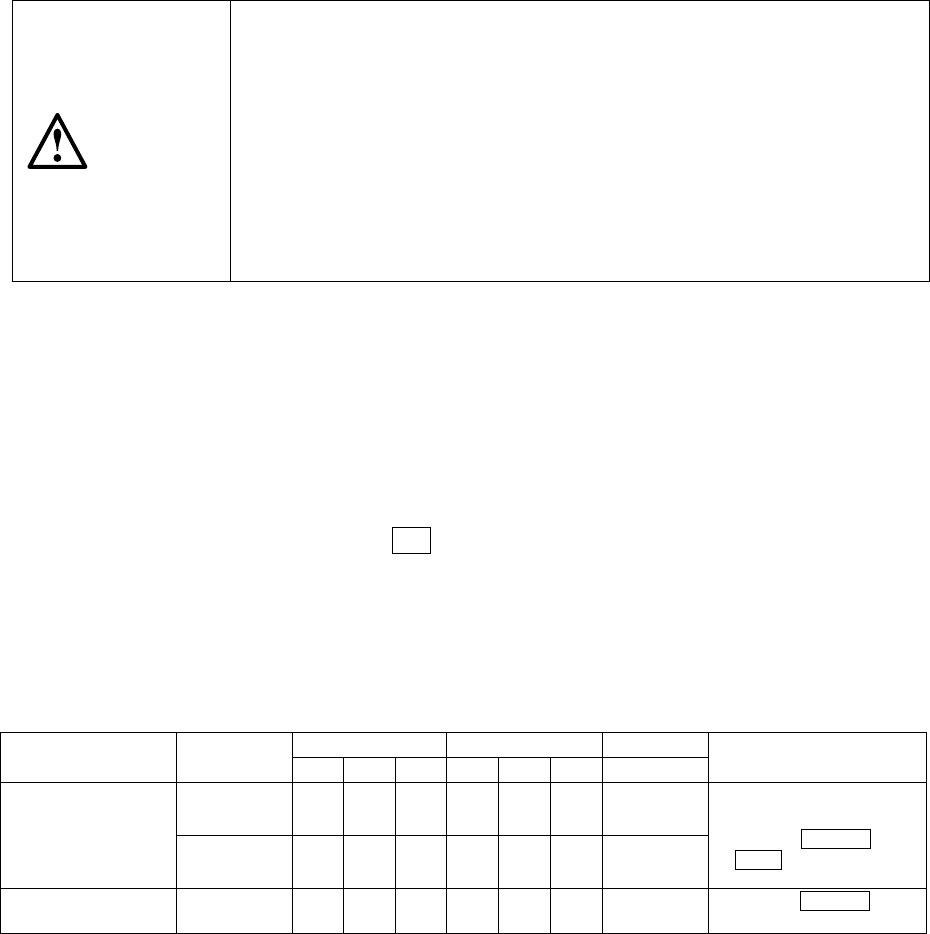
CAUTION
The head starts to move immediately after the <START> switch is
pressed, and then the machine starts PWB production.
To avoid a risk of injury, do not place your hand in the machine, nor
move your face or head close to the machine during operation.
Before pressing the <START> switch, check that there is no one who is
working in the machine.
Before pressing the <START> switch, check that there is no one who
can be injured when the head starts to move.
Before pressing the <START> switch, check that there are no obstacles
(tools and jigs) attached or left in the machine.
In the pause status, it is possible to change the pickup position, position of
placement, and vacuum pressure by teaching.
When "Step" is checked as the Exec. mode on the "Production conditions" screen,
the "Pause" dialog box (Figure 6.2.2.3) appears too without displaying the
Production status screen when the <START> switch on the operation panel is
pressed to start production.
When the system stops in Step production mode, or when it pauses in Continuous
production mode, press the F8 key to change the execution mode to
Continuous/Step and vice versa. Clicking the <Continuous> or <Step> button
change Execution mode also. The <Continuous> or <Step> button displayed on
the dialog box switches Production mode also.
When the machine is put in the pause mode during production, the following data
can be taught according to the cause and position of the pause.
Pick data Placement data Mark data
Cause Position
X,Y Z Vac X,Y Z Vac X, Y
Remarks
Pick point ○ ○ ○
User request by a key
Cover opened
Feeder bank lifted
down
Feeder rise detected
Placement
point
○ ○
- Starts from XY teaching
- Effective HOD device
keys are CAMERA and
HEAD
Mark recognition
error
Mark position ○
- Only the CAMERA key is
effective.
1. Teaching of pick points is set in the order of input, and only possible for
sequential pickup.
2. Teaching of placement points is possible only during reference circuit pattern
placement, and is not possible for the boards with which a bad mark of
reference circuit pattern is detected.
3. Teaching of vacuum pressure at the pick point can be performed in the
following steps with the HOD manually.
Picking a component by moving down the Z axis
→
Teaching the vacuum
the pressure
→
Discarding the component
4. Teaching of the vacuum pressure at the placement point is performed as it is
to be and vacuum cannot be set to ON/OFF.
5. Teaching of the vacuum pressure is set for the component data which is
referred to by the placement data or the pick data being taught.
6 − 29
6. Data loaded with teaching is data on the teaching items whose associated
LEDs of the HOD have lit immediately before you press the ENTER key of
the HOD. To obtain the data on the "XY", "Z" and "Vac" by teaching,
execute teaching operation for each of them separately.
7. Teaching of the tray component pick-up position is impossible.
(3) Stop
The STOP switch is used to stop board production before the preset number of
PWBs are processed. When the STOP switch is pressed while production
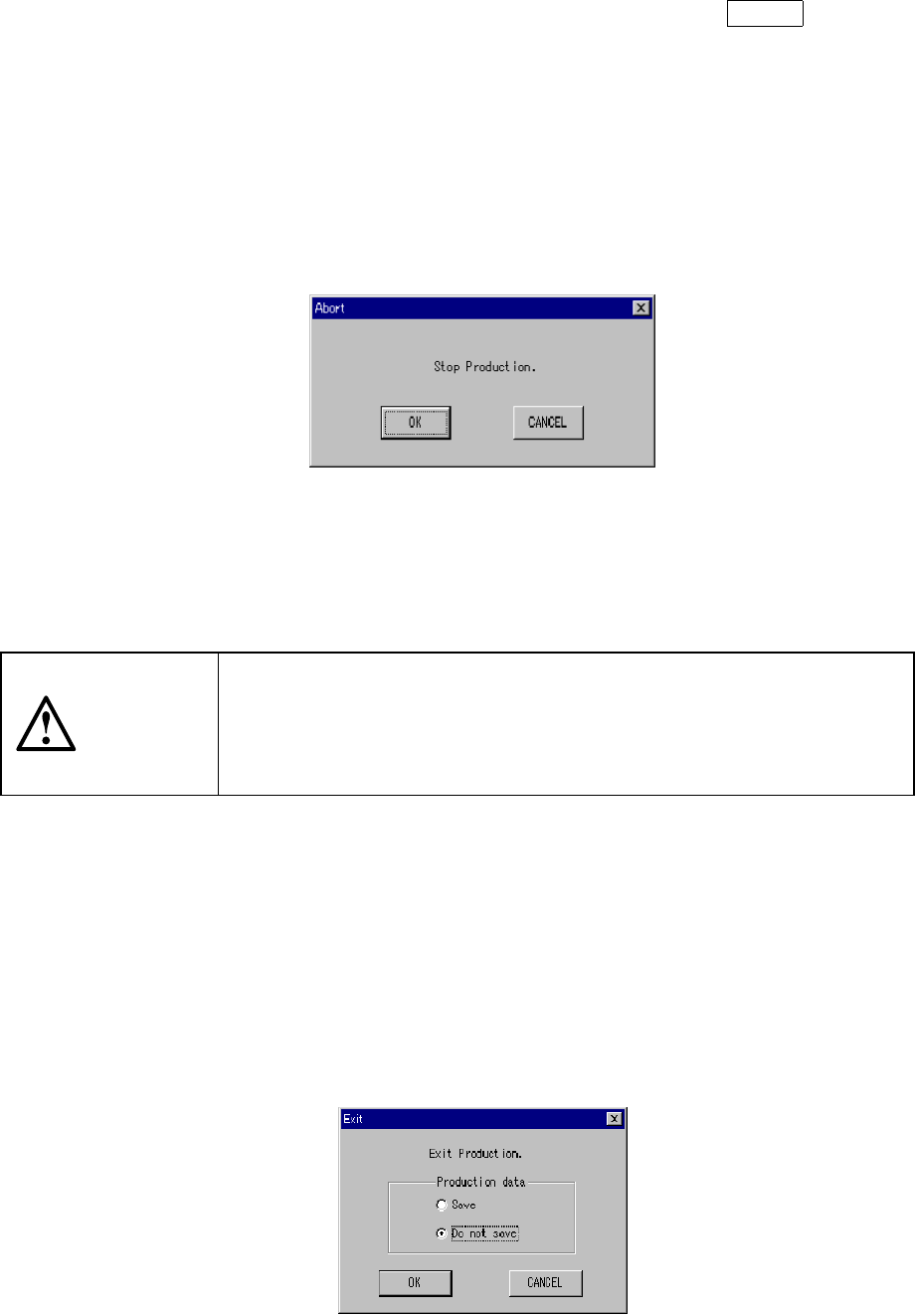
temporarily stops, the Figure 6.2.2.4 "Abort-Stop Production" dialog box appears.
Figure 6.2.2.4 "Abort-Stop production" confirmation dialog box
When the <OK >button is selected, the PWB is unclamped and the machine
returns to the "Production conditions" screen. When the <Cancel> button is
pressed, the previous condition (pause) is restored.
CAUTION
Even when the production is stopped, the X and Y axes and the head
continue to move to carry out nozzle replacement.
To avoid a risk of injury, do not place your hand in the machine, nor
move your face or head close to the machine even after stopping the
production.
(4) Exit
When the preset number of PWBs are processed, the "Production conditions"
screen is restored. The three signal lamps light simultaneously to indicate that
the preset number of PWBs has been processed.
To exit the production operation, select the [File] command on the menu bar, then
the [Exiting Application] command on the displayed File menu, or click the
□
mark located at the upper right corner of the screen. The "Exit" dialog box
shown in Figure 6.2.2.5 appears on the screen.
The "Exit Production" dialog box has radio buttons used to select whether or not
to save the file.
Figure 6.2.2.5 Exit Production dialog box
x