KE2010.Instruction Manual.Ver.2.01,Rev.08.pdf - 第412页
6 − 36 (2) Displayed screen Normally the system displays the com ponent pick- up ratio f rom t he lowest (worst) ratio t o the highest (best) r atio (see Fig ure 6.2. 3.1.6). Figure 6.2.3. 1.6 Ratio of Pick-up screen (Fr…
6 − 35
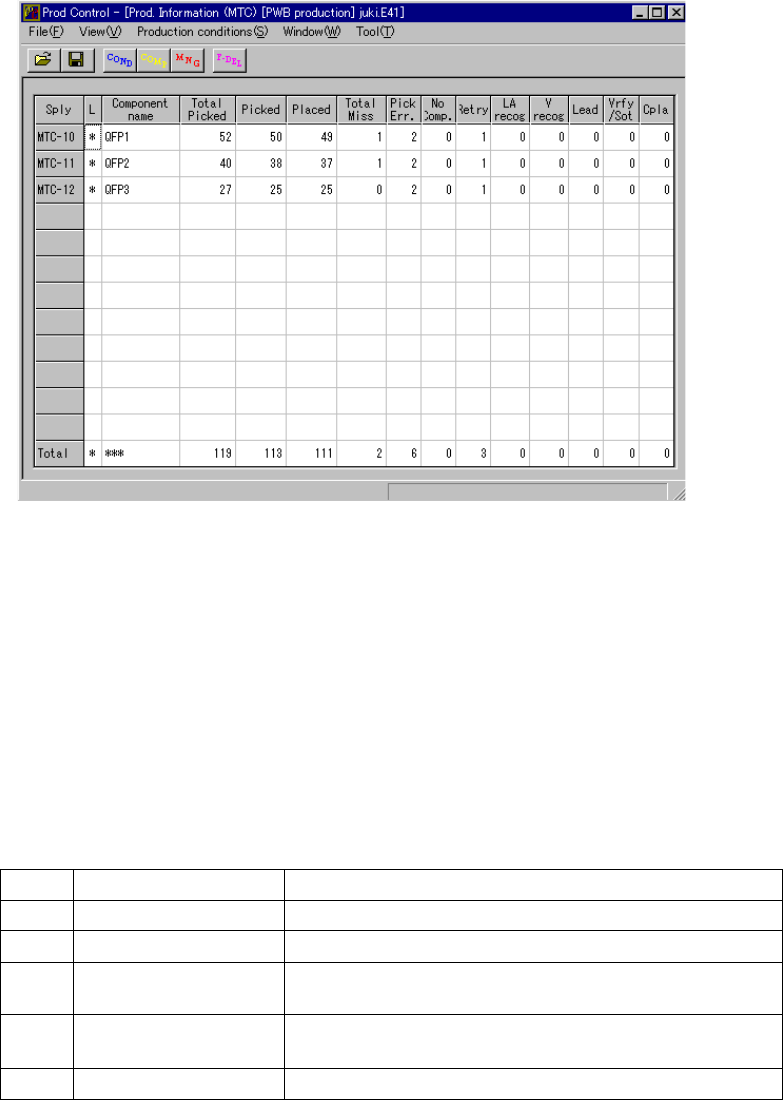
⑤ MTS
When you select the [Window] command from the menu bar, the [Management
Info.] command on the displayed menu, then the [MTS] command, the screen
shown in Figure 6.2.3.1.5 appears.
Figure 6.2.3.1.5 Prod. Information (MTS)
⑥ Ratio of Pick-up
When you select the [Window] command on the menu bar, and then select the
[Management Info.] command and the [Ratio of Pick-up] command on the
displayed menu in this order, the system displays the “component pick-up ratio of
each feeder (Ratio of Pick-up = Picked / (Picked + Pick Err.)).
(1) Menu items
Display of “Ratio of Pick-up”
No. Item Description
1 Sply Position of each feeder
2 Component name Displays the component name.
3 Picked Number of components successfully picked up from the
specified feeder
4 Pick Err. Number of components that failed to be picked up with the
specified feeder
5 Ratio of Pick-up (%) Ratio of Pick-up = Picked / (Picked + Pick Err.)
6 − 36
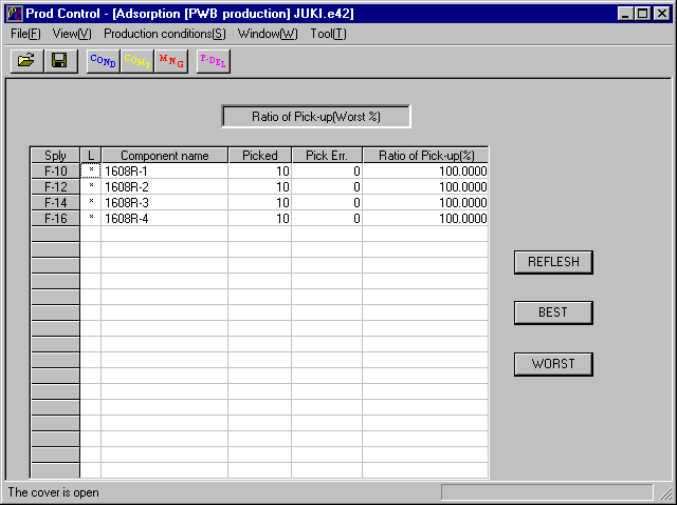
(2) Displayed screen
Normally the system displays the component pick-up ratio from the lowest
(worst) ratio to the highest (best) ratio (see Figure 6.2.3.1.6).
Figure 6.2.3.1.6 Ratio of Pick-up screen
(From the lowest (worst) ratio to the highest (best) ratio)
Function of each button
− When you click the <REFLESH> button or <WORST> button, the system
displays data in the worst ratio order: from the lowest ratio to the highest
ratio.
− When you click the <BEST> button, the system displays data in the best ratio
order: from the highest ratio to the lowest ratio.
(3) Updating data
① During production
The system will not update data during production.
When you click the <REFLESH> button, the system updates data, and
displays it in the worst pick-up ratio order: from the lowest to the highest
as shown in Figure 6.2.3.1.6.
② While the system temporarily stops PWB production
The system automatically updates data, and displays data in the worst
pick-up ratio order: from the lowest to the highest as shown in Figure
6.2.3.1.6.
6 − 37
(4) Printing the component pick-up ratio
The system can print the component pick-up ratio obtained as the Production
management information in the “best order” or “worst order”, or saves it as a
text file.
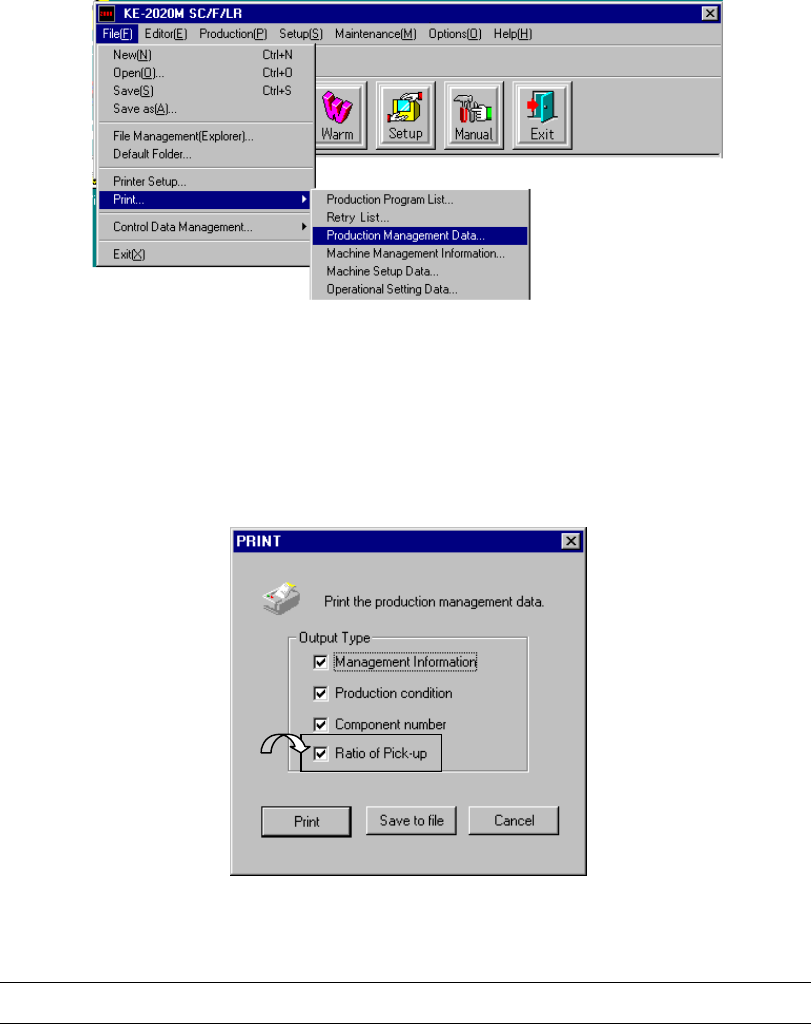
① Select the [Print] command on the “File” menu on the menu bar, and then
the [Production Management Data…] command on the displayed menu
after loading a production program.
Figure 6.2.3.1.7 Selecting a menu bar
② Check the check box “Ratio of Pick-up.”
When you select the [Production Management Data…] command, the
following dialog box appears on the screen.
Figure 6.2.3.1.8 “PRINT” dialog box
- An item whose check box is checked with a check mark is enabled (set to ON).