KE2010.Instruction Manual.Ver.2.01,Rev.08.pdf - 第413页
6 − 37 (4) Print ing the com ponent pick- up ratio The system can pr int the component pick-up r atio obtained as the Pr oduction management inf ormation in the “ best order ” or “worst order ”, or saves it as a text fil…
6 − 36
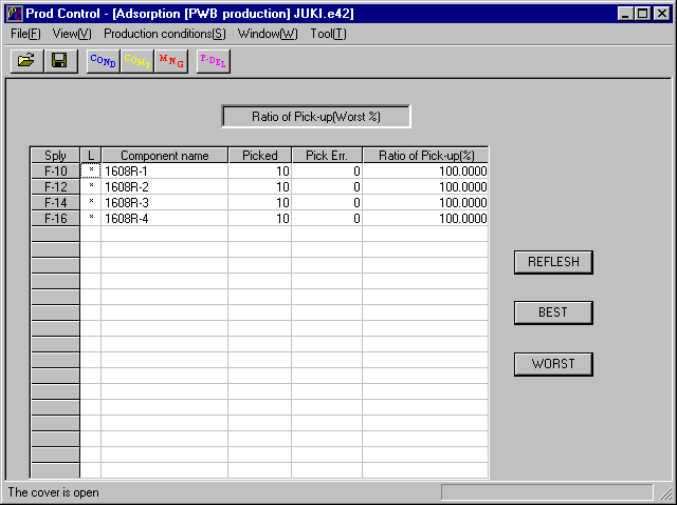
(2) Displayed screen
Normally the system displays the component pick-up ratio from the lowest
(worst) ratio to the highest (best) ratio (see Figure 6.2.3.1.6).
Figure 6.2.3.1.6 Ratio of Pick-up screen
(From the lowest (worst) ratio to the highest (best) ratio)
Function of each button
− When you click the <REFLESH> button or <WORST> button, the system
displays data in the worst ratio order: from the lowest ratio to the highest
ratio.
− When you click the <BEST> button, the system displays data in the best ratio
order: from the highest ratio to the lowest ratio.
(3) Updating data
① During production
The system will not update data during production.
When you click the <REFLESH> button, the system updates data, and
displays it in the worst pick-up ratio order: from the lowest to the highest
as shown in Figure 6.2.3.1.6.
② While the system temporarily stops PWB production
The system automatically updates data, and displays data in the worst
pick-up ratio order: from the lowest to the highest as shown in Figure
6.2.3.1.6.
6 − 37
(4) Printing the component pick-up ratio
The system can print the component pick-up ratio obtained as the Production
management information in the “best order” or “worst order”, or saves it as a
text file.
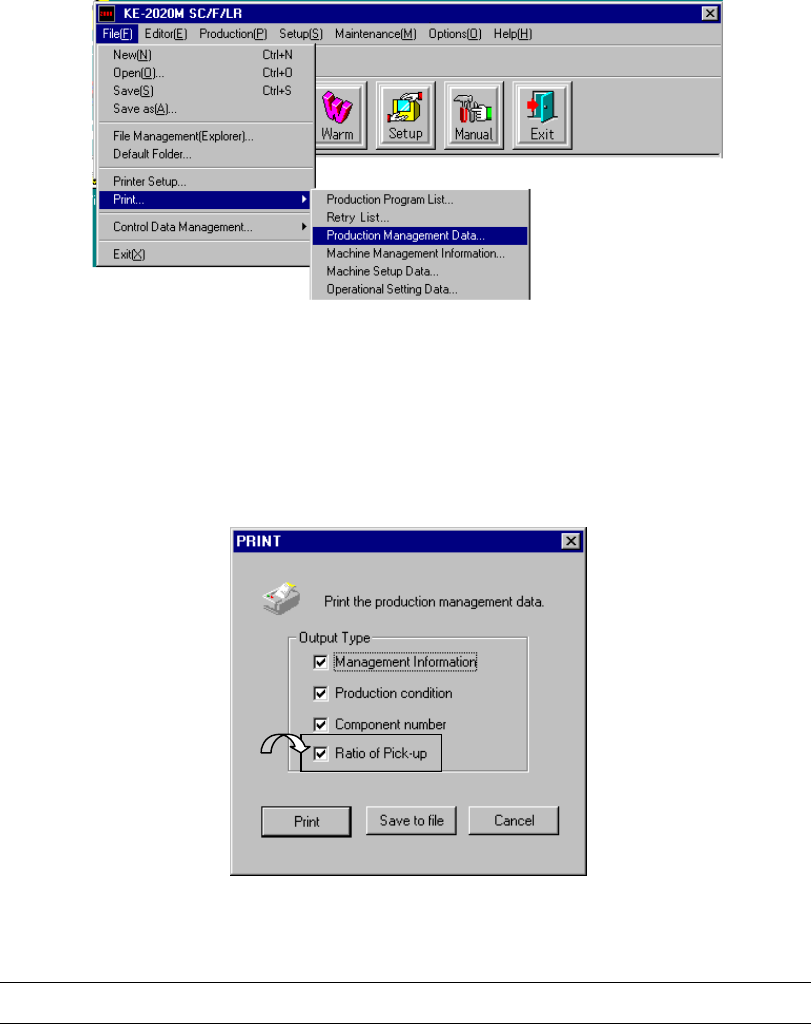
① Select the [Print] command on the “File” menu on the menu bar, and then
the [Production Management Data…] command on the displayed menu
after loading a production program.
Figure 6.2.3.1.7 Selecting a menu bar
② Check the check box “Ratio of Pick-up.”
When you select the [Production Management Data…] command, the
following dialog box appears on the screen.
Figure 6.2.3.1.8 “PRINT” dialog box
- An item whose check box is checked with a check mark is enabled (set to ON).
6 − 38
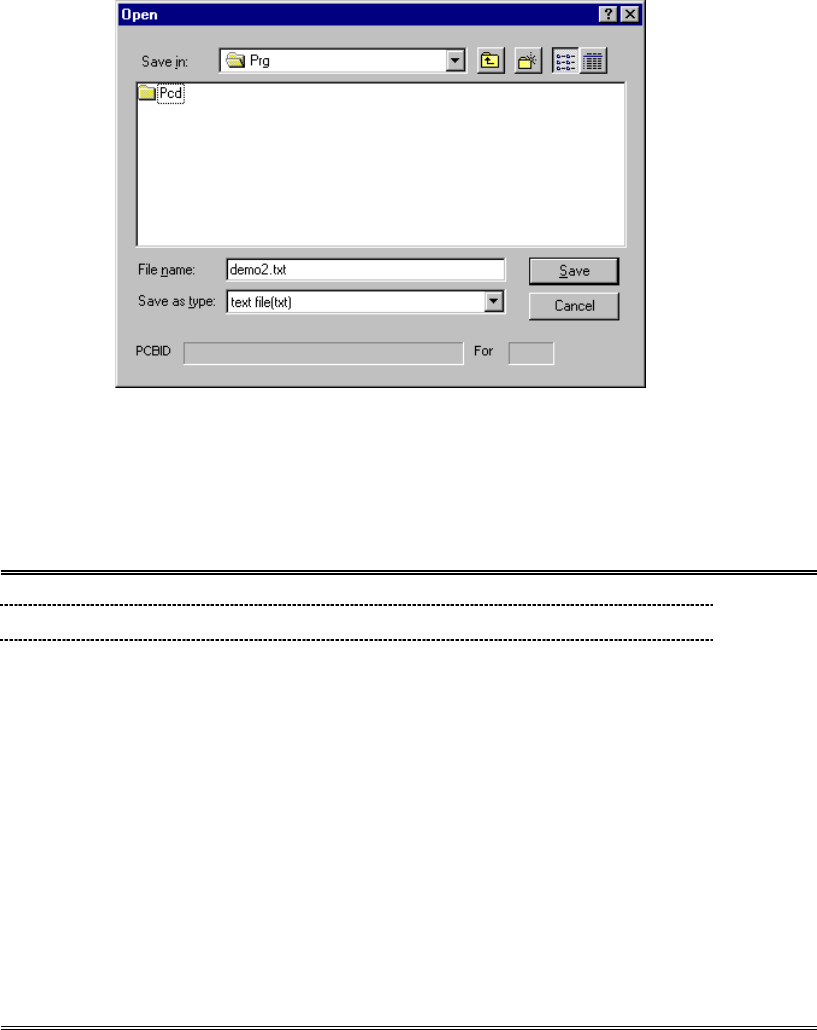
③ Printing or saving as a file
Click the <Save to file> button, and select where to save the file.
Figure 6.2.3.1.9 “Open” dialog box for printing the component pick-up ratio.
− When you click the <Save> button, the system generates a text file in the
format shown below.
Example:
Production Informations JUKI KE-2020 2002/03/25 11:21:11
File name = C:¥prg¥2020_4.e42
< Ratio of Pick-up WORST >
Sply Component name Picked Err Ratio(%)
F-66 2029 0 0 0.0000
F-26 2010 2 2 50.0000
F-56 2024 1 1 50.0000
F-62 2027 1 1 50.0000
F-28 2011 4 2 66.6667
F-54 2023 2 1 66.6667
F- 3 2005 15 5 75.0000
F-34 2014 3 1 75.0000
F-16 2001 25 8 75.7576
F- 5 1608 17 5 77.2727
F-18 2002 21 6 77.7778
F-40 2017 4 1 80.0000
F-46 2020 4 1 80.0000
F-12 2003 27 6 81.8182
F-24 2009 5 1 83.3333
F-10 2000 23 3 88.4615
F- 1 2004 16 2 88.8889
F- 7 2006 4 0 100.0000
Page 1/2
− When you click the <Print> button, the system outputs the data shown
above or like to the connected printer.
⑦ Clear
To clear the production management information displayed on the screen, select
the [Window] command from the menu bar, the [Management info.] command
on the displayed menu, then the [Clear] command.
6.2.3.2 Storing the production management data
When you perform the "Save" command for a file after production, you can save the
production management information as a file separately.