KE2010.Instruction Manual.Ver.2.01,Rev.08.pdf - 第415页
6 − 39 6.2.4 Production information Figure 6.2. 4.1 Selecting the [ Production Info.] command 6.2.4.1 Vacuum level W hen y ou select this com mand, the system displays informat ion such as the cycle time per boar d, tota…
6 − 38
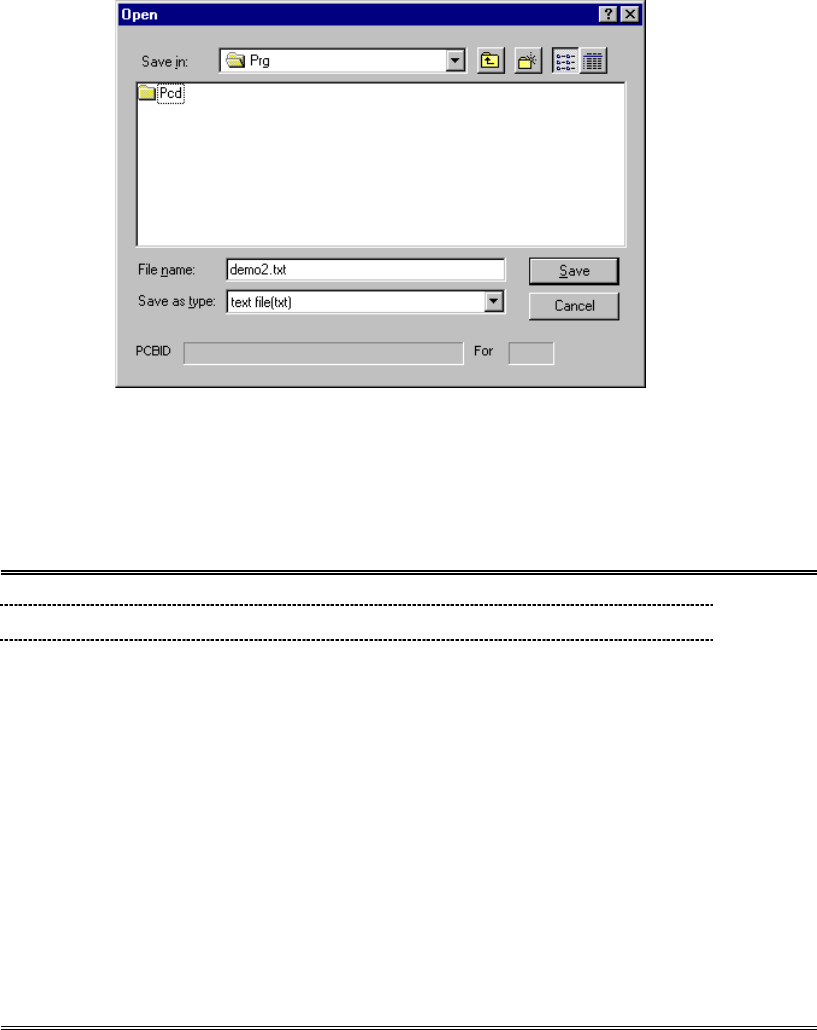
③ Printing or saving as a file
Click the <Save to file> button, and select where to save the file.
Figure 6.2.3.1.9 “Open” dialog box for printing the component pick-up ratio.
− When you click the <Save> button, the system generates a text file in the
format shown below.
Example:
Production Informations JUKI KE-2020 2002/03/25 11:21:11
File name = C:¥prg¥2020_4.e42
< Ratio of Pick-up WORST >
Sply Component name Picked Err Ratio(%)
F-66 2029 0 0 0.0000
F-26 2010 2 2 50.0000
F-56 2024 1 1 50.0000
F-62 2027 1 1 50.0000
F-28 2011 4 2 66.6667
F-54 2023 2 1 66.6667
F- 3 2005 15 5 75.0000
F-34 2014 3 1 75.0000
F-16 2001 25 8 75.7576
F- 5 1608 17 5 77.2727
F-18 2002 21 6 77.7778
F-40 2017 4 1 80.0000
F-46 2020 4 1 80.0000
F-12 2003 27 6 81.8182
F-24 2009 5 1 83.3333
F-10 2000 23 3 88.4615
F- 1 2004 16 2 88.8889
F- 7 2006 4 0 100.0000
Page 1/2
− When you click the <Print> button, the system outputs the data shown
above or like to the connected printer.
⑦ Clear
To clear the production management information displayed on the screen, select
the [Window] command from the menu bar, the [Management info.] command
on the displayed menu, then the [Clear] command.
6.2.3.2 Storing the production management data
When you perform the "Save" command for a file after production, you can save the
production management information as a file separately.
6 − 39
6.2.4
Production information
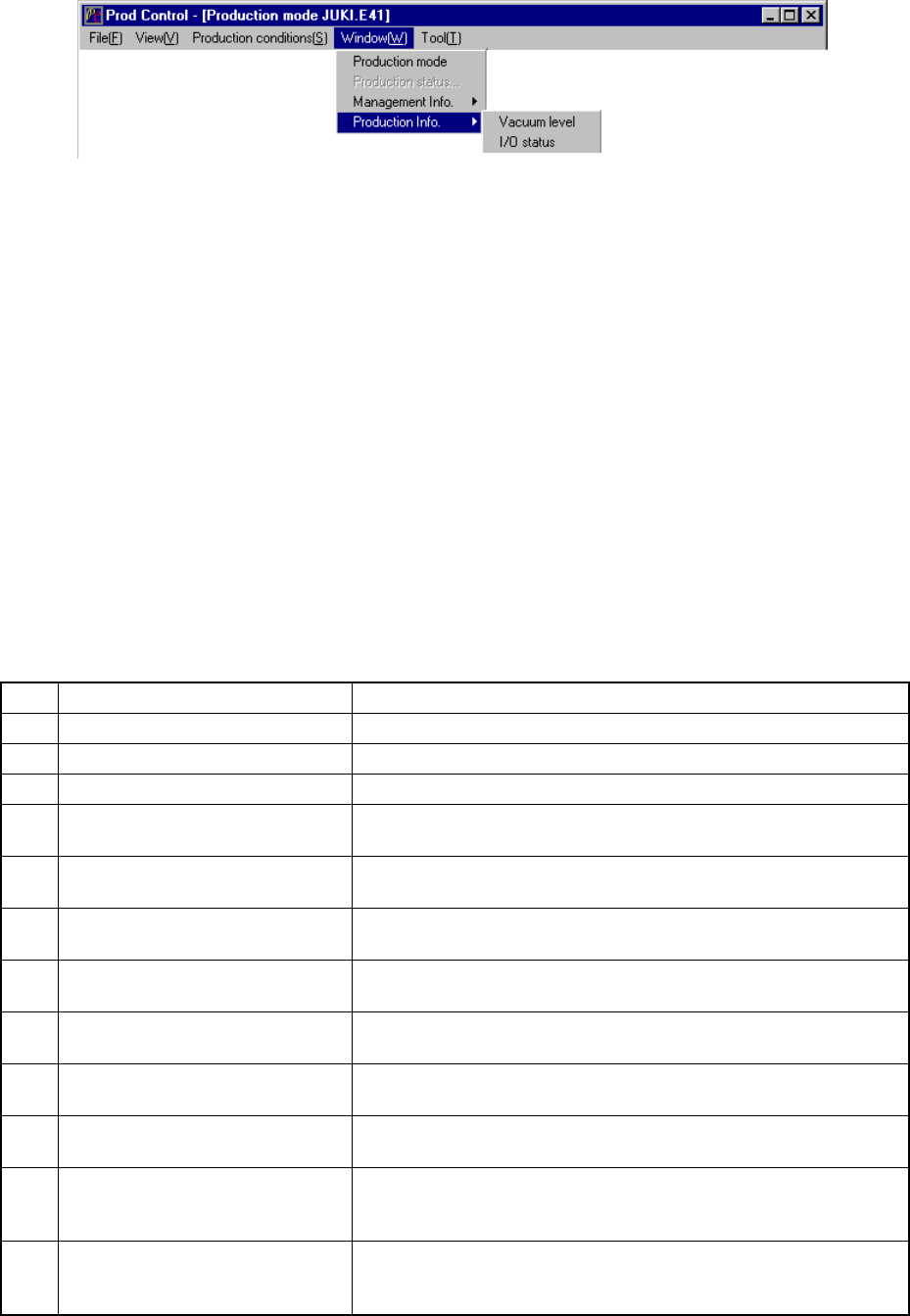
Figure 6.2.4.1 Selecting the [Production Info.] command
6.2.4.1 Vacuum level
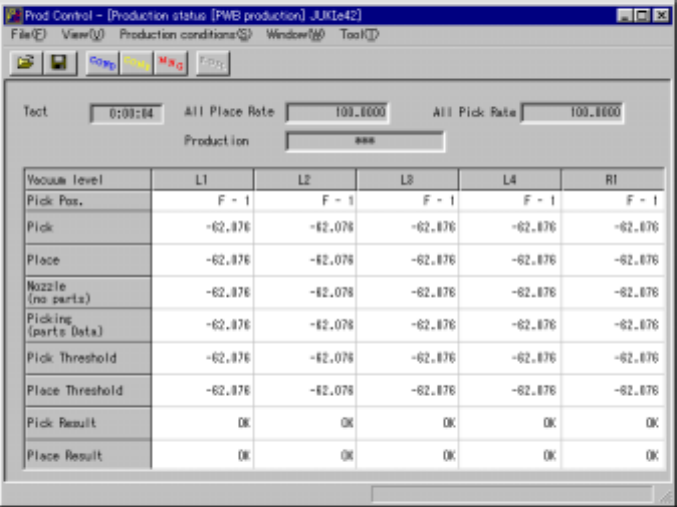
When you select this command, the system displays information such as the cycle
time per board, total mounting ratio, total picking-up ratio, and vacuum value.
This command shows the vacuum level.
(1) Vacuum level display conditions
① When the production mode is set for the PWB production.
② Once all place rate and all pick rate is displayed, new data for the next
production is added to the previous data.
If you want entirely new data to be created, clear the data already created
from production management information.
(2) Items
① Total management information
No. Item Description
1 Tact on a board Procedure time on a board.
2 All Place Rate Shows the component placement ratio of the entire machine.
3 All Pick Rate Shows the component pick-up ratio of the entire machine.
4 Pick Pos. Shows that the machine is picking up a component or moving it to
the pick-up position.
5 After component picked Shows the current vacuum level obtained after the left and right
heads pick up components.
6 Before component placed Shows the current vacuum level obtained after the left and right
heads place components on a board.
7 Attaching a nozzle
(no component)
Shows the current vacuum level obtained when the left and right
heads use a nozzle before placing a component.
8 Picking a component
(component data)
Shows the current vacuum level obtained when the left and right
heads pick up components (according to Component data).
9 After component picked
thresholed
Shows the current threshold value obtained after the left and right
heads pick up components.
10 Before component placed
thresholed
Shows the current threshold value obtained before the left and right
heads place components on a board.
11 Judged result of vacuum error
(after comp. picked)
Shows the result obtained with comparing the current threshold
value obtained after the left and right heads pick up components
with the current vacuum level.
12 Judging result of vacuum error
(before comp. placed)
Shows the result obtained with comparing the current threshold
value obtained before the left and right heads place components on
a board with the current vacuum level.
6 − 40
(3) Basic operation to display production information
When you select the [Window] command on the menu bar, and then the
[Production Info.] command and [Vacuum level] command on the displayed
menu in this order, the system displays the following screen indicating the
vacuum level (Figure 6.2.4.2).
Figure 6.2.4.2 Vacuum level
To clear all pick rate and all place rate of the production information displayed on the
screen,select the [Window] command from the menu bar,the [Managemen info.]
command on the dsiplayed menu,then the [Clear] command.
To clear tact,all pick rate and all place rate of the production information displayed on
the screen,when the file reading.
− The tact is showed producing and idling.
− Shown used to produced tact in idling.
− Shown vacuum level used during production.