KE2010.Instruction Manual.Ver.2.01,Rev.08.pdf - 第430页
6 − 54 W hen you press the <START> switch on this dialog box, the system resumes t he placement operat ion fr om the component where the error occur red to continue production. T he system automat ically supplies w…
6 − 53
6.3.2 Retry list display during board production
In the execution of production, the error list whose contents vary depending on the
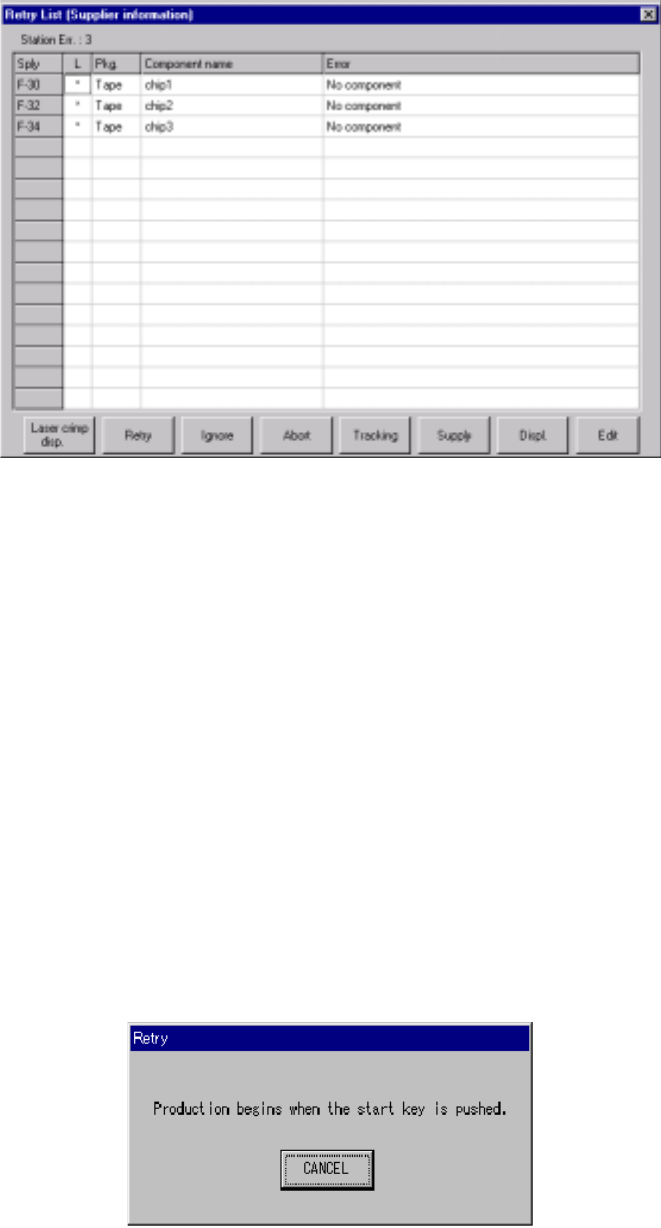
error actually occurred appears on the screen as shown in Figure 6.3.2.1.
Figure 6.3.2.1 Retry List display dialog box (Supplier information)
The error log displayed in the execution of production is used to determine whether or
not the production should be continued.
Therefore, with eight buttons displayed on the screen, control the production condition
after an error occurs. The function activated with your button selection is described
below.
1) Laser crimp disp.
This button displays the laser waveform. See the description of the laser
waveform display under Section 6.4.8 “Checking to see if a laser head is stained”
for details.
1)
2) Retry
When you select the "Retry" button, the following dialog box appears on the
screen as shown in Figure 6.3.2.2.
Figure 6.3.2.2 Dialog box displayed when you select the <Retry> button
6 − 54
When you press the <START> switch on this dialog box, the system resumes the
placement operation from the component where the error occurred to continue
production. The system automatically supplies with components the feeder where
components run out.
When you press the <Cancel> button, the screen returns to the Retry list display.
CAUTION
The head starts to move immediately after the "Retry" button is selected
and the <START> switch is pressed, and then the machine restarts
PWB production.
To avoid a risk of injury, do not place your hand in the machine, nor
move your face or head close to the machine during operation.
Before pressing the <START> switch, check that there is no one who is
working in the machine.
Before pressing the <START> switch, check that there is no one who
can be injured when the head starts to move.
Before pressing the <START> switch, check that there are no obstacles
(tools and jigs) attached or left in the machine.
3) Ignore
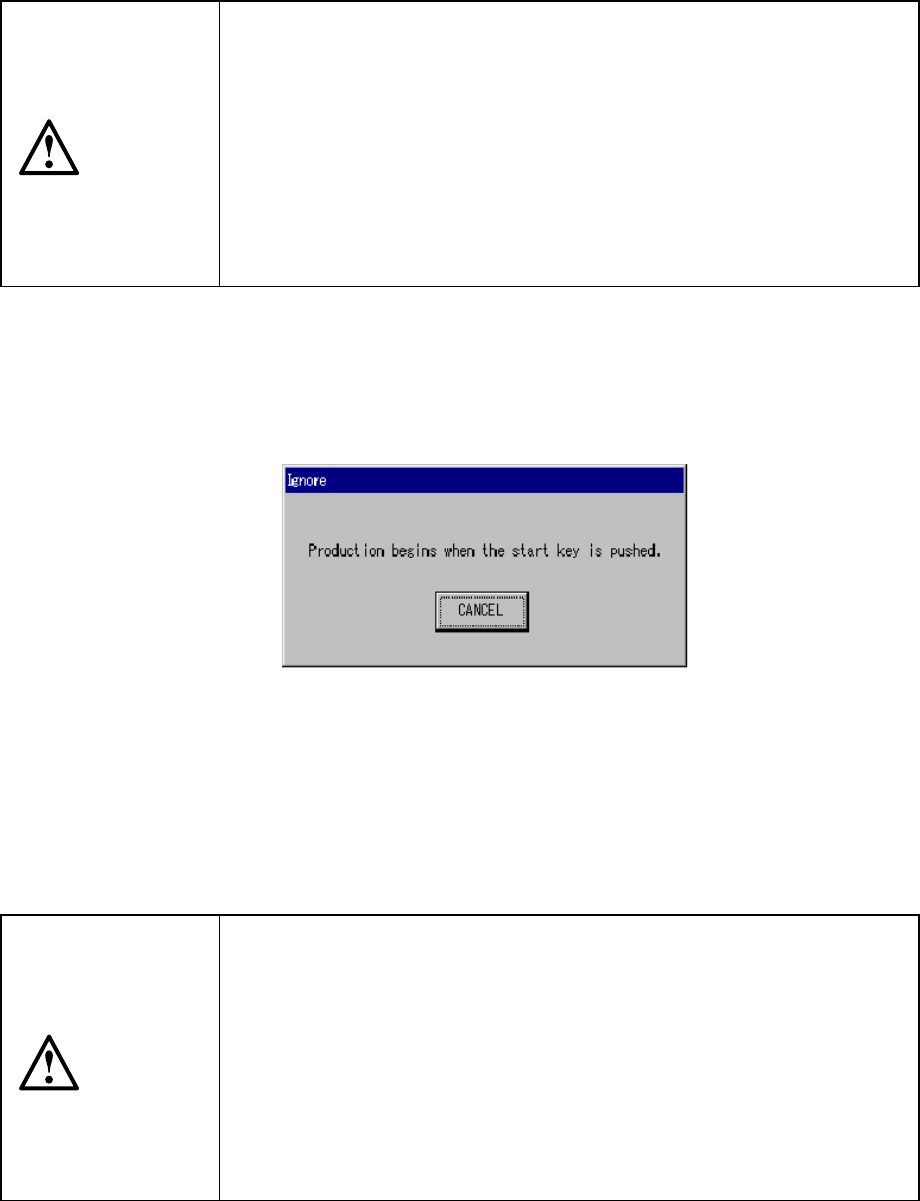
When you select the "Ignore" button, the dialog box appears on the screen as
shown in Figure 6.3.2.3.
Figure 6.3.2.3 Dialog box displayed when you select the <Ignore> button
When you press the <START> switch on this dialog box, the system skips the
component (its layer) displayed on the error log, then starts production from the
next layer.
When you press the <Cancel> button, the screen returns to the error log display.
CAUTION
The head starts to move immediately after the "Ignore" button is
selected and the <START> switch key is pressed, and then the
machine restarts PWB production.
To avoid a risk of injury, do not place your hand in the machine, nor
move your face or head close to the machine during operation.
Before pressing the <START> switch, check that there is no one who is
working in the machine.
Before pressing the <START> switch, check that there is no one who
can be injured when the head starts to move.
Before pressing the <START> switch check that there are no obstacles
(tools and jigs) attached or left in the machine.
6 − 55
4) Abort
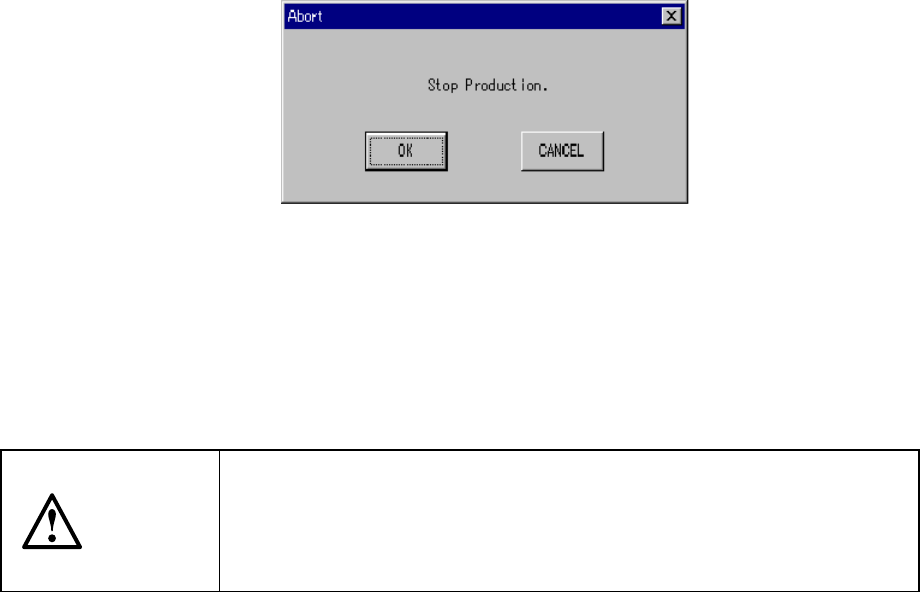
When you select the <Abort> button, the dialog box shown in Figure 6.3.2.4
appears on the screen.
Figure 6.3.2.4 Dialog box displayed when you select the <Abort> button
This button stops production and moves down the backup plate so that the PWB
can be ejected. In this case, the nozzle attached to the head is removed to finish
the operation. The same operation can be resumed by pressing the <STOP> key
on the operation panel.
CAUTION
After selection of the <Abort> button, the X and Y axes and the head
still continue to move to change the nozzle.
To avoid a risk of injury, do not place your hand in the machine, nor
move your face or head close to the machine even after stopping PWB
production.
5) Tracking
When you select this button, the pick position correction process will be
performed for the position which caused the error displayed in the list box.
For details, see the description for the "Pick point correction".
6) Supply
When you select this button, you can control the number of components by
opening the Part no. setup window. See the Section 6.2.1.2 "Setting the number
of components" for details.