KE2010.Instruction Manual.Ver.2.01,Rev.08.pdf - 第432页
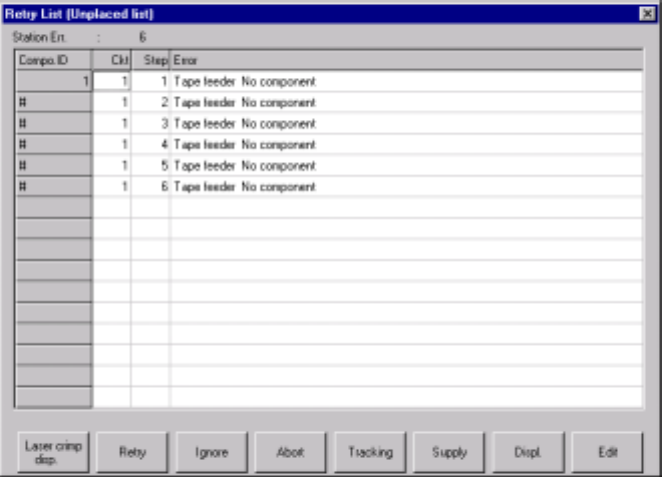
6 − 56 7) Displ. (Display) T his button switches the screens bet ween the unplaced list and the supplier inform ation screen. Figure 6.3.2. 5 Retry List (Unpl aced list) dialog box 8) Edit T his button allows you to modi…
6 − 55
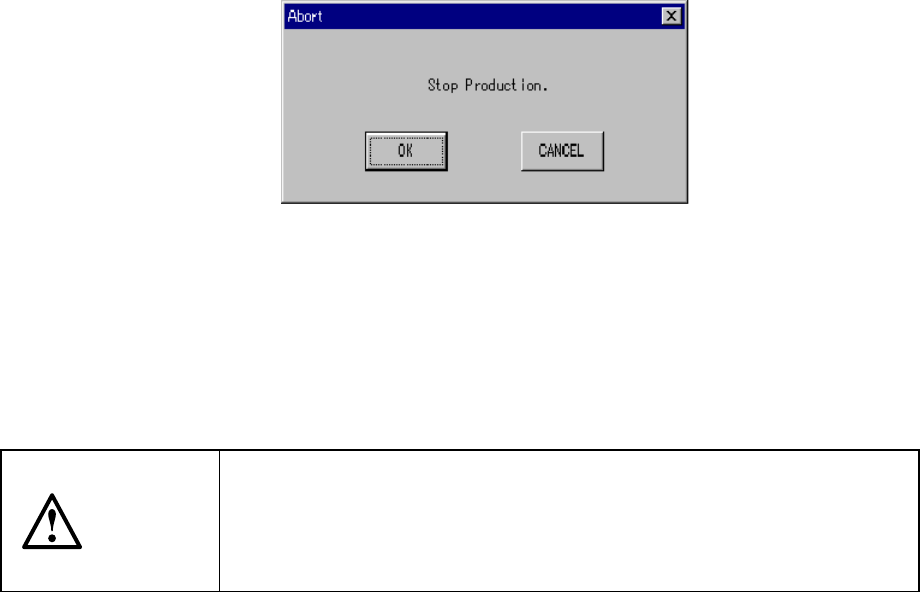
4) Abort
When you select the <Abort> button, the dialog box shown in Figure 6.3.2.4
appears on the screen.
Figure 6.3.2.4 Dialog box displayed when you select the <Abort> button
This button stops production and moves down the backup plate so that the PWB
can be ejected. In this case, the nozzle attached to the head is removed to finish
the operation. The same operation can be resumed by pressing the <STOP> key
on the operation panel.
CAUTION
After selection of the <Abort> button, the X and Y axes and the head
still continue to move to change the nozzle.
To avoid a risk of injury, do not place your hand in the machine, nor
move your face or head close to the machine even after stopping PWB
production.
5) Tracking
When you select this button, the pick position correction process will be
performed for the position which caused the error displayed in the list box.
For details, see the description for the "Pick point correction".
6) Supply
When you select this button, you can control the number of components by
opening the Part no. setup window. See the Section 6.2.1.2 "Setting the number
of components" for details.
6 − 56
7) Displ. (Display)
This button switches the screens between the unplaced list and the supplier
information screen.
Figure 6.3.2.5 Retry List (Unplaced list) dialog box
8) Edit
This button allows you to modify Component data.
See Section 6.4.13 "Editing data" for details.
6.3.3 Pick point correction
6.3.3.1 Pick point correction using the Retry list (unplace list) dialog
When you click the <Tracking> button on the screen shown in Figure 6.3.2.5,
components are automatically replenished whose pick-up position has been already
corrected among all of components whose Pick data is referenced from Placement
data, which is associated with the component ID displayed on the list box.
6.3.3.2 Operation
① Entering conditions
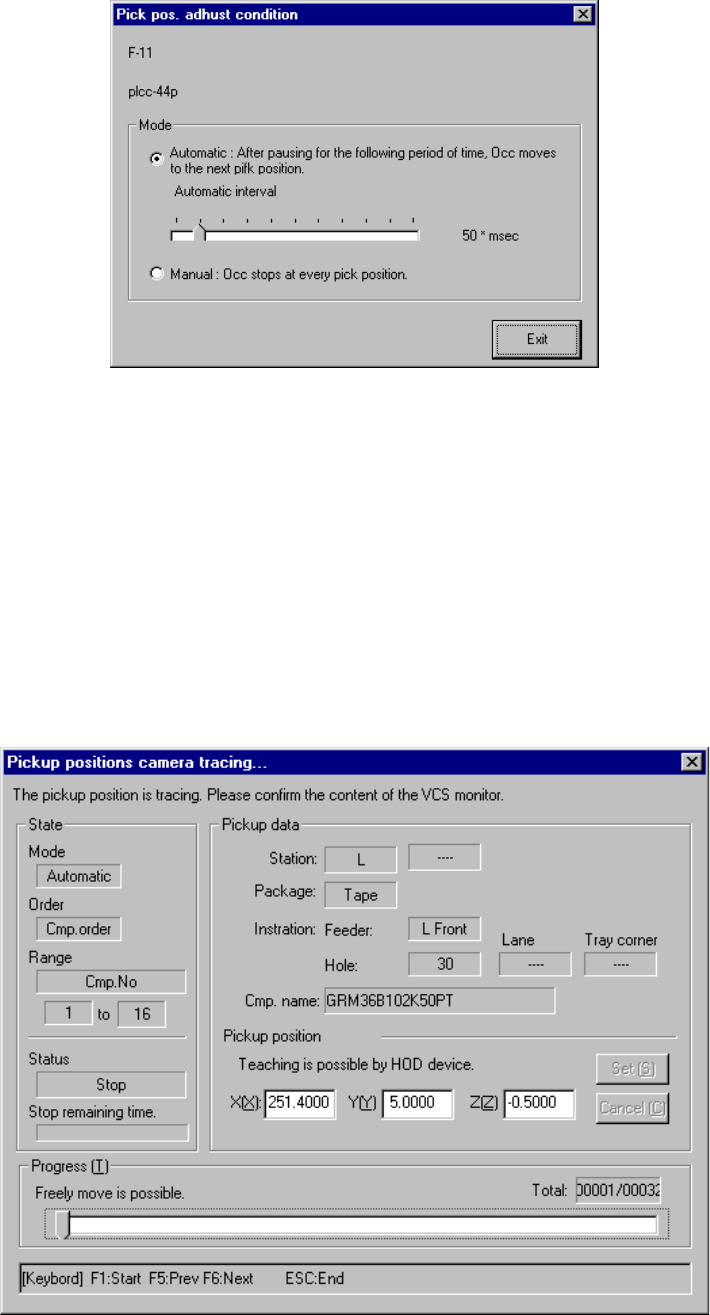
When the [Pick track] is selected in the Retry list dialog box, the dialog box is
displayed as shown in Figure 6.3.3.2.1. By entering the conditions for pick point
camera tracking, tracking can be started with the <START> switch on the
operation panel.
The tracking conditions which can be entered are as follows:
- Selection between automatic pick point tracking at every automatic feeding
interval or manual pick point tracking by the user using the HOD.
- Stop time duration at the pick point for the tracking at automatic feeding
intervals
6 − 57
Figure 6.3.3.2.1 Pos. adjust condition dialog box
② Starting tracking operation
When the "Pick pos. adjust condition" dialog box above in Figure 6.3.3.2.1
appears, press the <START> switch on the operation panel. The machine
displays the screen as shown in Figure 6.3.3.2.2, then starts tracking a pick
position under the conditions you entered on the "Pick pos. adjust condition"
dialog box.
When tracking operation is complete, the "Pick pos. adjust condition" dialog box
appears again. So, tracking operation can be repeated as many as possible to
check the pick point.
Figure 6.3.3.2.2 Pick position camera tracking dialog box