KE2010.Instruction Manual.Ver.2.01,Rev.08.pdf - 第434页
6 − 58 CA UTION If the feeder bank is never recognized (since the machine zeros or t he bank moves down then up), it may be recognized automatically before the machine moves to the pick position. Since the head moves acr…
6 − 57
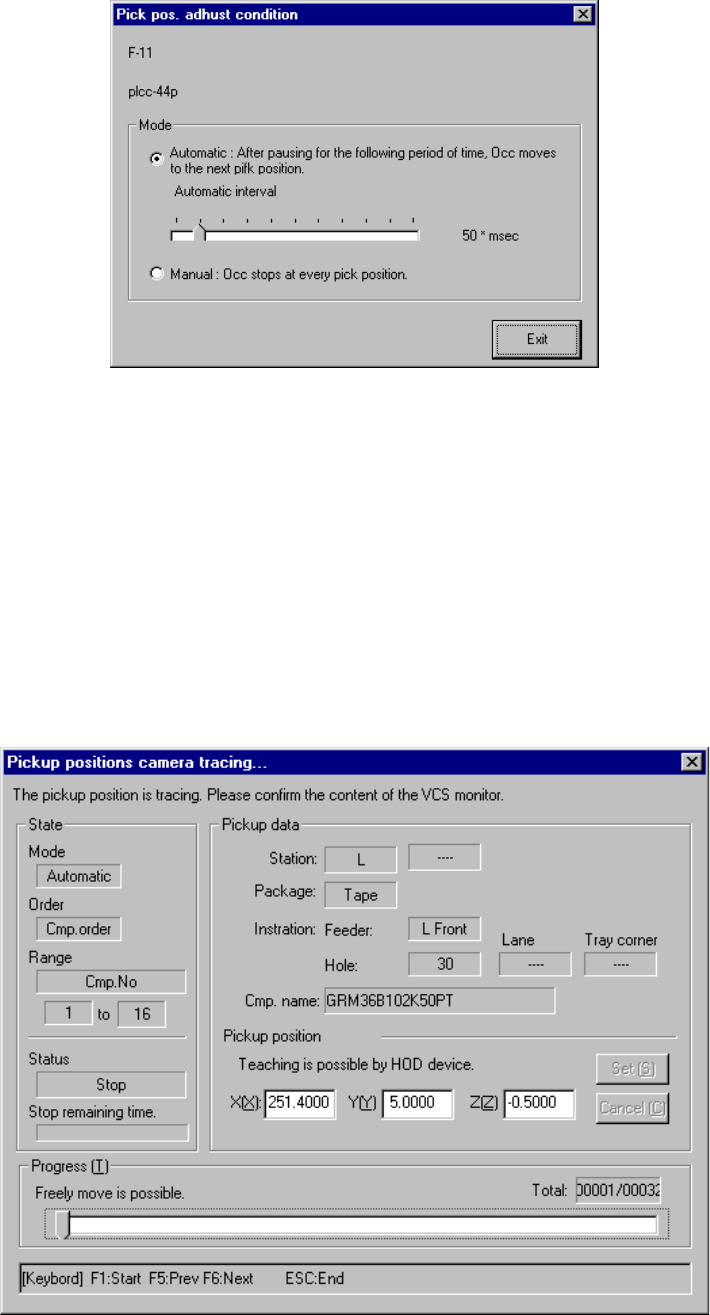
Figure 6.3.3.2.1 Pos. adjust condition dialog box
② Starting tracking operation
When the "Pick pos. adjust condition" dialog box above in Figure 6.3.3.2.1
appears, press the <START> switch on the operation panel. The machine
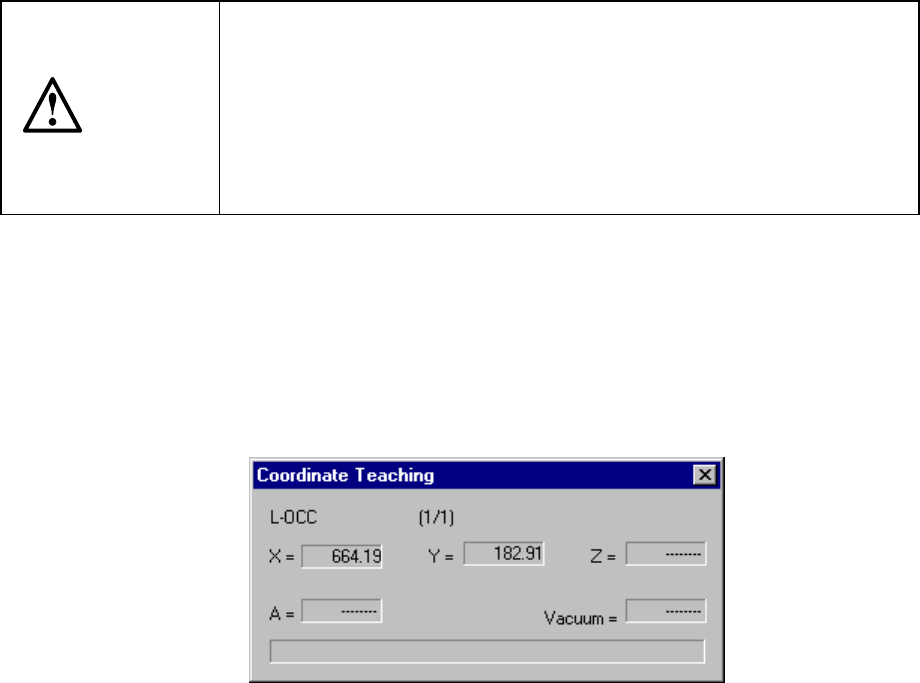
displays the screen as shown in Figure 6.3.3.2.2, then starts tracking a pick
position under the conditions you entered on the "Pick pos. adjust condition"
dialog box.
When tracking operation is complete, the "Pick pos. adjust condition" dialog box
appears again. So, tracking operation can be repeated as many as possible to
check the pick point.
Figure 6.3.3.2.2 Pick position camera tracking dialog box
6 − 58
CAUTION
If the feeder bank is never recognized (since the machine zeros or the
bank moves down then up), it may be recognized automatically before
the machine moves to the pick position.
Since the head moves across the feeder bank while the feeder is being
recognized, do not place your hand or head in the machine, nor move
your hand or face close to the machine. Especially, extreme care is
required when the feeder bank is recognized not from the menu but
during teaching or tracking a pick position.
③ Tracking operation and teaching
During tracking operation, in the same manner as the other pick point camera
tracking operations, operation can be done using the <START> switch and the
<STOP> switch of the panel of the main unit and the HOD. Teaching of pick
coordinates is also possible.
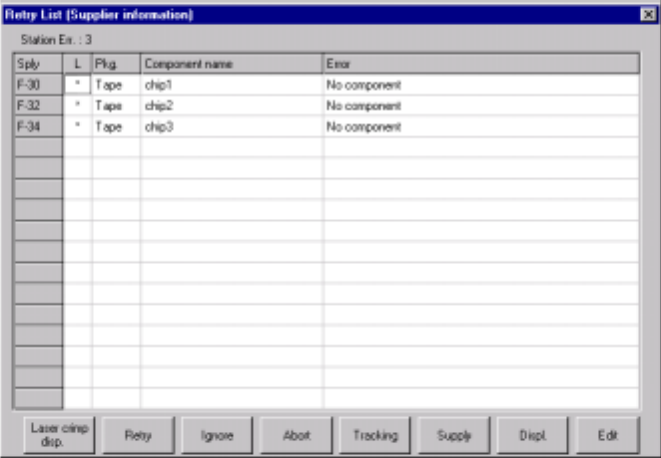
Figure 6.3.3.2.3 "Coordinate Teaching" dialog box
④ Finishing pick point correction
When pressing the <Exit> button on the "Pick pos. adjust condition" dialog box,
the number of components setup operation is performed for all pick data of the
components listed as component ID here, regarding that the feeder change and,
etc. have been completed. Then, pick point correction process is finished and the
Retry list dialog box appears again.
⑤ Other operations
The other operations during pick point correction are the same as those for pick
point tracking.
6 − 59
6.3.3.3 Pick point correction using the Retry list (supplier information) dialog box
When the Retry list (supplier information) dialog box appears, select the [Pick track]
button. Pick point tracking of the feeders selected in the list box is performed, and its
pick point can be corrected. The feeders subject to pick point correction are fully
loaded automatically.
Figure 6.3.3.3.1 Retry list (Supplier information) dialog box
6.3.3.4 Operation
① Starting tracking operation
When the <Pick track> button is selected on the Retry list dialog box, the "Pick
camera tracking" dialog box appears on the screen immediately, and the head
moves to the pick point of the feeder displayed in the list box. This operation is the
same as that of pick point tracking operation (manual operation) when only one
piece of pick data exists.
Using the device key of the HOD, teaching of pick points is also possible here.
② Fishing pick point correction
When tracking of the subject pick data (one piece of the data) has been
completed, tracking operation is finished automatically, and the Retry list dialog
box appears again.