KE2010.Instruction Manual.Ver.2.01,Rev.08.pdf - 第459页
6 − 83 W hen you select the “Execute” radio butt on and press the <Star t> key, the system starts t rack ing the placement result. Check to see if a component is already placed on the next placement point of t he l…
6 − 82
③ Continuous production data-deleting button
When there is continuous production data to be used for resuming the suspended
production, the “P-DEL” (continuous production data-deleting) button becomes
effective on the screen (① shown in Figure 6.4.10.3). Use this button to delete
continuous production data before starting resuming the suspended production.
When you click this button, the “Question” dialog box, which asks you whether to
delete the file, appears (see Figure 6.4.10.2.) on the screen. After the system
deletes the data, this button becomes inactive.
Figure 6.4.10.3 Screen for confirming you
that the continuous production data is to be deleted
④ Process for tracking placement of components when the continuous production
starts
A component may be already placed even at the next placement point of the last
placement point depending on the condition the previous production was aborted.
Therefore, the system allows you to track the placement operation to check to see
if a component is already placed on the next placement point.
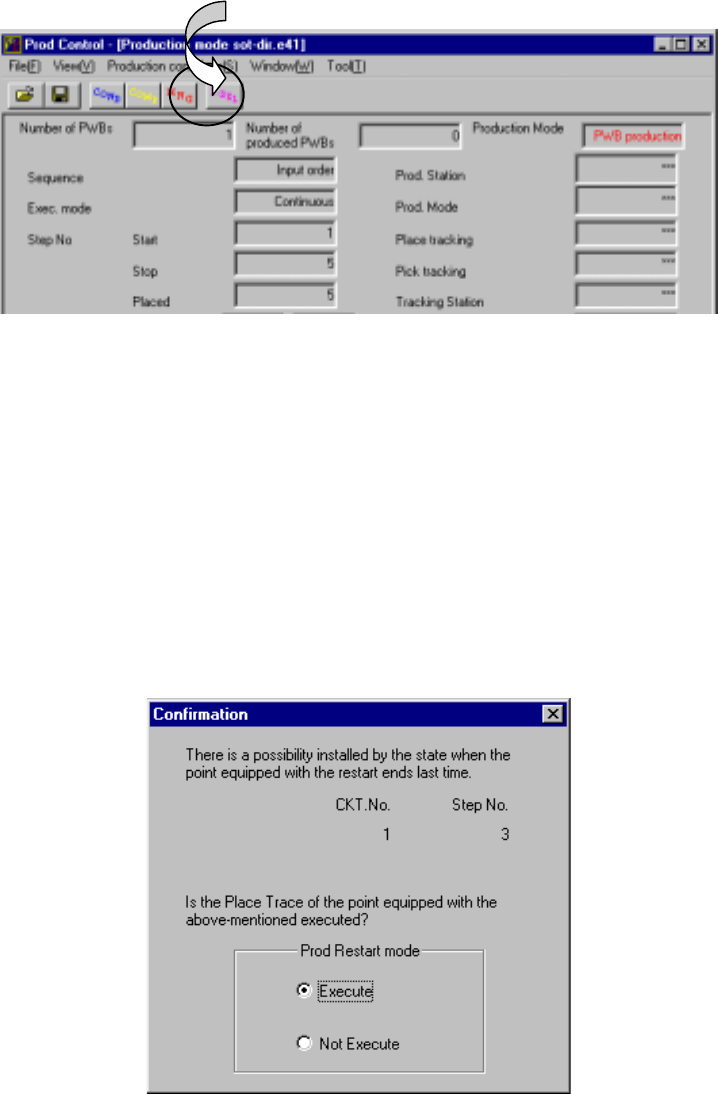
The following dialog box which allows you to track a placement result appears on
the screen after production starts and a PWB is clamped.
Figure 6.4.10.4 Tracking placement point confirmation dialog box
①
6 − 83
When you select the “Execute” radio button and press the <Start> key, the system
starts tracking the placement result. Check to see if a component is already
placed on the next placement point of the last placement point.
When you select the “Not Execute” radio button and press the <Start> key, the
system starts the continuous production without tracking the placement result.
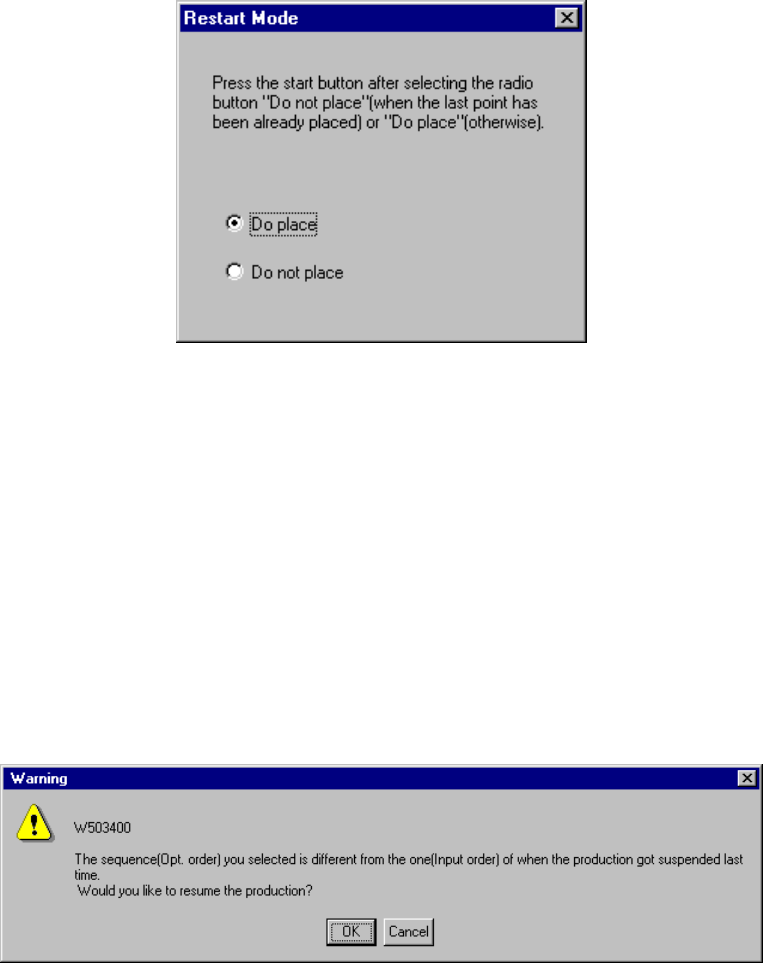
After tracking the placement result, the system displays the following dialog box.
Figure 6.4.10.5 Restart Mode dialog box
If a component is not placed on the tracked position, select the “Do place” radio
button. Otherwise, select the “Do not place” radio button. Then press the
<Start> key to start the continuous production.
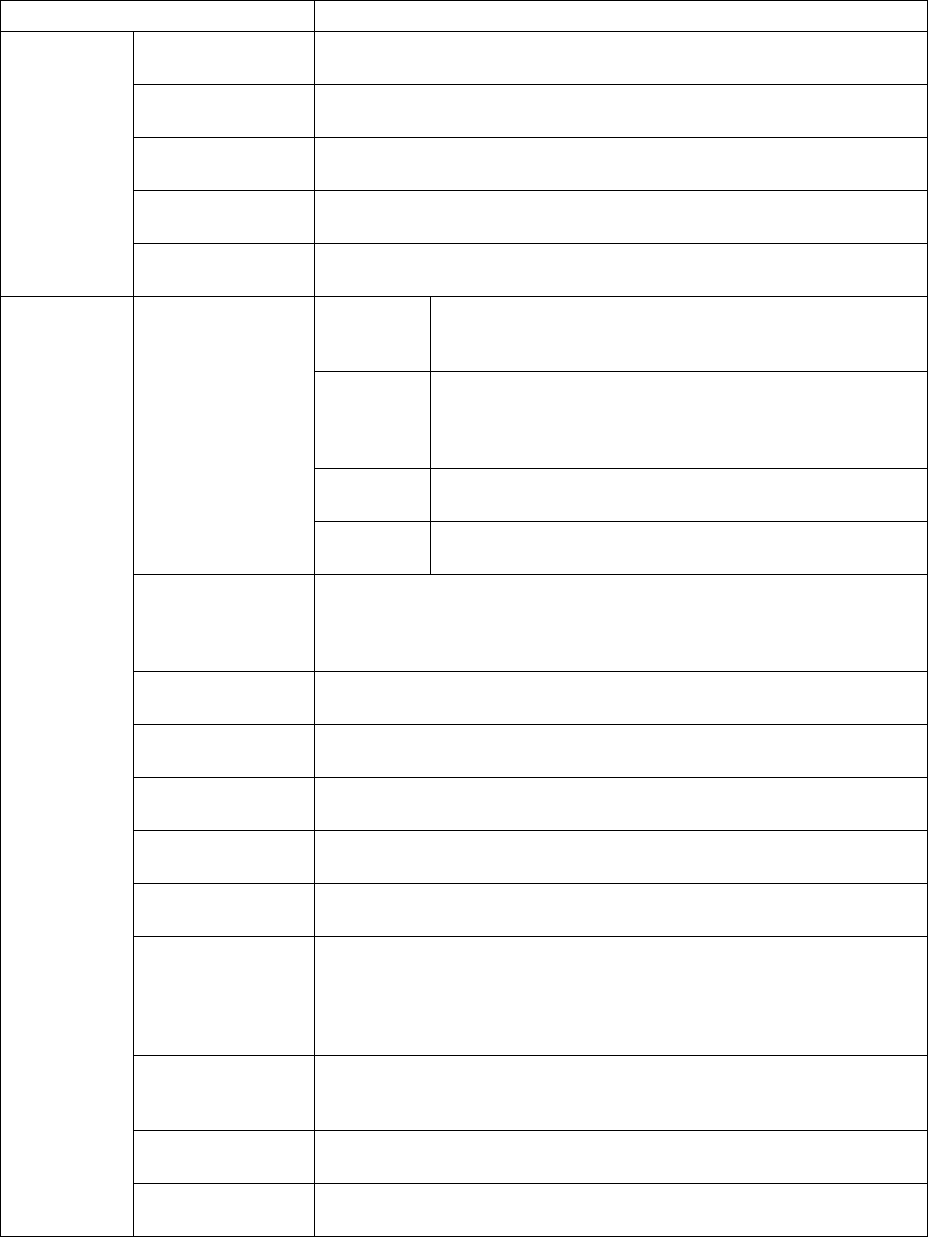
⑤ “Question” dialog box displayed when the continuous production starts
When you change the sequence (from “Input order” to “Opt. order”) on the PWB
production conditions dialog box and start the continuous production, the following
“Warning” appears on the screen.
6 − 84
6.4.11 Check items at starting of production
When you press the <START> switch at start of production, the system checks the
following items to decide if it can start production. If the machine cannot start
production, an error occurs.
Check items Check contents
Origin setting If origin return is performed. Without origin return, normal operation is
impossible.
Servo If servo is set ON. With the servo set OFF, normal operation is
impossible.
Air If air pressure is too low. With insufficient air pressure, normal operation
is impossible.
Feeder bank If the feeder bank is lifted up. Components cannot be placed if the
feeder bank is moved down.
Hardware
Feeder floated If the feeder is installed correctly. The head may collide with the feeder if
operations started with the floated feeder.
PWB data Checking completeness of PWB data
Checking whether BOC mark recognition teaching is
completed
Placement
data
Checking completeness of placement data of each
placement point (except for those to be skipped)
Checking whether IC mark recognition teaching is
completed
Component
data
Checking completeness of component data to be referred
by placement data
Completed PWB
Pick data Checking completeness of pick data to be referred by
placement data
MS parameter
matching
Checking if the PWB reference side, PWB transport direction and PWB
positioning system set for the machine are the same as those set in PWB
data of a production program. If they are not the same as each another
respectively, the machine cannot place components on a board correctly.
Placement
coordinates
With the software limit, checking whether the head is located within its
movable area when the machine places components in input order.
Pick coordinates With the software limit, checking whether the head is located within its
movable area when the machine places components in input order.
Offset of automatic
calculation
Checking the pick coordinates: if they have been changed to outside the
specified limit range with respect to the result of automatic calculation.
Match of the circuit
assignment (angle)
Checking whether the rotation angle of the non-matrix PWB is 90, 180,
270, or 360 degrees if the BOC mark type is circle, eclipse, or not-binary.
Compo
abandonment
Checking the Compo abandonment selection (specified as Component
data) and the usage of the IC collection belt.
Number of nozzles Check to see if all of the nozzles necessary for production are installed.
For optimization order production, if the number of nozzles actually
installed is different from that of the nozzles to be used, the machine is not
in the optimized state. To do check this state, the machine checks the
number of nozzles installed.
Head Checks to see if the head is used or not used. If you are to place a
component with a unused head, or if all heads are set as unused, the
machine cannot place a component properly.
OCC2 If the OCC2 camera is set as unused, the machine cannot recognize a
mark or feeder bank.
Production
program
Bad mark sensor Checks to see if you are to detect a bad mark although the bad mark
sensor is set “unused”.