KE2010.Instruction Manual.Ver.2.01,Rev.08.pdf - 第468页
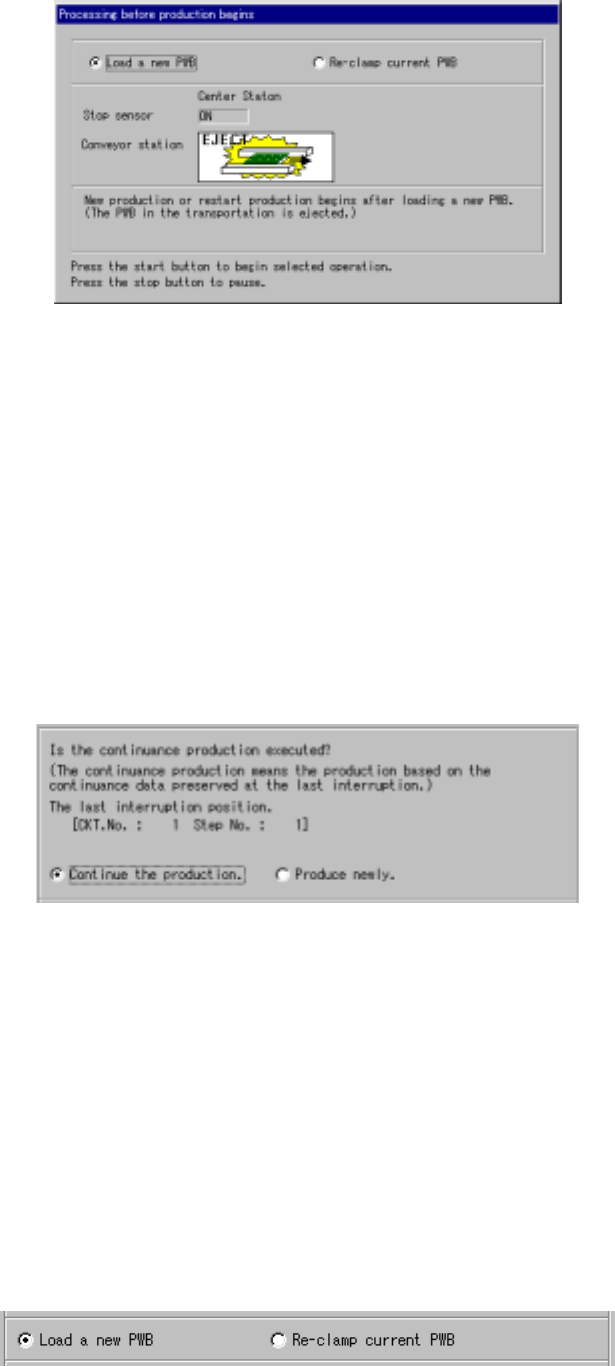
6 − 92 − W hen you select the radio butt on “Load a new PW B” , the system ej ects a board if any board is located on the PW B transport pat h, and produces a PW B aft er loading a board at start of product ion. − W hen …
6 − 91
Figure 6.4.14(b) If there is no continuous production file
• When you press the <START> switch on this dialog box, the system starts the
selected operation.
• When you press the <STOP> switch on this dialog box, the system enters
Production Idle mode again.
(1) Detailed explanations of the “Processing before production begins” dialog box
①
Continuous production information
When there is a continuous production file, the “continuous production
information” and the radio buttons; “Continue the production.” and “Produce
newly” are displayed on the “Processing before production begins” dialog box
as shown below.
Figure 6.4.14.1.1 Continuous production information
− When you select the radio button “Continue the production.”, the system
resumes the production. When you select the radio button “Produce newly”,
the system starts new production at the position specified at the menu item
“Starting pos.” on the “Production conditions” screen.
(However, if “0” is entered at either the “Circuit” or “Step No” column of the
menu item “Starting pos.”, the system starts production from the beginning
of the first circuit.)
②
Production operation
Regardless of whether there is a continuous production file, the “Processing
before production begins” dialog box displays the radio buttons specifying
whether the system will start production after load a new PWB or after the
board is clamped.
Figure 6.4.14.1.2 Choice whether the Load a new PWB or Re-clamp current PWB
6 − 92
− When you select the radio button “Load a new PWB”, the system ejects a board if
any board is located on the PWB transport path, and produces a PWB after
loading a board at start of production.
− When you select the radio button “Re-clamp current PWB”, the system clamps a
board located on the PWB transport path, and starts PWB production without
loading any board at start of production.
− Depending on whether there is a board on the PWB transport path, or whether the
system obtains the PWB transport path information when the current production
was interrupted, you may not be able to perform PWB production on the
“Production resume” dialog box as shown below:
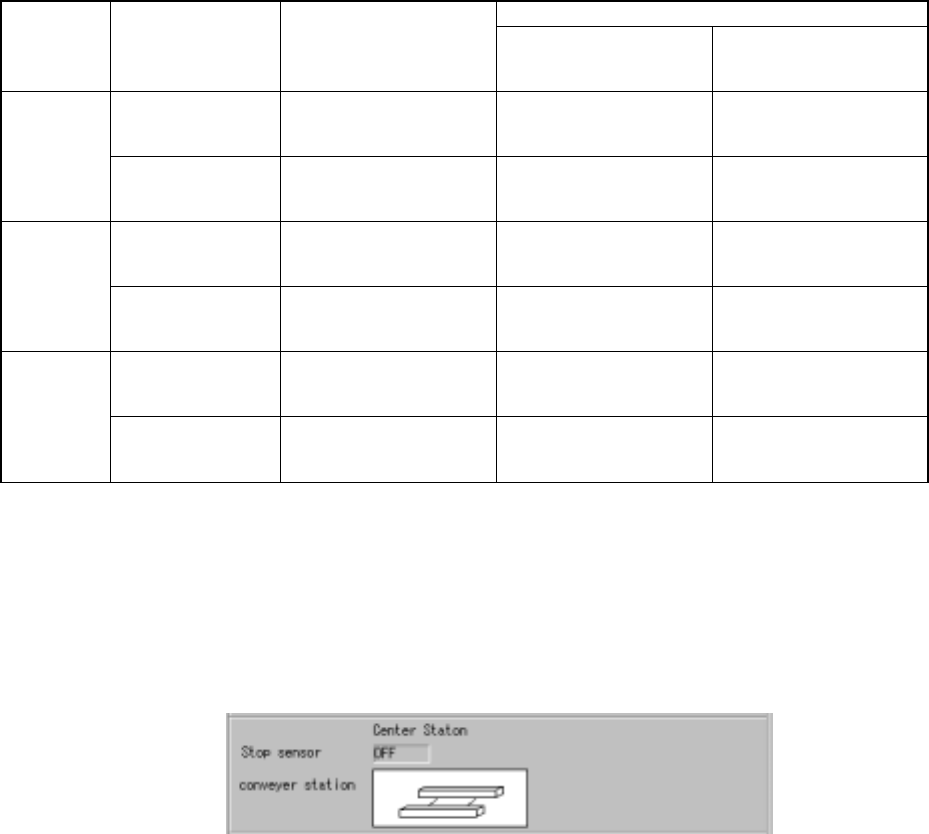
Table 6.4.14.1 List of production possibilities
Choice of the radio button
Whether to
continue the
production
Whether a board is
located on the PWB
transport path
PWB transport path
information obtained when
production was interrupted
“Load a new PWB”
(Production after a board is
loaded)
“Re-clamp current PWB”
(Production after a board is
clamped)
Yes
A board is located.
No board is located.
No information
Not visible
Visible
Visible
Visible
Yes
Note
A board is located.
No board is located.
No information
Visible
Visible
Visible
Visible
Yes
A board is located.
No board is located.
No information
Visible
Visible
Visible
Visible
No
Note
A board is located.
No board is located.
No information
Visible
Visible
Not visible (None)
Visible
Yes
A board is located.
No board is located.
No information
Not visible (None)
Visible
Visible
Visible
Not visible (None)
Visible
There is no
continuous
production
file.
Note
A board is located.
No board is located.
No information
Visible
Visible
Visible
Visible
Not visible (None)
Visible
Note: Not visible if the system starts new production, while visible if the system
resumes production.
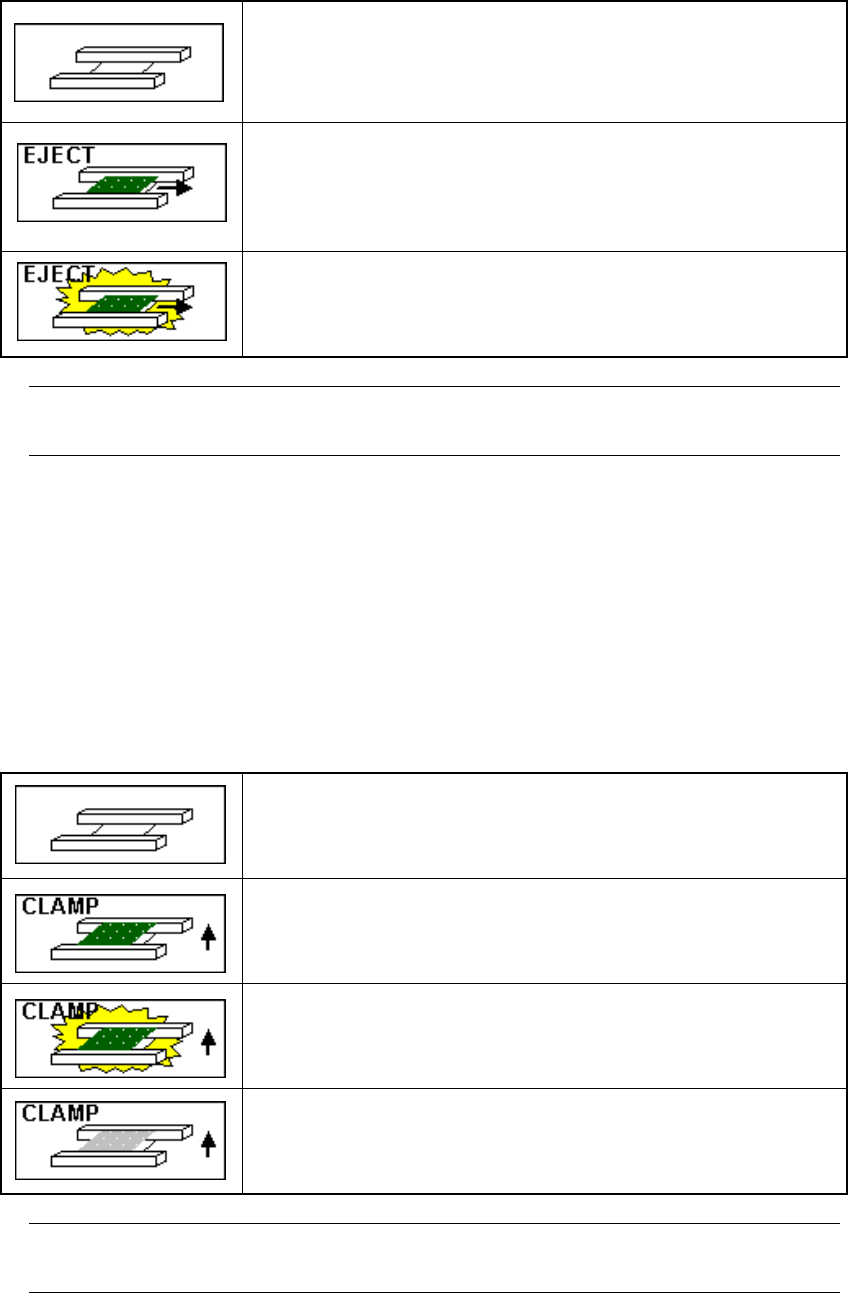
③ Condition of the PWB transport path
The “Processing before production begins” dialog box displays the condition of
the PWB transport path regardless of whether there is a continuous production file
or not as shown below:
Figure 6.4.14.1.3 “Processing before production begins” dialog box (Condition of
the PWB transport path)
− The stop sensor detects whether there is a board on the PWB transport path.
• When “ON” appears on the screen, there is a board on the PWB transport path.
• When “OFF” appears on the screen, there is no board on the PWB transport path.
6 − 93
1). When the radio button “Load a new PWB” is selected
The system displays the condition of the PWB transport path detected by the stop
sensor on the screen as the station that is to eject a board.
There is no board on the PWB transport path.
A board is to be ejected from the PWB transport path.
Although a board was detected on the PWB transport path while
production was being interrupted, the system has to eject it since
all of the necessary components are already placed on the
board.
A board is to be ejected from the PWB transport path.
However, some component(s) may not be placed on the board
or may be placed at a wrong position. Be careful to eject the
board.
−
If you click this image, the system moves a board located on the center station
to a position where the system can re-clamp it.
2). When the radio button “Re-clamp current PWB” is selected
The system displays the condition of the PWB transport path detected by the stop
sensor on the screen as the station that is to clamp the board again. Or, if the
system has the information on the PWB transport path obtained when the
previous production was interrupted (that is, if you have not loaded a production
file and not quitted the “Production” screen before resuming the production after
interrupting it), it displays the same condition of the PWB transport path as the
previous condition on the screen when it clamps a board.
There is no board on the PWB transport path.
The system clamps a board on the PWB transport path again.
The system clamps a board on the PWB transport path again.
However, some component(s) may not be placed on a board or
placed at a wrong position of a board. Be careful to clamp a
board again.
The system re-clamps a board that was located on the PWB
transport path when production was interrupted. However,
there is no board on the PWB transport path
−
If you click this image, the system moves a board located on the center station
to a position where the system can re-clamp it.