KE2010.Instruction Manual.Ver.2.01,Rev.08.pdf - 第482页
6 − 106 6.4.14.2 Continuous producti on data delete conf irmati on dialog box If you select “Don’t resume t he product.” when there is a continuous production f ile, the “Quest ion” dialog box, which asks you whether to …
6 − 105
Step
⑪
⑪⑪
⑪
.
When there is no board on the PWB transport path and the PWB transport path
information indicates that there is no board on the path when production is interrupted
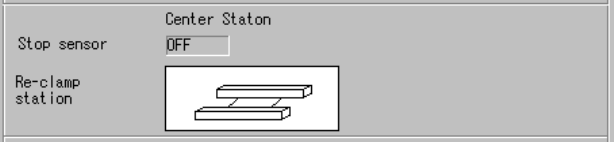
When you select “Re-clamp current PWB”, the screen shows the following PWB
transport path condition:
Figure 6.4.14.1.6
⑦
⑦⑦
⑦
Condition of the PWB transport path
− When you execute the selection described above, an error occurs since there is
no board on the PWB transport path.
Step
⑫
⑫⑫
⑫
.
The “Processing before production begins” (displayed if there is no continuous
production file) does not appear on the screen.
The system starts new production or resumes the current production immediately.
6 − 106
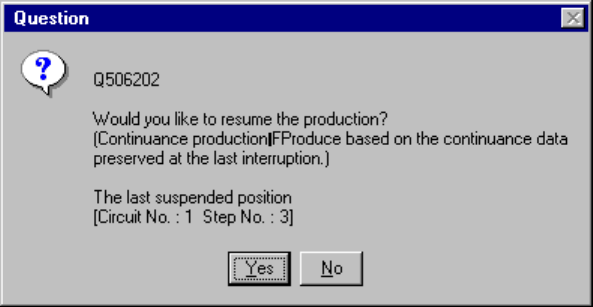
6.4.14.2 Continuous production data delete confirmation dialog box
If you select “Don’t resume the product.” when there is a continuous production file,
the “Question” dialog box, which asks you whether to delete a continuous production
file, appears on the screen.
Figure 6.4.14.2 Continuous production data delete confirmation dialog box
• When you select the <Yes> button, the system deletes the continuous production
data. (It deletes the data actually at start of production.) It cannot continue the
production. that was aborted the last time.
• When you select the <No> button, the system displays the “Processing before
production begins” dialog box (if there is a continuous production file) when it loads
a file the next time.
− When you select either of these buttons on the Continuous production data delete
confirmation dialog box above, it displays the “Production start” (for new
production) dialog box.
6 − 107
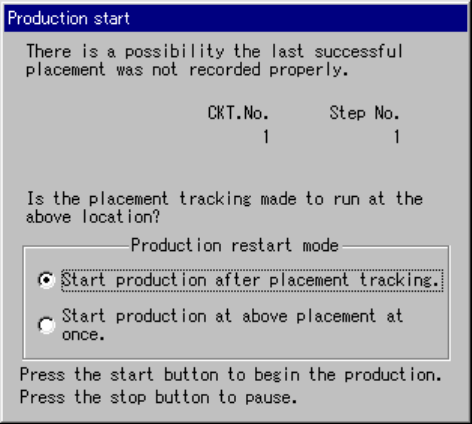
6.4.14.3 “Production start” (New production) dialog box
If you select “Produce newly” and “Re-clamp current PWB” on the “Processing before
production begins” dialog box (when there is a continuous production file), or if you
select “Re-clamp current PWB” on this dialog box (when there is no continuous
production file), the “Production start” (new production) dialog box appears on the
screen.
Figure 6.4.14.3 “Production start” (new production) dialog box
• When you press the <START> key on this dialog box, the operation you selected
starts.
• When you press the <STOP> key on this dialog box, the system re-enters Idle
mode.
− When you check the check box “Start production after placement tracking.”, and
press the <START> key, the system starts tracking component placement
operation.
With your eyes, check to see if any component is placed on the production start
point via the component placement tracking operation. This “production start
point” is determined at the menu item “Starting pos.” on the “Production
conditions” screen. However, if “0” is entered to “CKT. No.” or “Step No.”, the
system starts production from the beginning of the first circuit.
After tracking operation, the “Production start” dialog box appears on the screen.
− When you check the check box “Start production at above placement at once.”
and press the <START> key, the system starts production from the production
start point immediately. This “production start point” is determined at the menu
item “Starting pos.” on the “Production conditions” screen. However, if “0” is
entered to “CKT. No.” or “Step No.”, the system starts production from the
beginning of the first circuit.