KE2010.Instruction Manual.Ver.2.01,Rev.08.pdf - 第484页
6 − 108 6.4.14.4 “PWB ejecting” dial og box W hen y ou press the <ST ART> switch on the “PW B eject" dialog box, the “PW B ejecting” dialog box appears on the scr een, and then the system ej ects a board. W he…
6 − 107
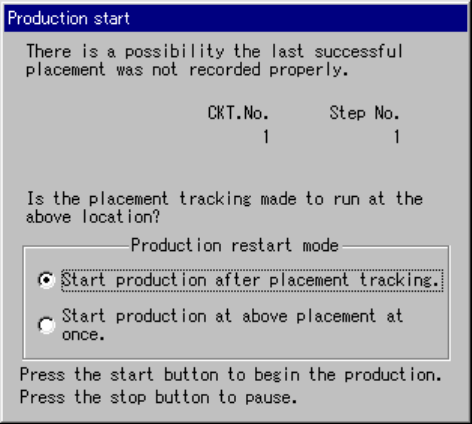
6.4.14.3 “Production start” (New production) dialog box
If you select “Produce newly” and “Re-clamp current PWB” on the “Processing before
production begins” dialog box (when there is a continuous production file), or if you
select “Re-clamp current PWB” on this dialog box (when there is no continuous
production file), the “Production start” (new production) dialog box appears on the
screen.
Figure 6.4.14.3 “Production start” (new production) dialog box
• When you press the <START> key on this dialog box, the operation you selected
starts.
• When you press the <STOP> key on this dialog box, the system re-enters Idle
mode.
− When you check the check box “Start production after placement tracking.”, and
press the <START> key, the system starts tracking component placement
operation.
With your eyes, check to see if any component is placed on the production start
point via the component placement tracking operation. This “production start
point” is determined at the menu item “Starting pos.” on the “Production
conditions” screen. However, if “0” is entered to “CKT. No.” or “Step No.”, the
system starts production from the beginning of the first circuit.
After tracking operation, the “Production start” dialog box appears on the screen.
− When you check the check box “Start production at above placement at once.”
and press the <START> key, the system starts production from the production
start point immediately. This “production start point” is determined at the menu
item “Starting pos.” on the “Production conditions” screen. However, if “0” is
entered to “CKT. No.” or “Step No.”, the system starts production from the
beginning of the first circuit.
6 − 108
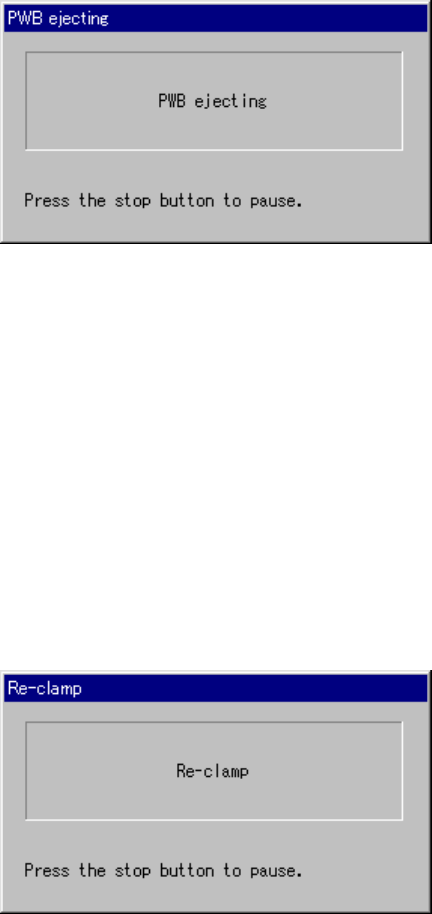
6.4.14.4 “PWB ejecting” dialog box
When you press the <START> switch on the “PWB eject" dialog box, the “PWB
ejecting” dialog box appears on the screen, and then the system ejects a board.
When the system finishes ejecting the board, it starts production.
Figure 6.4.14.4 “PWB ejecting” dialog box
• When you press the <STOP> switch on the dialog box above, the system stops
ejecting a board, and enters Production Idle mode again.
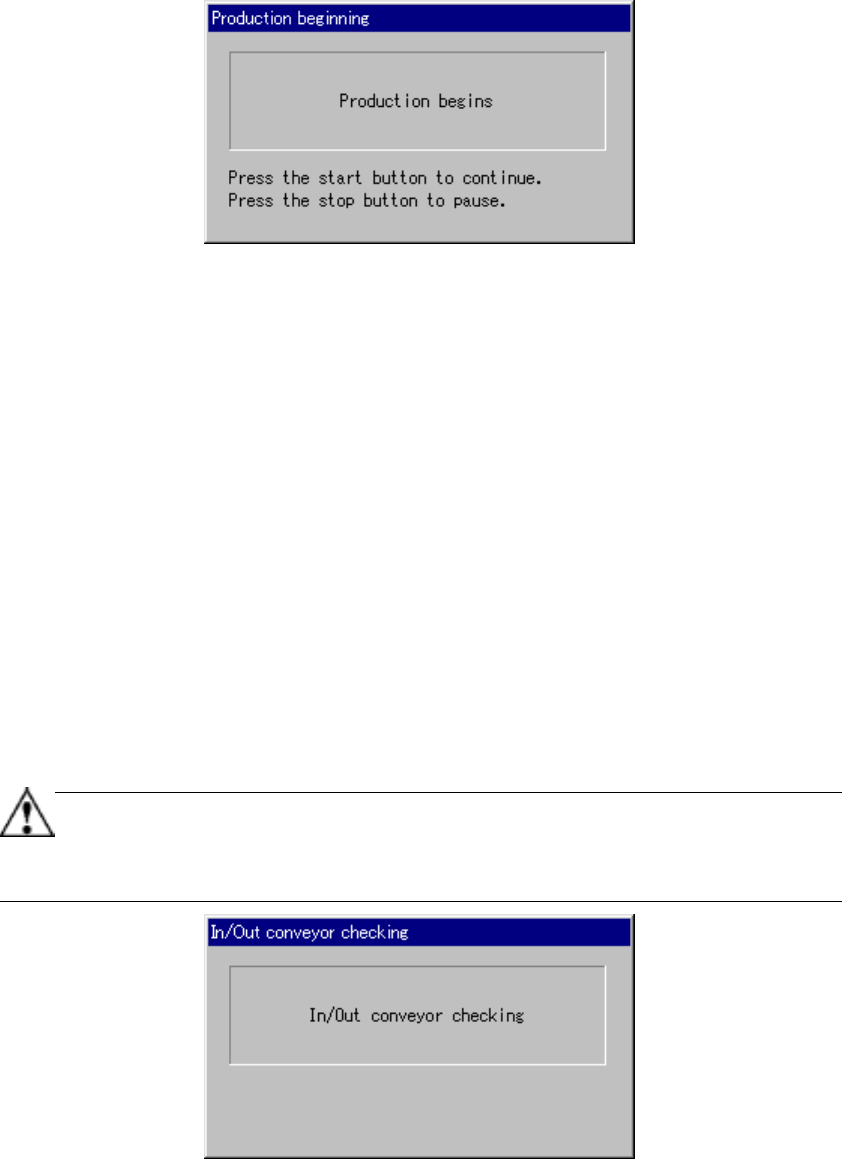
6.4.14.5 “Re-clamp” dialog box
When you check the radio button “Re-clamp current PWB” and press the <STAT>
switch on the “Processing before production begins” dialog box, the “Re-clamp” dialog
box appears on the screen, and the system clamps a board again. When the system
finishes ejecting a board, it starts production if the continuous production is specified.
Otherwise, the “Production start” (new production) dialog box appears on the screen.
Figure 6.4.14.5 “Re-clamp” dialog box
• When you press the <STOP> switch on the dialog box above, the system stops
re-clamping a board, and enters Production Idle mode again.
6 − 109
6.4.14.6 “Production start” dialog box
When you check the radio button “Start production after placement tracking.
”
.” on the
Production start (new production) dialog box, the following “Production start” dialog
box appears on the screen, and prompts you to decide whether to start production.
Figure 6.4.14.6 “Production start” dialog box
• When you press the <START> switch on the dialog box above, the system
resumes the current production.
• When you press the <STOP> switch on the dialog box above, the system enters
Production Idle mode again. (If a board located on the PWB transport path is
clamped, the system releases the clamped board.)
6.4.14.7 “In/Out conveyor checking” dialog box
The “In/Out conveyor checking” dialog box appears on the screen before the machine
ejects a board or re-clamps it on the “Processing before production begins” dialog box
[Figure. 6.4.14 (a)-(b)], or before the machine starts new production. If a board is
located on the PWB transport path between the IN and the OUT sensors, the machine
automatically sets the board over the sensor.
Note that this function can be activated only when the machine starts production after
an error occurs while the machine is transporting a board from the entrance or to the
exit.
This function cannot be activated when a board is already on the sensor either.
When you check the check box “Not automatically check the IN/OUT board
sensor” on the “Production (Function 2) Figure. 11-4-4” tab invoked from the
CHAPTER 11 OPTIONS dialog box, the machine does not check a board at
start of production.
Figure 6.4.14.7 “In/Out conveyor checking” dialog box
• When you press the <STOP> switch on this dialog box, the machine enters
Production Idle mode again.