KE2010.Instruction Manual.Ver.2.01,Rev.08.pdf - 第517页
6 − 141 2) Bounds of m eas. (measur ement) Check this check box if you want to check com ponents whose number are specified her e among t he components already selected with the sett ing item "Component of m eas.&qu…
6 − 140
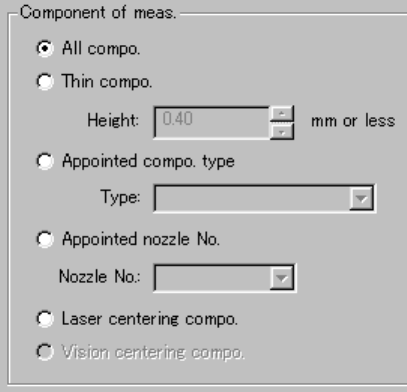
1) Component of meas. (measurement)
Set one of the radio buttons to check only components which satisfy the
certain condition from Component data.
① All compo.:
Checks all components specified in component data.
② Thin compo.:
Checks only components whose height is the value you specified in
the edit box or lower.
③ Appointed compo. type:
Checks only components whose types are specified with the combo
box.
④ Appointed nozzle No.:
Checks only components which are to be picked by the nozzle whose
number is specified with the combo box.
⑤ Laser centering compo.
Checks only components which are centered with laser.
⑥ Vision centering compo.
Checks only components which are centered with the VCS (not
available to a KE-2030/KE-2010).
6 − 141
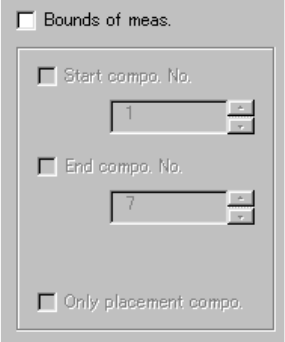
2) Bounds of meas. (measurement)
Check this check box if you want to check components whose number are
specified here among the components already selected with the setting
item "Component of meas." above. When you check this check box, you
can set the following items.
① Start compo. No.:
Check this check box to specify the first component number in
Component data to be checked. Then, change the first component
number displayed in the edit box.
② End compo. No.:
Check this check box to specify the last component number in
Component data to be checked. Then, change the last component
number displayed in the edit box.
③ Only placement compo:
Check this check box to check components specified in Component
data which are also specified in Placement data.
6 − 142
3) <INSP.> button (<START> button)
This button starts continuous check operation.
4) <BACK> button
This button returns you to the previous screen (ESC key).
5) Short-cut keys
On the "Continuation inspection" dialog box, the following short-cut keys
are provided:
Keyboard Operation panel key HOD key Action
START Starts continuous check.
ESC Returns to the previous screen.
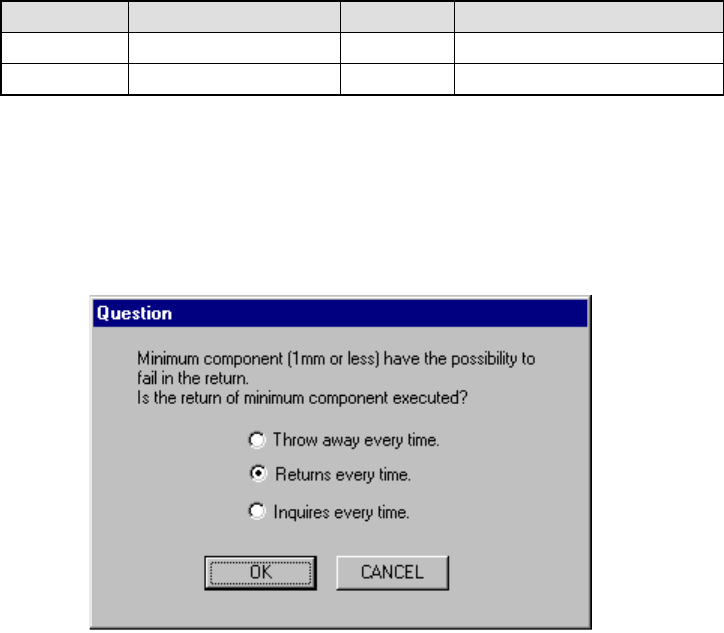
6) Question
Immediately after the system starts continuous check, it displays the
dialog box which asks you how to handle a component whose size is 1
mm or less after check.
Figure 6.7.2.5.2.1 "Question - to return minimum component" dialog box
① Throw away every time.
The system discards a component in the way you specified every
time.
② Returns every time
The system returns a component onto its original position.
③ Inquiries every time
The system displays the "Question" dialog box every time it finishes
measuring a component whose size is 1 mm or less.