KE2010.Instruction Manual.Ver.2.01,Rev.08.pdf - 第519页
6 − 143 (2) Screen displayed during continuous check W hile the system is checking laser height cont inuously, the f ollowing dialog box appears on the screen. T he description of a component being checked, component pic…
6 − 142
3) <INSP.> button (<START> button)
This button starts continuous check operation.
4) <BACK> button
This button returns you to the previous screen (ESC key).
5) Short-cut keys
On the "Continuation inspection" dialog box, the following short-cut keys
are provided:
Keyboard Operation panel key HOD key Action
START Starts continuous check.
ESC Returns to the previous screen.
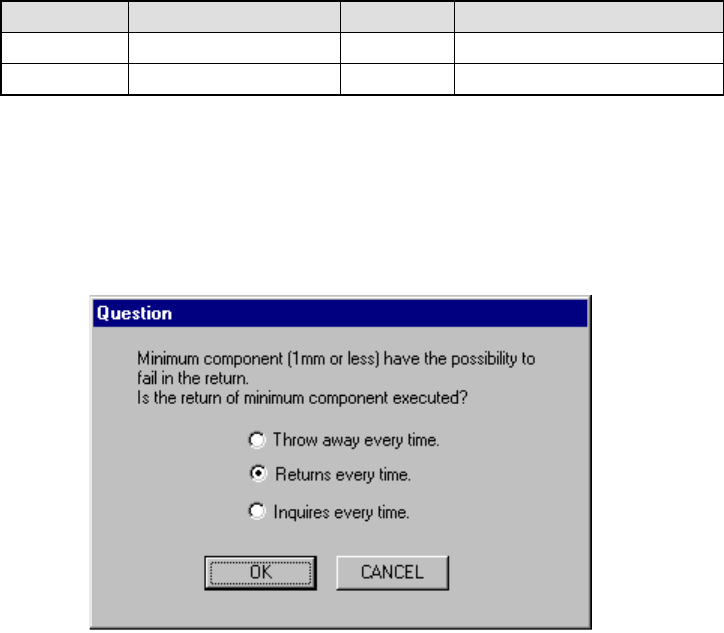
6) Question
Immediately after the system starts continuous check, it displays the
dialog box which asks you how to handle a component whose size is 1
mm or less after check.
Figure 6.7.2.5.2.1 "Question - to return minimum component" dialog box
① Throw away every time.
The system discards a component in the way you specified every
time.
② Returns every time
The system returns a component onto its original position.
③ Inquiries every time
The system displays the "Question" dialog box every time it finishes
measuring a component whose size is 1 mm or less.
6 − 143
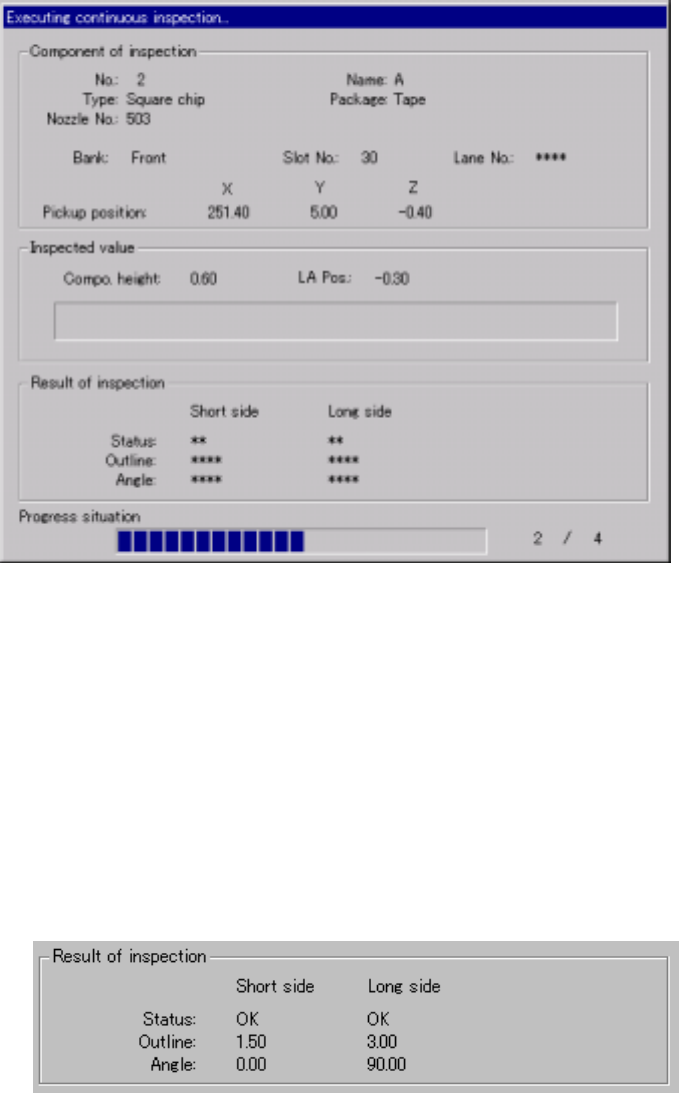
(2) Screen displayed during continuous check
While the system is checking laser height continuously, the following dialog
box appears on the screen. The description of a component being checked,
component pick-up position and the result of inspection are displayed on this
dialog box. In addition, the progress condition of the continuous check
appears also.
Figure 6.7.2.5.2.3 Laser height continuous check dialog box
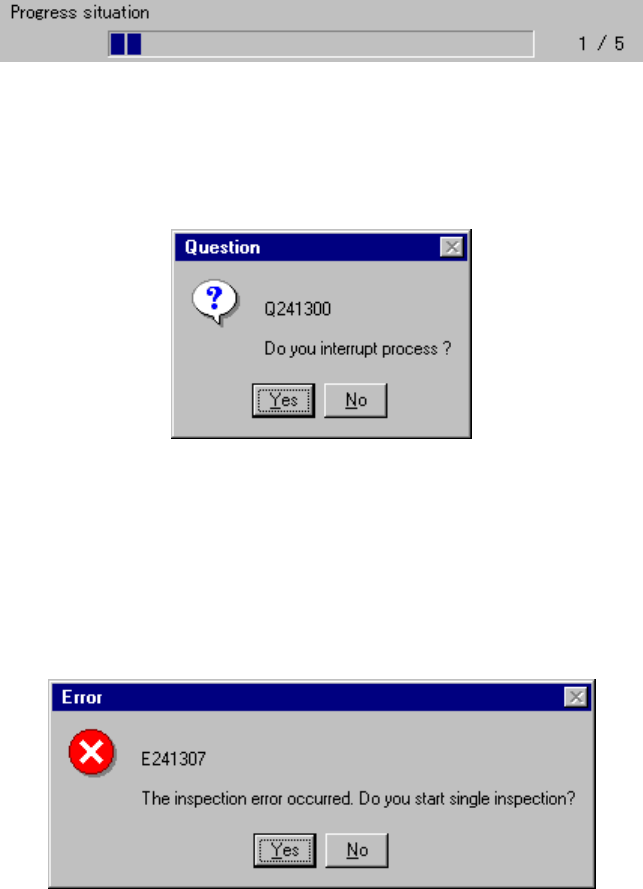
1) Result of inspection
After checking laser height, the results are displayed in this "Result of
inspection" column.
The "Short side" and the "Long side" indicate the data when the system
detects the minimum width of a component for the first time and second
time respectively.
The results are valid only if the status of both "Short side" and "Long side"
is "OK".
6 − 144
① Status
OK: Centering is done successfully.
Number: Centering
(Each number indicates the error code number of the laser
status).
② Outline
The component minimum width (dimensions) detected when it is
centered successfully is displayed here.
③ Angle
The angle when a component is centered is displayed here.
2) Progress situation
This slider bar indicates the progress situation of the current continuous
check operation.
To forcibly abort the check, press the <STOP> button. The following
dialog box appears on the screen. Select whether to abort the check or
not.
Figure 6.7.2.5.2.4 "Question - to interrupt process" dialog box
3) Check error
If a check error occurs, that is, the laser status is not "OK", the following
dialog box appears on the screen to allow you to enter Single check
mode.
Figure 6.7.2.5.2.5 Continuous check error dialog box