KE2010.Instruction Manual.Ver.2.01,Rev.08.pdf - 第521页
6 − 145 4) End of cont inuous check W hen the system finishes checking all components which satisfy the conditions you specified, t he following dialog box appears on the screen. Figure 6.7.2. 5.2.6 "Informati on - …
6 − 144
① Status
OK: Centering is done successfully.
Number: Centering
(Each number indicates the error code number of the laser
status).
② Outline
The component minimum width (dimensions) detected when it is
centered successfully is displayed here.
③ Angle
The angle when a component is centered is displayed here.
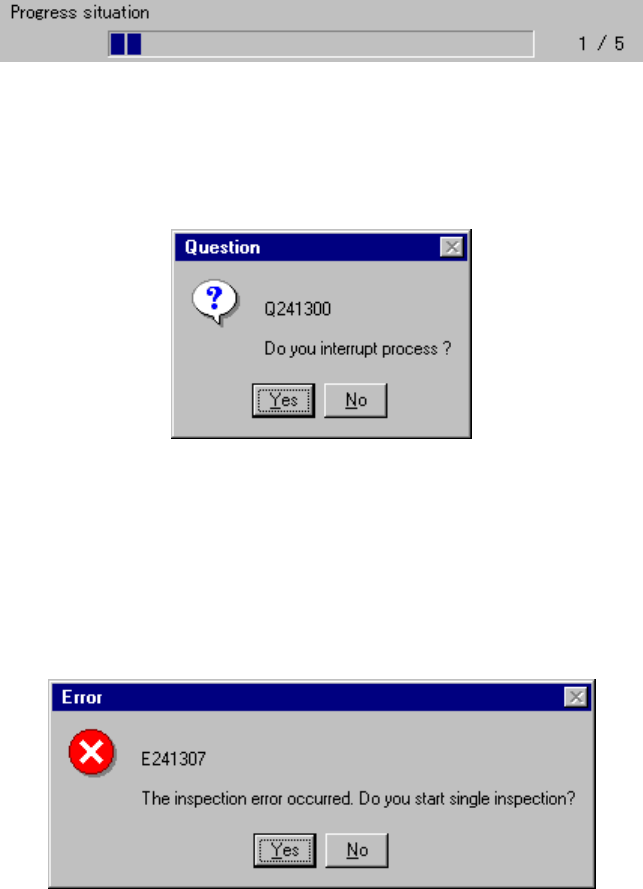
2) Progress situation
This slider bar indicates the progress situation of the current continuous
check operation.
To forcibly abort the check, press the <STOP> button. The following
dialog box appears on the screen. Select whether to abort the check or
not.
Figure 6.7.2.5.2.4 "Question - to interrupt process" dialog box
3) Check error
If a check error occurs, that is, the laser status is not "OK", the following
dialog box appears on the screen to allow you to enter Single check
mode.
Figure 6.7.2.5.2.5 Continuous check error dialog box
6 − 145
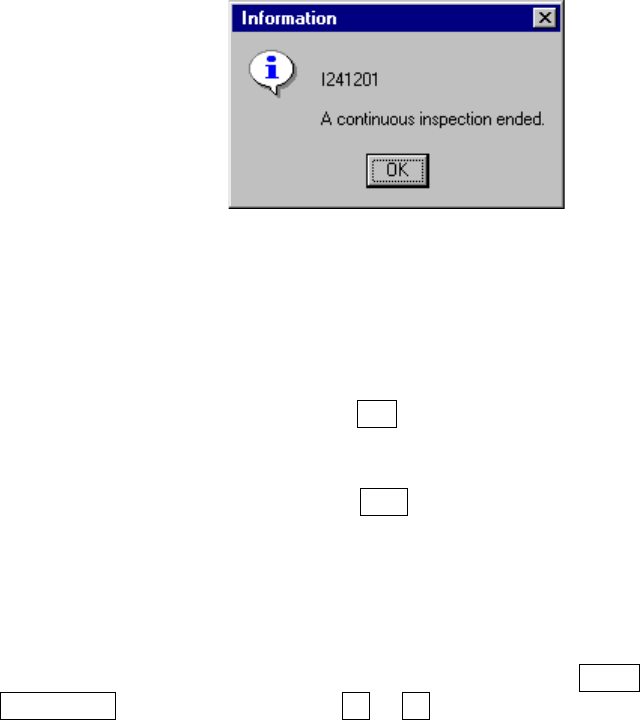
4) End of continuous check
When the system finishes checking all components which satisfy the
conditions you specified, the following dialog box appears on the screen.
Figure 6.7.2.5.2.6 "Information - end of Continuous laser position
inspection" dialog box
6.7.2.5.3 Single inspection
• When you click the <INSP.> button (F10 key), the system starts checking a
component. When it finishes checking the component, the result appears on
the screen.
• When you click the <MEAS.> button (F10 key), the system starts measuring a
component. When it finishes measuring a component, the result appears on
the screen.
• On the "Inspection" screen, you can manually enter the pick-up position or use
the teaching function to enter it. When you check the check box "The taught
result is reflected in the pick data.", the taught data is stored into Pick data.
• On the "Laser position measurement" screen, pressing the NEXT or
PREVIOUS key of the HOD or the F5 or F6 key moves the component pick-up
position to the alternative component.
• In Continuous check mode, pressing the <START> switch resumes the
continuous check.
6 − 146
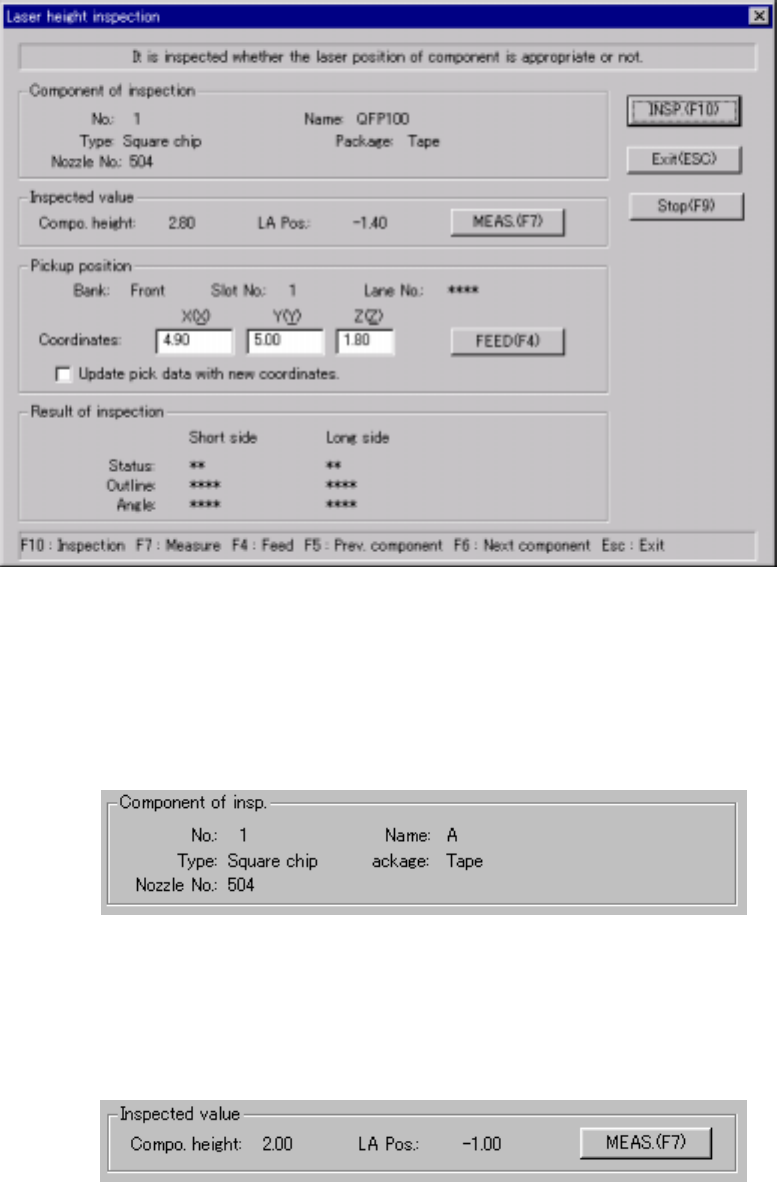
(1) Setting check conditions
If you enter Single check mode when a continuous check error occurs, the
following "Inspection" dialog box appears on the screen.
Inspection dialog box
1) Component of insp. (inspection)
The description of a component to be inspected and its pick-up position
are displayed here.
2) Inspected value
The laser height of a component to be inspected ("LA Pos") and its height
(Compo. height) are displayed here.