KE2010.Instruction Manual.Ver.2.01,Rev.08.pdf - 第536页
6 − 160 6.7.3.6. 3 “Under the SOT direction conti nuous inspecti on…” dialog box During continuous inspect ion, the system displays the f ollowing dialog box on which data on a component being check ed, the inspect ion p…
6 − 159
− <Exit (ESC)> button
Returns to the previous screen displayed before you invoke this dialog
box.
◇
Shortcut keys
On this SOT direction continuous inspection result dialog box, the
following shortcut keys are available.
Table 6.7.3.6.1 Shortcut keys
Keyboard Operation
panel
HOD key Action
SRART Starts continuous SOT inspection.
ESC Returns to the previous screen.
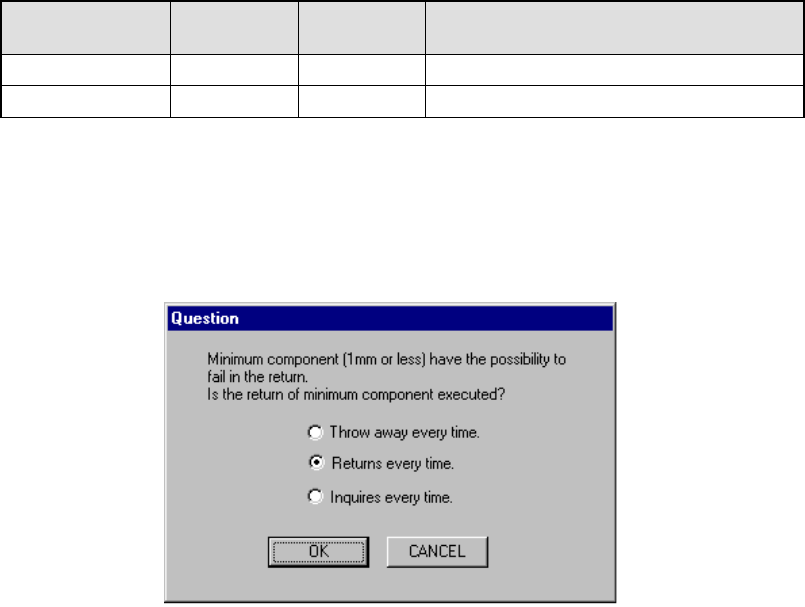
6.7.3.6.2 Dialog box for returning a checked component
Immediately after starting the continuous inspection, the system displays the dialog
box that asks you how to handle a checked component.
Figure 6.7.3.6.2 “Question” dialog box that asks you how to return a checked
component
①
Throw away every time
The system discards a component according to the setting of “Compo Reject
to” on the Component data screen.
②
Return every time
The system returns a component to its original position.
③
Inquires every time
The system displays a dialog box that asks you how to handle a component
every time it finishes checking.
6 − 160
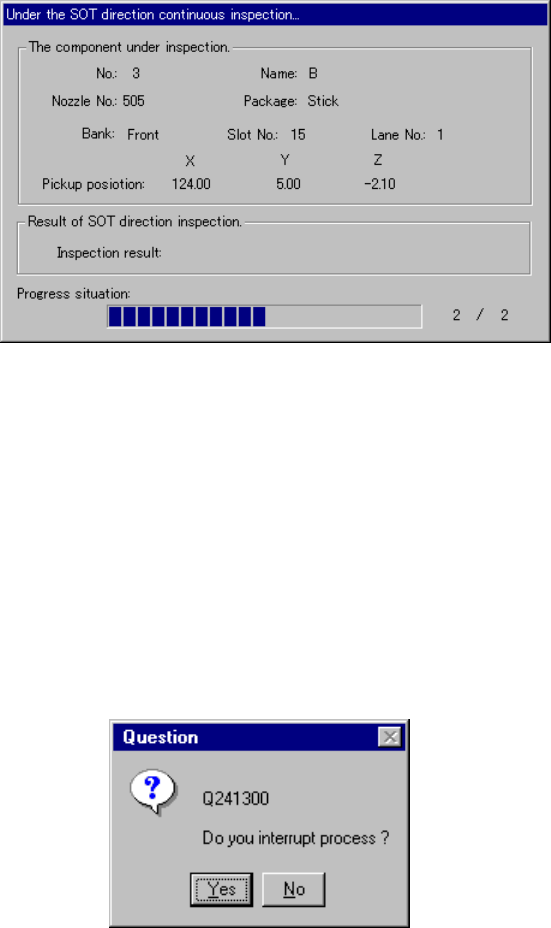
6.7.3.6.3 “Under the SOT direction continuous inspection…” dialog box
During continuous inspection, the system displays the following dialog box on
which data on a component being checked, the inspection progress, and the
inspection result are displayed.
Figure 6.7.3.6.3 “Under the SOT direction continuous inspection…” dialog box
− Result of SOT direction inspection
After inspection, the result is displayed here, OK or NG.
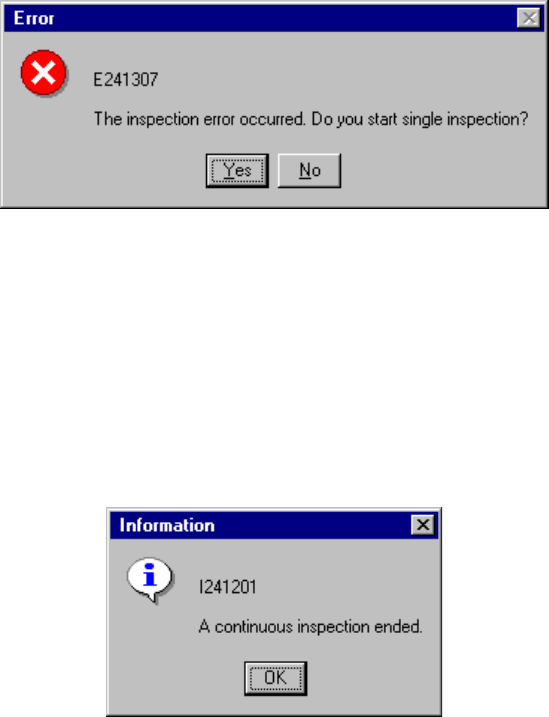
6.7.3.6.4 Interruption dialog box
To interrupt the inspection being executed forcibly, press the <STOP> button.
The following dialog box appears on the screen. Select whether to stop the
inspection or not.
Figure 6.7.3.6.4 “Question” dialog box for interrupting the current inspection
6 − 161
6.7.3.6.5 Continuous inspection error dialog box
If the inspection result indicates “NG”, the following dialog box appears and it
allows you to enter the system to Single Inspection mode.
Figure 6.7.3.6.5 Continuous inspection error dialog box
6.7.3.7 End of continuous inspection
When the system finishes checking all components you specified, the following
dialog box appears that notifies you of end of continuous inspection.
Figure 6.7.3.7 End of inspection dialog box