KE2010.Instruction Manual.Ver.2.01,Rev.08.pdf - 第546页
7 − 9 7.2.1.2. 2 Readi ng nozzle informat ion The [Read Nzl data [C] ] command r eads nozzle informat ion fr om a place (“ini” file that is f or the cust omized nozzle and stored in the directory C:¥JUKI¥DA T A¥CUSTOM) w…
7 − 8
Select the desired file, then click the <Open> button.
You have registered additional nozzle information to the system at this point.
An “ini” file that is registered from a floppy disk is to be copied into the folder
C:¥JUKI¥DATA¥CUSTOM¥NZL.
− When you click the <Cancel> button, any data is not registered.
− You can check the added nozzle number with the “Registered nzl. no table”
menu command, which is described under Section 7.2.1.1.
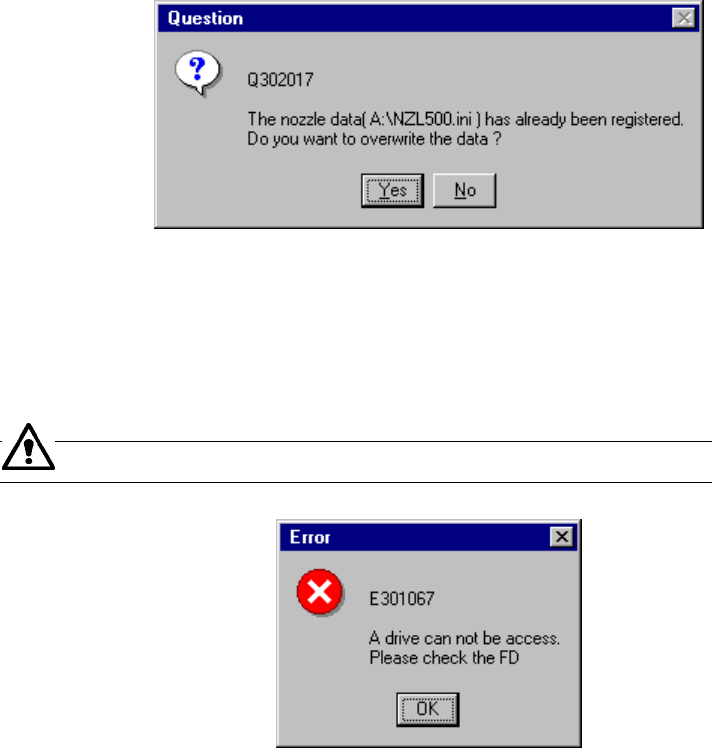
If the specified nozzle information is already registered, the dialog box that asks you
whether to overwrite the existing nozzle information (see Figure 7.2.1.2.3).
− When you select “Yes”, the system updates the existing data with the specified
nozzle information that is stored on a floppy disk.
Figure 7.2.1.2.3 Nozzle information update confirmation dialog box
If no floppy disk is inserted into the drive or if any data is not read due to a failure of
the inserted floppy disk, the system displays the error dialog box (see Figure
7.2.1.2.4) on the screen.
Check the floppy disk drive or contents of the floppy disk.
Figure 7.2.1.2.4 Floppy disk access error dialog box
7 − 9
7.2.1.2.2 Reading nozzle information
The [Read Nzl data [C]] command reads nozzle information from a place (“ini” file
that is for the customized nozzle and stored in the directory
C:¥JUKI¥DATA¥CUSTOM) where a nozzle is installed with the installer on the
Machine Setup menu when you are to use a customized nozzle. See Section
7.2.1.2.1 for the function for reading nozzle information from a floppy disk.
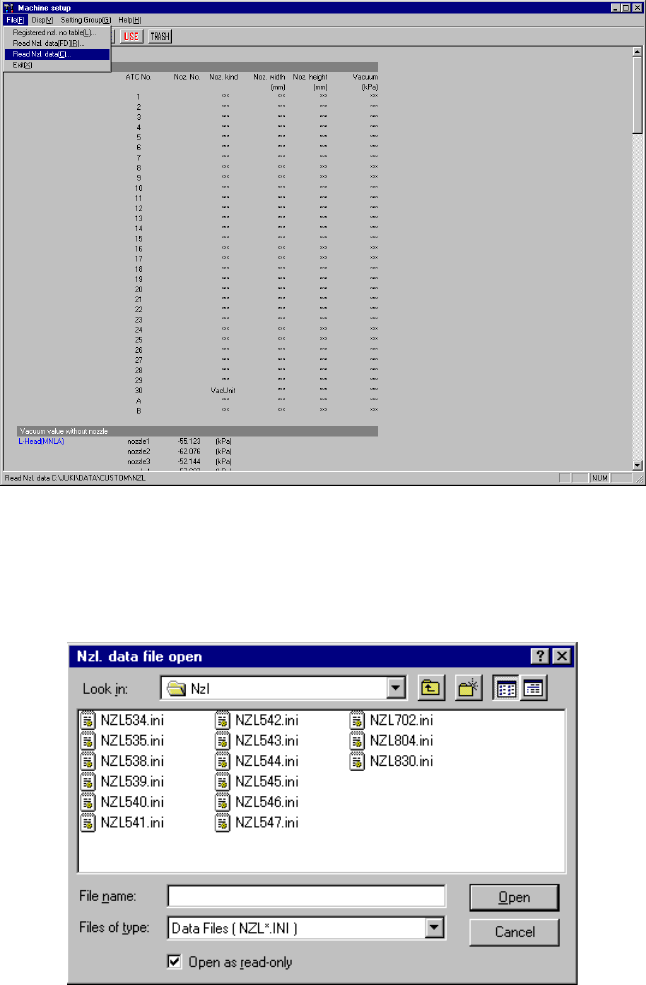
When you select the [File] command on the menu bar, and then the [Read Nzl
data [C]] command on the displayed menu, the system displays the “Nzl. data file
open” dialog box (see Figure 7.2.1.2.5).
Figure 7.2.1.2.5 “Nzl data file open” dialog box (Screen example: KE-2020)
− When this “Nzl data file open” dialog box opens, select the desired file.
“C:¥JUKI¥DATA¥CUSTOM¥NZL” opens by default.
Figure 7.2.1.2.6 “Nzl data file open” dialog box
− Select the desired file and click the <Open> button to register the nozzle.
7 − 10
7.2.1.2.3 Deleting a registered nozzle
To delete a registered nozzle, use the [Registered nzl no table] command that is
described in Section 7.2.1.1.
(1) Basic Operations
① Select the [File] command on the menu bar, and then select the
[Registered nzl no table] command on the displayed menu to open the
necessary dialog box.
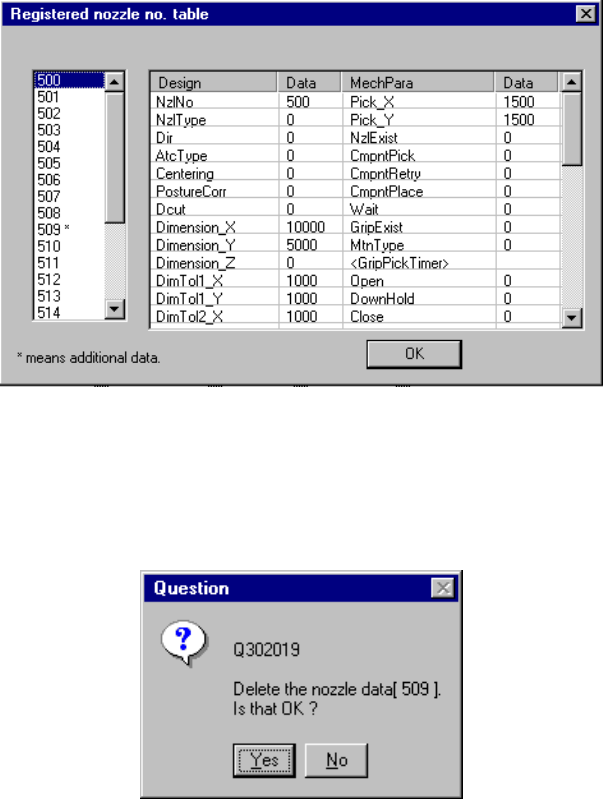
② Select the nozzle number, and press the <DEL> key (see Figure 7.2.1.2.7).
Figure 7.2.1.2.7 “Registered nozzle no. table” dialog box
③ When you click the <Yes> button on the “Question” dialog box, the
selected nozzle is deleted from the registered nozzle number table (see
Figure 7.2.1.2.8).
Figure 7.2.1.2.8 “Question” dialog box
Note: You can delete only additional registered data. You cannot delete any
standard nozzle.