KE2010.Instruction Manual.Ver.2.01,Rev.08.pdf - 第587页
7 − 50 7.3 Mechanical Setup If you have to drive a mechanical device w hile setting the menu it ems on the Machine Setup menu, display the pop- up menu f or mechanical devices. Press t he right but ton of t he track ball…
7 − 49
(2) How to set
① Number of Retry
− Specify a value in the range from 0 to 10 (default: 0).
② Measure plane
− With using the radio button, select either “three-Point problem” or “least
squares method” (default: “three-Point problem”).
7.2.3 Disp (Display)
This command allows you to select whether to display the tool bar/status bar on the
screen or not.
7 − 50
7.3 Mechanical Setup
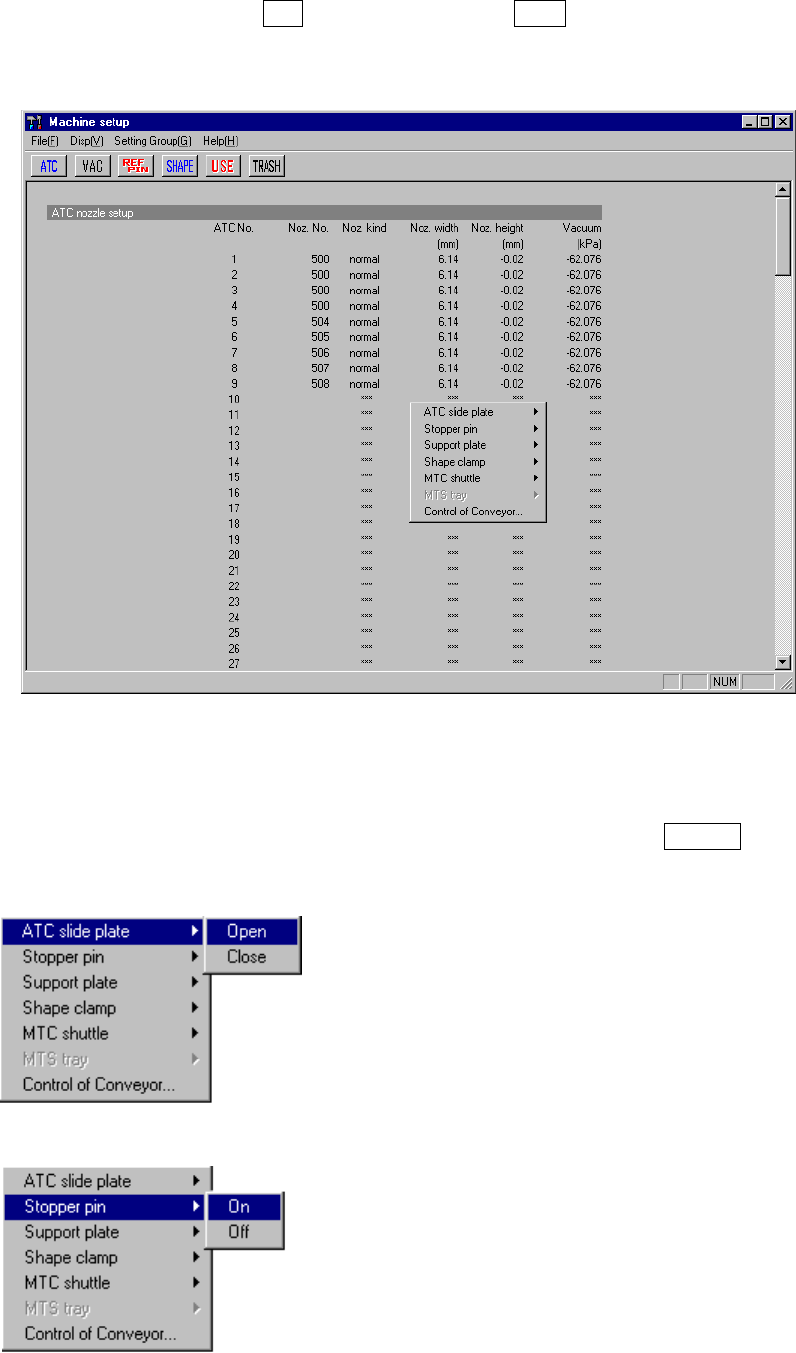
If you have to drive a mechanical device while setting the menu items on the Machine
Setup menu, display the pop-up menu for mechanical devices. Press the right button
of the trackball, or press the F10 key while holding the Shift key. A pop-up menu
shown in Figure 7.3.1 starts up.
Figure 7.3.1 Machine setup pop-up menu
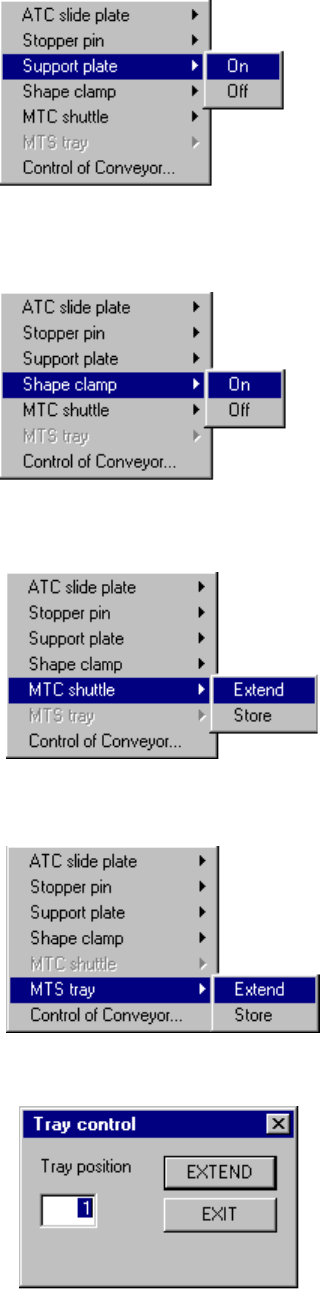
When you select each menu item on the pop-up menu above, the corresponding
extended menu appears as shown below. Select a desired item on this extended
menu with a trackball, or select it with the cursor keys, then press the ENTER key to
drive the corresponding mechanical device.
* ATC slide plate
* Stopper pin
7 − 51
* Support plate
* Shape clamp
* MTC shuttle
When you do not set the MTC on the "MTC/MTS
Device enable setting" dialog box, this menu item
is dimmed and you can not select it.
* MTS tray
When you do not set the MTS on the "MTC/MTS
Device enable setting" dialog box, this menu item
is dimmed and you can not select it.
* Tray control dialog box
When you select the [Extend] command on the
“MTS tray” menu above, this “Tray control” dialog
box appears on the screen.
Enter the position of a tray you want to pull out,
and click the <EXTEND> button. The system
pulls out the tray whose position you specified
from the MTS.