KE2010.Instruction Manual.Ver.2.01,Rev.08.pdf - 第588页
7 − 51 * Support plate * Shape clamp * MTC shuttle W hen y ou do not set the MTC on the "MTC/MTS Device enable setting" dialog box, this menu it em is dimmed and you can not select it . * MTS tray W hen y ou do…
7 − 50
7.3 Mechanical Setup
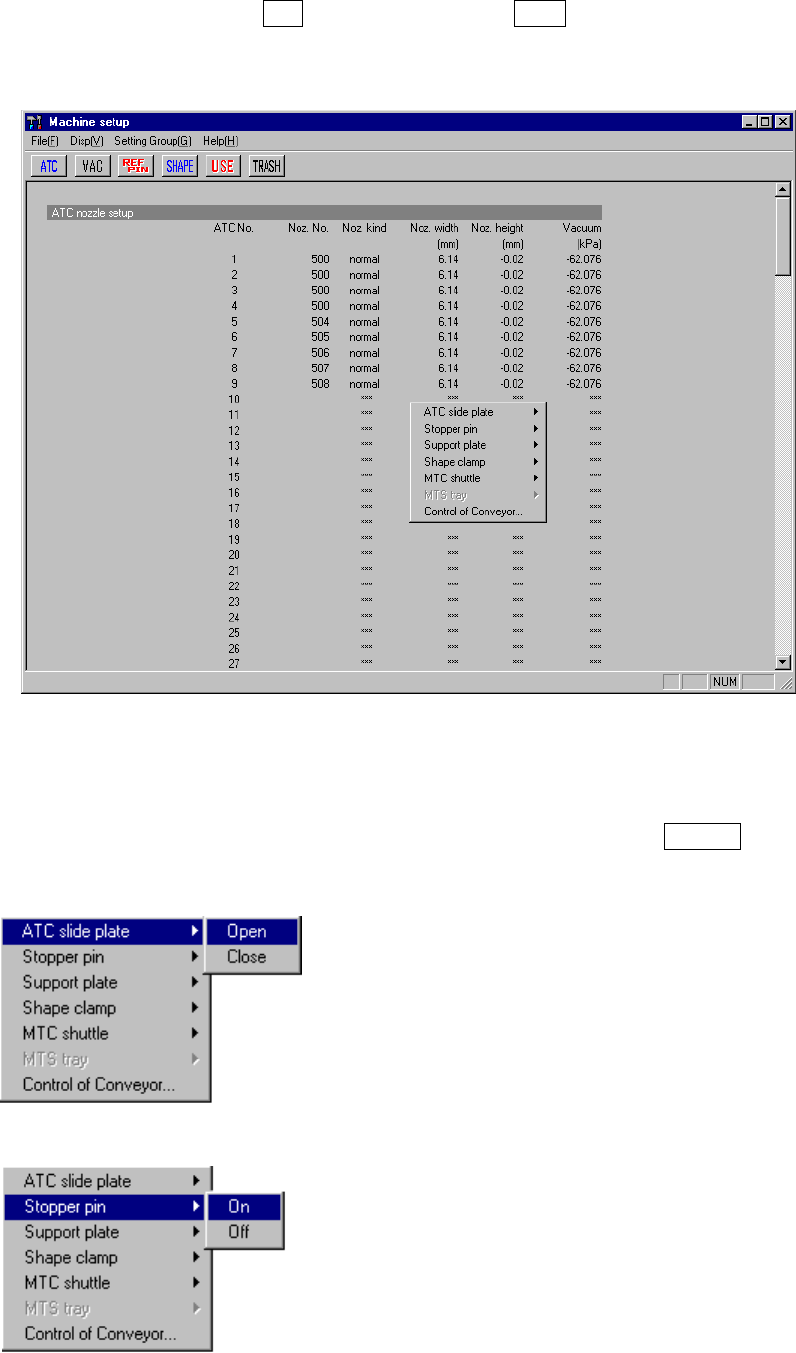
If you have to drive a mechanical device while setting the menu items on the Machine
Setup menu, display the pop-up menu for mechanical devices. Press the right button
of the trackball, or press the F10 key while holding the Shift key. A pop-up menu
shown in Figure 7.3.1 starts up.
Figure 7.3.1 Machine setup pop-up menu
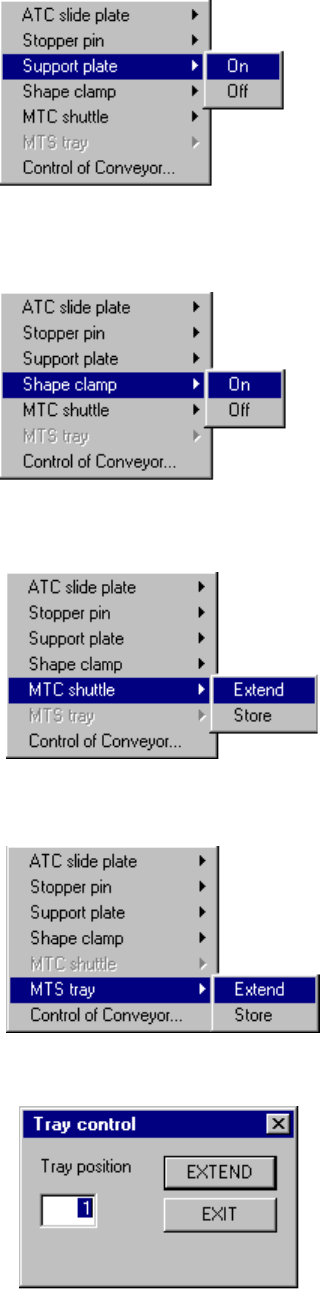
When you select each menu item on the pop-up menu above, the corresponding
extended menu appears as shown below. Select a desired item on this extended
menu with a trackball, or select it with the cursor keys, then press the ENTER key to
drive the corresponding mechanical device.
* ATC slide plate
* Stopper pin
7 − 51
* Support plate
* Shape clamp
* MTC shuttle
When you do not set the MTC on the "MTC/MTS
Device enable setting" dialog box, this menu item
is dimmed and you can not select it.
* MTS tray
When you do not set the MTS on the "MTC/MTS
Device enable setting" dialog box, this menu item
is dimmed and you can not select it.
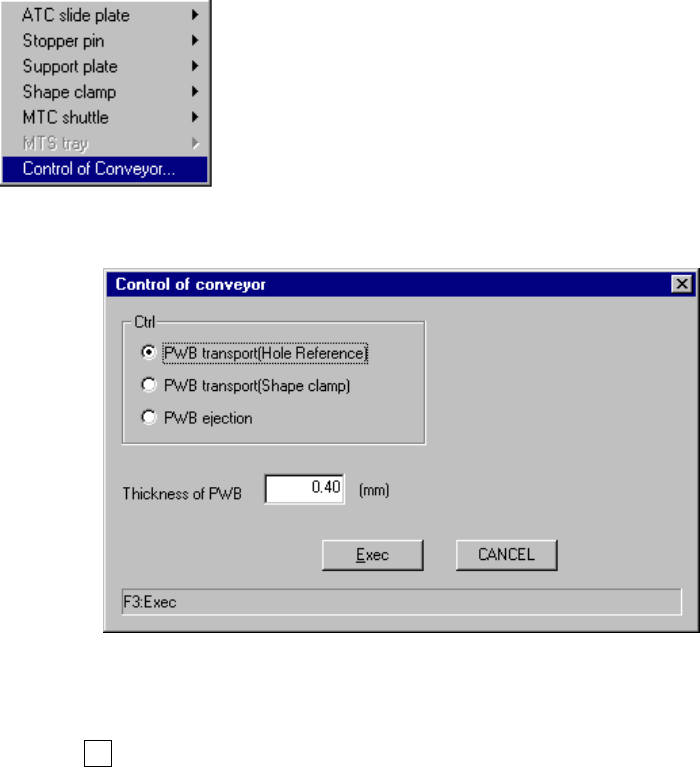
* Tray control dialog box
When you select the [Extend] command on the
“MTS tray” menu above, this “Tray control” dialog
box appears on the screen.
Enter the position of a tray you want to pull out,
and click the <EXTEND> button. The system
pulls out the tray whose position you specified
from the MTS.
7 − 52
* Control of Conveyor
When you select the menu item "Control of
Conveyor", no extended menu appears on the
screen and the dialog box appears instead as
shown in the figure below.
●
If you select the menu item [Control of Conveyor], specify the desired control
item with the corresponding radio button, then click the <Done> button or press
the F3 key.