KE2010.Instruction Manual.Ver.2.01,Rev.08.pdf - 第592页
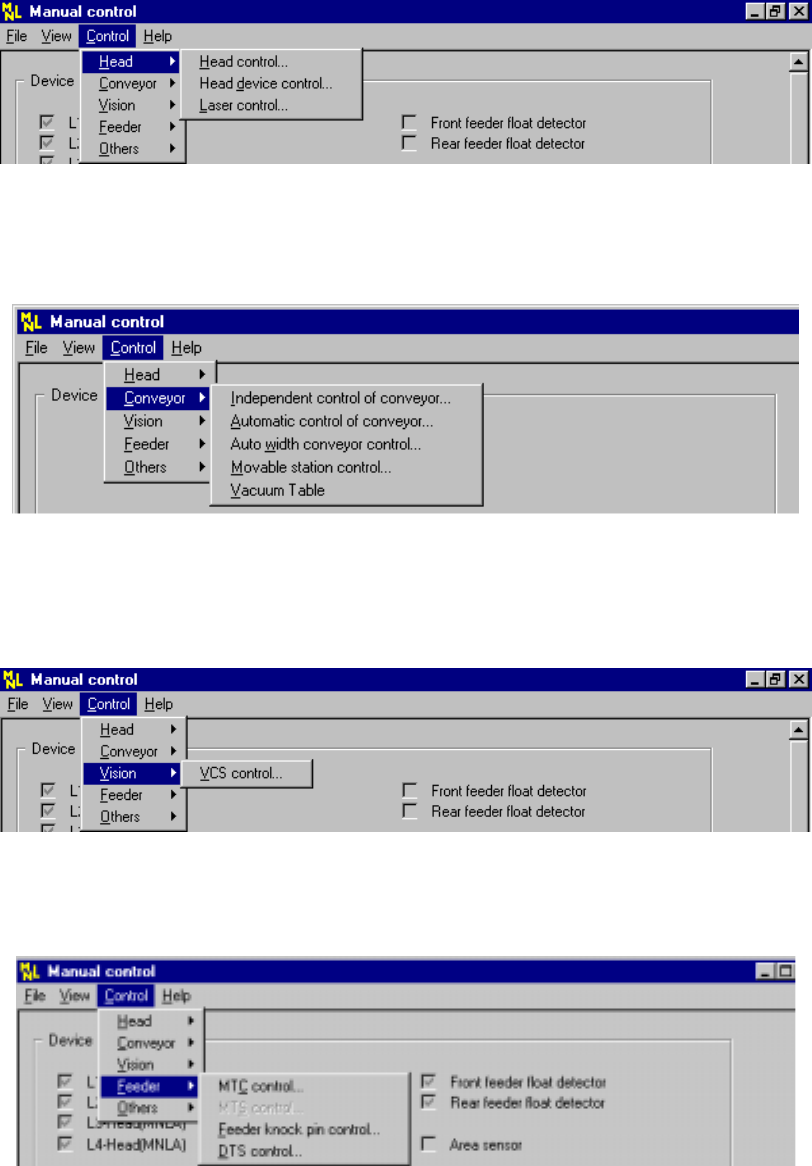
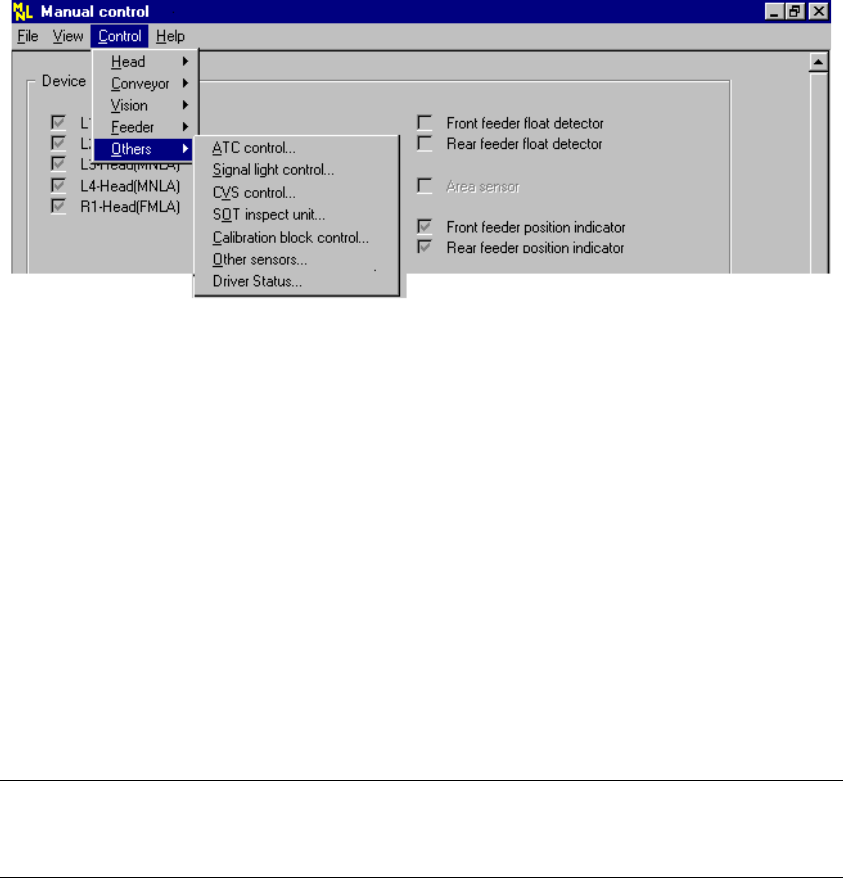
8 − 3 2) Ctrl − Head Figure 8.1. 2 Head pull-down menu − Conveyor Figure 8.1. 3 Convey or pull- dow n menu − Vision Figure 8.1. 4 Vi sion pull-down menu − Feeder Figure 8.1. 5 Feeder pull-down menu
8 − 2
(1) Immediately after starting
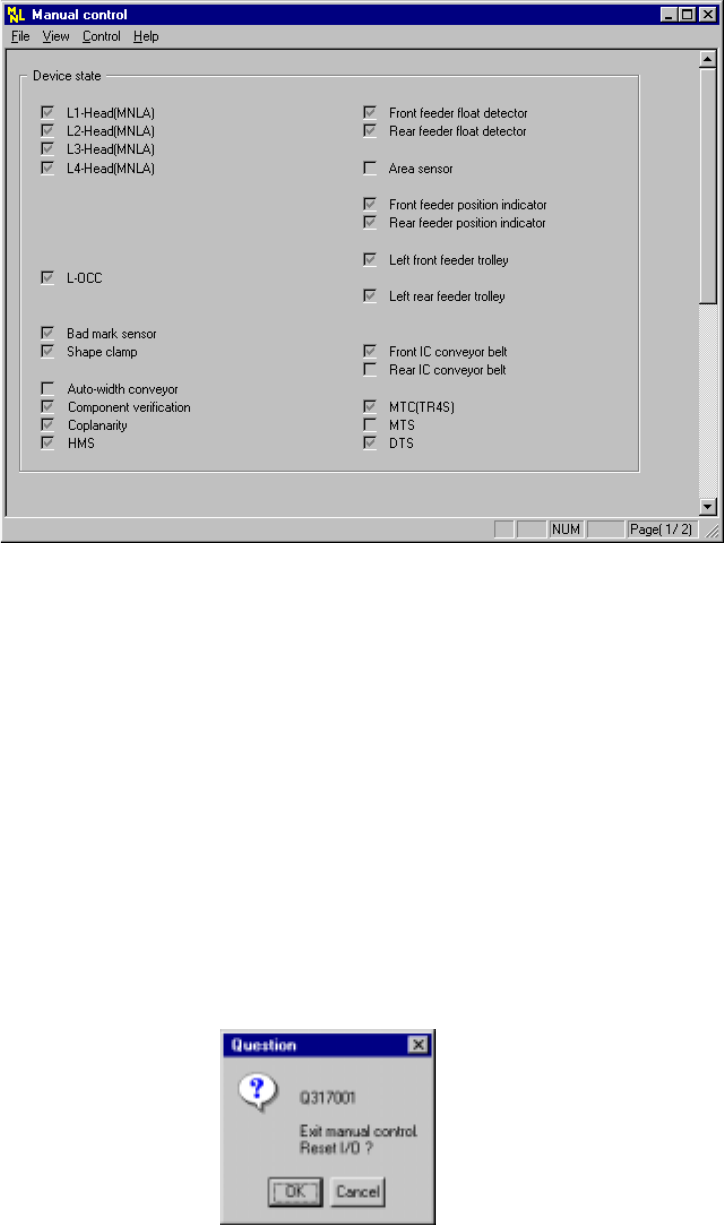
The “Manual control” initial screen shown below appears when selecting the
[Manual Operation] command on the [Setup] menu invoked from the menu bar.
Figure 8.1.1 Manual control initial screen
(2) Commands
No summary of a command appears on the message line while you are selecting
a command on the "Manual control" menu.
1) File
When you select the [Exiting Application] command, the dialog box shown in
Figure 8.1.2a, which asks you whether to set each I/O device safety
direction, appears on the screen.
When you click the <OK> button on this dialog box, the system sets the
each I/O device safety direction, then quits this application.
When you click the <Cancel> button, the system cancels the [Exiting
Application] command.
Figure 8.1.2a "Question - to reset I/O" dialog box
8 − 3
2) Ctrl
− Head
Figure 8.1.2 Head pull-down menu
− Conveyor
Figure 8.1.3 Conveyor pull-down menu
− Vision
Figure 8.1.4 Vision pull-down menu
− Feeder
Figure 8.1.5 Feeder pull-down menu
8 − 4
− Others
Figure 8.1.6 Others pull-down menu
During selection of a manual control command, the command summary is not
displayed on the message line.
Selection of each command opens the corresponding dialog box.
Select or set the parameters on each dialog box as necessary and execute the
command.
The unit without a check mark for “Option” setting of MS parameters (not installed)
cannot be selected.
This setting does not affect the “Device enable” setting on the Machine Setup menu.
(This means that the units without a check mark can be selected.)
Note: For an MTC or MTS, any unit which is not checked (not installed) on the
“Device enable” menu invoked from the Machine Setup menu cannot be
selected.
− Help
See Section 3.3 “Basic Operations” for the basic help operations.