KE2010.Instruction Manual.Ver.2.01,Rev.08.pdf - 第595页
8 − 6 1) XY move Moves the selected head to the selected posit ion along the X Y , axes based on the selection unit r efer ence position. Y ou cannot select a menu it em to which the selected head cannot move by ref erri…
8 − 5
(3) Head control menu
① How to start
When you click the right button of a trackball or the F9 key, the pop-up menu
appears. Select the desired item from the menu.
The unit which is not checked (not installed) at the “Option” setting of MS
parameters does not have any corresponding menu to be displayed.
This setting does not affect that of the “Device enable” menu invoked from
the Machine Setup menu: that is, not-checked (not used) units are
displayed also.
Note: 1)
Any MTC, MTS or IC conveyor belt is not displayed on the menu if its model
name is set (installed) on the “Device enable” menu invoked from the
Machine Setup menu.
2) While the pop-up menu is being displayed, the HOD keys operation is
invalid.
3) When the selected unit to be controlled is positioned where it cannot
move, you cannot select it (the unit is dimmed on the screen.)
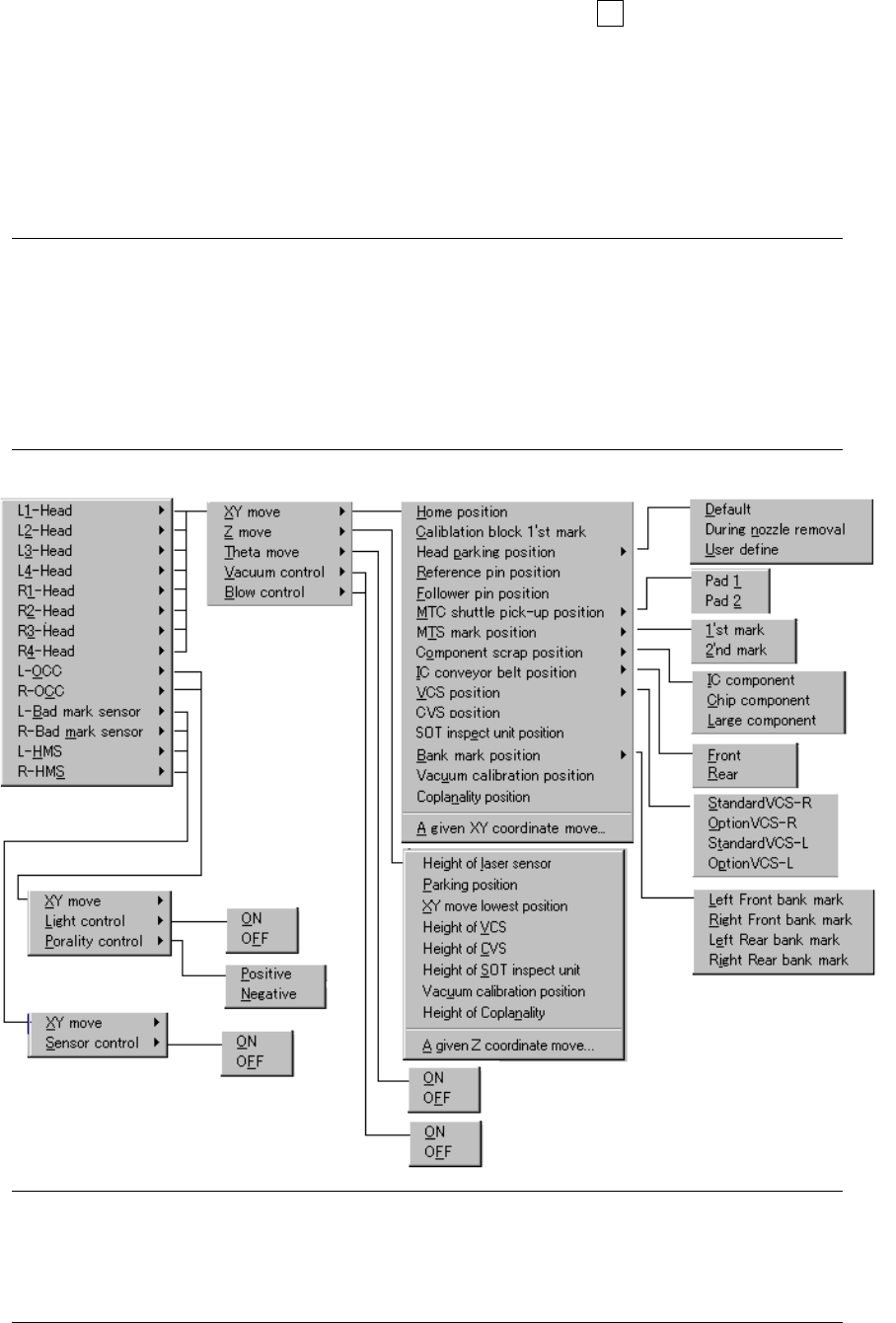
② Menus
Notes: *1 The menu actually displayed varies depending on the model you use.
(See Figure 8.1.7.1 “List of the units that can be controlled by each model” on
the next page.)
*2 The menu actually displayed varies depending on the units installed at the
factory or setting of the Machine Setup menu.
*1
*2
*2
8 − 6
1) XY move
Moves the selected head to the selected position along the XY, axes based on
the selection unit reference position.
You cannot select a menu item to which the selected head cannot move by
referring to the selected unit position.
You can move the head to the standard position by referring to the selected
control unit position or to the desired coordinates.
As the standard position, you can move the head to: the origin, CAL block first
mark position, waiting position (default, when a nozzle is removed, or
user-designated), reference pin position, follower pin position, MTC shuttle
pick-up position, component discarding position (IC, chip, large component),
VCS position, CVS position, bank mark position, vacuum calibration position and
so on.
When you select the position to which you want to move the head on the pop-up
menu, the head moves there by referring to the selected control unit position.
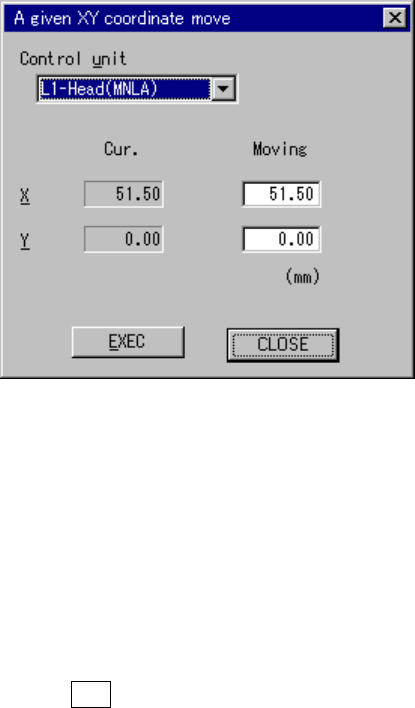
When you select to move the head to the desired coordinates, the “A given XY
coordinate move” dialog box appears on the screen as shown in Figure 8.1.7.
Figure 8.1.7 “A given XY coordinate move” dialog box
Select the unit to be controlled in the combo box.
You cannot select any unit which is not checked (not installed) at the “Option”
setting of the MS parameters.
This setting does not affect the setting of the “Device enable” menu invoked from
the Machine Setup menu (you can select a not-checked (not used) unit).
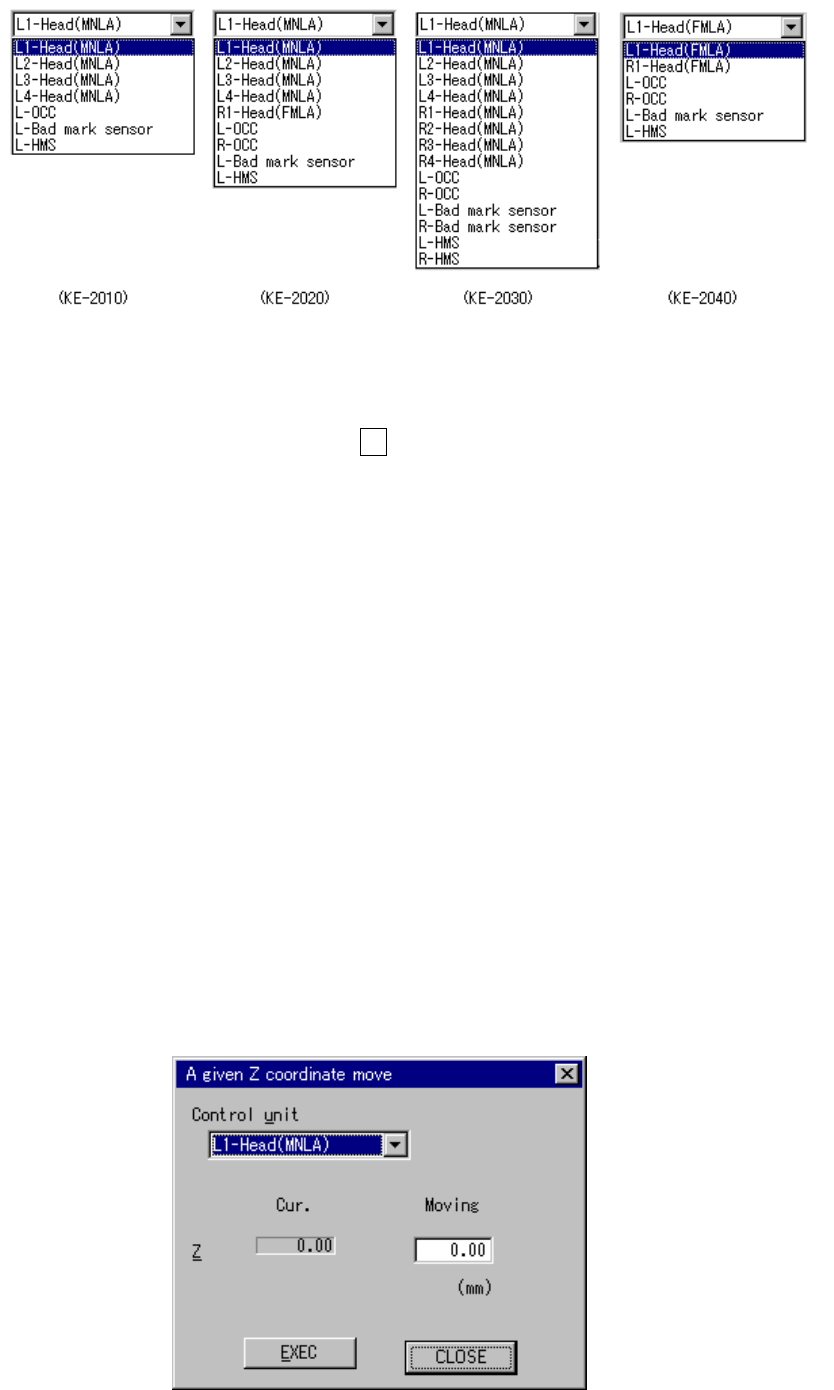
When you press the ALT key while holding the down arrow key, one of the
following list appears on the screen depending on the model you use.
8 − 7
Figure 8.1.7.1 List of the units that can be controlled by each model
When you enter the coordinates to which you want the head to move, then select
the <EXEC> button or press the F3 key, the head moves by referring to the
selected control unit position.
The range of coordinates to be entered varies depending on the unit you
selected.
2) Z move
Moves the selected head to the selected position.
You can move the selected head to the standard position or the desired
coordinates.
As the standard position, you can move the head to one of: laser height,
waiting position, XY axes movable height, VCS height, CVS height, and vacuum
calibration position.
When you select the destination position on the displayed pop-up menu, the
selected head moves to that position.
When you select to move the head to the desired coordinates, the “A given Z
coordinate move” dialog box appears on the screen.
Figure 8.1.8 “A given Z coordinate move” dialog box