KE2010.Instruction Manual.Ver.2.01,Rev.08.pdf - 第628页
8 − 39 8.3.5 Vacuum Table Control W hen y ou select t he [Ctrl] command on the “ Manual control” menu, t he [Conveyor] command on the displayed menu, and t hen the [V acuum table contr ol] command, the following “V acuum…

8 − 38
2) Origin
This item returns the movable station to its home position.
When the control item “Origin” is checked, click the <EXEC> button or
press the F3 key.
3) Moving
This item moves the movable station.
When the control item “Moving” is checked, click the <EXEC> button or
press the F3 key.
(3) State display
Each unit state is displayed when the unit is controlled completely.
8 − 39
8.3.5 Vacuum Table Control
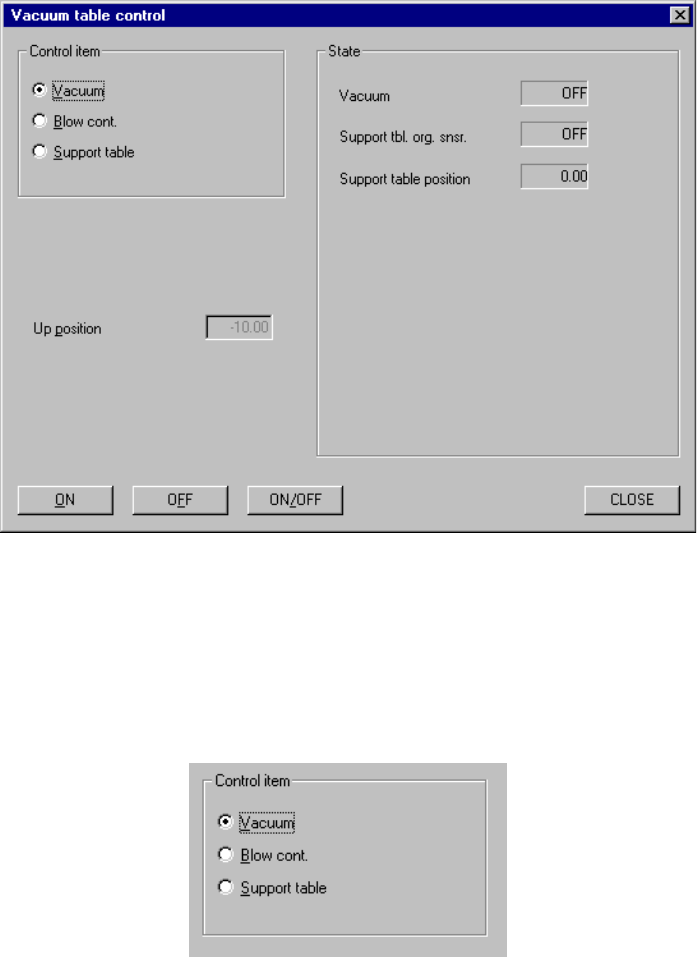
When you select the [Ctrl] command on the “Manual control” menu, the [Conveyor]
command on the displayed menu, and then the [Vacuum table control] command, the
following “Vacuum table control” dialog box appears on the screen.
Figure 8.3.5 “Vacuum table control” dialog box (screen example when a KE-2020 is used)
(1) Control items
Select which item is to be controlled with checking the corresponding radio
button.
(2) Control buttons
By clicking each control button, you can control the selected control item.
The actually displayed control buttons vary depending on the control item you
selected.
8 − 40
1) Vacuum
When the radio button “Vacuum” is checked, you can turn on/off vacuum of
the vacuum table.
When the radio button “Vacuum” is checked, click the <ON>, <OFF> or
<ON/OFF> button or press the F3, F4 or F5 button.
The “State” display is updated when the selected vacuum function is
controlled completely.
2) Blow cont
When the radio button “Blow cont” is checked, you can turn on/off the blow
function of the vacuum table.
When the radio button “Blow cont” is checked, click the <ON>, <OFF>, or
<ON/OFF> button, or press the F3, F4 or F5] key.
The state display is updated when the selected blow function is controlled
completely.
3) Support table
When the radio button “Support table” is checked, you can move up or
down the support table.
When the radio button “Support table” is checked, click the <UP>,
<DOWN> or <UP/DOWN> button, or press the F3, F4 or F5] key.
(3) State
This column shows the condition of each unit when controlled completely.