KE2010.Instruction Manual.Ver.2.01,Rev.08.pdf - 第63页
1 − 46 1.6 Checking circuit protector If the machine does not oper ate properly af ter it has been turned O N, check t he condition of t he circuit pr otector in the power unit f ound on the back side of the machine. If …
1 − 45
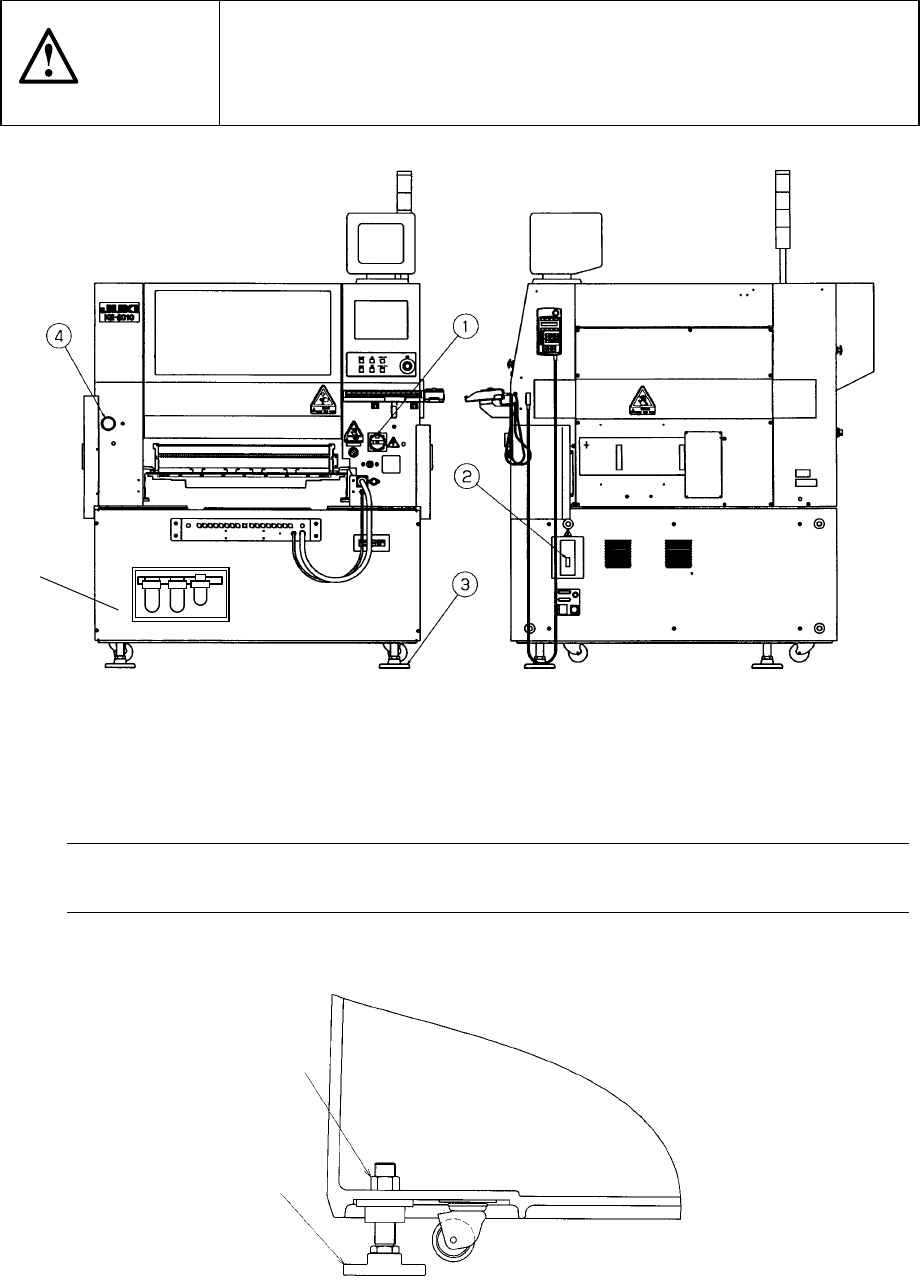
1.5 Installation Check
CAUTION
Check that the machine is level lying completely flat on the floor.
Check that the lock nuts are tightened securely on the four feet of the
machine.
Check that correct electrical power and air are supplied to the machine.
① Main switch ② Breaker ③ Adjuster
④ Pressure gauge ⑤ Filter regulator
Note: To avoid the laser sensor detection error, install the machine where not subject
to direct sunlight.
Figure 1.5.1
Figure 1.5.2
Lock nut
(Four)
③
⑤
1 − 46
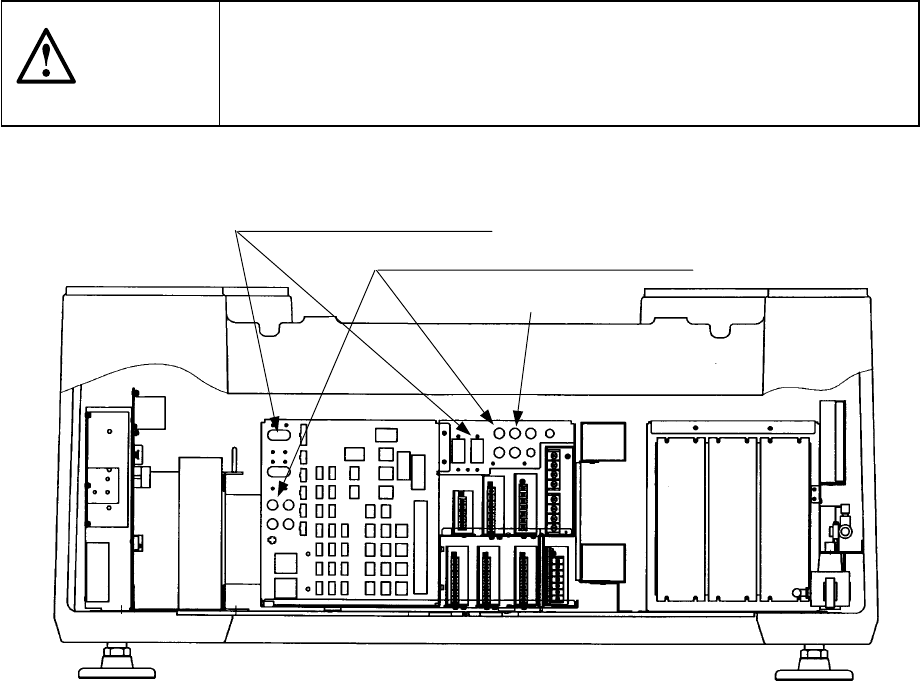
1.6 Checking circuit protector
If the machine does not operate properly after it has been turned ON, check the
condition of the circuit protector in the power unit found on the back side of the
machine. If push-button type the circuit protector front face protrudes to show the
red mark, push the face back in. When the lever of the lever-type circuit protector is
lowered, raise it.
CAUTION
To avoid risk of serious injury or death caused by electric shock hazard,
turn off the main power switch of the house current which is installed in
the building where the machine is used.
Note that it is not the main power switch of the machine.
Figure 1.6.1
Lever-type circuit protectors
Push-button type circuit protectors
Power unit
2 − 1
CHAPTER 2 DESCRIPTION OF THE OPERATOR
CONTROLS
2.1 Function of Keys and Switches
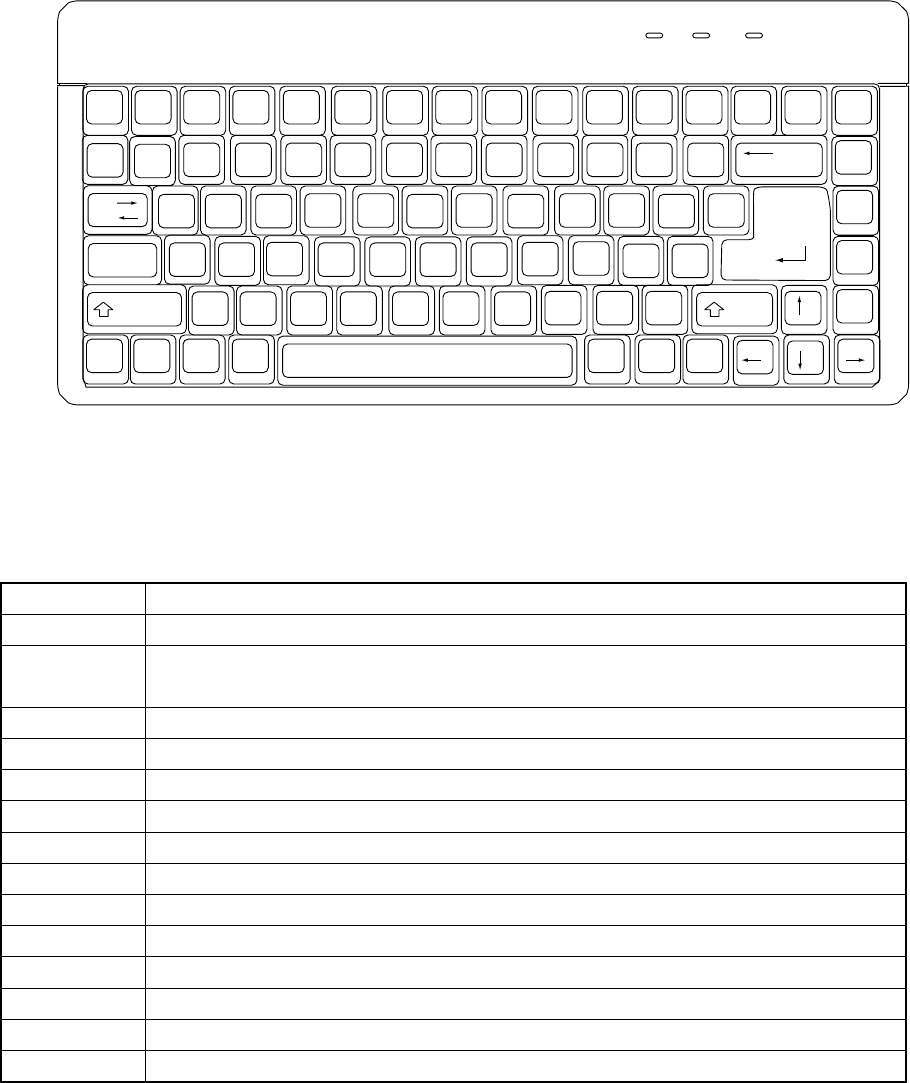
2.1.1 Keyboard
Esc
F1 F2
F3 F4
F5
F6
F7
F8
F9
F10
~
`
!
1
@
2
#
3
$
4
%
5
^
6
&
7
*
8
(
9
)
0
QW E
RTY
U
I
O
P
{
[
}
]
_
-
+
=
ASD
FG
H
JK
L
"
'
Z
XCV
B
N
M
<
,
>
.
Tab
Caps Lock
Caps
Lock
Shift
Shift
Ctrl CtrlAltAlt
Enter
Num
Lock
Num
Lock
Scroll
Lock
Print
Screen
Scroll
Lock
Pause Delete
Insert
Page
Up
Page
Down
End
:
?
/
:
;
Figure 2.1.1 Keyboard
Table 2.1.1 List of keys and their functions
Key Function
F1 Use to obtain a help screen (for future expansion) on the display.
F2 Use to change data already entered.
Use to obtain a pop-up list on the display.
F3 Use to copy data.
F4 Use to delete data.
F5 Use to move data.
F6 Use to change the window in the forward direction.
F7 Use to search for particular data in the forward direction.
F8 Use to search for particular data in the backward direction.
F9 Use to select either the list or form display, the key toggling between the two.
F10 Unused
F11 (Fn + F1) Used to copy a cell.
F12 (Fn + F2) Used to pate a cell.
ESC Use to cancel an entry.
Alt Use to select the menu.