KE2010.Instruction Manual.Ver.2.01,Rev.08.pdf - 第634页
8 − 45 The st ate of each unit is displayed when it is controlled complet ely . 8.5 Feeder 8.5.1 MTC control W hen y ou select t he [Feeder] com mand on the [Ct rl] menu, then [MTC control] command, t he following "…
8 − 44
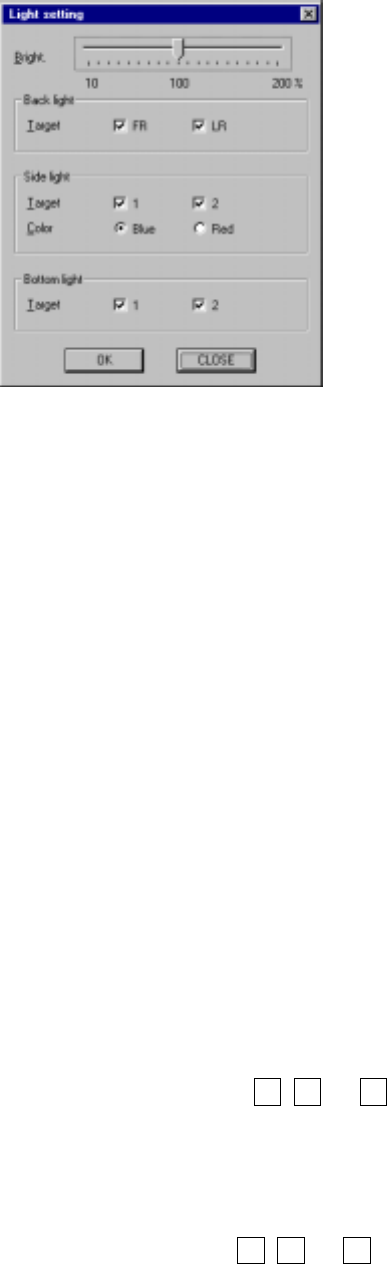
Figure 8.4.2 Light setting dialog box
- Bright
Move the slide bar to set the brightness.
To move the slide bar, press any of arrow keys, PgUp key or PgDn key.
- Back light
Select which light is to be controlled with checking the corresponding
check box.
- Side light
Select which light is to be controlled with checking the corresponding
check box.
Select the color with the corresponding radio button.
- Bottom light
Select which light is to be controlled with checking the corresponding
check box.
−
When you click the <OK> button, the lights are turned on under the
conditions you set here.
−
When you click the <CANCEL> button, your settings are canceled.
6) Polarity
This control item controls the polarity: negative or positive.
When the control item "Polarity" is checked, click the <Positive>, <Negative>
or <Positive/Negative> button, or press the F3, F4, or F5 key.
7) Side light cylinder
This control item turns on and/or off the side light cylinder.
When the control item "Side light cylinder" is checked, click the <ON>,
<OFF> or <ON/OFF> button or press the F3, F4, or F5 key to control the
side light cylinder.
The state of the side light cylinder is displayed when it is controlled
completely.
(5) State display
8 − 45
The state of each unit is displayed when it is controlled completely.
8.5 Feeder
8.5.1 MTC control
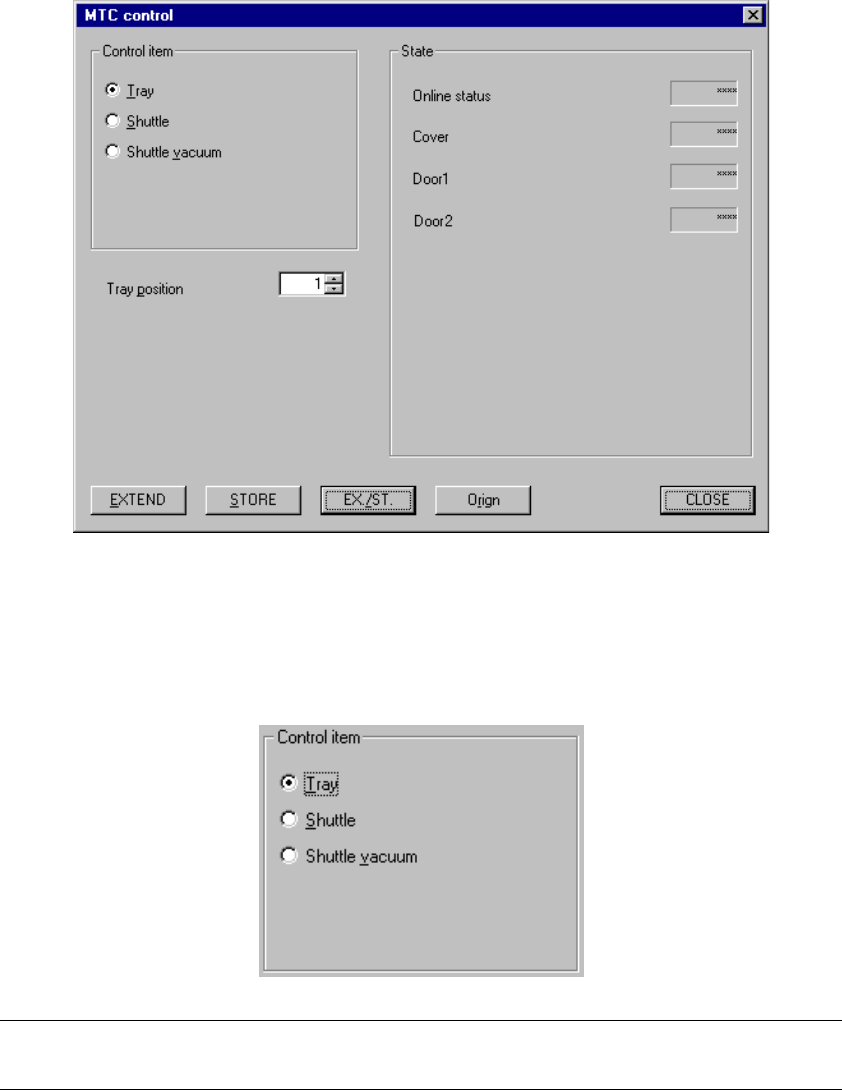
When you select the [Feeder] command on the [Ctrl] menu, then [MTC control]
command, the following "MTC control" dialog box appears on the screen.
Figure 8.5.1 MTC control dialog box
(1) Control item
Select a control item with the corresponding radio button.
Note: If you use a station not equipped with a transport conveyor, you cannot select
"Zero the conveyor" or "Change of transport width".
8 − 46
(2) Control position
Select the position when the MTC is controlled with the corresponding radio
button.
This item is available only when you select "Shuttle vacuum" as the control item.
(3) Control button
With the control button, execute the control item you selected.
The displayed control buttons vary depending on the control item you selected.
1) Tray
This item extends and/or stores a tray.
When the control item "Tray" is checked, click the <EXTEND>, <STORE> or
<EX./ST.> button or press the F3, F4, or F5 key to control a tray.
The state of a tray is updated when it is controlled completely.
2) Shuttle
This item extends and/or stores the shuttle.
When the control item "Shuttle" is checked, click the <EXTEND>, <STORE>
or <EX./ST.> button or press the F3, F4, or F5 key to control a shuttle.
The state of the shuttle is updated when it is controlled completely.
3) Shuttle vacuum
This item controls vacuuming of the shuttle.
When the control item "Shuttle vacuum" is checked, click the <ON>, <OFF>
or <ON/OFF> button or press the F3, F4, or F5 key to vacuum the shuttle.
The shuttle vacuuming state is updated when the shuttle is vacuumed
completely.
(4) State display
Each unit state is displayed when it is controlled completely.
The online state, door open/close condition and cover open/close condition are
always displayed on the screen.