KE2010.Instruction Manual.Ver.2.01,Rev.08.pdf - 第635页
8 − 46 (2) Contr ol posit ion Select t he position when the MTC is controlled with the corresponding radio button. This it em is available only when y ou select "Shut tle vacuum" as the cont rol item. (3) Contr…
8 − 45
The state of each unit is displayed when it is controlled completely.
8.5 Feeder
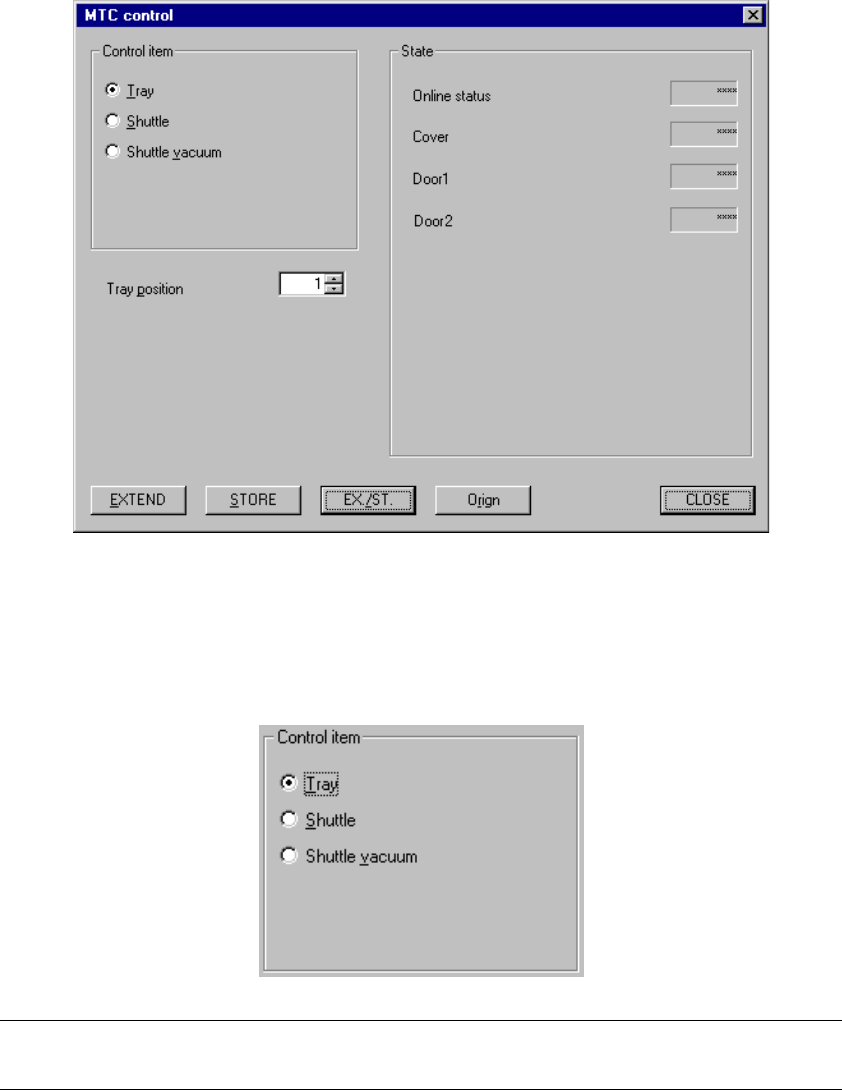
8.5.1 MTC control
When you select the [Feeder] command on the [Ctrl] menu, then [MTC control]
command, the following "MTC control" dialog box appears on the screen.
Figure 8.5.1 MTC control dialog box
(1) Control item
Select a control item with the corresponding radio button.
Note: If you use a station not equipped with a transport conveyor, you cannot select
"Zero the conveyor" or "Change of transport width".
8 − 46
(2) Control position
Select the position when the MTC is controlled with the corresponding radio
button.
This item is available only when you select "Shuttle vacuum" as the control item.
(3) Control button
With the control button, execute the control item you selected.
The displayed control buttons vary depending on the control item you selected.
1) Tray
This item extends and/or stores a tray.
When the control item "Tray" is checked, click the <EXTEND>, <STORE> or
<EX./ST.> button or press the F3, F4, or F5 key to control a tray.
The state of a tray is updated when it is controlled completely.
2) Shuttle
This item extends and/or stores the shuttle.
When the control item "Shuttle" is checked, click the <EXTEND>, <STORE>
or <EX./ST.> button or press the F3, F4, or F5 key to control a shuttle.
The state of the shuttle is updated when it is controlled completely.
3) Shuttle vacuum
This item controls vacuuming of the shuttle.
When the control item "Shuttle vacuum" is checked, click the <ON>, <OFF>
or <ON/OFF> button or press the F3, F4, or F5 key to vacuum the shuttle.
The shuttle vacuuming state is updated when the shuttle is vacuumed
completely.
(4) State display
Each unit state is displayed when it is controlled completely.
The online state, door open/close condition and cover open/close condition are
always displayed on the screen.
8 − 47
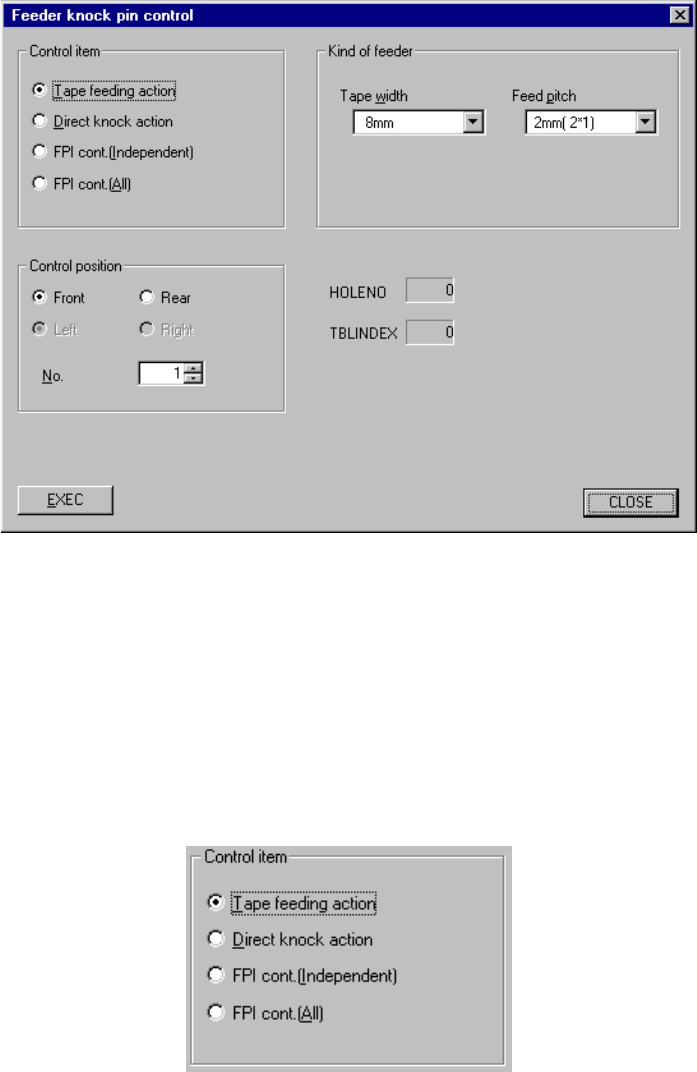
8.5.2 Feeder Knock Pin Control
When you select the [Feeder] command on the [Ctrl] menu, then the [Feeder knock
pin control] command, the following “Feeder knock pin control” dialog box appears.
Figure 8.5.2.1 Feeder knock pin control dialog box
(1) Control item
Select a control item with the corresponding radio button.
You can select the control item on the FPI control only when the “Feeder position
indicator” is checked (installed) on the “Option” menu of the MS parameter.
This selection does not affect the setting of the “Device enable” menu invoked
from the Machine Setup menu (this means that you can select a not-checked
unit).
(2) Control position
When selecting “Tape feeding action” as the control item, select the position of
the pin to be controlled from the control side (using the radio button) and the
number (using the edition box).
When selecting “Direct knock action” in the control items, select the position of
the pin to be controlled from the control side (using the radio button).