KE2010.Instruction Manual.Ver.2.01,Rev.08.pdf - 第714页
11 − 5 11.4.1 Setting the teaching option W hen y ou select the [ Options] com mand on the menu bar , then t he [Option Set ting] command on the O ptions menu, t he Operation opt ions setting s dialog box appears on the …

11 − 4
11.4 Operation Option
The items to be set as the operation options are shown in Table 4.2
Table 11.4.1 Operation Option Items
N
o.
Operation option
group
Option items
1 Teaching − Align the placement point to BOC.
− Auto-correct reference pin.
2 Production (Display) − Show the number of boards produced in large chatacters.
− Count down the number of boards produced.
− Accumulate planned number of boards produced.
− Changes to the production screen when start selected HLC only.
− Do not inquire for save on exit.
− Set resume production default to ‘Produce newly’.
− Set resume production default to ‘Re-clamp current board’.
3 Production (Function) − Auto-correct pick position.
− Check release of component after placing Z up.
− Begin production after conveyor.
− Simultaneous Nozzle Change.
− Check fiducials before bad circuit marks.
− Resume the production on suspend.
− End system on all circuit bad mark.
− Measure direction while installing nozzles.
− Sequential start on arrival (for a KE-2030 only)
4 Production (Function2) − Do not carry out the PWB on cycle-stop
− Check dirty of Laser sensor.
− SOT direction inspect checked.
− Verify inspect checked.
− Do not IN/OUT PWB sensor auto checked.
− the same component manage alternative feeders.
5 Production (Pause) − Stop system on components run out.
− Stop system on any error.
− Re-measure component height when components run out.
− The verification inspection is done on restart component run out.
− The SOT direction inspection is done on restart, when component
run out.
− Display ‘Supply’ button in the pause dialog.
− Run pick tracking when components run out.
6 Production (Check) − Properties checked
− Information of Coplanarity
− When Copla check fails. (Available with a KE-2020/2040 only)
7 Function enable − Tombstone detection
− Component dimension check
− Component crientation check
− Stop when feeder pitch shift is detected.
− Non-stop operation
− Non-stop operation (MTC) [Not available for a KE-2030]
− Non-stop operation (MTS) [Not available for a KE-2030]
− Non-stop operation (DTS) [Not available for a KE-2030]
− Enable Auto Compo. presence check of MTC
[Not available for a KE-2030]
11 − 5
11.4.1 Setting the teaching option
When you select the [Options] command on the menu bar, then the [Option Setting]
command on the Options menu, the Operation options settings dialog box appears on
the screen.
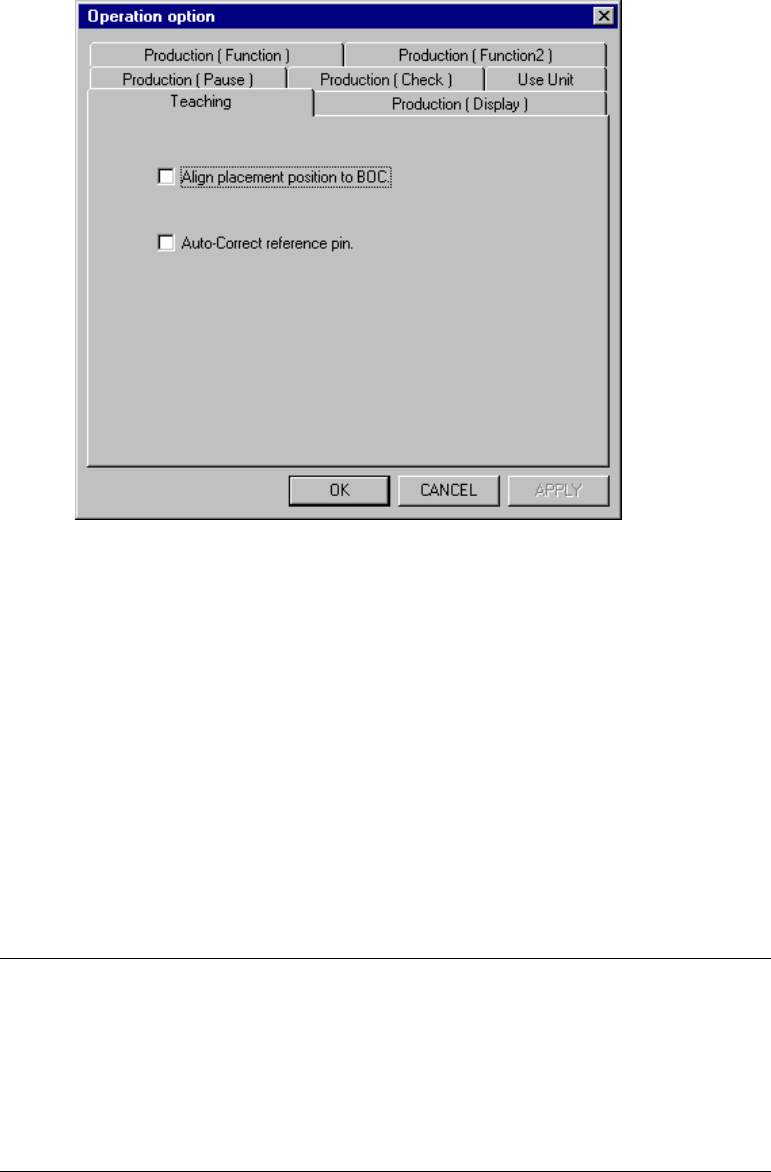
When you select the <Teaching> tag, the Teaching option setting screen appears as
shown in Figure 11.4.1.
Figure 11.4.1 Teaching options setting dialog box
(1) How to set each item
①
Align placement position to BOC.
− Set whetter to align the placement position with a BOC or not with
cheching the check box to perform teaching of a placement point for
editing, etc.
− When the check box of this option is checked, the placement point is
changed to the coordinates corrected with the BOC mark during teaching
of the placement point, while the placement point is corrected reversely
when it is loaded to the system. Therefore, the system can teach the
coordinates of the correct placement point on a board.
Notes:
−
This alignment cannot be performed if the mark data of the PWB
data is incomplete.
−
This alignment cannot be performed when the OCC is not set to be
used on the Machine setup menu.
−
For the value of alignment, the latest result of mark recognition is
used. If BOC alignment is readjusted during data creation, the
result may be slightly different from the previous one.

11 − 6
② Auto-correct reference pin.
− Set whether to correct the placement point from the inclination difference
between the reference pin and the follower pin with this check box.
− When the check box of this option is checked, the placement point is
corrected based on inclination between the reference pin and the follower
pin if the "Hole Reference" is selected as "Reference" in PWB data.
Notes:
−
Correct alignment cannot be made if the correct coordinates of the
reference pin and the follower pin have not been entered on the
Machine setup menu.
−
If the setting of this option differs between when data creating and
when PWB production, the correct placement cannot be achieved.
When you validate the selected item(s), click the <OK> button. If you do not
want to set any option, click the <CANCEL> button.