KE2010.Instruction Manual.Ver.2.01,Rev.08.pdf - 第725页
11 − 16 − W hen you check t his check box, the system per for ms the com ponent picking -up and track ing oper ation bef ore retr y operation. At t he same time, the com bo box for t he feeder to be used f or picking up …
11 − 15
③ Re-measure components height when components run out.
− Using this check box, select whether to measure the height of a
component at restart of production after components run out..
− When you check this item, the system measures the height of a
component on restart after components run out.
− When you do not check this item, the system does not measure the height
of a component on restart after components run out.
④ The verification inspection is done on restart component run out.
− Using this check box, specify whether to perform a verify check at start of
production after the stocked components run out.
− When you check this check box, the system performs a verify check at
start of production after the stocked components run out.
− When you do not check this check box, the system does not perform a
verify check at start of production after the stocked components run out.
⑤ The SOT direction inspection is done on restart, when component run out.
− Using this check box, specify whether to check the direction of an SOT
component at start of production after the stocked components run out.
− When you check this check box, the system checks the direction of an
SOT component at start of production after the stocked components run
out.
− When you do not check this check box, the system does not check the
direction of an SOT component at start of production after the stocked
components run out.
⑥ Display 'Supply' button in the pause dialog.
− Use the check box to set the function for supplying components while the
system temporarily stops a production operation because components run
out.
− When you check this option, the <Supply> button is applied to the "Pause"
dialog box. This <Supply> button is not displayed on the Pause dialog box
which appears when components run out or when a mark recognition error
occurs
− When you click this <Supply> button, the system replenishes a feeder
(tape, stick or bulk feeder) with components when its stocked components
run out.
− When you do not check this option, the <Supply> button is not displayed
on the Pause dialog box.
⑦ Run pick tracking when components run out.
− Using this check box, you can select whether to perform a component
picking-up and tracking operation before retry operation if you select the
retry operation and press the <START> switch when the system pauses
due to a component run-out error or laser retry over error.

11 − 16
− When you check this check box, the system performs the component
picking-up and tracking operation before retry operation. At the same
time, the combo box for the feeder to be used for picking up and tracking a
component becomes active, and you can select one of the following
choices (“a.” is selected as the default):
a. Only feeders that ran out of components
b. All feeders that ran out or had errors.
c. All feeders on which the same type of components are set as
those of the error feeder
− When you check this check box, the system performs the component
picking-up and tracking operation before retry operation. At the same
time, the combo box for the feeder to be used for picking up and tracking a
component becomes active, and you can select one of the following
choices (“a.” is selected as the default):
Notes:
-
When you enable the “Non-stop operation” on the “Use Unit” tab, the
following items are automatically disabled, and you cannot select them:
①
Stop system when components run out.
②
Stop system on any error.
③
Re-measure pick height when components run out.
④
The verification inspection is done on restart component run out.
-
When you disable the “Non-stop operation” again, all of the settings on
this dialog box are returned to the original settings again.
When you validate the selected item(s), click the <OK> button. If you do not want to
set any option, click the <CANCEL> button.
11 − 17
11.4.6 Setting the Production (Check) option
When you select the [Options] command on the menu bar, then [Option Setting]
command on the Options menu, the Operation option setting dialog box appears on
the screen.
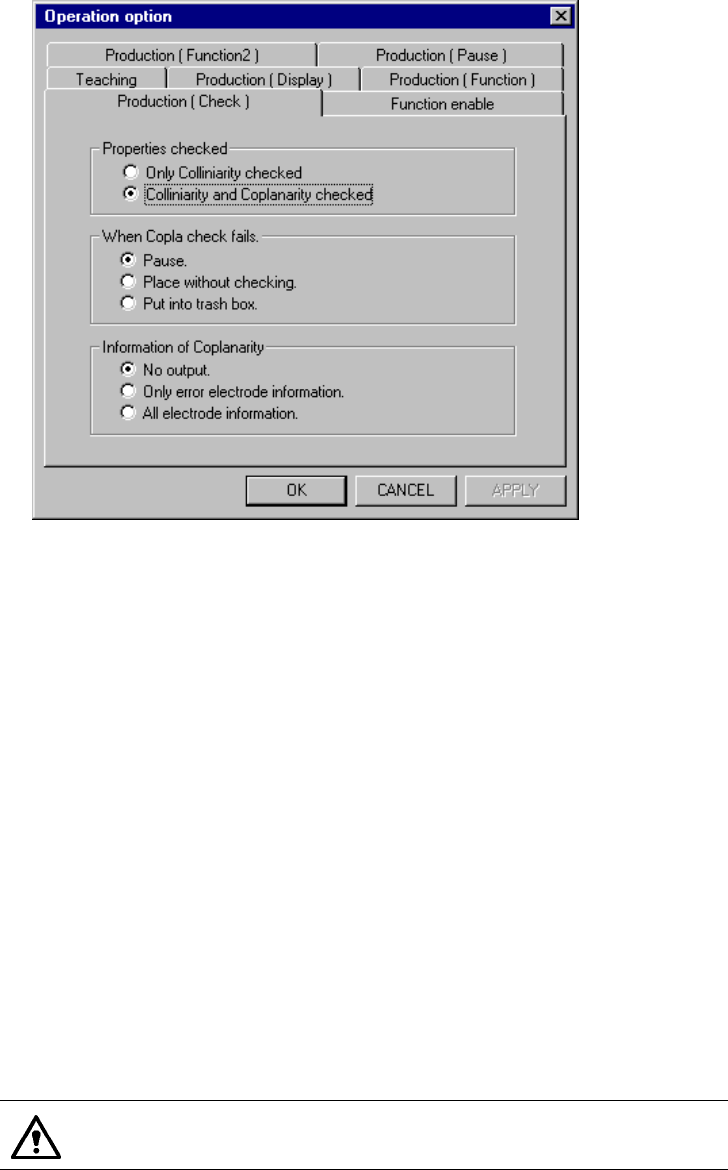
When you select the <Production (Check)> tag, the Production (Check) option setting
screen appears as shown in Figure 11.4.6.
(You can select this tag only when using a KE-2020/2040.)
Figure 11.4.6 Production (Check) option setting screen
(Display example: KE-2020 screen)
(1) How to set the item
① Properties checked
− Only Colinearity checked
− Colinearity and Coplanarity checked
Check the corresponding radio button to perform the desired check.
② When Copla check fails
− Pause: the system pauses.
− Place without checking: the system places a component on a board
without checking it.
− Put into trash box: the system discards a component into a trash box.
Check the corresponding radio button to select the operation to be
performed when the system cannot perform the selected check.
Only when you check the radio button “Pause”, it allows you to set
the menu item “Information of Coplanarity”.