KE2010.Instruction Manual.Ver.2.01,Rev.08.pdf - 第727页
11 − 18 ③ Inf ormat ion of Coplanar ity − No output − Only error electr ode info rmation − All electrode inf ormat ion Check the cor responding r adio button t o output the desir ed infor mation. W hen y ou validate the …
11 − 17
11.4.6 Setting the Production (Check) option
When you select the [Options] command on the menu bar, then [Option Setting]
command on the Options menu, the Operation option setting dialog box appears on
the screen.
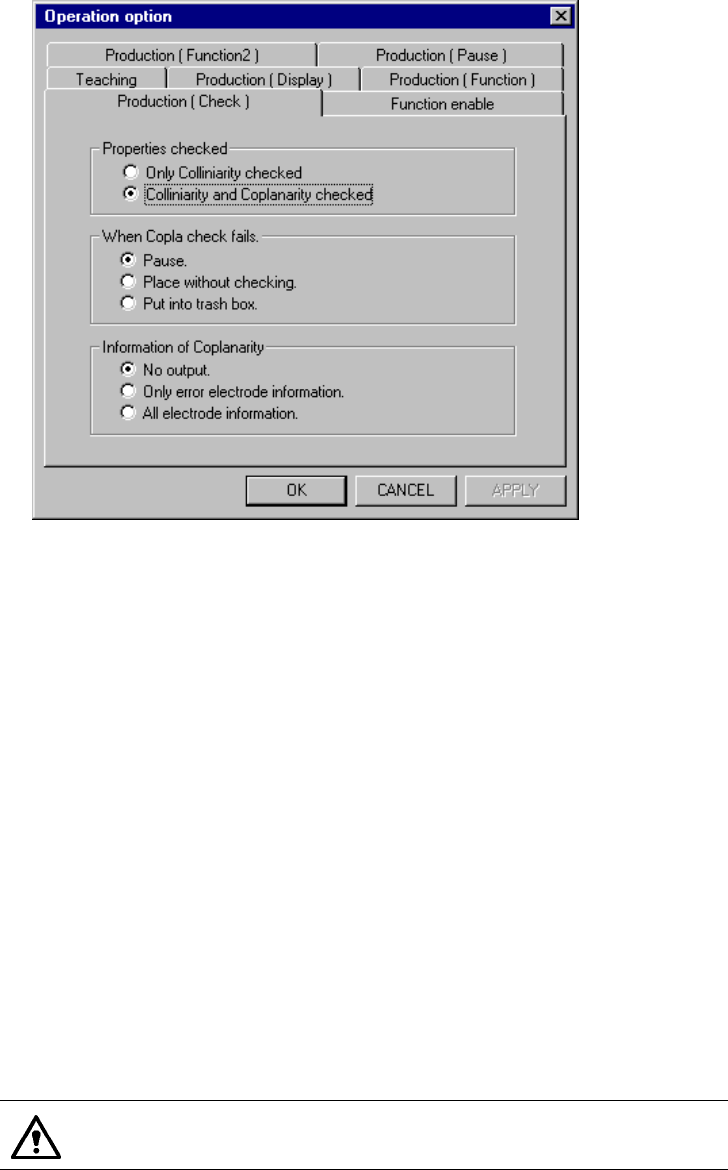
When you select the <Production (Check)> tag, the Production (Check) option setting
screen appears as shown in Figure 11.4.6.
(You can select this tag only when using a KE-2020/2040.)
Figure 11.4.6 Production (Check) option setting screen
(Display example: KE-2020 screen)
(1) How to set the item
① Properties checked
− Only Colinearity checked
− Colinearity and Coplanarity checked
Check the corresponding radio button to perform the desired check.
② When Copla check fails
− Pause: the system pauses.
− Place without checking: the system places a component on a board
without checking it.
− Put into trash box: the system discards a component into a trash box.
Check the corresponding radio button to select the operation to be
performed when the system cannot perform the selected check.
Only when you check the radio button “Pause”, it allows you to set
the menu item “Information of Coplanarity”.
11 − 18
③ Information of Coplanarity
− No output
− Only error electrode information
− All electrode information
Check the corresponding radio button to output the desired information.
When you validate the selected item(S), click the <OK> button. If you do not want to
set any option, click the <CANCEL> button.
11 − 19
11.4.7 Setting the Function enable option
When you select the [Options] command on the menu bar, then [Option Setting]
command, the Operation option setting dialog box appears on the screen.
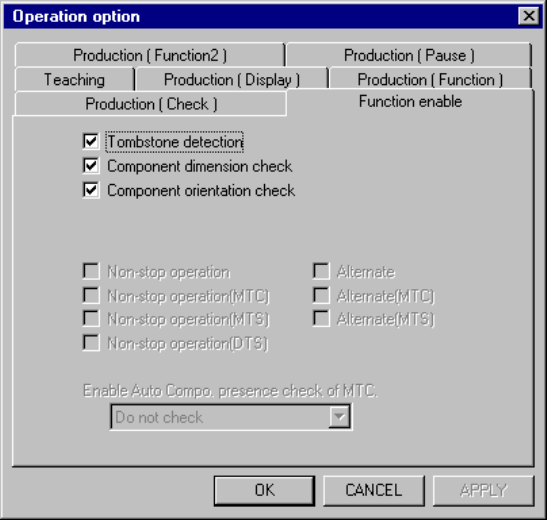
When you select the <Function enable> tag, the Use Unit option setting screen
appears as shown in Figure 11.4.7.
Figure 11.4.7 Function enable option setting screen
(Display example: KE-2020 screen)
(1) How to set the item
① Tombstone detection
− Using the check box, set whether to detect a tombstone error.
− When you check the check box of this option, the "Tombstone det." setting
of Component data becomes effective.
② Component dimension check
− Using the check box, set whether to check a component whose size is
different from the regular ones.
− When you check the check box of this option, the "Acceptable width
(length, and height)" setting of Component data becomes effective.
③ Component orientation check
− Using this check box, set whether to check a component posture.
− When you check this check box, the system compares the ratio of the
shorter side to the longer side specified in Component data and the ratio
measured. If the difference between the ratio in Component data and the
measured ratio is not within a certain range, it is regarded as a component
posture error.