KE2010.Instruction Manual.Ver.2.01,Rev.08.pdf - 第728页
11 − 19 11.4.7 Setting the Function enable option W hen y ou select the [ Options] com mand on the menu bar , then [ Option Sett ing] command, t he Operation opt ion setting dialog box appears on the screen. W hen y ou s…
11 − 18
③ Information of Coplanarity
− No output
− Only error electrode information
− All electrode information
Check the corresponding radio button to output the desired information.
When you validate the selected item(S), click the <OK> button. If you do not want to
set any option, click the <CANCEL> button.
11 − 19
11.4.7 Setting the Function enable option
When you select the [Options] command on the menu bar, then [Option Setting]
command, the Operation option setting dialog box appears on the screen.
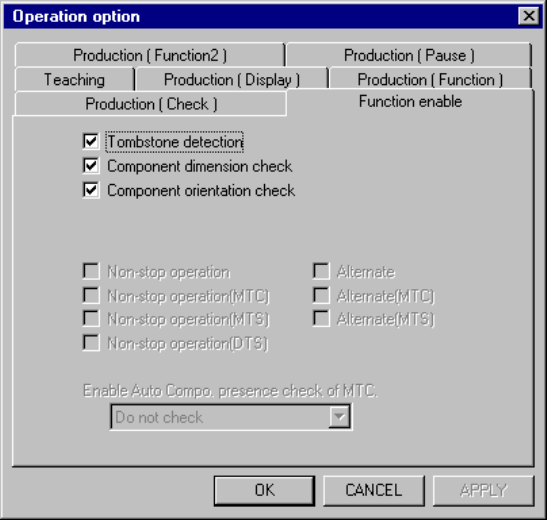
When you select the <Function enable> tag, the Use Unit option setting screen
appears as shown in Figure 11.4.7.
Figure 11.4.7 Function enable option setting screen
(Display example: KE-2020 screen)
(1) How to set the item
① Tombstone detection
− Using the check box, set whether to detect a tombstone error.
− When you check the check box of this option, the "Tombstone det." setting
of Component data becomes effective.
② Component dimension check
− Using the check box, set whether to check a component whose size is
different from the regular ones.
− When you check the check box of this option, the "Acceptable width
(length, and height)" setting of Component data becomes effective.
③ Component orientation check
− Using this check box, set whether to check a component posture.
− When you check this check box, the system compares the ratio of the
shorter side to the longer side specified in Component data and the ratio
measured. If the difference between the ratio in Component data and the
measured ratio is not within a certain range, it is regarded as a component
posture error.
11 − 20
④ Non-stop operation
− Using this check box, set whether to perform the Non-stop operation or
not.
− When you check the check box of this option, the non-stop operation
function is enabled.
− When feeders are assigned to the front and rear sides symmetrically with
the Program Editing utility, the non-stop operation gets executable.
When you check the check box of this option, the system performs the
non-stop operation.
⑤ Alternate
− When you enable the “Non-stop operation” function, this check box is
enabled. When enabled, check this check box to execute the alternate
production mode function in Non-stop operation mode.
− When you check this check box, Alternate Production mode is enabled.
− The status of this check box, checked or not checked, is not affected by
the setting of the “Non-stop operation”, enabled or disabled.
⑥ Non-stop operation (MTC) (Not available for a KE-2030)
− Using this check box, set whether to perform the Non-stop operation
(MTC) or not.
− When you check the check box of this option, the non-stop operation
function is enabled.
− This item is enabled only if “TR6D” is selected as an MTC on the “Device
enable” menu invoked form the Machine Setup menu.
⑦ Alternate (MTC) [Not available for a KE-2030]
− When you enable the “Non-stop operation [MTC]” function, this check box
is enabled. When enabled, check this check box to execute the alternate
production mode function in MTC Non-stop operation mode.
− When you check this check box, MTC Alternate Production mode is
enabled.
− The status of this check box, checked or not checked, is not affected by
the setting of the “Non-stop operation [MTC]”, enabled or disabled.
⑧ Non-stop operation (MTS) (Not available for a KE-2030)
− Using this check box, set whether to perform the Non-stop operation (MTS)
or not.
− When you check the check box of this option, the non-stop operation
function is enabled.
− This item is enabled only if “TR5D” is selected as an MTS on the “Device
enable” menu invoked form the Machine Setup menu.