KE2010.Instruction Manual.Ver.2.01,Rev.08.pdf - 第80页
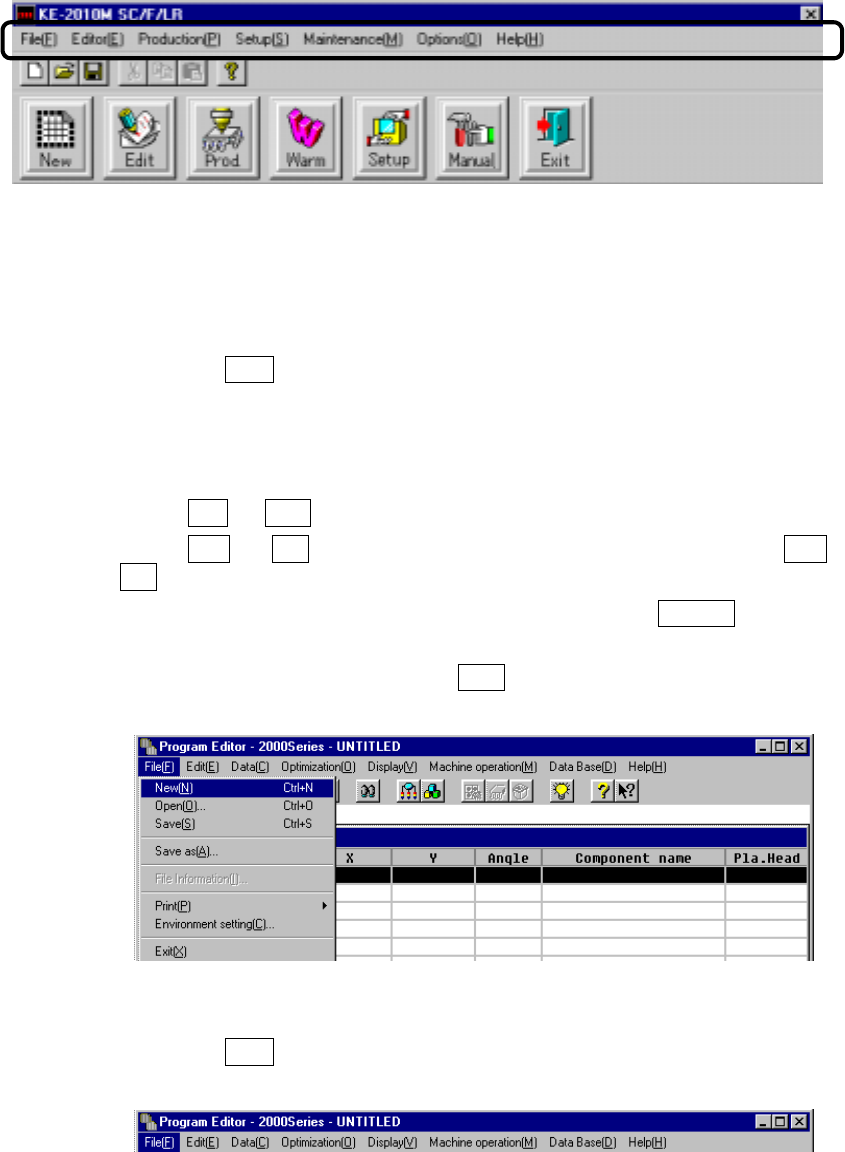
3 − 7 3.3.2 Selecting a menu There are t wo possible way s to select a pull- down menu from among t hose contained in the menu bar . (1) Using the cur sor ke ys ① Press the Alt key to activate the m enu bar . The [ File]…
3 − 6
①
Title bar:
Shows at its center the name of the job (i.e., the window name).
②
Pull-down menu:
A menu of command options that appear after you have selected the command
name on the menu bar. The command options that can be selected are shown
differently from those that cannot.
③
Menu bar:
Lists the names of pull-down menus to be selected. The contents of the menu
bar vary depending on the function you selected.
④
Window border:
Marks the boundary of the window.
⑤
Work area:
Area to which data is entered for creating a program data.
⑥
Status bar:
Shows the current conditions of the machine.
⑦
Formula bar:
Shows the contents of the cell which at the cursor is located and you can edit
formulas.
⑧
Scroll arrow:
Indicates that you can scroll the window in the direction of the arrow to access
more data that are not currently visible on the window.
⑨
Scroll box:
Indicates where you are in the contents of a window.
⑩
Command button
Displays a menu which is supposed to be frequently called, then allows you to
execute the selected function.
3 − 7
3.3.2 Selecting a menu
There are two possible ways to select a pull-down menu from among those contained
in the menu bar.
(1) Using the cursor keys
①
Press the Alt key to activate the menu bar.
The [File] menu is highlighted.
②
Press the cursor keys.
Press → or ← to go among the menu items in the menu bar.
Press ↑ or ↓ to drop down a pull-down menu. Then, press ↑ or
↓ to move among the commands displayed in the pull-down menu.
To activate the command you want to select, press the ENTER key.
During these operations, the message line shows the summary of the
highlighted command. Press the ESC key to close the menu.
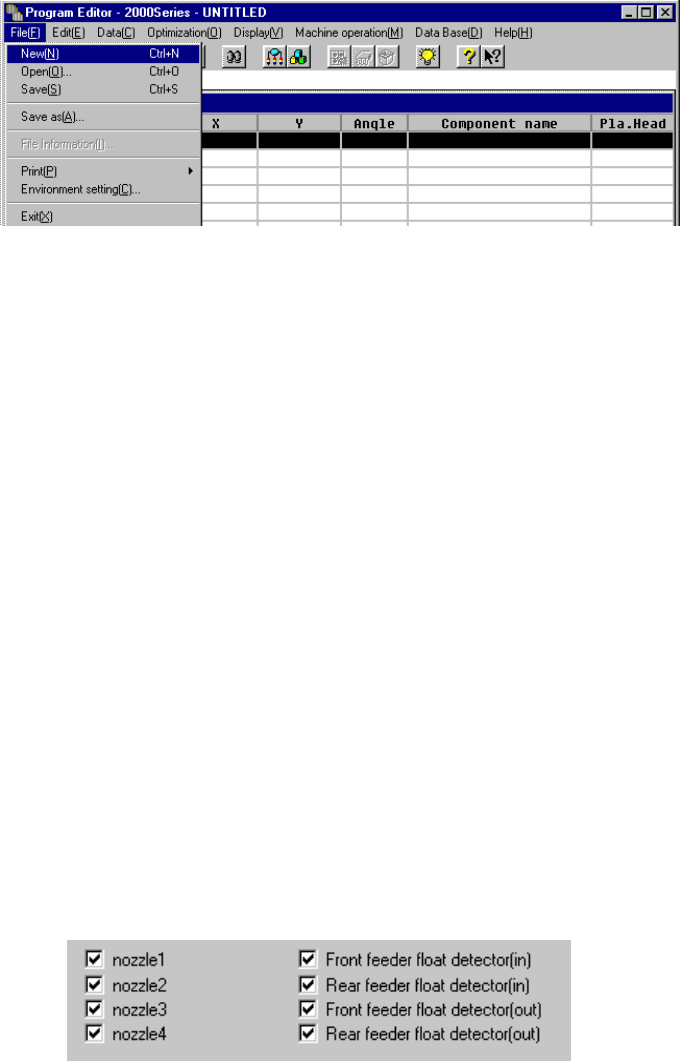
(2) Using the short-cut keys
①
Press the Alt key to activate the menu bar.
The [File] menu is highlighted.
3 − 8
②
Press the key corresponding to the starting character of the desired menu
item.
③
When you press the starting character of the desired command, it
immediately executes the command.
3.3.3 Dialog
If additional information is necessary for the machine to execute a command, a dialog
box appears as soon as the command is selected.
A dialog box may contain the following elements:
(1) Push button
When a push button is selected, it immediately executes the command. Most
dialog boxes contain the OK and Cancel buttons.
(2) Check box
Used to let you choose options or toggle an option on or off. You can select as
many check boxes as you want. When the option is turned on, a check mark (√)
appears in the check box.
To change on or off of the option, highlight the option with the cursor, and press
one of the space keys.