KE2010.Instruction Manual.Ver.2.01,Rev.08.pdf - 第82页
3 − 9 (3) Radio button Unlike check boxes, radio buttons ar e mutually exclusive of one another and you can select only one at a time. The small cir cle z moves with the highlig hted cursor . Go t o the desired opt ion t…
3 − 8
②
Press the key corresponding to the starting character of the desired menu
item.
③
When you press the starting character of the desired command, it
immediately executes the command.
3.3.3 Dialog
If additional information is necessary for the machine to execute a command, a dialog
box appears as soon as the command is selected.
A dialog box may contain the following elements:
(1) Push button
When a push button is selected, it immediately executes the command. Most
dialog boxes contain the OK and Cancel buttons.
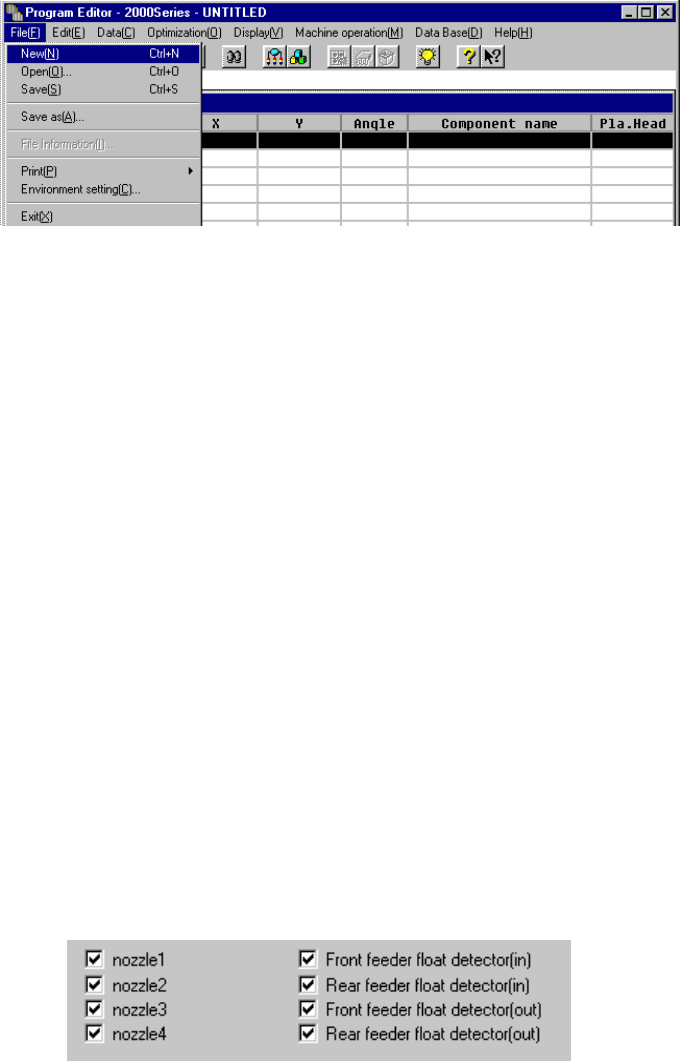
(2) Check box
Used to let you choose options or toggle an option on or off. You can select as
many check boxes as you want. When the option is turned on, a check mark (√)
appears in the check box.
To change on or off of the option, highlight the option with the cursor, and press
one of the space keys.
3 − 9
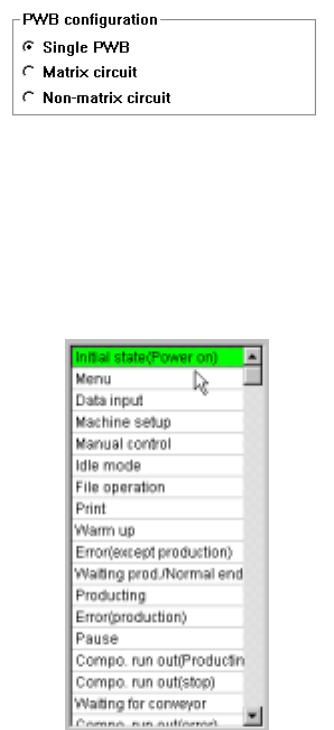
(3) Radio button
Unlike check boxes, radio buttons are mutually exclusive of one another and you
can select only one at a time.
The small circle z moves with the highlighted cursor. Go to the desired option
to exit from the box.
(4) List box
Gives a list of options to choose from, mainly used for selecting a file name.
The selected option is highlighted. If a list contains too many options to show at
a time, it can be scrolled.
3 − 10
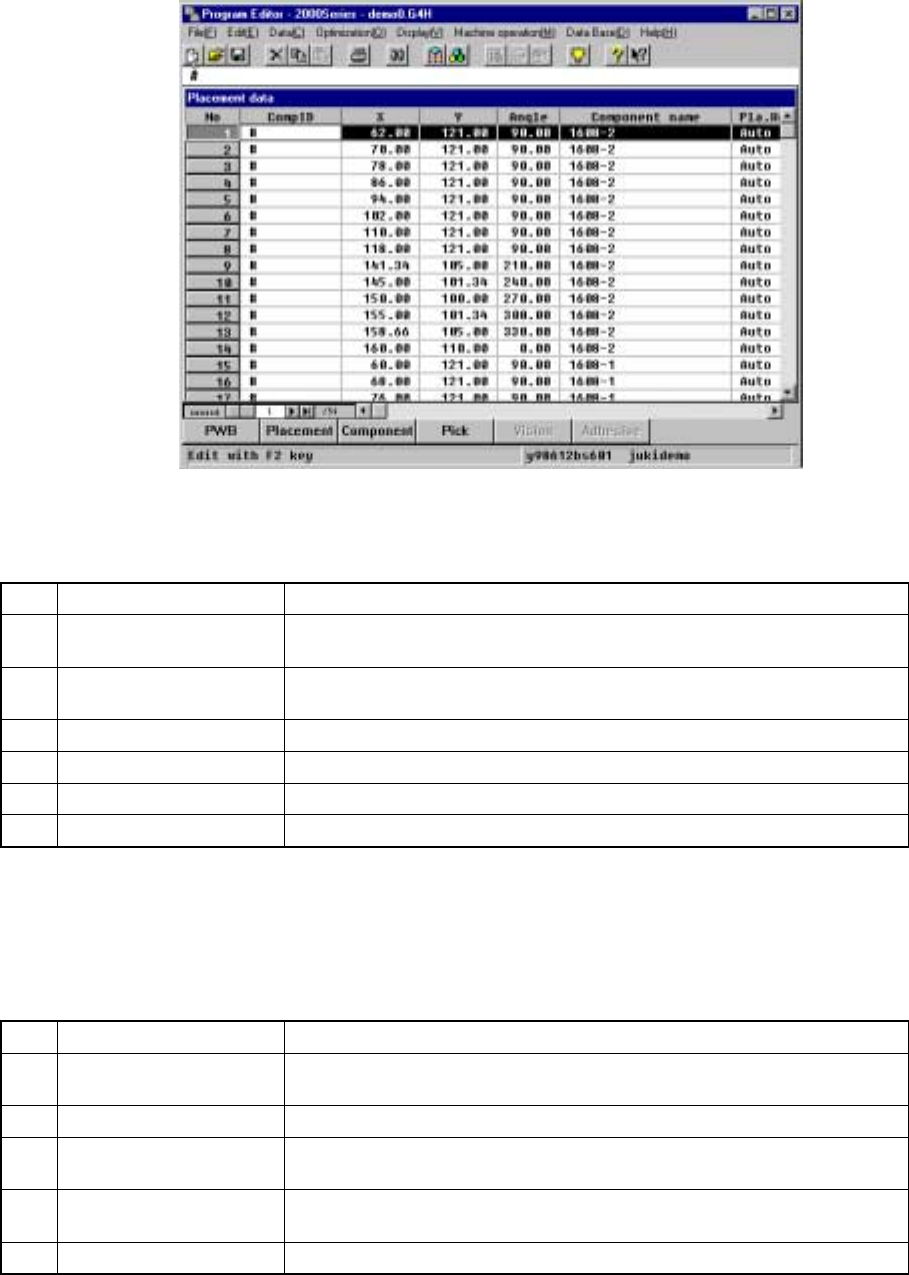
3.3.4 Editing
This section describes the basic data editing method and keyboard operations (Page
Up/Page Down, Home/End, Scroll, Insert and Tab keys operation).
① Dialog
No. Key Action
1 Back Space
Deletes the character to the left of the cursor’s position, shifting the
character string following the cursor one character space each to the left.
2 Delete
Deletes the character at the cursor, shifting the character string following
the cursor one character space each to the left.
3 Cursor keys (Left, Right) Moves through the characters entered in the edit box.
4 ENTER Quits the dialog box operation at the same time you press the OK button.
5 ESC Closes the dialog box.
6 Field selection keys Moves through different boxes.
② Rewriting data entered in the edit field (one or more characters have been
entered)
No. Key Action
1 Back Space
Deletes the character to the left of the cursor’s position, shifting the
character string following the cursor one character space each to the left.
2 Cursor keys Moves the cursor in the formula bar.
3 ENTER
Fetches the characters shown in the formula bar into the cell.
The input cell is not moved.
4 ESC
Interrupts the data entry procedure.
Empties the data entered so far if pressed during data entry.
5 Field selection keys Fetches the data in the formula bar into the field and advances the field.