KE2010.Instruction Manual.Ver.2.01,Rev.08.pdf - 第83页
3 − 10 3.3.4 Editing This section descr ibes the basic data editing method and k eyboard operations (Pag e Up/Page Down, Home/ End, Scroll, I nsert and T ab keys operat ion). ① Dialog No. Key Action 1 Back Space Deletes …
3 − 9
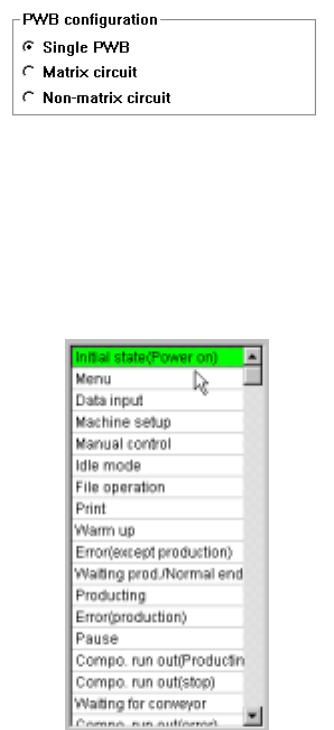
(3) Radio button
Unlike check boxes, radio buttons are mutually exclusive of one another and you
can select only one at a time.
The small circle z moves with the highlighted cursor. Go to the desired option
to exit from the box.
(4) List box
Gives a list of options to choose from, mainly used for selecting a file name.
The selected option is highlighted. If a list contains too many options to show at
a time, it can be scrolled.
3 − 10
3.3.4 Editing
This section describes the basic data editing method and keyboard operations (Page
Up/Page Down, Home/End, Scroll, Insert and Tab keys operation).
① Dialog
No. Key Action
1 Back Space
Deletes the character to the left of the cursor’s position, shifting the
character string following the cursor one character space each to the left.
2 Delete
Deletes the character at the cursor, shifting the character string following
the cursor one character space each to the left.
3 Cursor keys (Left, Right) Moves through the characters entered in the edit box.
4 ENTER Quits the dialog box operation at the same time you press the OK button.
5 ESC Closes the dialog box.
6 Field selection keys Moves through different boxes.
② Rewriting data entered in the edit field (one or more characters have been
entered)
No. Key Action
1 Back Space
Deletes the character to the left of the cursor’s position, shifting the
character string following the cursor one character space each to the left.
2 Cursor keys Moves the cursor in the formula bar.
3 ENTER
Fetches the characters shown in the formula bar into the cell.
The input cell is not moved.
4 ESC
Interrupts the data entry procedure.
Empties the data entered so far if pressed during data entry.
5 Field selection keys Fetches the data in the formula bar into the field and advances the field.
3 − 11
③ Editing the data entered in the edit field using the formula bar (after the EDIT
function key has been pressed)
No. Key Action
1 Back Space
Deletes the character to the left of the cursor’s position, shifting the
character string following the cursor one character space each to the left.
2 Cursor keys
Moves the cursor in the formula bar in the direction of the cursor arrow.
The cursor stops moving ahead when it reaches the starting or ending
character string.
3 ENTER
Fetches the characters shown in the formula bar into the cell.
The input cell is not moved.
4 ESC
Interrupts the data entry procedure.
Empties the data entered so far if pressed during data entry.
5 Field selection keys
Validates your input in the formula bar, then advances the cell to the
direction the key indicates.
④ Entering the data into a cell of the spread sheet.
No. Key Action
1 Back Space
Deletes the character to the left of the cursor’s position, shifting the
character string following the cursor one character space each to the left.
2 Cursor keys
Fetches the characters shown in the formula bar into the cell, and moves to
the next cell in the cursor direction.
When the current cell is the first or last cell on a line, it laps round to the
previous or next line. The current cell stays still when you are at the first
cell on the top line or at the last cell on the bottom line.
3 ENTER
Fetches the characters shown in the formula bar into the cell.
The input cell is not moved.
4 ESC
Interrupts the data entry procedure.
Empties the data entered so far if pressed during data entry.
5 Field selection keys Function in the same manner as the cursor keys do.
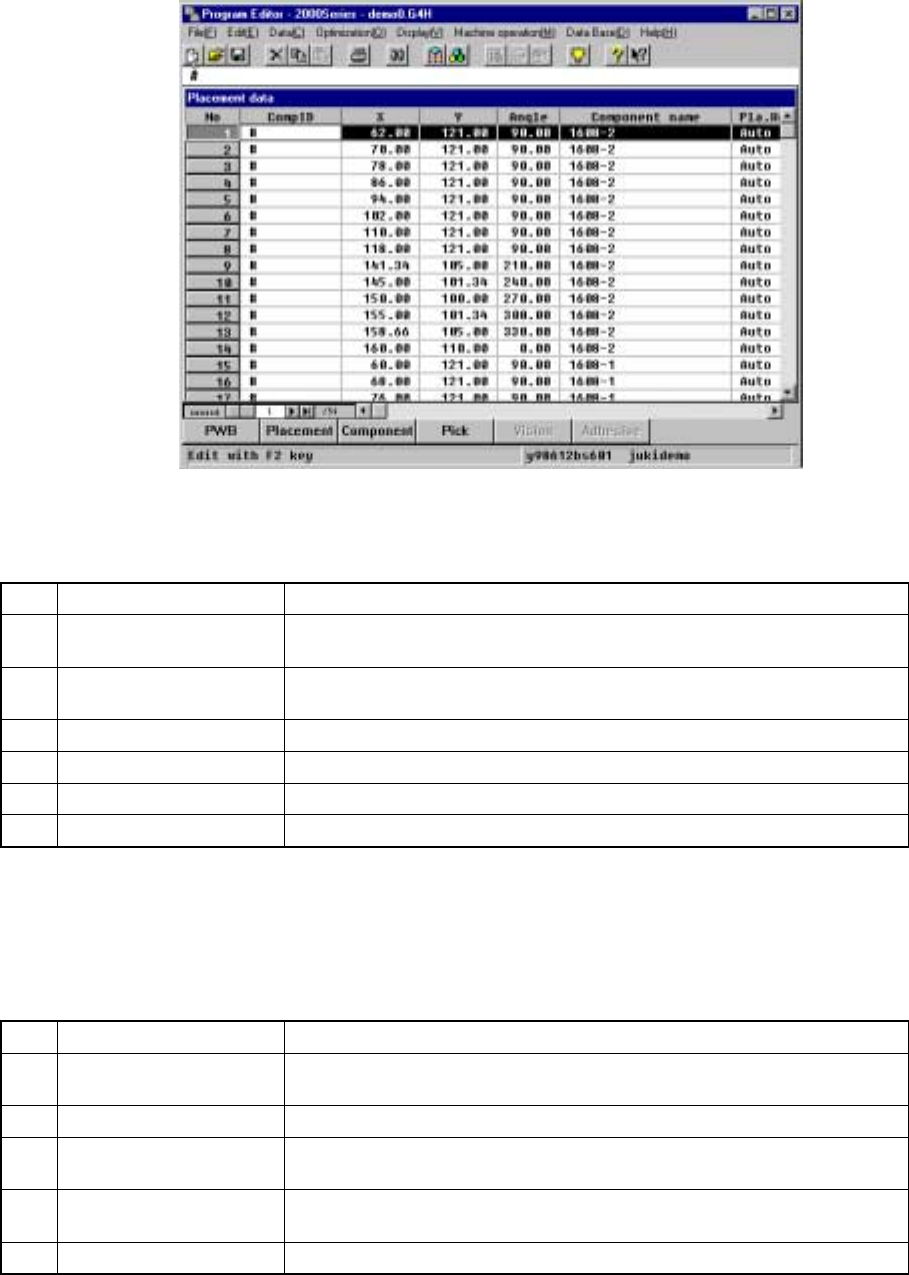
(1) Basic editing method
Data entered from the operation panel is entered into the formula bar or edit box.
Data entered in the formula bar is validated at the cursor position by pressing the
ENTER key or moving the cursor. Data entered in the edit box is validated by
pressing any of the filed selection keys or ENTER key.
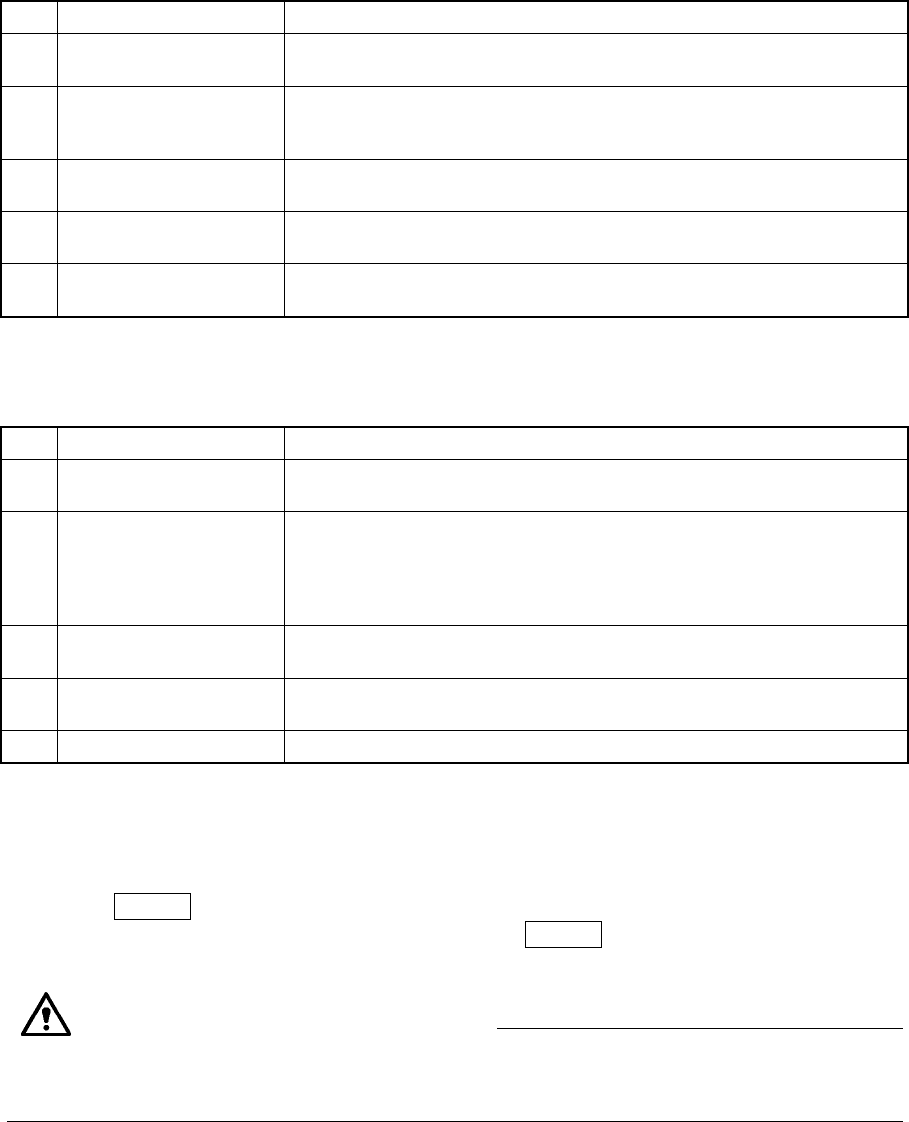
The machine displays the data coherence check results on the note pad. If you change
the “font settings of the note pad”, the results may not be displayed correctly.
Note on changes of the font settings