KE2010.Instruction Manual.Ver.2.01,Rev.08.pdf - 第85页
3 − 12 (2) Keyboard operations ① Page up, Pag e down W hen the infor mation covers two or mor e screen pages, the Page Down key accesses the f ollowing page and the Pageu Up key does the preceding page. Ther e is a scrol…
3 − 11
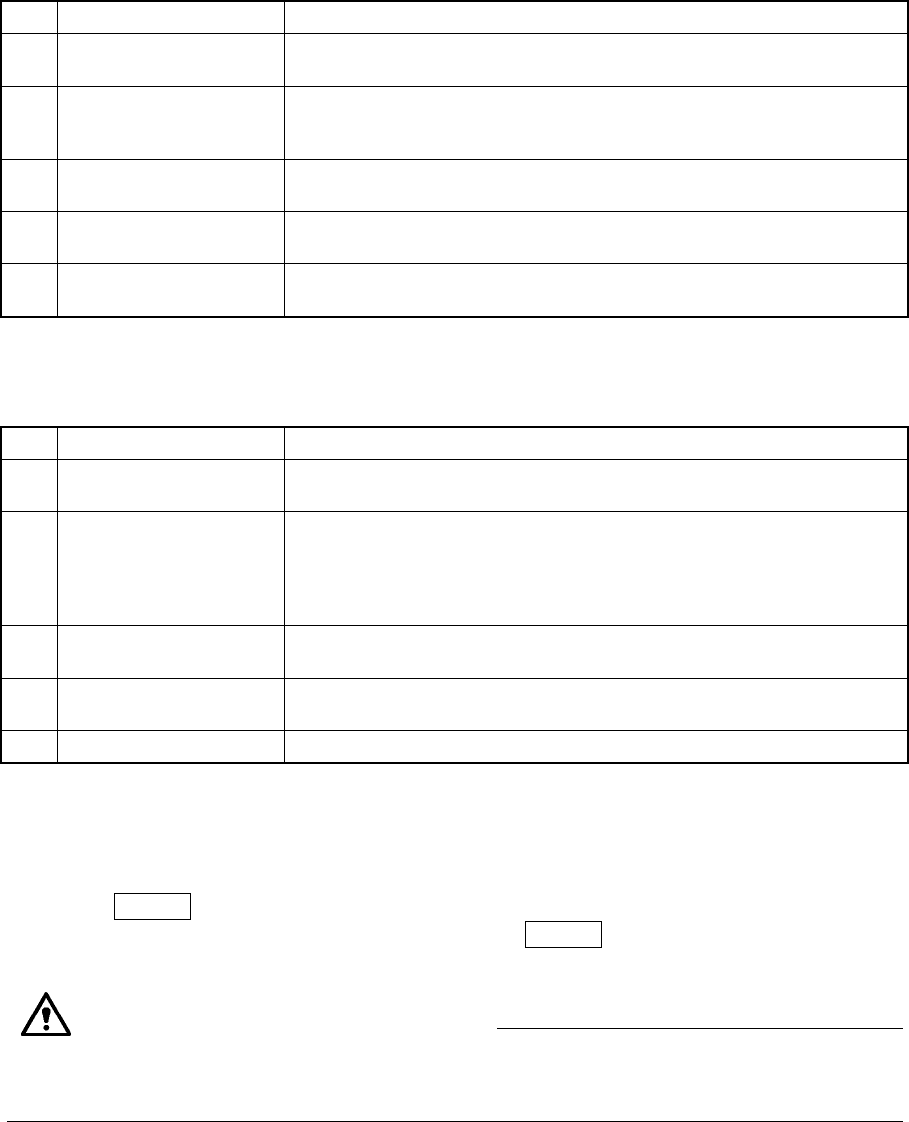
③ Editing the data entered in the edit field using the formula bar (after the EDIT
function key has been pressed)
No. Key Action
1 Back Space
Deletes the character to the left of the cursor’s position, shifting the
character string following the cursor one character space each to the left.
2 Cursor keys
Moves the cursor in the formula bar in the direction of the cursor arrow.
The cursor stops moving ahead when it reaches the starting or ending
character string.
3 ENTER
Fetches the characters shown in the formula bar into the cell.
The input cell is not moved.
4 ESC
Interrupts the data entry procedure.
Empties the data entered so far if pressed during data entry.
5 Field selection keys
Validates your input in the formula bar, then advances the cell to the
direction the key indicates.
④ Entering the data into a cell of the spread sheet.
No. Key Action
1 Back Space
Deletes the character to the left of the cursor’s position, shifting the
character string following the cursor one character space each to the left.
2 Cursor keys
Fetches the characters shown in the formula bar into the cell, and moves to
the next cell in the cursor direction.
When the current cell is the first or last cell on a line, it laps round to the
previous or next line. The current cell stays still when you are at the first
cell on the top line or at the last cell on the bottom line.
3 ENTER
Fetches the characters shown in the formula bar into the cell.
The input cell is not moved.
4 ESC
Interrupts the data entry procedure.
Empties the data entered so far if pressed during data entry.
5 Field selection keys Function in the same manner as the cursor keys do.
(1) Basic editing method
Data entered from the operation panel is entered into the formula bar or edit box.
Data entered in the formula bar is validated at the cursor position by pressing the
ENTER key or moving the cursor. Data entered in the edit box is validated by
pressing any of the filed selection keys or ENTER key.
The machine displays the data coherence check results on the note pad. If you change
the “font settings of the note pad”, the results may not be displayed correctly.
Note on changes of the font settings
3 − 12
(2) Keyboard operations
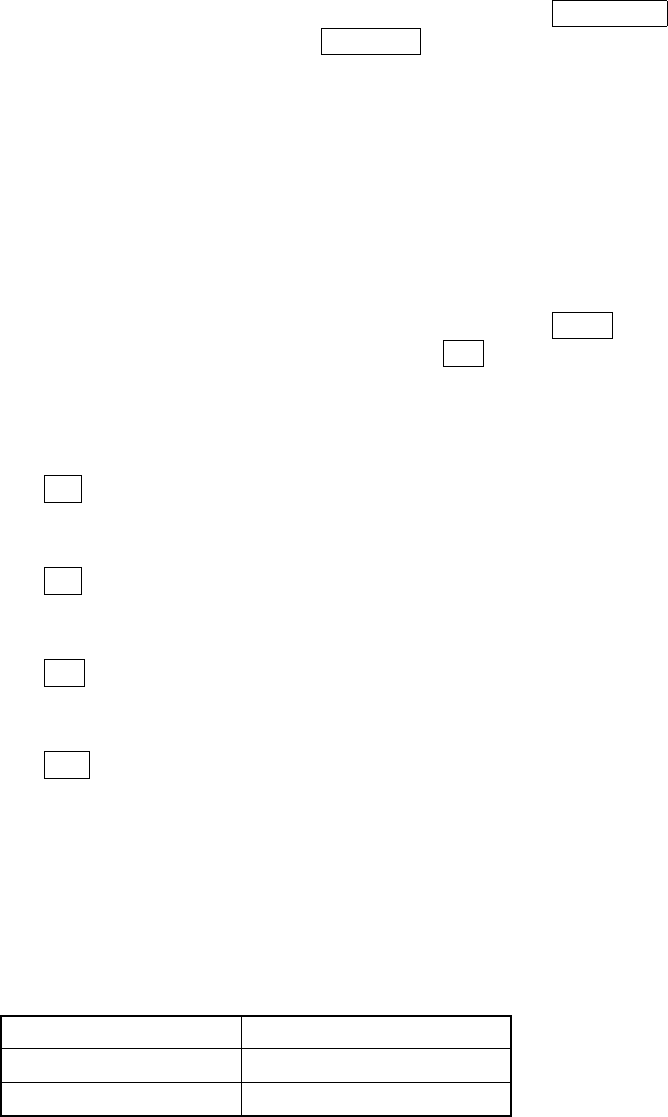
① Page up, Page down
When the information covers two or more screen pages, the Page Down key
accesses the following page and the Pageu Up key does the preceding
page.
There is a scroll bar appearing on the right side of the window when
information covers two or more screen pages. It indicates that there is more
information up or down the screen than the one currently shown on the
display. The scroll box inside the scroll bar tells you the approximate location
you are currently viewing in the entire body of information.
② Home, End
When the information covers two or more screen pages, the Home key
moves the cursor to the beginning of the line and End key does to the end of
the line.
③ Scroll
− If the ↑ key is pressed when you are on the top line of a screen page
and if there is more information vertically before it, the key scrolls the
information down one line.
− If the ↓ key is pressed when you are on the bottom line of a screen
page and if there is more information vertically after it, the key scrolls the
information up one line.
− If the ← key is pressed when you are at the beginning of the line and if
there is more information to the left, the key scrolls the information one
field to the left.
− If the → key is pressed when you are at the end of the line and if there
is more information to the right, the key scrolls the information one field to
the right.
④ Insert
The Insert key toggles data entry mode between the Insert mode and
Overtype mode.
Data entry mode Cursor shape
Insert
❙ Blinking
Overtype
− Blinking
3 − 13
3.4 Starting up or Terminating the System
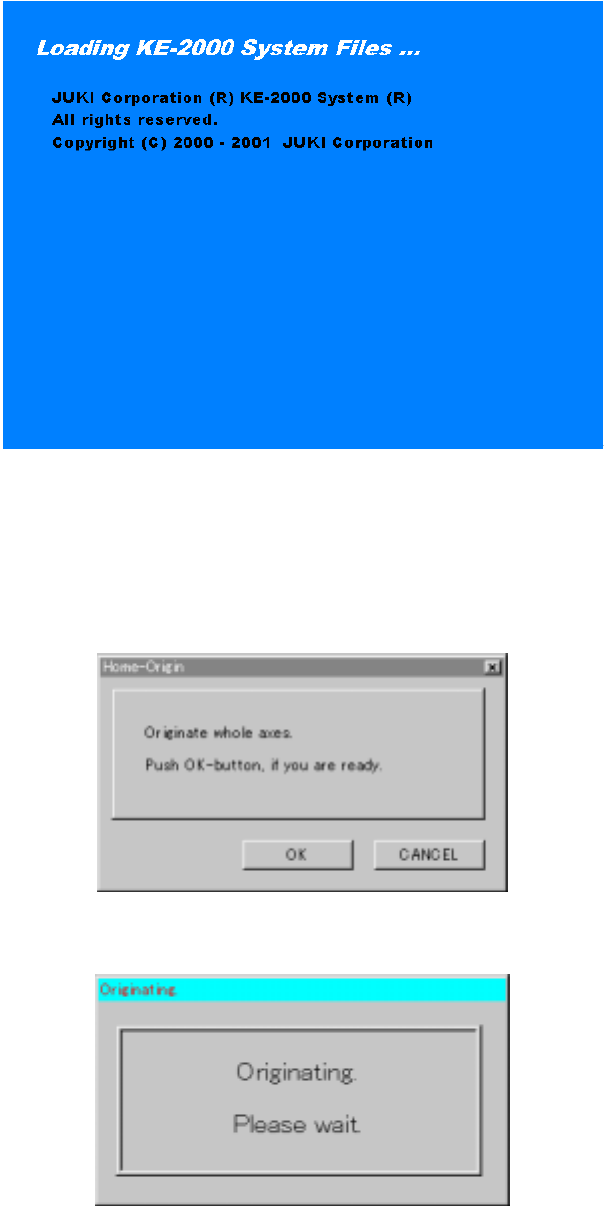
Windows NT starts up after power-on, then the application manager included as the
software for the main unit is executed: the initialize window appears on the screen.
Figure 3.4.1 Start-up screen
When the system is initialized for a while, the <Returning to ORIGIN> screen appears.
If you do not perform the return-to-origin function, press the <CANCEL> key. When
the system completes the return-to-origin function successfully, the application
manager window appears on the screen.
Figure 3.4.2 <Home-Origin> dialog box
Figure 3.4.3 Zeroing waiting dialog box